
 Owen Bradley
 A reliable internet connection is the backbone of remote work, and your router plays a bigger role in that reliability than most people realize. Video calls that freeze, VPNs that drop, and slow file uploads often trace back to an underpowered, outdated, or poorly placed router rather than your internet provider. This guide walks through exactly what remote workers should prioritize when choosing a router, from speed and coverage to security and placement, so your home office connection performs as well as any corporate network.
Why Remote Workers Need a Dedicated Router Strategy
Unlike casual home browsing, remote work demands stable upload speeds, low latency, and the ability to handle multiple simultaneous connections. On any given workday you might run a video conference, sync files to the cloud, keep a VPN tunnel open, and share the network with a partner or kids streaming in the background. A router built for basic browsing can buckle under this combined load, causing dropped calls, frozen screens, and sluggish performance during the exact moments professionalism matters most.
The router provided by most internet service providers is typically built to a price point rather than for performance. It may lack modern Wi-Fi standards, strong antennas, or the processing power to manage encryption and heavy multi-device traffic. Upgrading to a router chosen specifically for remote work often resolves connectivity headaches that no amount of calling your ISP will fix.
Key Features to Look For
Wi-Fi 6 or Wi-Fi 6E Support
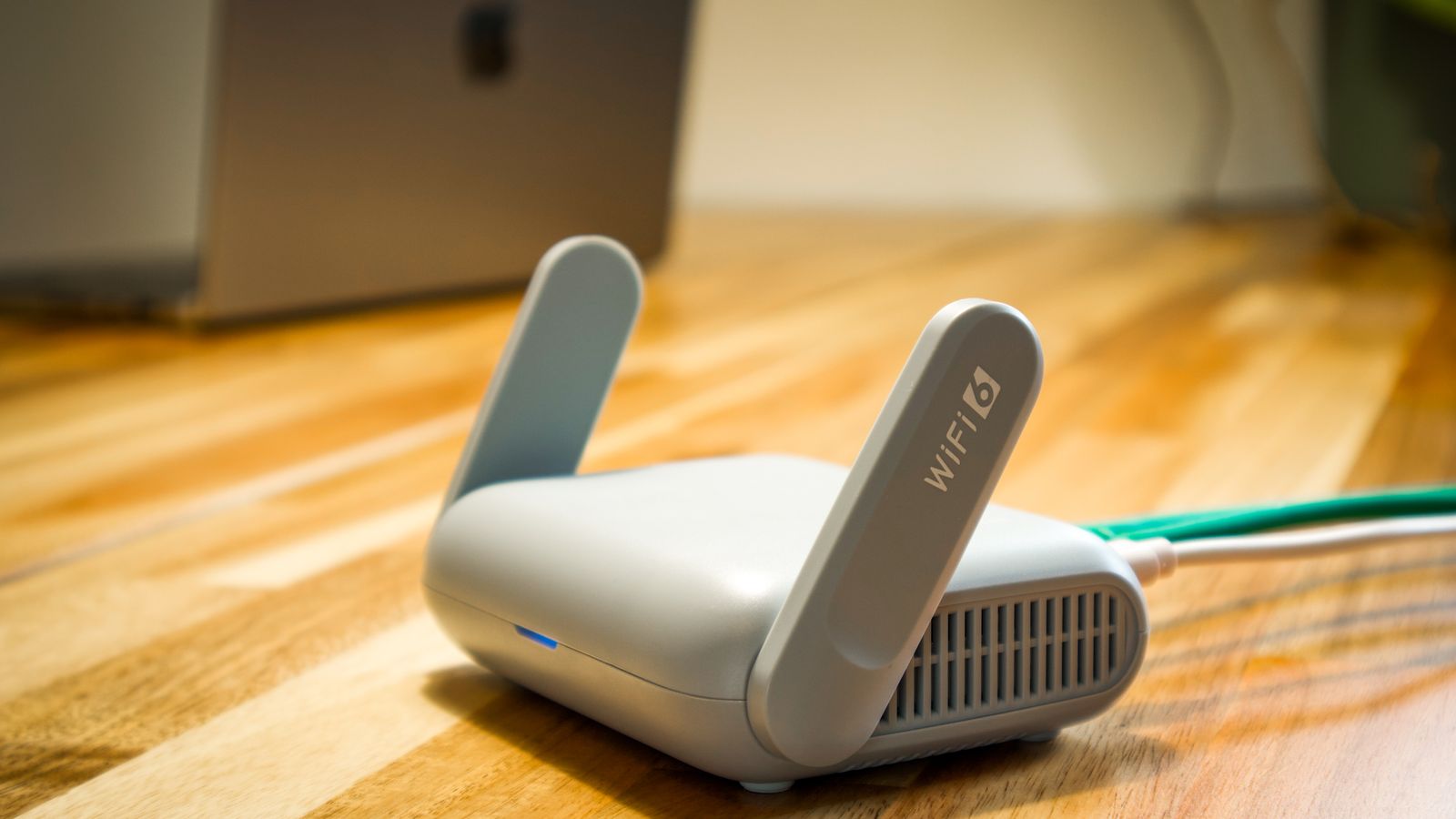
Newer Wi-Fi standards handle multiple connected devices far more efficiently than older Wi-Fi 5 routers, reducing congestion when several devices compete for bandwidth at once. Wi-Fi 6 uses technologies like OFDMA and improved MU-MIMO to serve many devices simultaneously rather than making them wait their turn. If your household has more than three or four connected devices, Wi-Fi 6 is worth the investment for smoother, more consistent video calls.
Strong Upload Speeds
Most home internet plans are asymmetrical, offering much faster download than upload speeds. Since video calls, screen sharing, and cloud backups depend heavily on upload bandwidth, confirm your router can pass the full upload capacity of your plan rather than bottlenecking it. A router that chokes upload throughput is a common and overlooked cause of grainy video and delayed audio during meetings.
Quality of Service (QoS) Controls
QoS lets you prioritize traffic for specific devices or applications, ensuring your work laptop gets bandwidth priority over a smart TV streaming in another room. This single feature can prevent most video call quality issues in a busy household by guaranteeing your conferencing app always has the bandwidth it needs, even during peak evening usage.
VPN Compatibility
Many companies require a VPN connection for secure access to internal systems. Look for a router with built-in VPN client support or one confirmed to handle VPN traffic without significant speed loss, since some budget routers struggle with the extra encryption overhead and cut throughput dramatically when a VPN is active.
Dual-Band or Tri-Band Coverage
Dual-band routers separate traffic across two frequencies, reducing interference, while tri-band models add a second 5GHz band for even less congestion in busy homes. For a dedicated home office, this separation keeps your work devices on a cleaner, faster signal path while household devices use another band.
Processor and Memory
A capable multi-core processor and adequate RAM allow a router to manage many simultaneous connections, encryption, and QoS rules without slowing down. Underpowered routers show real-world speeds far below their advertised numbers once the network gets busy, which is exactly when a remote worker needs consistency most.
Matching a Router to Your Home Office Setup
If your office is a single dedicated room close to where your internet enters the home, a strong standalone router is often enough. For homes with a home office set up on a different floor or far from the modem, consider a mesh system or a router paired with a wired backhaul to your workspace, since Wi-Fi signal degrades noticeably through multiple walls and floors.
For workers whose entire job depends on the connection, it’s worth browsing dedicated options like the best routers for working from home, many of which are tested specifically for video call stability and VPN throughput. If you’re setting up a more formal or shared office environment, models featured among the best routers for office use tend to offer stronger multi-device handling, business-grade security, and features like VLAN support for separating work traffic.

Security Considerations for Remote Workers
Because remote work often involves handling sensitive company data, router security deserves special attention. Choose a router with WPA3 encryption, automatic firmware updates, and the ability to create a separate guest network to isolate work devices from smart home gadgets and personal devices. Network segmentation limits how far an attacker could move if a less secure device on your network were ever compromised.
Some routers also include built-in threat detection that flags suspicious traffic before it reaches your laptop, along with parental and content controls that double as security tools. Keeping firmware current is one of the simplest yet most neglected security steps, as manufacturers regularly patch vulnerabilities that attackers actively exploit on outdated devices.
Understanding Mesh vs Single Router
A single powerful router works well for apartments and smaller homes where the signal doesn’t have to travel far. Mesh systems use multiple nodes that blanket a larger home in consistent coverage, handing your devices off seamlessly as you move between rooms. For remote workers in larger or multi-story homes, mesh eliminates the dead zones and weak spots that cause a call to drop the moment you step away from your desk. Where possible, connect mesh nodes with a wired backhaul to preserve full speed between units.
Budget Guidance
Entry-level Wi-Fi 6 routers are a reasonable starting point for single-person households with modest bandwidth needs. Mid-range routers with better antennas, QoS, stronger processors, and VPN support suit most remote workers juggling video calls and cloud tools daily. If you work in a larger home or need mesh coverage, budget for a multi-unit system, which costs more upfront but eliminates the dead zones that could otherwise disrupt an important meeting.
Placement Tips for Better Performance
Even the best router underperforms if placed poorly. Keep it elevated, centrally located, and away from thick walls, metal cabinets, aquariums, and microwaves that interfere with the signal. Avoid hiding it inside a closet or cabinet for aesthetics, since enclosures can cut effective range significantly. If your workspace is in a basement or far corner, consider running an ethernet cable directly to your desk for the most stable connection possible during important calls.
Common Mistakes to Avoid
Many remote workers stick with the router provided by their ISP, which is often underpowered for demanding, multi-device households. Others overlook firmware updates, leaving known security vulnerabilities unpatched for months. Some buy a fast router but place it poorly, then blame their internet provider for slow speeds. Finally, relying entirely on Wi-Fi for a stationary work machine when a simple ethernet run would deliver far more reliable performance is a frequent and easily fixed oversight.
Setting Up Your New Router for Work
Once you’ve chosen a router, a careful setup makes the difference between adequate and excellent performance. Start by placing the router centrally and elevated, then log into its admin panel to update the firmware immediately, since routers often ship with older software. Change the default admin password to something strong and unique, and enable WPA3 encryption if your devices support it.
Next, configure your two bands thoughtfully. Reserve the less congested 5GHz band for your work laptop and video conferencing devices, and let older or less demanding devices use the 2.4GHz band, which offers longer range at slower speeds. If your router supports QoS, prioritize your work machine and conferencing applications so they always receive bandwidth first during busy periods.
Finally, create a separate guest or IoT network for smart home devices, visitors, and anything that doesn’t need access to your work files. This segmentation both improves security and keeps chatty smart devices from competing with your work traffic. Test the setup with a wired and wireless speed test during a typical workday to confirm everything performs as expected under real conditions.

Signs It’s Time to Upgrade
If your current router predates Wi-Fi 6, struggles when several devices are active, or drops your VPN or video calls regularly, those are clear signals it can no longer keep up with modern remote work. Frequent buffering, needing to restart the router to restore speeds, and dead zones in rooms where you used to have signal all point to hardware that has aged out. Upgrading is usually far cheaper than the lost productivity and frustration of an unreliable connection that interrupts your workday.
Frequently Asked Questions
Do I need Wi-Fi 6 for remote work?
It’s not mandatory, but it noticeably improves performance in households with multiple connected devices competing for bandwidth during work hours, and it future-proofs your setup.
Should I use ethernet instead of Wi-Fi for video calls?
A wired connection is always more stable and lower latency than Wi-Fi, so it’s worth using whenever possible for important meetings and large uploads.
How much should I spend on a router for remote work?
Mid-range routers offer the best balance of speed, QoS, and security for most remote work setups without paying for enterprise features you won’t use.
Will a new router increase my internet speed?
It won’t exceed the speed of your plan, but a better router can help you actually reach that speed and maintain it consistently across many devices.
Is a mesh system overkill for a small apartment?
For most apartments a single strong router is sufficient; mesh becomes valuable in larger or multi-story homes where one router can’t cover every room.
Final Thoughts
Your router is an often-overlooked piece of remote work infrastructure, but upgrading to one built for multi-device households with strong upload speeds, QoS, VPN support, and solid security can eliminate most of the connectivity headaches that disrupt a productive workday. Match the router to your home’s size and your workload, place it well, and keep its firmware current for a connection you can rely on meeting after meeting.









