
 Owen Bradley
 Working from home for long stretches can take a serious toll on your body if your workspace isn’t set up correctly. Back pain, wrist strain, and neck stiffness are often the direct result of poor desk height, an unsupportive chair, or a monitor positioned at the wrong angle. This guide walks through every element of an ergonomic home office, from seating to lighting, so you can build a setup that keeps you comfortable and productive throughout the workday.

Why Ergonomics Matters for Home Workers
When you work in a traditional office, furniture is often chosen with ergonomics in mind and adjusted by facilities staff. At home, most people improvise with whatever chair and table they already own, which is exactly why home-office discomfort is so common. Sitting for hours in an unsupportive setup places uneven stress on your spine, shoulders, wrists, and neck, and small daily strains accumulate into chronic pain over months and years. The good news is that ergonomics isn’t about buying the most expensive gear; it’s about positioning your body correctly and supporting it properly. Getting the fundamentals right pays dividends in comfort, focus, and long-term health, and it doesn’t require a professional consultant to achieve.
Start With Your Chair: The Foundation of Ergonomics
Your chair is arguably the single most important piece of ergonomic equipment in your home office, since you spend hours a day in direct contact with it. Look for adjustable seat height, lumbar support, and armrests that can be positioned to keep your shoulders relaxed rather than hunched. The seat depth should allow two to three fingers of space behind your knees when your back is against the backrest.
Investing in one of the well-reviewed desk chairs for home offices pays off quickly in reduced fatigue and fewer aches at the end of the day, especially compared to using a dining chair or couch as a makeshift workstation.
Desk Height and Sit-Stand Options
Your desk height should let your elbows rest at roughly a 90-degree angle when typing, with your forearms parallel to the floor. If your current desk is a fixed height that doesn’t match your body, an adjustable option solves the problem permanently. Sit-stand desks in particular allow you to alternate between sitting and standing throughout the day, which research consistently links to reduced back pain and improved circulation.
When comparing adjustable options, look at weight capacity, height range, and how smoothly the desk transitions between positions. Many people find that testing a few standing desks for home offices side by side helps clarify which motor speed and stability level suits daily use.
Monitor Placement and Eye Level
Improper monitor height is one of the most common causes of neck strain. The top of your screen should sit at or just below eye level, roughly an arm’s length away from your face. If you use a laptop as your primary display, consider pairing it with an external monitor or a laptop stand paired with an external keyboard, since laptops alone almost always force your neck into a downward angle.
For dual-monitor setups, position both screens at the same height and angle them slightly inward to reduce the amount of neck rotation needed to look between them.

Keyboard and Mouse Positioning
Keep your keyboard and mouse close enough that you don’t have to reach forward, which strains your shoulders over time. Your wrists should remain straight and neutral while typing rather than bent up, down, or to the side. A cushioned wrist rest can help, but proper desk and chair height that lets your forearms rest naturally is more effective than any accessory.
Lighting and Eye Strain Prevention
Good lighting reduces eye strain and headaches during long work sessions. Position your desk perpendicular to windows rather than facing them directly, which prevents glare on your screen. Supplement natural light with a dedicated task lamp positioned to avoid casting shadows across your keyboard.
- Ambient lighting: Overall room lighting should be soft enough not to create harsh screen glare.
- Task lighting: A focused desk lamp helps for reading documents or writing notes.
- Color temperature: Warmer light in the evening can reduce eye fatigue compared to cool, bright white light late in the day.
Choosing among the top desk lamps for home offices with adjustable brightness and color temperature gives you flexibility to match lighting to the time of day and task at hand.
Organizing Cables and Reducing Clutter
A cluttered desk isn’t just visually distracting, it can force awkward reaching and reduce your usable work surface. Managing cables and accessories is an underrated part of an ergonomic setup. Route power and data cables along the back of the desk using clips or a cable tray, and keep frequently used items within easy arm’s reach so you’re not stretching or twisting repeatedly throughout the day.
A tidy workspace also makes it easier to reposition your keyboard, mouse, and monitors as needed, since you’re not fighting a tangle of wires every time you adjust. If your home office doubles as a gaming or networking hub, keeping routers, hubs, and peripherals neatly organized prevents the desk from becoming crowded and keeps airflow around your equipment clear.
Reducing Repetitive Strain Injuries
Repetitive strain injuries (RSIs) like carpal tunnel syndrome develop gradually from sustained awkward postures and repetitive motions. Prevention is far easier than treatment. Beyond keeping wrists neutral, vary your input methods when possible, take microbreaks to shake out your hands, and consider ergonomic accessories if you already feel early warning signs like tingling or aching in the wrists and forearms.
- Keyboard angle: A flat or slightly negative-tilt keyboard keeps wrists straighter than one propped up on rear feet.
- Mouse grip: Choose a mouse that fits your hand size so you’re not straining to grip or click.
- Document placement: Use a document holder positioned near the screen to avoid repeatedly bending your neck down to reference papers.
- Foot support: If your feet don’t rest flat on the floor at proper desk height, a footrest maintains healthy leg circulation and posture.
Managing Temperature and Air Quality
Comfort isn’t only about furniture. A workspace that’s too hot, too cold, or stuffy hurts concentration and adds fatigue over a long day. Position your desk to take advantage of natural ventilation where possible, and keep a small fan or heater within reach to fine-tune your immediate environment. Plants and good airflow can improve air quality, and staying hydrated (keeping a water bottle at your desk) helps maintain focus and encourages the occasional stand-up break to refill.
Building Movement Into Your Day
Even the best ergonomic setup can’t fully offset hours of static sitting. Build in short breaks every 30-60 minutes to stand, stretch, or walk briefly. Alternating between sitting and standing at a height-adjustable desk, combined with periodic movement breaks, does far more for long-term comfort than any single piece of furniture. Simple habits like standing during phone calls, doing a few shoulder rolls between tasks, or walking to refill your water all add up to meaningfully less stiffness by the end of the day.
Adapting the Space for Different Tasks
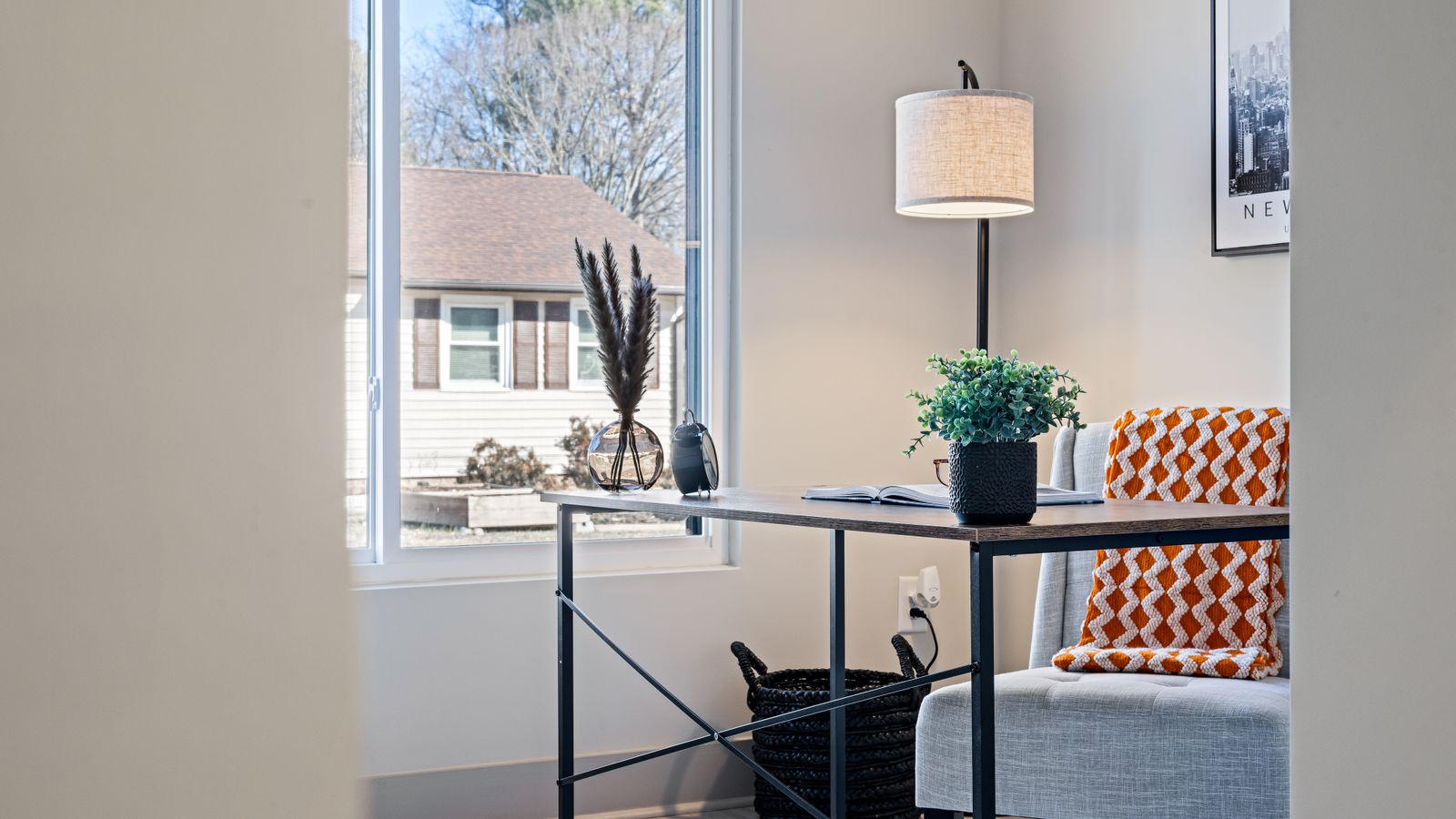
Not all work is the same, and an ergonomic home office should flex to match what you’re doing. Focused typing work benefits from a keyboard and mouse positioned close and a chair set for upright support, while reading or reviewing documents may be more comfortable in a slightly reclined position that takes pressure off the lower back. If you take frequent video calls, position your webcam at eye level so you’re not looking down, which is both more flattering and easier on your neck. For creative work involving a graphics tablet or extended mouse use, giving your dominant arm more desk space and a supportive armrest reduces shoulder fatigue. The ability to make small adjustments throughout the day, raising a sit-stand desk, tilting the chair, or repositioning a monitor, keeps your body from locking into a single static posture, which is ultimately the biggest driver of discomfort over long hours.
Budgeting Your Ergonomic Upgrade
You don’t need to overhaul your entire office at once. If budget is tight, prioritize the chair first since it has the most direct impact on posture and comfort, followed by monitor height correction (often solvable with an inexpensive stand or a stack of books), and then desk height or a sit-stand converter. Lighting upgrades tend to be the most affordable and can be added last.
Frequently Asked Questions
What is the single most important ergonomic upgrade?
For most people, an adjustable, supportive chair delivers the biggest improvement in comfort since it directly affects posture for the majority of the workday.
Do I really need a standing desk?
Not strictly, but alternating between sitting and standing reduces the health risks associated with prolonged sitting and can improve energy levels throughout the day.
How often should I take breaks from my desk?
Aim for a short break every 30-60 minutes to stand, stretch, or walk, even if it’s just for a minute or two.
Can I make my current furniture more ergonomic without buying new pieces?
Often yes. A cushion or lumbar pillow can improve an existing chair, a stack of sturdy books or a stand can raise a monitor to eye level, and an external keyboard lets you position a laptop screen higher. These low-cost fixes address the biggest ergonomic issues.
What’s the ideal desk height?
The right height lets your elbows rest at roughly 90 degrees with forearms parallel to the floor while typing. This varies by person, which is why adjustable desks are so valuable.
Final Thoughts
An ergonomic home office isn’t built overnight, but each thoughtful upgrade, from a supportive chair to properly positioned monitors and good lighting, compounds into meaningfully less pain and more sustained focus. Start with the fundamentals, adjust as your needs change, and your body will thank you after long workdays.









