
 Owen Bradley
 Neck ache that builds through the afternoon, shoulders that creep toward your ears, a dull tension at the base of the skull: these are rarely caused by the chair alone. More often the monitor is sitting too low, too close, or too far to one side, and your head has been quietly compensating for it all day. Your head weighs roughly the same as a bowling ball, and every inch it tips forward multiplies the load your neck muscles must hold. Getting monitor height ergonomics right is one of the cheapest and fastest improvements you can make to a desk setup. This guide covers exactly where the screen should sit, how far back it belongs, and how to handle dual displays.
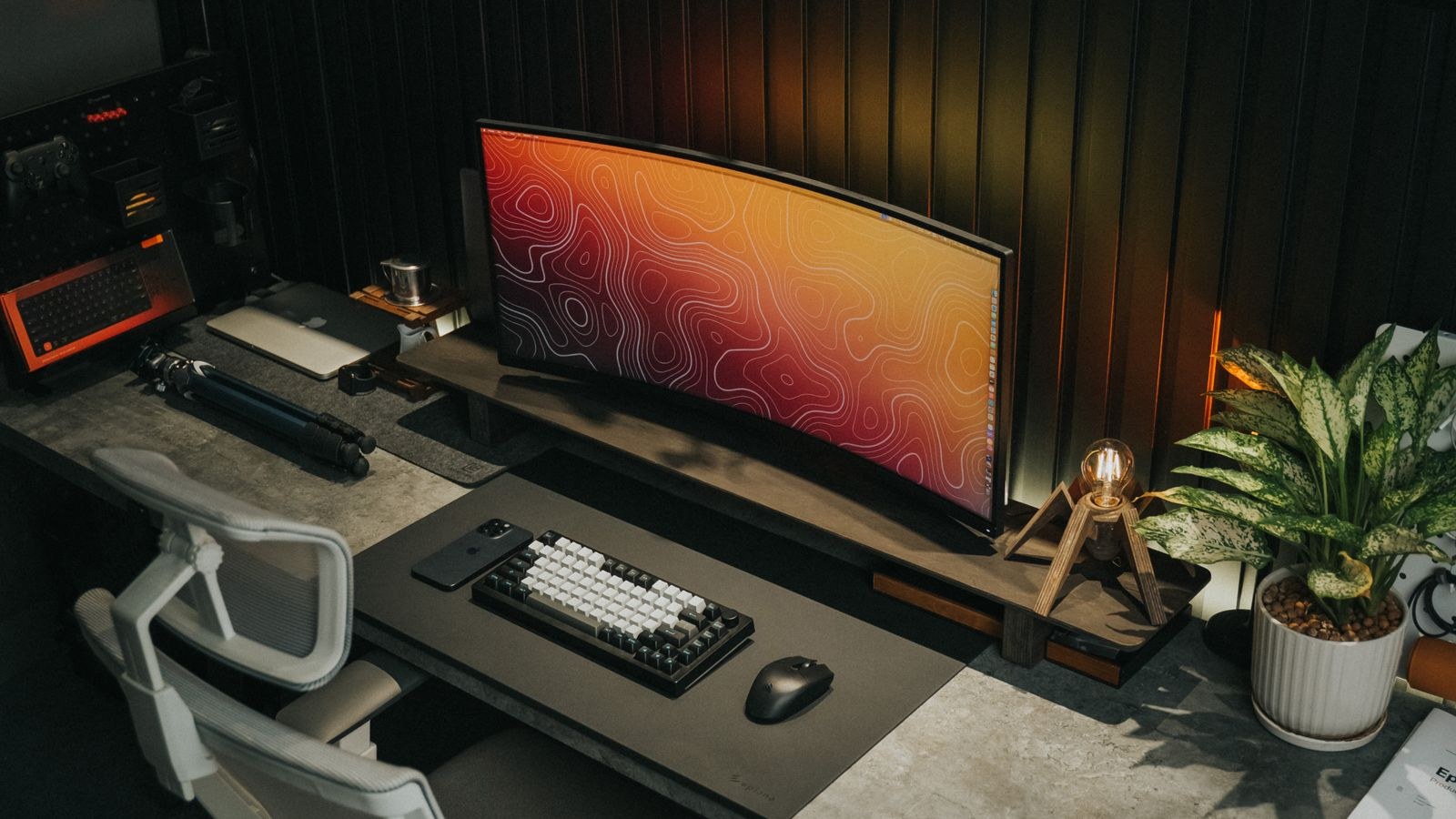
The Principle Behind Screen Height
A neutral neck is one where your head balances directly over your spine, ears roughly above shoulders, with a slight natural downward gaze. Your eyes comfortably scan about 15 to 20 degrees below horizontal without any head movement, which is why the ideal screen sits slightly below eye level rather than dead centre on it.
Too low and you tilt your head forward and down, loading the muscles at the back of the neck continuously. Too high and you tilt your chin up, compressing the joints at the back of the neck and forcing your eyes to open wider, which dries them out faster. The target is a position where you can look at the middle of the screen with your head level and your eyes doing the small amount of downward work they naturally prefer.
What You Need Before You Adjust
- An adjustable chair, since chair height sets everything else
- The monitor’s own stand, a VESA monitor arm, or a stack of sturdy books or risers
- A tape measure, though an arm’s length works as a rough gauge
- A few minutes to sit and test rather than eyeballing it standing up
Fix the chair before the screen. If your chair cannot support your lower back or set your feet flat on the floor with thighs roughly level, everything above it will be a compromise. Options that get the base right are covered in the best ergonomic office chairs.
Step-by-Step: Setting Monitor Height and Distance
- Set chair height first. Adjust until your feet are flat on the floor, knees at roughly 90 degrees, and your forearms are level with the desk surface when your shoulders are relaxed. Use a footrest if the desk is too tall to lower.
- Sit back fully against the backrest. All measurements should be taken in the posture you will actually work in, not perched forward on the edge of the seat.
- Look straight ahead and close your eyes. Open them and note where your natural gaze lands on the screen. That point should be roughly the upper third of the display.
- Position the top of the screen at or just below eye level. For most people this means the top bezel sits level with the eyebrows or slightly under. If you wear progressive or bifocal lenses, go lower, because you read through the bottom of the lens and a higher screen forces a permanent chin lift.
- Set the distance at about an arm’s length. Reach out; your fingertips should roughly touch the screen. That is 20 to 30 inches for a 24 to 27 inch display. Larger and ultrawide panels need to move further back so you can take in the whole surface without turning your head.
- Centre the monitor directly in front of you. The middle of the screen should line up with your nose and the middle of your keyboard. An off-centre screen produces a permanent, subtle spinal twist that is one of the most overlooked causes of one-sided shoulder pain.
- Tilt the screen back 10 to 20 degrees. A slight backward tilt keeps the whole surface roughly perpendicular to your line of sight, which reduces both focusing effort and reflected glare from overhead lights.
- Increase text scaling rather than leaning in. If you catch yourself moving your head toward the screen, the text is too small. Raise the scaling in your operating system’s display settings and keep your distance.
- Sit and work for a full day, then reassess. Small errors only reveal themselves after hours. Adjust in half-inch increments rather than starting over.
Adjusting for Dual Monitor Setups
Two screens double the ergonomic complexity because you cannot centre both. The right answer depends on how you use them:
- One primary, one secondary. Centre the main screen directly in front of you and angle the secondary inward at roughly 30 degrees off to one side. Most people do the majority of their work on one screen, and this arrangement protects that.
- Both used equally. Place the inner edges together, centred on your body, and angle both inward to form a shallow V. You will turn your head slightly for each, which is fine as long as it is symmetrical.
- Stacked vertically. Useful for reference material. Keep the primary screen at normal height and put the secondary above it, accepting that you will look up only occasionally.
Whatever the layout, match the height and tilt of both panels exactly. A height mismatch means every glance between screens includes a small head tilt, and repeated hundreds of times a day that becomes a genuine strain source. Monitor arms make this far easier than built-in stands, since they allow independent fine adjustment on every axis and free up the desk surface underneath.
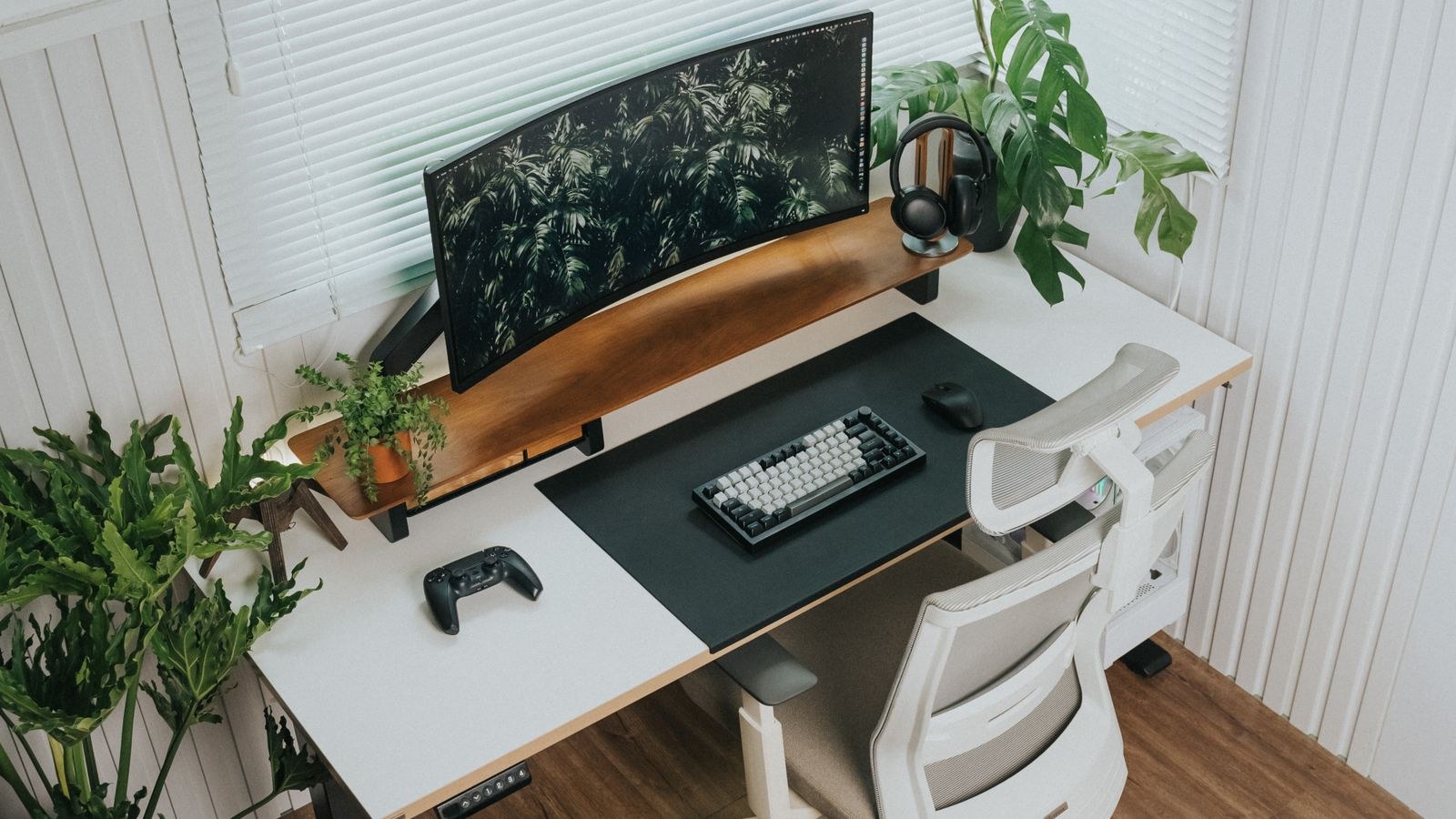
When the Desk Is the Problem
Sometimes the screen cannot go where it needs to because the desk itself is wrong. Fixed desks are usually built around a standard height that suits people of average build and nobody else. If you are tall and find your knees hitting the underside, or short and cannot get your feet down without dangling, the monitor position is being dictated by a compromise you never chose.
Height-adjustable surfaces solve this directly, letting you set the working height to your body rather than the other way around, and letting you alternate between sitting and standing without redoing the monitor position each time. Our roundup of the best ergonomic desks covers what to look for in stability and adjustment range. If you would rather solve the height problem with a fixed integrated riser, the options in the best desks with monitor stand build the lift into the surface itself. And if you are assembling everything from scratch, our walkthrough on building an ergonomic home office sets out the order to tackle chair, desk, screen, and lighting.
Screen size and resolution also shape how far back you can sit. A larger panel viewed from further away needs enough pixel density to keep text sharp at that distance, which is worth checking against the picks in the best monitors for home office.
Common Mistakes to Avoid
- Working on a laptop screen at desk height. A laptop cannot put the screen and keyboard in ergonomic positions simultaneously. Raise the laptop and add an external keyboard, or attach an external display.
- Placing the monitor too high. The old advice to put the top bezel above eye level causes chin lift and dry eyes. Slightly below is correct.
- Leaving the screen off to one side. Even a small offset creates a constant rotational load on the neck and lower back.
- Sitting too close to a large panel. Anything above 32 inches viewed at arm’s length forces continuous head turning to reach the edges.
- Treating the setup as permanent. The healthiest posture is the next one. Vary your position through the day rather than trying to hold one perfect pose.
Troubleshooting Persistent Discomfort
If the geometry looks right but symptoms continue, work through the likely culprits. Neck pain at the base of the skull usually means the screen is still too low or you are leaning in to read small text. Upper shoulder tension often traces to a desk or armrests set too high, forcing your shoulders to shrug. One-sided pain almost always indicates an off-centre screen or a mouse placed too far out. Tired, gritty eyes point to brightness mismatched with the room, or to the screen sitting too high, which exposes more of the eye surface to air.
Also check your glasses. Progressive lenses in particular interact badly with a screen positioned by generic advice, and many people solve months of neck pain simply by dropping the monitor two inches or asking their optician about dedicated computer lenses.
Frequently Asked Questions
Should the top of the monitor be at eye level?
At or just below. Your natural resting gaze angles slightly downward, so a screen whose top edge sits level with or a touch under your eyes lets you view the whole panel without tilting your head.
How far away should a 27 inch monitor be?
Roughly 24 to 30 inches, about an arm’s length. If text is hard to read at that distance, increase display scaling rather than moving the screen closer.
Is a monitor arm worth it?
For most people yes. It gives independent height, depth, tilt, and swivel control that stock stands rarely match, clears desk space, and makes dual setups far easier to align.
Where should an ultrawide monitor sit?
Further back than a standard panel, centred, and with a slight inward curve if available, so the edges stay within your field of view without head rotation.
Does a standing desk change the monitor position?
The relationship stays the same, but the absolute height changes. Use a monitor arm so you can move the screen with you, or set the standing height so the screen still lands just below eye level.
Final Thoughts
Correct monitor height ergonomics comes down to a short checklist: chair first, top of the screen at or just below eye level, roughly an arm’s length away, centred on your body, tilted back slightly, with text scaled up rather than your head leaning in. Match dual displays in height and tilt so glancing between them costs nothing. Then treat the result as a starting point rather than a finished answer, adjusting in small increments over the following week and changing posture regularly through the day. Very little of this costs money, and for most people it removes more daily discomfort than any single piece of equipment.









