
 Owen Bradley
 Sizing storage for a camera system looks like a maths problem, and it partly is, but the number that matters is not terabytes. It is days of retention: how far back you can scroll when you discover a broken window on Monday morning after a weekend away. A 4TB drive can hold three weeks of footage or three days of it, depending entirely on how many cameras you run, at what resolution, and whether they record all the time or only on motion. This security camera hard drive size guide gives you a working formula, realistic per-camera bitrate figures, and the settings that stretch retention the furthest without wrecking the footage you actually need. Get it right once and you will not be guessing at drive sizes again in 2026.
How Much Retention Do You Actually Need?
Before calculating anything, decide the target. For most homes, 14 days is the practical minimum, because that covers a two-week holiday and gives you time to notice something happened. 30 days is the comfortable standard and what most small businesses aim for. Anything beyond 60 days is usually driven by insurance requirements, licensing conditions, or a specific compliance rule rather than by everyday usefulness.
Short retention is the most common regret. People discover fence damage, a missing package, or a neighbour dispute days after the event, only to find their system overwrote the evidence 72 hours ago. Storage is the cheapest part of a camera system per unit of value, so when you are between two drive sizes, take the larger one.
The Formula That Actually Works
Everything comes down to bitrate, the amount of data each camera produces per second. The calculation is:
- Bitrate in Mbps ÷ 8 gives megabytes per second.
- × 3600 gives megabytes per hour.
- × hours recorded per day × number of cameras gives megabytes per day.
- × retention days ÷ 1,000,000 gives the terabytes required.
A worked example: four cameras at 4Mbps each, recording continuously for 24 hours, kept for 30 days. Each camera produces 4 ÷ 8 = 0.5MB/s, or 1800MB per hour, or 43,200MB per day. Four cameras produce 172,800MB per day, and across 30 days that is 5,184,000MB, or roughly 5.2TB. With no overhead allowance, a 6TB drive is the sensible purchase.
Notice that resolution never appears directly in the formula. Resolution influences bitrate, but bitrate is what your recorder writes, and it is the figure you can read and set in the camera menu. Always calculate from bitrate, not from megapixels.
Realistic Bitrates by Resolution
These are typical H.265 bitrates for a camera watching a moderately busy scene. Simple, static views run lower; a camera pointed at a windy tree line or a busy street runs considerably higher.
- 1080p (2MP) — around 2 to 4Mbps. Roughly 1TB per camera per month of continuous recording at the middle of that range.
- 4MP — around 4 to 6Mbps, or roughly 1.6TB per camera per month.
- 5MP — around 5 to 8Mbps, roughly 2TB per camera per month.
- 4K (8MP) — around 8 to 16Mbps, or 3TB to 5TB per camera per month.
Older H.264 compression roughly doubles all of those figures, which is why the codec matters more than almost any other setting. If your cameras and recorder both support H.265 or H.265+, enable it, because the same visual quality lands in half the space. Detail on how resolution tiers translate into everyday footage quality and drive demands is covered in our roundup of the best home CCTV systems, which is worth reading before you commit to a 4K system and the storage it needs.
Continuous Versus Motion Recording
The single biggest lever on retention is not drive size at all: it is whether you record around the clock. Continuous recording captures everything with no gaps and no missed events, but it fills drives fastest.
Motion-triggered recording typically reduces storage use by 50 to 80 percent for a quiet residential property, though a camera watching a road or a garden full of moving foliage may see barely any saving. Most modern recorders offer a middle path worth using: record continuously at a low frame rate and low bitrate, then switch to full quality when motion or a person is detected. You keep an unbroken timeline for context and full-detail footage for anything that matters.
A second refinement is dual-stream recording. The recorder stores a high-quality main stream for evidence and a small sub-stream for live viewing and fast scrubbing. The sub-stream costs very little space and makes reviewing a month of footage far less painful. Systems that handle these recording modes well are compared in our roundup of the best local storage security cameras.

Frame Rate and Its Effect on Storage
Frame rate scales bitrate almost linearly. Dropping from 30fps to 15fps roughly halves the file size, and for the vast majority of surveillance purposes 15fps is entirely sufficient. Faces are still readable, movement is still traceable, and nobody watching back a break-in has ever complained about the frame rate.
Where higher rates earn their space is on cameras covering fast movement at close range, such as a driveway where vehicles pass quickly or a till point where hand movements matter. Set those to 20 or 25fps and leave everything else at 12 to 15fps. Doing this selectively across an eight-camera system often frees up more storage than upgrading the drive would.
Choosing the Right Type of Drive
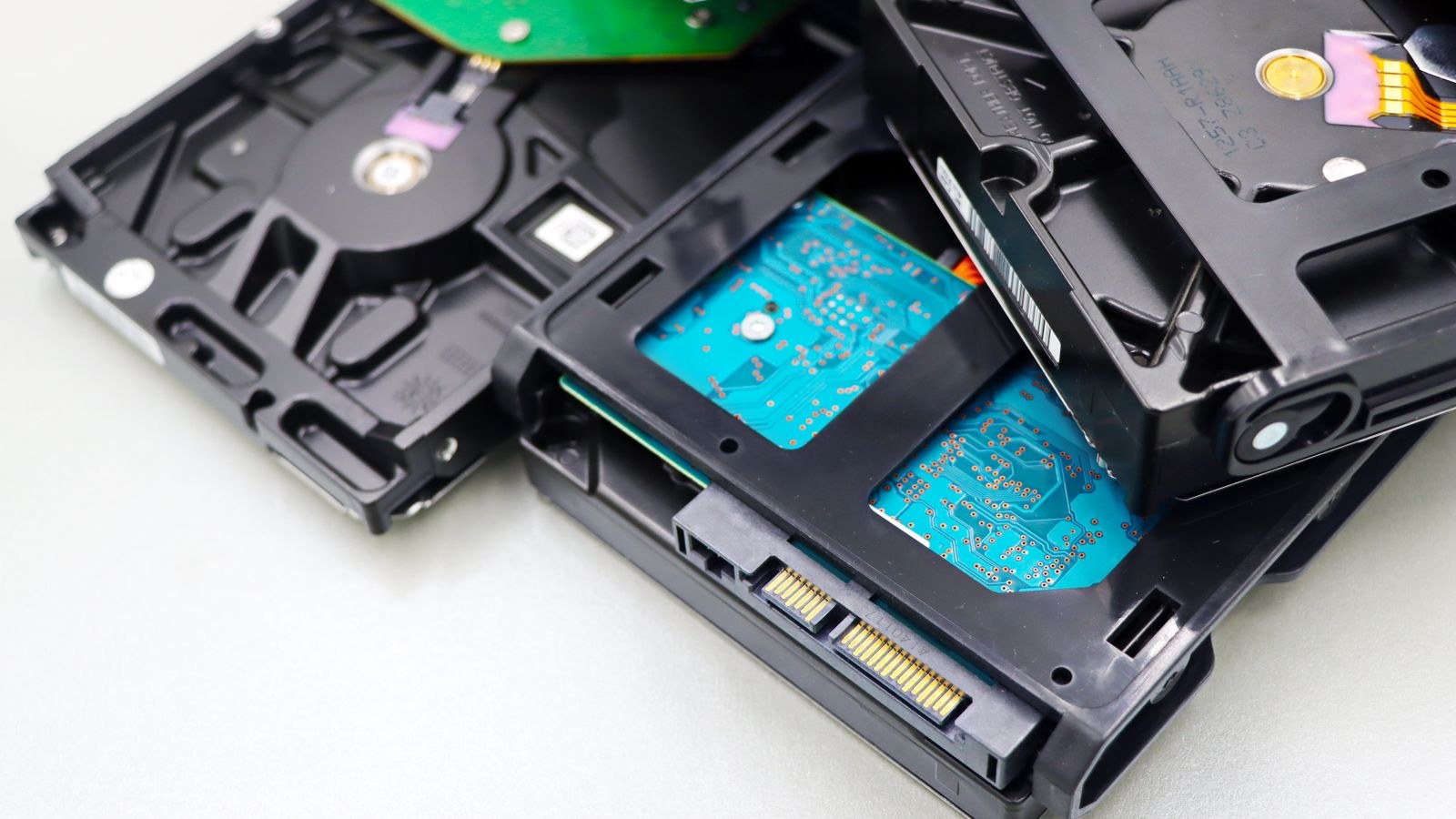
Not every hard drive suits a recorder. Surveillance recording is a sustained sequential write workload that never stops, which is different from the bursty read-heavy pattern a desktop drive expects.
Look for drives explicitly marketed for surveillance or NVR use. They are rated for 24/7 operation, tuned for many simultaneous write streams, and use firmware that prioritises writing the stream over retrying a bad sector, which prevents dropped frames. They also carry a higher annual workload rating, typically 180TB per year or more, against roughly 55TB for a consumer desktop drive. Running an eight-camera system continuously can exceed a desktop drive’s rated workload several times over.
Solid state drives are excellent for the recorder’s operating system but a poor value choice for bulk footage, since continuous writing burns through endurance and the cost per terabyte remains far higher. Use a mechanical drive for footage and, if the recorder supports it, a small SSD for the system.
Check the Recorder’s Drive Limits
Before buying, confirm two things about your recorder: the maximum drive size per bay it supports and the number of bays. Budget four-channel recorders often cap at 8TB or 10TB per bay and offer only one bay, so the theoretical maximum of your system may be far smaller than you assumed. Eight and sixteen-channel units generally offer two to four bays and support larger drives. Complete systems and their storage ceilings are compared in our guide to the best CCTV camera systems.
Sizing Examples for Common Setups
These are practical starting points assuming H.265, 15fps, and mixed continuous plus motion recording.
- Two 1080p cameras, 30 days — a 2TB drive is comfortable, 4TB gives headroom for adding a third camera.
- Four 4MP cameras, 30 days — 4TB is tight, 6TB to 8TB is the sensible choice.
- Four 4K cameras, 30 days — plan on 12TB to 16TB, or drop to motion recording and 8TB may suffice.
- Eight 4MP cameras, 30 days — 12TB to 16TB, ideally split across two bays.
- Eight 4K cameras, 30 days — 24TB and upward, which realistically means a multi-bay recorder.
Add 20 percent to any of these figures. Recorders reserve space for their own indexes, formatted capacity is always lower than the number on the box, and cameras produce more data than their nominal bitrate during busy periods.
Local Storage, Cloud, and Hybrid Approaches
A local drive gives you unlimited retention for a one-off cost, full-resolution footage, and no monthly fee, but it sits in the building and can be stolen or destroyed along with everything else. Cloud storage survives that scenario, but subscriptions usually cap retention at 30 or 60 days, compress footage heavily, and cost more over a few years than a large drive ever would.
The strongest arrangement for most properties is hybrid: keep everything locally at full quality for the retention window you calculated, and let the cloud hold short motion clips as an offsite backup. That way a stolen recorder does not erase the evidence of the theft. Our broader security camera storage guide works through the trade-offs of each approach in more detail.
Common Storage Mistakes
Undersizing is the obvious one, usually because the buyer calculated from resolution rather than measured bitrate. Almost as common is using a desktop or laptop drive in a recorder and being surprised when it fails within a year of continuous writing. Others include leaving every camera at 30fps and maximum bitrate by default, forgetting that infrared night footage is grainier and therefore compresses worse and consumes more space, and never checking the recorder’s own retention estimate after installation.
Finally, treat the drive as a consumable. Mechanical drives in continuous-write duty typically last three to five years. Check the recorder’s drive health page occasionally, enable any email or app alert it offers for drive errors, and plan a replacement before failure rather than after. Multi-bay systems with 4K cameras are compared in our roundup of the best 4K security camera systems if you are building for the long term.
Frequently Asked Questions
How many days will a 4TB drive record?
For four 1080p cameras on H.265 with motion recording, roughly 45 to 60 days. For four 4K cameras recording continuously, closer to 8 to 10 days. Bitrate and recording mode matter far more than the drive size alone.
Can I use a regular desktop hard drive?
It will work initially but is not designed for constant writing and typically fails much sooner. A surveillance-rated drive is only modestly more expensive and rated for 24/7 duty with a far higher annual workload allowance.
Does the recorder delete old footage automatically?
Yes. Recorders overwrite the oldest footage once the drive is full, which is why retention days rather than free space is the meaningful measure. Most units also let you lock specific clips so they are never overwritten.
Should I add a second drive or replace the first?
If your recorder has a free bay, adding a drive is cheaper and gives you both capacities. If it has only one bay, replace with the largest size the unit supports and copy anything important off first.
Final Thoughts
Storage sizing stops being guesswork the moment you work from bitrate instead of resolution. Decide your retention target, read the actual bitrate from each camera, apply the formula, then add 20 percent for overhead. Enable H.265, drop most cameras to 15fps, and use continuous low-quality recording with full-quality motion triggers to stretch the same drive much further. Buy a surveillance-rated drive with room to grow, keep an offsite copy of the clips that matter, and you will have footage waiting whenever you need it rather than a timeline that stops just short of the moment you were looking for.









