
 Owen Bradley
 You bought a fast monitor, a capable graphics card and a cable that came in the box, and yet the refresh rate menu stubbornly refuses to show the number you paid for. Nine times out of ten the culprit is the least glamorous part of the chain: the cable and the interface standard it belongs to. HDMI 2.1 and DisplayPort 2.1 are both capable of driving high resolution, high refresh displays, but they differ in bandwidth, certification, feature support and where each one is actually available. This comparison explains what each standard delivers in 2026, how to tell a genuine cable from a mislabelled one, and how to choose the right connection for gaming, work or a living room display.
The Short Answer
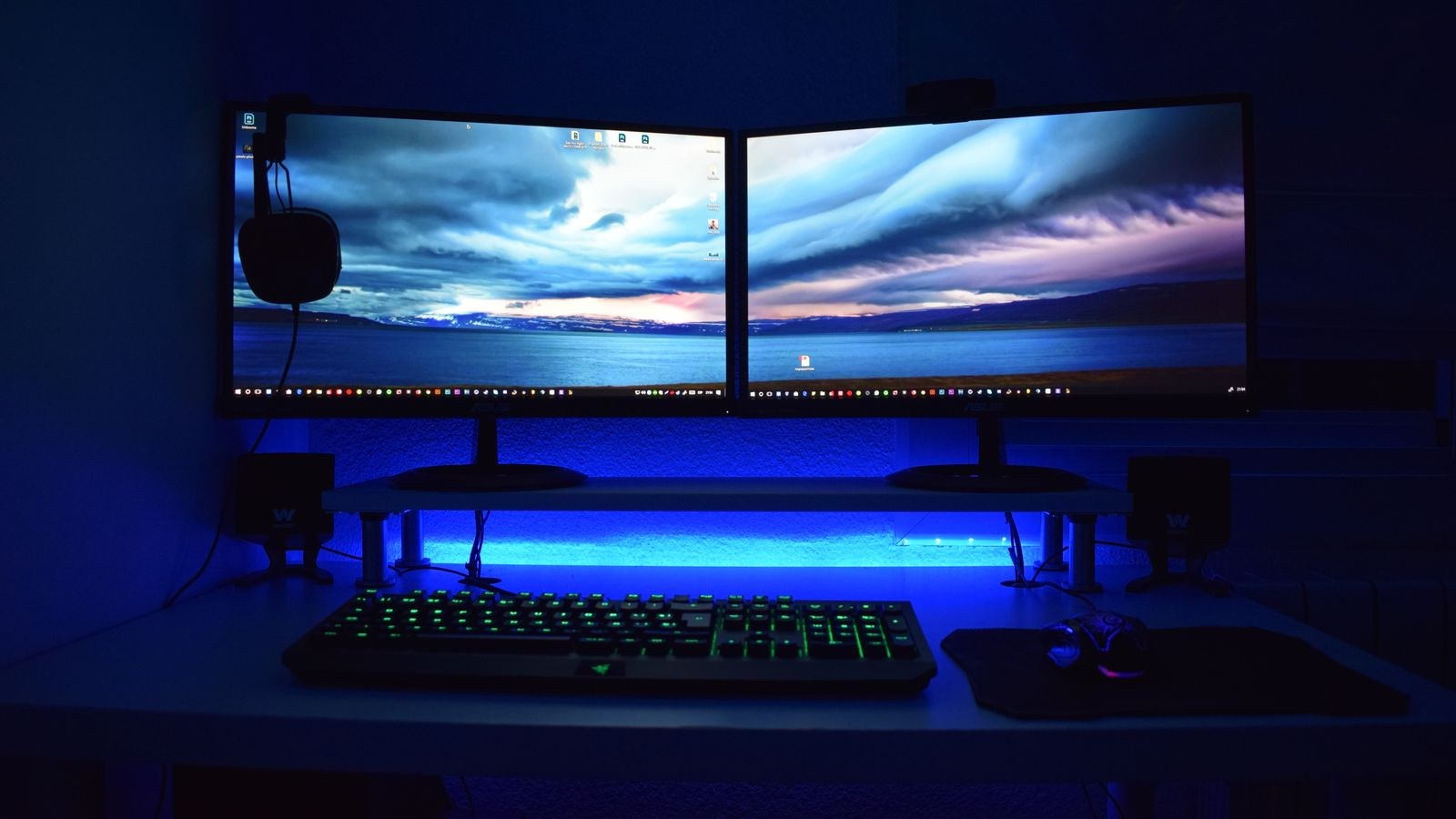
For a desktop PC connected to a computer monitor, DisplayPort is usually the better default. It carries more bandwidth in its current generation, handles adaptive refresh cleanly and is the connection most monitor makers optimise around. For anything involving a television, a console or a receiver, HDMI is the only realistic choice, and its 2.1 revision is more than capable of high refresh 4K gaming.
The awkward part is that neither standard is a single fixed capability. Both are collections of optional features, and manufacturers may implement only some of them while still using the version number. That is why two devices labelled with the same version can behave differently, and it is the root of most confusion in this comparison.
Bandwidth: The Number That Decides Everything
Every video connection has a maximum data rate, and resolution multiplied by refresh rate multiplied by colour depth must fit inside it. When the signal does not fit, something gives: the refresh rate drops, colour is compressed, or the display simply fails to sync.
HDMI 2.1 raised the ceiling to 48Gbps, a large jump from the 18Gbps of the previous revision. That headroom is what enables 4K at 120Hz and 8K at 60Hz with room for high dynamic range metadata. DisplayPort 2.1 goes considerably further, with tiers reaching up to 80Gbps of raw throughput. In practice the highest tiers are rare, and many devices implement a middle tier that still comfortably exceeds HDMI 2.1.
Both standards also support a compression scheme that reduces the data required with essentially no visible difference. This matters because it lets a connection carry modes that would otherwise exceed its raw bandwidth. When a specification sheet mentions display stream compression, it is telling you the headline mode may depend on it.
What Fits in Each Budget
- 1080p at 240Hz fits comfortably on either standard with room to spare.
- 1440p at 165Hz is well within both, and is the most common gaming target today.
- 4K at 120Hz is where the older 18Gbps generation fails and where HDMI 2.1 or DisplayPort earns its place.
- 4K at 240Hz generally needs compression on HDMI 2.1 and sits more comfortably on DisplayPort 2.1.
- Dual high refresh displays from one output stretch DisplayPort’s multi-stream capability, which HDMI does not offer natively.
If your target is 4K gaming at high frame rates, the panel matters as much as the cable. Our roundup of the best 4K gaming monitors notes which inputs each panel actually implements, which is more useful than the version number printed on the box.
Where Each Standard Actually Appears
Availability, not capability, often makes the decision for you. Televisions and consoles use HDMI exclusively; you will not find a DisplayPort input on a living room set. If your gaming happens on a large screen in a lounge, the choice is made. Our guide to the best HDMI 2.1 gaming TVs covers sets where the high bandwidth ports are properly implemented rather than present in name only, which is a genuine distinction on budget models.
Computer monitors typically offer both, though the DisplayPort input is usually the higher specified one. Graphics cards lean the other way historically, providing more DisplayPort outputs than HDMI, though many now include multiple HDMI outputs for multi-display and capture setups. If you plan to drive several screens or a mix of monitors and televisions, output count matters, and our comparison of graphics cards with dual HDMI outputs is a practical starting point for that specific need.
Variable Refresh Rate and Adaptive Sync
Variable refresh rate lets the display update in step with the graphics card rather than on a fixed schedule, eliminating tearing without the input lag of traditional synchronisation. Both standards support it, but they arrived by different routes.
DisplayPort has carried adaptive sync as part of the core specification for years, and support is broad and dependable across monitors and graphics cards. HDMI added variable refresh as an optional feature in its 2.1 revision, which means it works well when implemented but cannot be assumed from the version number alone. Console gaming in particular depends on this feature being present on both the source and the display.
The practical advice is to verify variable refresh support in the display’s own menu rather than trusting marketing copy, and to confirm the supported refresh range. A narrow range that only engages between 48Hz and 60Hz is far less useful than one covering 40Hz to the panel’s maximum. For fast paced play at mainstream resolutions, the panels in our list of the best 144Hz monitors mostly implement wide adaptive ranges on both inputs.
HDR, Colour Depth and Why Your Image Looks Washed Out
High dynamic range needs more data per pixel than standard content, so enabling it consumes bandwidth that might otherwise fund refresh rate. On a connection near its limit, turning on HDR can silently drop the refresh rate or force the system to reduce colour sampling, which produces soft text and slightly muddy edges around coloured detail.
HDMI 2.1 added dynamic metadata support that adjusts tone mapping scene by scene, a feature that matters most for film and console content on televisions. DisplayPort handles static HDR well and, with its bandwidth advantage, is less likely to force compromises at high refresh rates. Either way, the fix for a washed-out or fuzzy image is usually to check the colour format setting in your graphics driver and set it to full range with the highest chroma sampling the connection can sustain.
If HDR is a priority rather than a checkbox, panel quality matters far more than the cable. Peak brightness and local dimming determine whether HDR looks dramatic or merely brighter, and our roundup of the best monitors with HDR separates displays that genuinely deliver from those that simply accept the signal.
Cable Certification: The Part Everyone Skips
A cable is not a neutral piece of wire. At these data rates, conductor quality, shielding and length all determine whether the signal survives the journey. Both standards run certification programmes precisely because uncertified cables fail unpredictably, often working at one resolution and failing at the next step up.
For HDMI, look for the label indicating ultra high speed certification, which is the tier rated for the full 48Gbps. Genuine certified cables carry a holographic label with a code you can verify through the certification authority’s app. For DisplayPort, look for the certification tier matching your target bandwidth rather than a vague speed claim on the packaging.
Length is the other variable. Passive copper cables become unreliable past roughly three metres at maximum bandwidth. For longer runs, active or optical cables maintain the signal but are directional, meaning one end must connect to the source and the other to the display. Plugging them in backwards produces no picture at all and is a surprisingly common support case.
Symptoms of a Cable Problem
- The highest refresh rate is missing from the display settings menu despite both devices supporting it.
- Intermittent black flashes during use, usually when the signal briefly fails to hold sync.
- Sparkles or snow across the image, a classic sign of marginal signal integrity.
- The display works at lower resolution but goes blank when you increase it.
- Variable refresh will not enable, even though both devices list support for it.
Before blaming a monitor or graphics card, swap in a known certified cable of the shortest practical length. It resolves these symptoms far more often than any driver reinstall.
Choosing by Use Case
For PC gaming at a desk, use DisplayPort as the primary connection. It gives the most headroom, the most dependable adaptive sync and the cleanest multi-monitor behaviour. Keep an HDMI cable for a secondary display or a capture device.
For console gaming, HDMI 2.1 is mandatory, and the important checks are that the specific port on your television supports the full bandwidth and that variable refresh is enabled in both the console and display menus. Many televisions implement high bandwidth on only two of their four ports.
For office and productivity work, either standard is comfortable, since 60Hz at 4K sits well within both. Prioritise convenience instead: a monitor that also carries power and data over a single connection will simplify a laptop desk far more than any bandwidth difference.
For creative and colour-critical work, DisplayPort’s bandwidth advantage helps you run full colour sampling at high resolution without compression, which is worth having when you are judging fine colour detail rather than playing.
Common Mistakes to Avoid
- Assuming the version number guarantees the features. Both standards make key capabilities optional, so verify the specific feature you need.
- Reusing the old cable from a previous monitor, which is the single most common reason a new display underperforms.
- Buying an expensive cable when a certified one at the right tier costs a fraction and performs identically.
- Ignoring which port on a television is the fast one, since manufacturers frequently implement full bandwidth on a subset of inputs.
- Enabling HDR without checking whether it forced the refresh rate or colour sampling down.
- Running a long passive cable at maximum bandwidth instead of using an active or optical cable for the distance.
Frequently Asked Questions
Is DisplayPort always better than HDMI?
For a desktop monitor, generally yes, thanks to more bandwidth and more consistent adaptive sync. For televisions, consoles and receivers, HDMI is the only option, and HDMI 2.1 is entirely capable of high refresh 4K.
Can I convert between the two?
Adapters exist and work for basic output, but they frequently lose variable refresh, HDR or the highest refresh rates. Use a native connection whenever the ports allow it.
Do expensive cables improve picture quality?
No. Digital signals either arrive intact or produce visible errors. A certified cable at the correct tier delivers the same image as one costing several times more.
Why does my monitor cap at 60Hz over HDMI?
Usually the port implements an older revision, or the cable is not rated for the required bandwidth. Try the DisplayPort input with a certified cable to confirm which component is limiting you.
Final Thoughts
Choose the connection your hardware supports best rather than the one with the larger number attached. DisplayPort 2.1 wins on raw bandwidth and desktop reliability, HDMI 2.1 wins on universality and is the only path to a television or console, and both comfortably handle the resolutions most people actually run.
Then spend a small amount on a properly certified cable of the shortest length that reaches. It is the cheapest component in the chain and the one most likely to be quietly costing you the refresh rate, colour depth or adaptive sync you already paid for elsewhere.









