Owen Bradley
 Solid state drives fail differently from the spinning disks they replaced. There is no warning click, no grinding platter, and often no gradual slowdown. Instead a drive quietly consumes its finite pool of write cycles, then one day drops to read-only mode or disappears from the boot menu entirely. The upside is that an SSD tells you exactly how much life it has left, if you know where to look. This guide shows you how to check SSD health on Windows, Linux, and macOS, how to read the SMART attributes that actually matter, and how to interpret terabytes written against the warranty figure so you can plan a replacement rather than react to a failure.
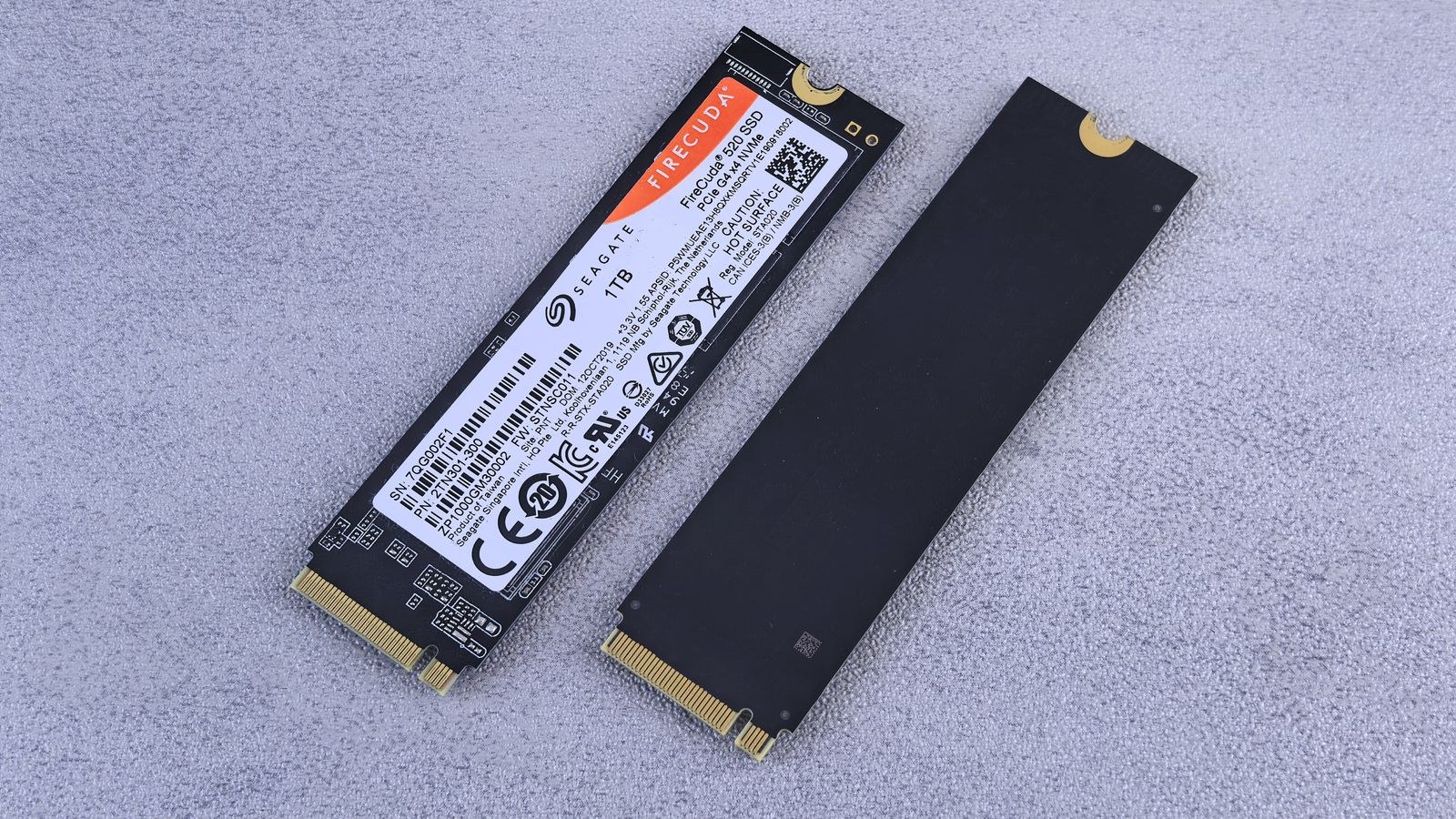
What Determines an SSD’s Lifespan
Every NAND flash cell can be erased and rewritten a limited number of times before it stops holding charge reliably. The controller spreads writes evenly across all cells through wear levelling, and keeps a pool of spare blocks to retire cells that go bad. Lifespan is therefore measured in total data written, not in years of ownership.
Manufacturers publish this as TBW (terabytes written) or DWPD (drive writes per day over the warranty term). A 1TB consumer drive commonly carries a rating between 300TB and 600TB. Typical desktop use writes somewhere between 5TB and 20TB a year, which puts most drives comfortably past the decade mark before endurance becomes the limiting factor. Heavy video editing, database work, or torrent seeding can consume that budget many times faster.
Tools You Need
- CrystalDiskInfo on Windows, which reads SMART data for SATA and NVMe drives and shows a plain-language health percentage.
- The manufacturer’s own utility, which usually reports the same figures plus firmware updates and secure erase.
- smartctl from the smartmontools package on Linux and macOS, for the most complete raw attribute dump.
- Built-in Windows commands: wmic diskdrive get status for a quick pass or fail, and chkdsk for filesystem-level errors.
- An external drive or cloud account large enough to hold a full image, in case the check tells you to act immediately.
Step-by-Step: Check Your SSD’s Health
- Identify every drive in the system. Open Disk Management on Windows or run lsblk on Linux and note the model and capacity of each SSD. Health tools list drives by port, so knowing which is your boot drive prevents you from reading the wrong report.
- Install and run a SMART reader. Launch CrystalDiskInfo or the vendor utility. Within a few seconds it displays a health status, current temperature, firmware version, and total power-on hours for each drive.
- Read the headline health percentage. Most tools convert the controller’s own wear estimate into a figure from 100% down to 0%. Anything above 90% after a couple of years is entirely normal. Below 20% means the endurance budget is nearly spent.
- Find total host writes. Look for “Total Host Writes”, “Data Units Written”, or attribute 241. Convert it to terabytes and compare against the TBW figure on the manufacturer’s spec sheet. If you are at 40TB of a 400TB rating after three years, you have decades of headroom.
- Check the reallocated and reserved block counts. Attribute 05 (reallocated sectors) and the NVMe “Available Spare” percentage show how much of the replacement pool has been consumed. Available Spare falling below its threshold is one of the clearest pre-failure signals an SSD gives.
- Look for uncorrectable and CRC errors. Attribute 199 counts interface CRC errors, which usually mean a bad SATA cable rather than a dying drive. Media and data integrity errors on NVMe are more serious and point at the NAND itself.
- Note the temperature. Sustained operation above roughly 70C shortens the controller’s life and triggers thermal throttling. If an M.2 drive runs hot, fit a heatsink or improve case airflow.
- Run a self-test. On Linux, smartctl -t short /dev/sdX takes a couple of minutes; the extended test takes longer but exercises more of the drive. Vendor tools offer the same under a diagnostics tab.
- Record the numbers. Save a screenshot or export the report. A single reading tells you little; comparing today’s host writes and spare capacity against a reading from six months ago tells you the rate of wear.
- Repeat quarterly. Set a calendar reminder. Trend data is what turns a health check from a curiosity into an early warning system.
Reading the Numbers Sensibly
A drive at 95% health after four years is not about to fail; a drive at 95% health that was at 99% last month is burning through endurance and deserves investigation. Look for a runaway process writing constantly, a swap file on a small drive, or a backup tool re-copying everything nightly.
Equally, do not panic over a single reallocated sector. Controllers retire blocks routinely and the spare pool exists for exactly that purpose. The concern is acceleration: a count that jumps from 2 to 60 within weeks means the NAND is degrading faster than wear levelling can compensate for.
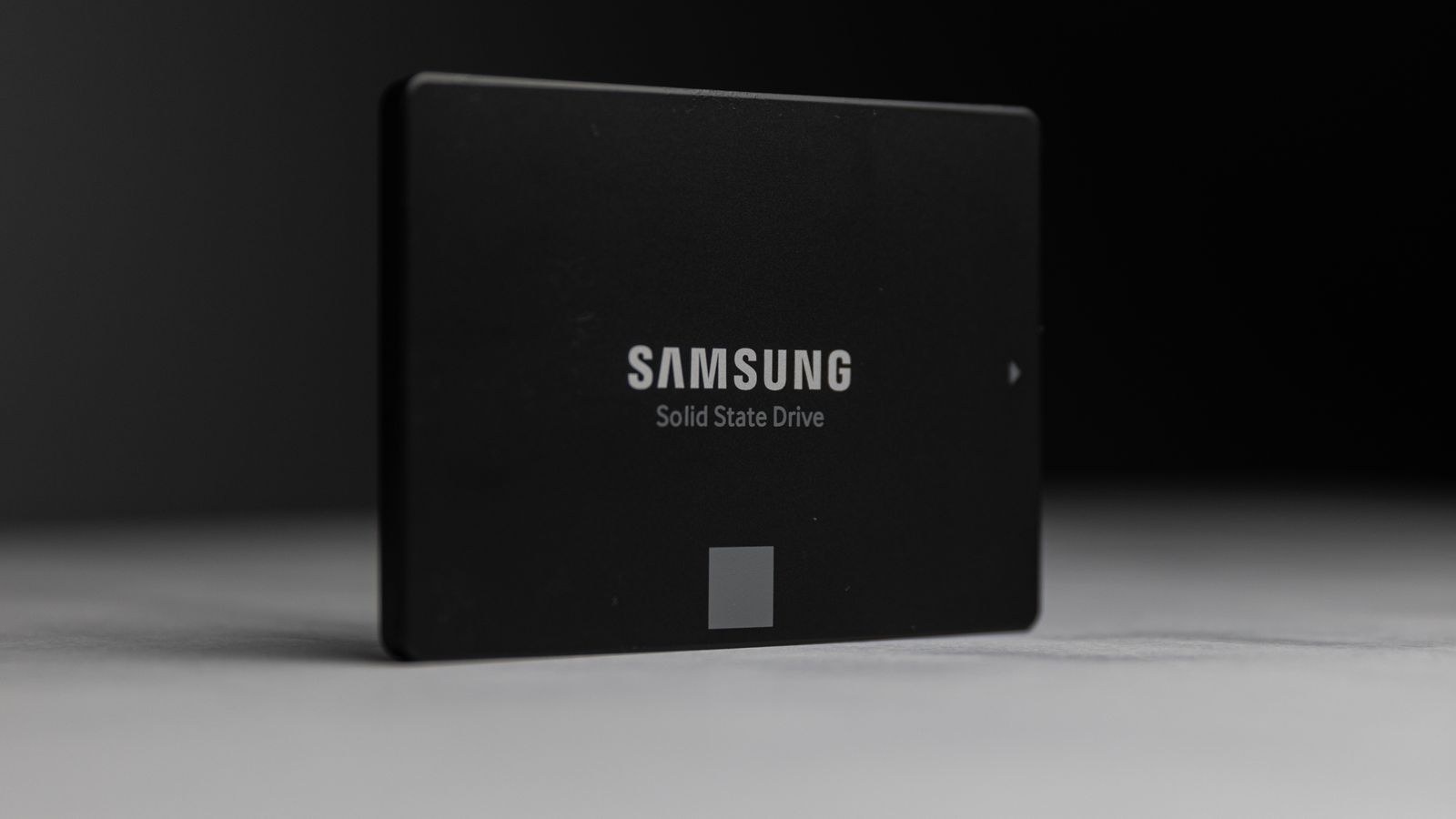
Warning Signs That Mean Clone It Today
- The drive has switched to read-only mode, or writes silently fail and revert after reboot.
- Available Spare has dropped below the threshold reported by the controller.
- The system freezes for several seconds at a time while disk activity sits pinned at 100%.
- Files that previously opened fine now report corruption, or checksums no longer match.
- The drive vanishes from BIOS intermittently and reappears after a power cycle.
- SMART overall status reports anything other than good, or the health percentage sits in single digits.
Any one of these justifies an immediate full image to another drive. Cloning software copies the partition layout as well as the data, so the replacement boots without a fresh Windows install.
Choosing a Replacement Drive
When the time comes, endurance rating matters more than headline sequential speed for most people. A larger drive also lasts longer for the same workload, because the same writes spread across more cells. If you are replacing a boot drive, prioritise low random latency and a reliable controller over peak numbers; our picks for the best SSDs for a boot drive weigh those factors. For a straight capacity upgrade, the best 1TB SSDs covers the sweet spot most desktops need.
Where your motherboard has a free M.2 slot, an NVMe drive is the obvious choice; the best NVMe SSDs compares the current generations, and the best high speed SSDs focuses on drives with the sustained write performance heavy workloads need. If you are filling a spare SATA bay instead, browse the best internal SSDs for options that fit older systems.
Habits That Extend SSD Life
- Leave 10 to 20 percent free. A full drive forces the controller to work harder to find erasable blocks, raising write amplification.
- Keep TRIM enabled. Windows runs it automatically through Optimise Drives; verify it is scheduled rather than disabled.
- Never defragment an SSD. It achieves nothing useful and consumes endurance for no benefit.
- Update firmware. Controller bugs that cause premature wear or sudden death are frequently patched.
- Manage temperature. A cheap M.2 heatsink or a fan pointed at the slot keeps sustained transfers from throttling.
- Move heavy scratch work elsewhere. Video render caches and virtual machine images write enormous volumes; put them on a dedicated drive.
Troubleshooting Common Problems
If your tool reports no SMART data at all, the drive may sit behind a USB bridge or a RAID controller that hides those attributes. Connect it directly to a SATA or M.2 port, or use a tool with USB passthrough support. If Windows shows the drive but reports the wrong capacity, check whether the partition table is stale rather than assuming failure. And if CRC errors climb on a SATA SSD, swap the cable and change ports before condemning the drive; the interface is far more likely to be at fault than the flash.
Frequently Asked Questions
How long does an SSD actually last?
For typical desktop use, endurance is rarely the limiting factor. Most consumer drives will exceed a decade of normal writes, and controller or firmware failure is a more likely end than exhausted NAND.
Does an unpowered SSD lose data?
Charge does leak from NAND cells over time. A healthy consumer drive retains data for a year or more unpowered at room temperature, but a heavily worn one holds it for much less. Do not use SSDs for long-term cold archival storage.
Is a health percentage the same as remaining lifespan?
No. It reflects the controller’s estimate of consumed write endurance only. A drive at 100% health can still fail from a firmware fault or a controller defect, which is why backups matter more than any health reading.
Should I replace a drive at 80% health?
Not on that number alone. Check how quickly it dropped. A drive that took five years to reach 80% has plenty of life left; one that got there in eight months is being hammered and warrants both investigation and a replacement plan.
Final Thoughts
Checking SSD health takes five minutes and turns a silent, unpredictable component into one that tells you its story. Install a SMART reader, record the health percentage, host writes, and available spare, then repeat every few months so you have a trend rather than a snapshot. Act on read-only mode, falling spare capacity, or a sudden jump in reallocated blocks by cloning immediately. Do that consistently and you will replace drives on your own schedule in 2026, with your data intact, instead of discovering the problem the morning your PC refuses to boot.