
 Owen Bradley
 Most home networks pick up a slow, invisible drift. Memory leaks accumulate, connection tables fill, leases go stale, and by the end of a fortnight the router that felt fast on Monday is dropping video calls on Friday. Restarting it fixes everything for a while, which is why so many people learn to schedule a router reboot rather than remember to do it by hand. Done properly, a weekly automatic restart at three in the morning is invisible to the household and removes an entire category of nagging faults. Done carelessly, it masks a genuine hardware or line problem you should be reporting to your provider. This guide covers the three practical ways to automate restarts, how to choose the timing, and how to tell the difference between healthy housekeeping and a router that is quietly failing.
Why Scheduled Reboots Help
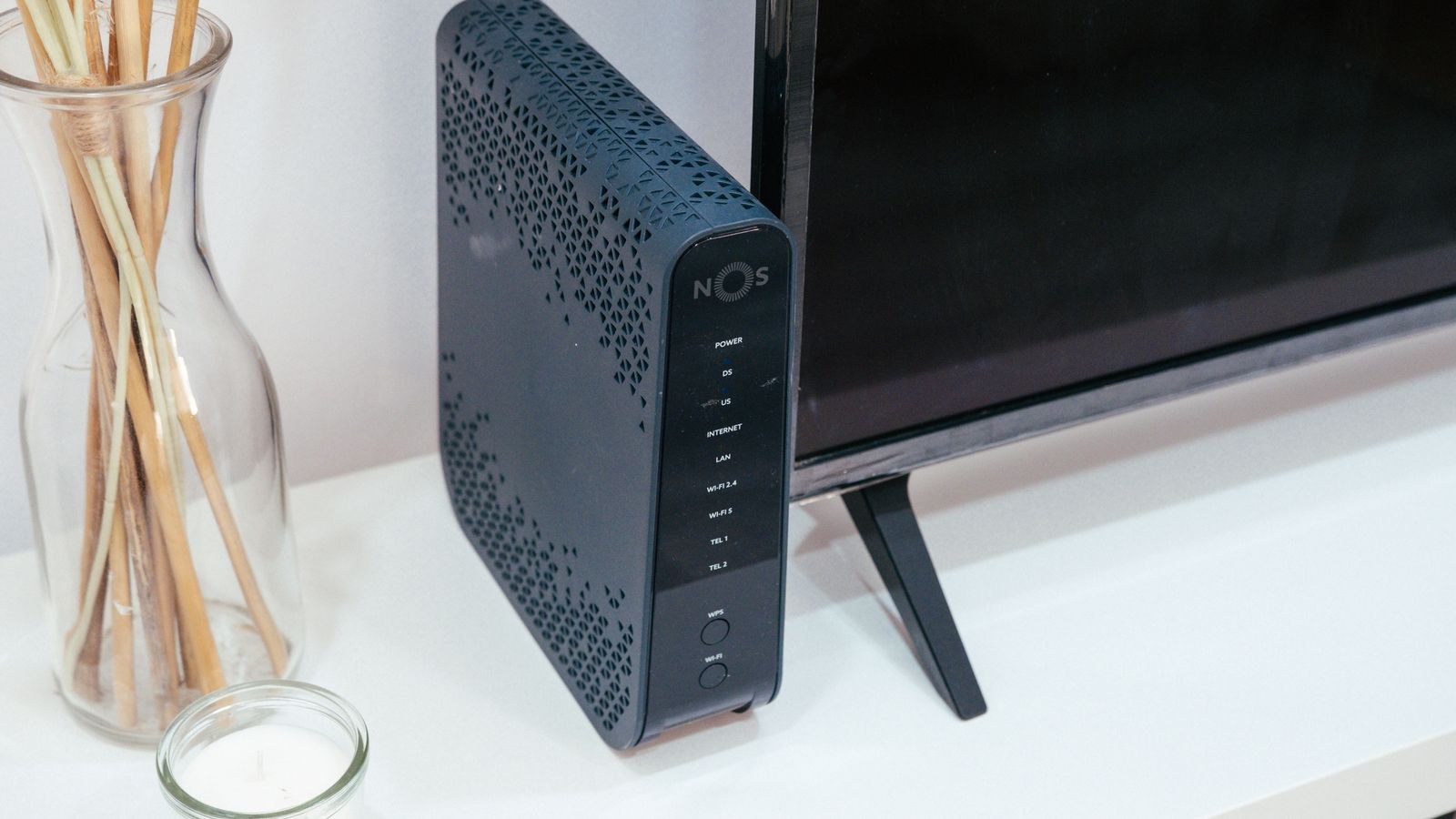
A router is a small computer running continuously for months. Its firmware manages NAT tables, DHCP leases, DNS caches and wireless client lists, and none of those structures are perfectly self-cleaning. On consumer hardware with limited RAM, fragmentation and leaked memory gradually squeeze the space available for real traffic. The symptoms are familiar: pages that hang before loading, devices that fail to reconnect after sleeping, and speeds that recover the instant you pull the plug.
A reboot clears all of it in about ninety seconds. It also forces a fresh DHCP lease from your provider, re-runs channel selection so the router picks a less congested Wi-Fi channel, and reapplies any settings that failed to take effect earlier. For a household with dozens of connected devices, weekly is a sensible default.
When Weekly Is Too Often
If you find you need a nightly restart to keep the network usable, stop and treat that as a diagnostic result rather than a solution. Healthy hardware should comfortably run for weeks. Nightly reboots hide overheating, a failing power adapter, a degrading DSL or coax line, or a unit that simply has too little memory for the number of clients you now run. Schedule the restart if you like, but investigate the cause in parallel.
Method 1: Use the Router’s Built-In Scheduler
This is the cleanest approach because the router shuts itself down gracefully, saving state and closing connections properly. Many mainstream firmwares include it, though the menu name varies.
- Log into the admin interface at the address on the router’s label, usually 192.168.1.1 or 192.168.0.1.
- Find the scheduler. Look under Administration, System Tools, Maintenance or Advanced. The feature is commonly labelled Reboot Schedule, Auto Reboot or Scheduled Reboot.
- Confirm the clock is correct. Check the time zone and NTP server settings first. A router with the wrong time will reboot at the wrong hour, which is the single most common setup mistake.
- Choose a day and time. Something like Wednesday at 04:00 avoids weekend film nights and weekday work calls.
- Set the frequency to weekly, not daily, unless you have a specific reason.
- Save and verify. Check the system log the following morning for a restart entry, or look at the uptime counter on the status page.
Scheduler support is patchy across brands, and it is worth checking before you buy. Units in our roundups of the best Asus routers and the best Netgear routers commonly include timed reboots along with detailed system logging, which makes both the scheduling and the diagnosis easier.
Method 2: Automate With a Smart Plug
If your firmware has no scheduler, a timed smart plug does the job for the price of a takeaway. It is a blunt instrument, cutting power rather than requesting a shutdown, but routers are designed to survive power loss and in practice this works reliably.
- Pick a plug rated well above the load. A router draws only 5 to 20 watts, so almost any plug is adequate electrically, but choose one with a genuine on-device schedule rather than one that depends on cloud commands.
- Plug the router into the smart plug and the plug into the wall. Do not put the modem on the same schedule unless you intend to restart both.
- Create an off action at, for example, 04:00.
- Create an on action two minutes later. Thirty seconds is enough for most units, but two minutes guarantees a full discharge and clean boot.
- Set the plug’s default state to on so that a power cut does not leave your network switched off indefinitely.
- Test once manually before relying on it, and confirm the network returns without intervention.
The obvious catch is that a Wi-Fi smart plug loses its connection at exactly the moment it cuts power to the router. That is why the schedule must live on the plug itself. Models covered in our guide to the best smart Wi-Fi plugs that store timers locally will complete the cycle even with the network down, whereas cloud-only devices can strand themselves in the off state.

Method 3: Script It From a Computer or Home Server
If you already run a NAS, a mini PC or a home automation hub, you can trigger the reboot in software. Some routers expose an SSH or Telnet interface accepting a reboot command; others accept an authenticated HTTP request to the reboot endpoint used by the admin page. On third-party firmware such as OpenWrt, a single cron entry handles it.
- Enable SSH access on the router and set a strong password or key.
- Confirm the command works interactively before automating it.
- Add a weekly cron job or scheduled task that issues the command.
- Log the output so you can confirm it ran.
This route offers the most control, including conditional reboots that only fire if a connectivity check has failed. It also carries the most risk: leaving remote administration enabled and reachable is a real security exposure, so restrict it to the local network only.
Choosing the Right Time
Pick a window when nothing important is happening, then account for the things that run unattended. Overnight backups, security camera uploads, smart home routines, game console downloads and remote workers in other time zones all matter. Between 03:00 and 05:00 on a weekday morning suits most households. Avoid midnight exactly, since many devices schedule their own updates on the hour, and avoid Sunday night if that is when your NAS runs a long backup job.
Remember that a reboot is not instant. From power off to fully usable Wi-Fi typically takes 60 to 120 seconds, and longer if the modem restarts too and has to resynchronise with the line. Anything actively streaming or downloading will be interrupted.
Safety and Data Considerations
Never power cycle a router in the middle of a firmware update. If the status page shows an update in progress, wait, because interrupting it can render the unit unusable. Disable the schedule temporarily before applying updates manually. Similarly, if your router hosts a USB drive for file sharing, a hard power cut risks corrupting whatever was being written, so prefer the built-in scheduler or a script over a smart plug in that situation. Keep a copy of your configuration backup somewhere off the router, so a bad boot after a power cut does not cost you a full reconfiguration.
Troubleshooting
The scheduled reboot never happens
Check the router’s clock and time zone first. A unit that has lost NTP synchronisation will show a nonsense date and never reach the trigger time.
The network does not come back
Usually the modem needs longer than the router to resynchronise. If you power cycle both, allow the modem two to three minutes before expecting service. If the router alone fails to return, the power adapter is a prime suspect.
Devices reconnect slowly after the restart
Some smart home devices are slow to rejoin. Reserving fixed IP addresses for them shortens the recovery, as does keeping the wireless network name and password unchanged across reboots.
Reboots help less and less over time
This is the clearest sign that you are treating a symptom. When the interval between restarts has to keep shrinking, look at temperature, client count and firmware age, or follow our full walkthrough on how to reset your router and modem properly before considering replacement hardware from our best Wi-Fi routers roundup.
Frequently Asked Questions
Does rebooting a router speed up the internet?
It restores performance the router has lost, but it cannot exceed the speed your line delivers. If a restart produces a genuine jump, that gain will erode again as memory fills.
Is a reboot the same as a factory reset?
No. A reboot restarts the device and keeps all settings. A factory reset erases your configuration entirely and returns the unit to its out-of-box state.
Will frequent reboots wear out the router?
A weekly cycle is harmless. Very frequent hard power cuts, several times a day, put more stress on the flash memory and power supply than a graceful software restart.
Should I reboot the modem at the same time?
Usually not. Modems resynchronise with the line on every restart, which takes longer and can briefly count against line stability metrics on some connection types.
Final Thoughts
Automating a weekly restart is one of the highest-value five-minute jobs in home networking. Use the router’s own scheduler if it has one, fall back to a smart plug with a locally stored timer if it does not, and reach for a script only if you already run a machine that is awake at four in the morning. Pick a genuinely quiet window, verify the router’s clock before you trust the schedule, and check the uptime counter a week later to confirm it fired. Most importantly, treat the reboot interval as a health indicator. A network that runs happily for a fortnight and simply benefits from a weekly tidy-up is fine. One that needs a nightly restart is telling you something about heat, power or capacity that no schedule will fix.









