
 Owen Bradley
 Deciding to switch alexa to google home is rarely a technical decision. People move because they prefer the assistant’s answers, because they have committed to a phone ecosystem, or because a household display fits their kitchen better. Whatever the reason, the migration itself is where things go wrong: pull the plug on the old ecosystem too early and you end up with a hallway full of accessories that answer to nobody. The safe approach is an ordered one. Audit what you own, add the new platform alongside the old, move devices in groups, rebuild routines, and only then unlink the accounts you no longer need. This guide walks through that order step by step.
Understand What Actually Has to Move
Not everything in your home is tied to Alexa. Most smart accessories connect first to their manufacturer’s own cloud through their own app, and the assistant simply talks to that cloud through an integration. A smart bulb, for instance, lives in the bulb maker’s account, and both Alexa and Google Home can control it simultaneously through separate links.
That distinction defines the work ahead. Three categories behave very differently, and knowing which is which saves hours.
- Cloud-linked accessories. Bulbs, plugs, thermostats, and cameras with their own app. These migrate by linking the manufacturer account to Google Home, with no hardware changes at all.
- Matter accessories. These can be shared across ecosystems directly, using a pairing code generated by the app that currently controls them.
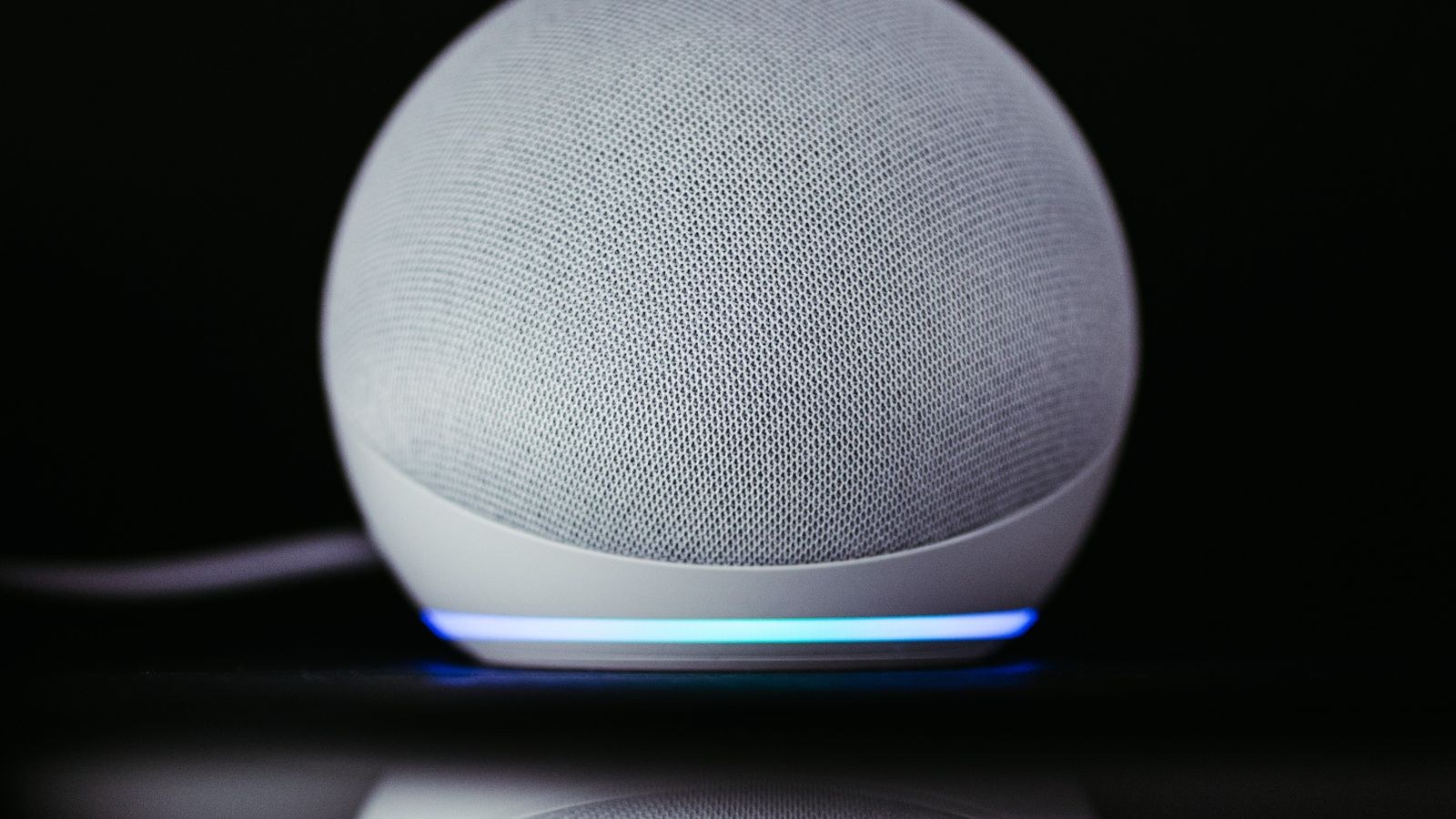
- Alexa-native hardware. Echo speakers, displays, and anything whose only setup path is the Alexa app. These cannot join Google Home and must be replaced or repurposed.
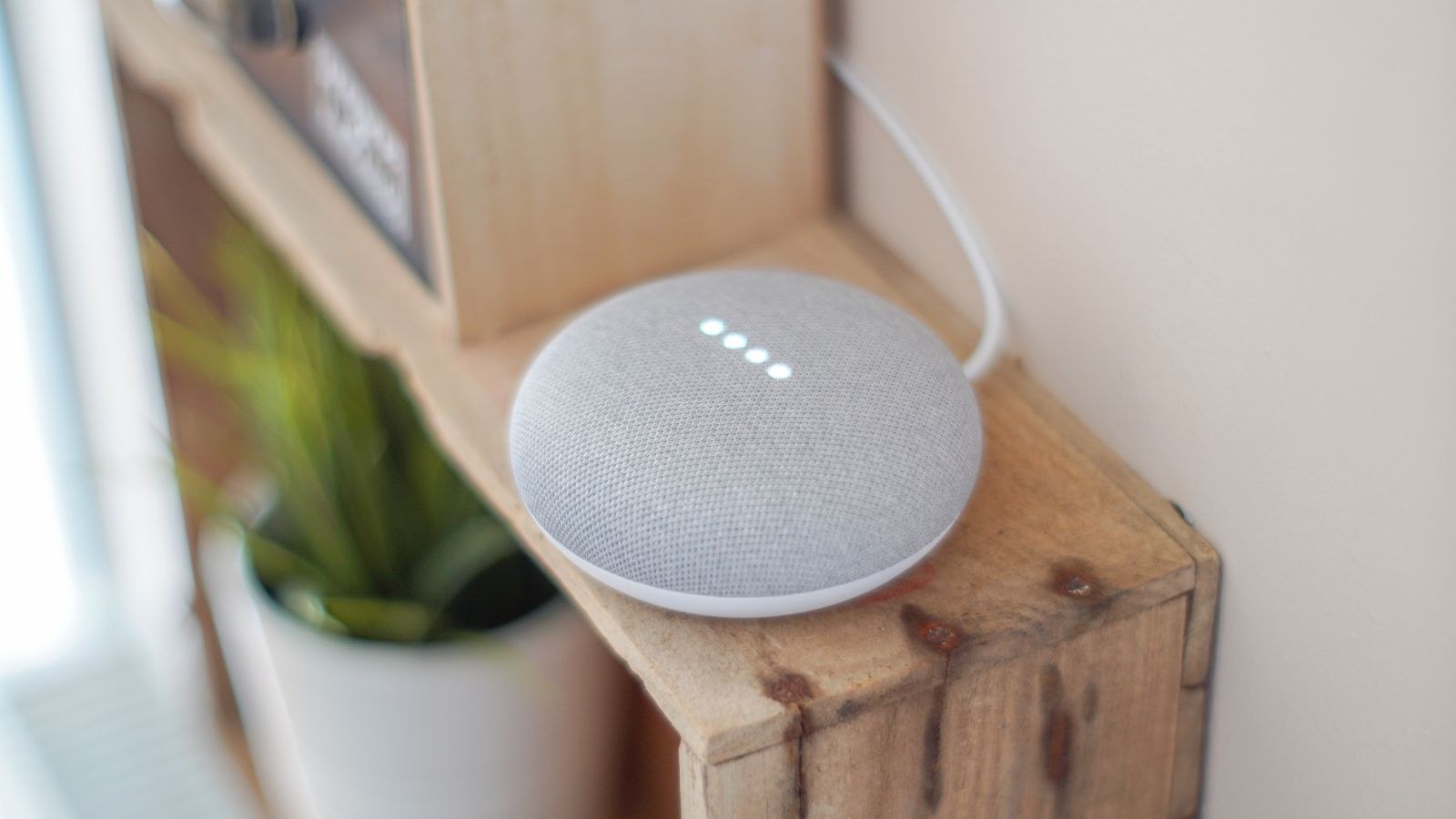
The last group is the only genuine expense. If you are replacing speakers, our roundup of the best Google smart speakers covers what fits which room, and the best Alexa speakers list is worth a look if you decide to keep a couple of Echo units running in bedrooms rather than removing them entirely. Running both ecosystems side by side is a perfectly reasonable long-term arrangement.
Step 1: Audit Everything Before You Change Anything
Open the Alexa app and work through the device list room by room. For each entry, write down the device name, the room it sits in, and crucially which app or integration it came from. Then open your list of Alexa skills and note every smart home skill you have enabled, because each one represents a manufacturer account you will need to link on the Google side.
Do the same for automations. Screenshot every routine, including the trigger, every action in sequence, and any conditions. Routines do not transfer between platforms in any form, so this list is the only record you will have when rebuilding. Include voice-triggered routines, scheduled ones, and any that fire on sensor activity.
Check Compatibility Before Committing
Most mainstream brands support both assistants, but not all, and a few support one far better than the other. Verify each manufacturer from your audit list has a Google Home integration before you unlink anything from Alexa. Our reference on Google Home and Alexa compatible devices is a quick way to check the common brands and spot the ones that will need replacing.
Step 2: Set Up Google Home Alongside Alexa
Do not remove anything yet. Running both platforms in parallel for a week or two is the safest possible migration, because you keep working control of the house while you build the replacement.
- Install the Google Home app and sign in. Use the Google account you intend to keep long term, not a throwaway.
- Create your home structure first. Add every room before adding devices, so accessories land in the right place automatically.
- Set up your new speaker or display. Place it centrally, connect it to your 2.4GHz or dual-band network, and complete voice match for each household member.
- Add household members. Invite everyone who needs control now rather than after routines are built, so their voices are recognised.
- Leave Alexa fully operational. Both assistants can control the same accessories at once without conflict.
Step 3: Link Accounts and Move Devices in Batches
Work through your audit list one manufacturer at a time rather than one device at a time. Linking a brand account brings all of that brand’s accessories across in a single action.
- Open Add device in Google Home and choose Works with Google Home. Search for the manufacturer name.
- Sign in with the same manufacturer credentials you used for Alexa. Using a different account creates a duplicate set of devices and endless confusion.
- Authorise the link and wait for devices to import. This usually takes under a minute.
- Assign rooms immediately. Unassigned devices break group commands like turning off all kitchen lights.
- Rename for voice. Choose names you can say naturally and that do not sound like each other. Avoid numbers and abbreviations.
- Test each batch out loud. Speak the command rather than tapping the app, since recognition problems only surface by voice.
For Matter accessories, the process is different and simpler. Open the app that currently controls the device, find the option to share or add to another ecosystem, and generate a pairing code. Enter that code in Google Home and the device joins both platforms simultaneously with no cloud link involved.
Step 4: Replace or Re-Pair Hardware That Cannot Move
Some accessories were set up directly in the Alexa app and have no independent manufacturer account. These need a factory reset and a fresh setup through Google Home or the brand’s own app. Before resetting, check whether the brand offers a standalone app that you can register the device to instead, because that route keeps schedules intact more often than a full reset.
Where hardware genuinely cannot come with you, replace it deliberately rather than all at once. Plugs and switches are the usual casualties, and both are inexpensive. Our picks for the best smart plugs for Google Home cover the models that set up cleanly in the app, and the best smart switches for Google Home list is the one to read if you are replacing wall controls where wiring and neutral requirements matter.
Step 5: Rebuild Routines and Automations
This is the most time-consuming part and the one people underestimate. Google Home routines use a different structure to Alexa’s, so expect to rethink rather than copy. Work from your screenshots and rebuild the routines you actually use daily first, then the seasonal or occasional ones.
- Start with the household starters. Morning and bedtime routines usually cover most of the value, so get those working first.
- Recreate voice triggers carefully. Pick phrases that do not clash with built-in commands or with each other.
- Rebuild scheduled routines next. Check the days of the week and any sunrise or sunset offsets, which often differ in behaviour between platforms.
- Add device-triggered automations last. Sensor and presence triggers depend on devices being fully migrated first.
- Test each routine at least twice. Once immediately, and once at its natural trigger time the following day.
Expect a few Alexa routines to have no direct equivalent. Where that happens, look for a solution in the manufacturer’s own app instead, since many brands support schedules and conditions natively regardless of which assistant sits on top.
Step 6: Unlink Alexa and Clean Up
Only once everything works on the Google side should you start removing things. Disable the smart home skills in the Alexa app one manufacturer at a time, checking after each that the corresponding devices still respond to Google. Then delete the devices from Alexa, remove old routines, and finally sign out or deregister any Echo hardware you are retiring.
Reset any hardware you plan to sell or pass on, since a deregistered but unreset device still carries network credentials. If you are keeping some Echo units in bedrooms, leave those linked and simply accept that a couple of accessories respond to both assistants, which causes no harm.
Common Mistakes to Avoid
- Unlinking Alexa before Google works. Always run both in parallel until every device and routine is verified.
- Using a different manufacturer account. Duplicate device entries are painful to untangle later.
- Skipping room assignment. Group and whole-house commands fail without it.
- Reusing similar-sounding device names. Voice control degrades quickly when names overlap.
- Factory resetting too early. Try the manufacturer app route first; a reset loses schedules and history.
- Forgetting other household members. Everyone needs an invite and voice match or half the family loses control.
Frequently Asked Questions
Can Alexa and Google Home control the same devices at once?
Yes. Most accessories link to both platforms simultaneously through separate integrations, and there is no conflict. Running both indefinitely is a valid choice.
Do my Alexa routines transfer to Google Home?
No. Routines are platform specific and must be rebuilt manually. Screenshot every one before you begin so you have a complete reference.
Will my Echo speakers work with Google Home?
No. Echo hardware is tied to Alexa and cannot be added to Google Home. Keep them as Alexa speakers, repurpose them as Bluetooth speakers, or replace them.
Does Matter make switching easier?
Considerably. Matter accessories share across ecosystems using a pairing code rather than a cloud account link, so they move in seconds and can belong to both platforms at once.
Final Thoughts
A move between assistants goes badly only when it happens in the wrong order. Audit your devices, skills, and routines while the old system still works, stand up Google Home alongside it, migrate manufacturer accounts in batches with rooms and names sorted as you go, rebuild routines from your notes, and unlink Alexa last. Budget an evening for setup and a week of parallel running before you commit fully. Approach it that way and switching ecosystems in 2026 is an afternoon of admin rather than a household emergency, with every light and plug still answering the moment you speak.









