
 Owen Bradley
 Before you call your internet provider to pay for a faster plan, it’s worth finding out whether your sluggish speeds are actually caused by your router, your Wi-Fi setup, or your connected devices rather than your bandwidth tier. In a surprising number of homes, “slow internet” is really a Wi-Fi problem that a few free adjustments and smart settings can fix. This guide walks through the troubleshooting steps in a logical order so you can pinpoint the real bottleneck and speed things up without spending an extra cent per month.
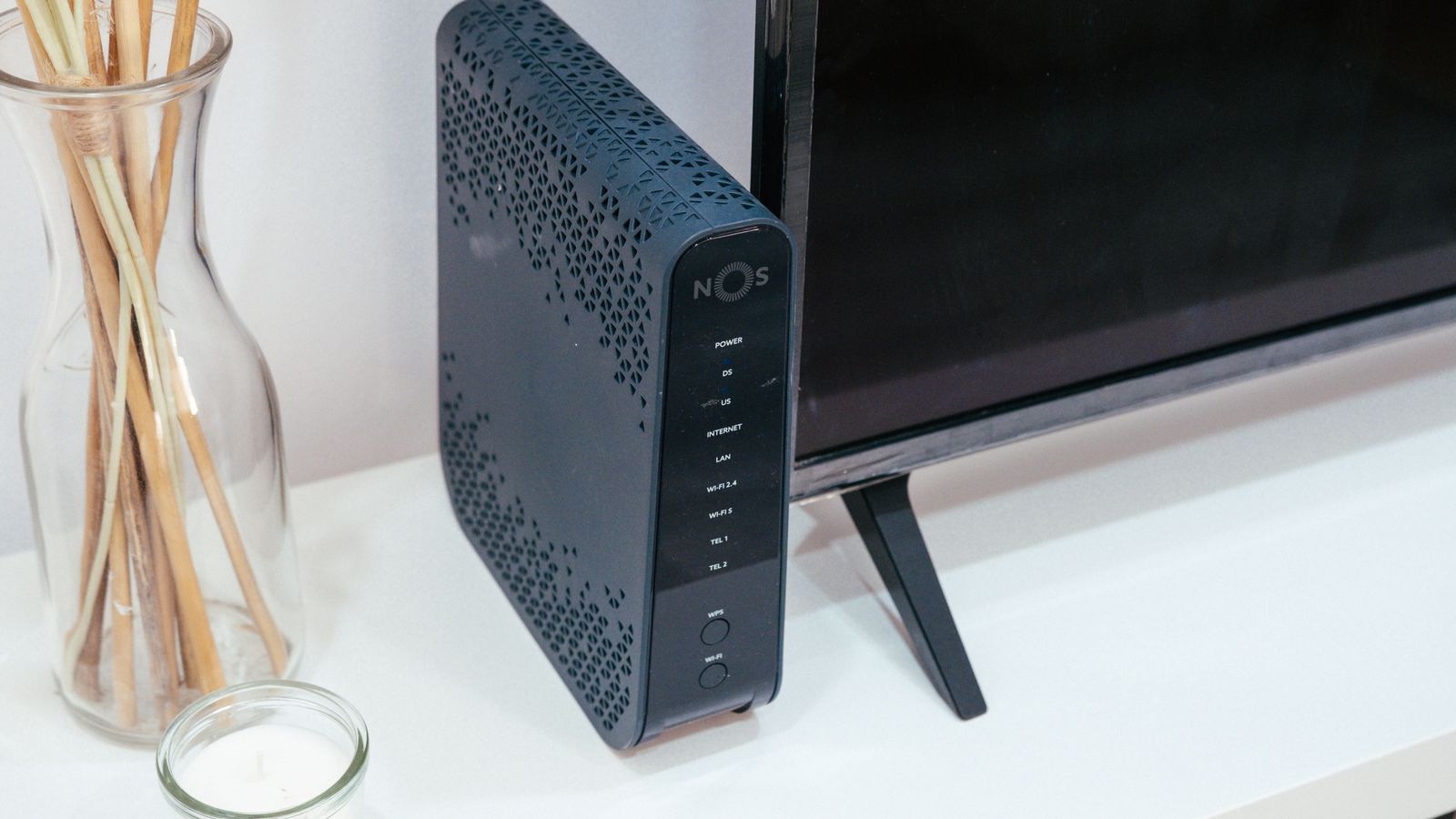
Why Your Network Might Feel Slow
Slow performance is often a wireless issue rather than a bandwidth shortage. Router placement, radio interference, outdated firmware, channel congestion, and too many devices competing for airtime can all throttle your effective speed even when your plan is perfectly fast. Understanding the difference between your wired speed and your Wi-Fi speed is the first step to fixing the problem.
Wired Speed vs. Wireless Speed
Your internet plan’s advertised speed is what arrives at your modem. Wi-Fi then delivers a fraction of that to your devices, and that fraction shrinks with distance, walls, and interference. If a device connected by cable is fast but your phone across the house is slow, the plan is fine — the Wi-Fi is the weak link.
What You’ll Need
- Access to your router’s admin settings via a browser or app
- A speed test tool to compare wired and wireless results
- An ethernet cable for a baseline wired test
- A list of the devices connected to your network
Step-by-Step: Diagnosing and Fixing Slow Speeds
- Run a wired speed test first. Connect a laptop directly to the router with an ethernet cable and run a test. If the wired speed matches your plan but Wi-Fi is slow, the issue is your wireless setup, not your plan.
- Reposition your router. Place it central, elevated, and out in the open — away from thick walls, metal objects, and appliances like microwaves and cordless phones that cause interference.
- Restart your router and modem. Power cycle both for at least 30 seconds. This clears temporary memory issues that quietly build up over weeks of continuous operation.
- Update your router’s firmware. Outdated firmware can cause performance bugs and leave security holes open. Check the admin panel for available updates and apply them.
- Switch to a less congested channel. On the crowded 2.4GHz band especially, overlapping neighbor networks slow you down. Use your router’s auto-channel feature or set a clearer channel manually.
- Separate and use your bands wisely. Reserve the faster 5GHz band for close-range, high-demand devices like laptops and streaming boxes, and use 2.4GHz for distant or low-power devices like smart sensors.
- Audit your connected devices. Old phones, idle tablets, and forgotten gadgets can quietly consume bandwidth or clutter the network. Remove anything you no longer use.
- Enable Quality of Service (QoS). Prioritize important traffic like video calls or streaming so background tasks such as cloud backups don’t hog the connection.
- Consider a mesh system for larger homes. If dead zones persist after everything else, a single router may simply lack the coverage you need. The best mesh wifi routers can eliminate dead spots and dramatically improve whole-home coverage without touching your internet plan.

Optimizing Device-Side Settings
Sometimes the slowdown starts on the device rather than the router. A few quick checks can rule that out:
- Close bandwidth-heavy background apps and pause automatic cloud syncing during important tasks.
- Forget and rejoin the Wi-Fi network on a device that connects slowly, which refreshes its connection profile.
- Keep device operating systems and network drivers up to date.
- Move closer to the router to confirm whether distance is the cause of a specific device’s slowness.
Tips for Sustained Performance
- Schedule a weekly automatic router reboot if your model supports it.
- Keep firmware set to auto-update whenever possible.
- Limit simultaneous heavy usage, such as large downloads during video calls.
- Revisit your channel settings occasionally, since neighboring networks change over time.
Understanding What Slows a Network Down
To fix slow speeds efficiently, it helps to know the usual culprits and how they interact. Physical distance weakens the signal, walls and floors absorb it, and other electronics on similar frequencies interfere with it. On top of that, every connected device shares the same limited pool of airtime, so a network that felt fast with three devices can feel sluggish once a dozen phones, tablets, TVs, and smart gadgets join in. Diagnosing the real cause prevents you from paying for bandwidth you already have.
2.4GHz vs. 5GHz in Practice
The 2.4GHz band travels farther and penetrates walls better but is slower and far more crowded, since many household devices use it. The 5GHz band is much faster and less congested but has shorter range. Matching each device to the right band — fast devices nearby on 5GHz, distant low-demand devices on 2.4GHz — is one of the simplest ways to unlock speed you’re already paying for.
When Extra Hardware Actually Helps
Sometimes free adjustments only go so far, especially in larger or multi-story homes with thick walls. If a specific far-off room stays slow no matter what, a range extender or a mesh system fills the gap. Extenders are cheaper but can halve throughput, while a mesh system provides seamless whole-home coverage under a single network name. Before buying anything, confirm through wired and wireless testing that coverage — not your plan — is genuinely the limiting factor.
Powerline Adapters as an Alternative
If running an ethernet cable across the house isn’t practical, powerline adapters send network data over your existing electrical wiring. They can be a reliable middle ground for reaching a distant room without upgrading your entire setup, though performance depends on your home’s wiring quality.
Common Mistakes to Avoid
- Assuming slow Wi-Fi always means you need a faster internet plan
- Hiding the router inside a cabinet or behind the TV
- Never updating firmware after the initial setup
- Ignoring the difference between wired and wireless speed test results
- Connecting every device to the 2.4GHz band out of habit
Frequently Asked Questions
How do I know if it’s my router or my internet plan?
Run a wired speed test directly into the router. If that matches your plan but Wi-Fi speeds are much lower, the router or its placement is the bottleneck.
Does restarting my router actually help?
Yes. It clears temporary memory buildup and resolves many minor performance hiccups, which is why a regular restart schedule is worth setting up.
Is a mesh system worth it if I only have one router now?
If your home has multiple floors, thick walls, or persistent dead zones, a mesh system usually solves coverage issues more effectively than repositioning a single router.
Can too many devices really slow my whole network?
Yes. Each active device competes for airtime, so trimming unused connections and prioritizing important ones with QoS can noticeably improve performance.
Final Thoughts
A slow home network is often fixable without spending more on your internet plan. Start with router placement, restarts, firmware updates, and channel adjustments, then optimize your bands and device settings. If coverage remains a problem in a larger home, a mesh upgrade can deliver the whole-home speed boost you were about to pay your provider for.









