
 Owen Bradley
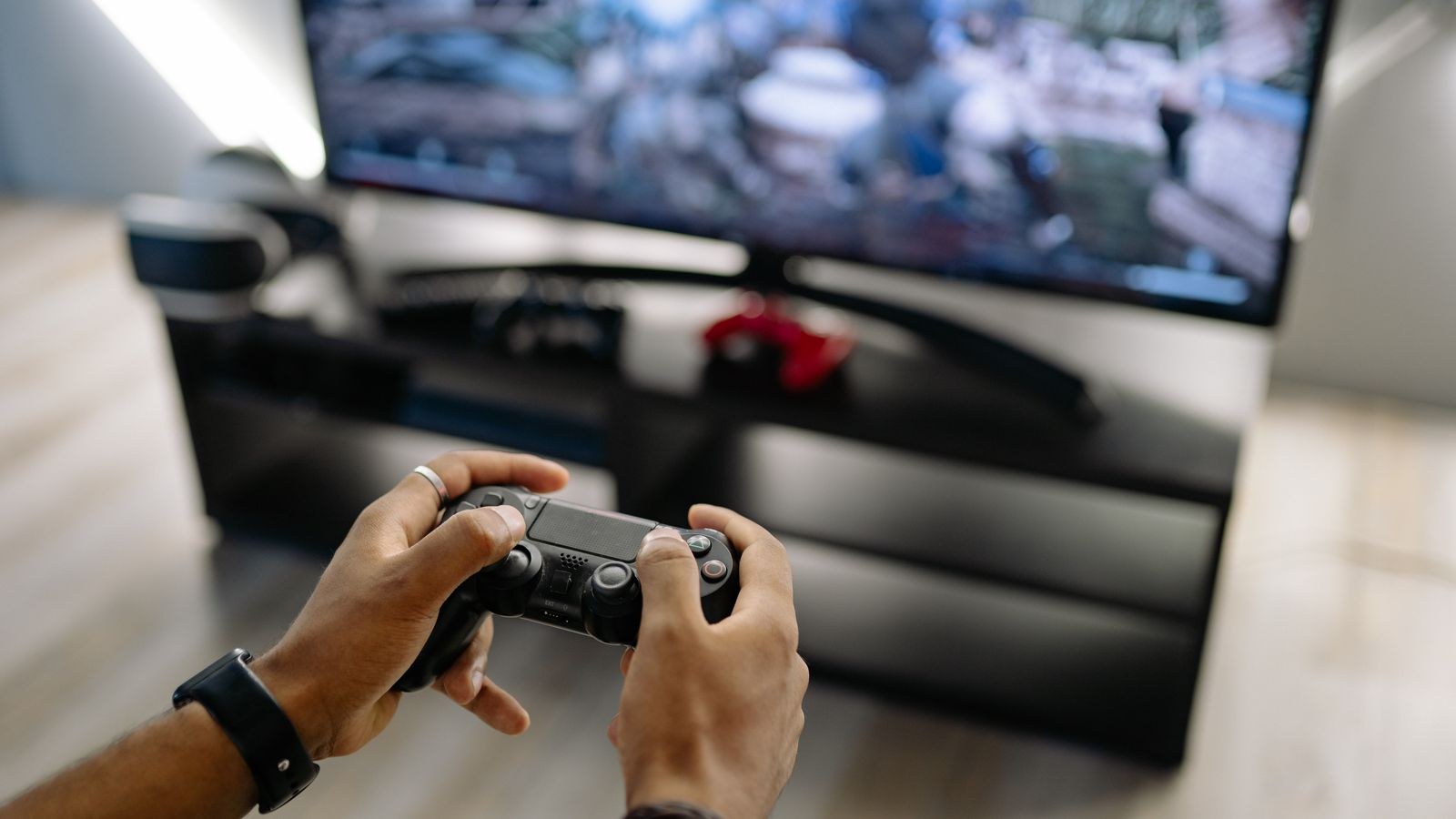
 A television can have a gorgeous panel and still feel terrible to play on. If your shots seem to land a beat late, or the image tears across the middle during fast camera movement, the problem is almost never the console. It is that the TV is treating your game like a movie, running every frame through processing it does not need, and refusing to adapt its refresh rate to what the console is actually producing. Learning how to enable game mode and VRR on your TV fixes both issues in about ten minutes, using settings that are already there and cost nothing to switch on.
What Game Mode and VRR Each Do
Game mode attacks input lag. A TV in its normal picture mode buffers incoming frames so it can apply noise reduction, motion interpolation, dynamic contrast, and upscaling. Each of those steps takes milliseconds, and they stack. Game mode bypasses most of the chain, sending the image to the panel almost immediately. On a typical set that drops input lag from somewhere around 80 to 120 milliseconds down to roughly 10 to 20 milliseconds, a difference you feel instantly in the responsiveness of a controller.
VRR, or variable refresh rate, attacks tearing and stutter. Normally a TV refreshes at a fixed rate, say 60 times a second, while a console renders frames at whatever speed the scene demands. When those two fall out of sync you get a torn image, where the top half of the screen shows one frame and the bottom half shows the next. VRR lets the display change its refresh rate on the fly to match the console’s output frame by frame, so every frame is shown whole and at the moment it arrives.
A third feature, ALLM or auto low latency mode, ties the two together. When enabled, the console tells the TV it is a game and the TV switches into game mode by itself. It is the convenience layer, and it is worth turning on so you never have to remember.
What Your Hardware Needs to Support
Game mode is universal. Essentially every television made in the last decade has it, and it works over any HDMI connection at any resolution.
VRR is more demanding. You generally need a TV with a 120Hz native panel and HDMI 2.1 support, a console or PC that outputs VRR, and a cable rated to carry the bandwidth. Some 60Hz sets support VRR in a narrow range, and some televisions support AMD FreeSync over HDMI 2.0, so it is worth checking your specific model rather than assuming.
The cable matters more than people expect. To carry 4K at 120Hz with VRR you need an Ultra High Speed HDMI cable rated for 48Gbps. The cable that shipped in the console box is usually fine; an older cable from a drawer frequently is not, and the failure mode is a blank screen or a missing option.
Port choice matters too. On most televisions only two of the four HDMI ports are full HDMI 2.1, usually labelled on the rear panel, and one is often shared with eARC. If VRR will not enable, the wrong port is the most common cause.
Step by Step: Enabling Game Mode and VRR
- Plug into the right HDMI port. Check the labels on the back of your TV and connect the console to a port marked 4K120, HDMI 2.1, or Game. If nothing is labelled, consult the manual for which ports carry the full bandwidth. Use the cable that came with the console or a certified Ultra High Speed one.
- Enable enhanced HDMI signal format. This is the step most people miss. By default many TVs run their HDMI ports in a reduced bandwidth mode for compatibility with older devices. Look for a setting named HDMI Ultra HD Deep Colour on LG, Input Signal Plus on Samsung, HDMI Signal Format, Enhanced on Sony, or HDMI Mode or HDMI 2.1 Format on TCL and Hisense. Set it to the enhanced option for the specific port your console is on. Without this, VRR and 120Hz will not appear as options at all.
- Label the HDMI input as a games console. In the input or source menu, rename the port to Game Console or PC. Many televisions use this label to unlock game-specific features and to apply the correct signal handling automatically.
- Turn on game mode. Open Settings, then Picture or General, and enable Game Mode, Game Picture Mode, or Game Optimiser depending on brand. On LG this lives under General, then Game Optimiser. On Samsung it is Settings, then General, then External Device Manager, then Game Mode. On Sony it appears as a Game picture mode selectable per input.
- Enable ALLM. Look for Auto Low Latency Mode, Auto Game Mode, or Instant Game Response in the same area and switch it on. This lets the console trigger game mode automatically when you launch a game and drop out of it for video apps.
- Enable VRR on the TV. Find the VRR toggle, usually in the same game or advanced picture submenu. LG lists TruMotion-adjacent VRR options in Game Optimiser; Samsung places it under Game Mode Settings; Sony has a dedicated VRR switch under Picture and Sound. Turn on VRR and, if offered separately, AMD FreeSync Premium. Enable the extended or low framerate compensation option if present, as it widens the range VRR covers.
- Configure a PS5. Go to Settings, then Screen and Video, then Video Output, and confirm the console reports 4K, 120Hz, and VRR as supported. Set VRR to Automatic, and enable Apply to Unsupported Games so titles without native VRR support still benefit. Also confirm HDMI Device Link is on if you want automatic input switching.
- Configure an Xbox Series console. Go to Settings, then General, then TV and Display Options. Set resolution to 4K UHD and refresh rate to 120Hz. Open Video Modes and tick Allow Variable Refresh Rate, Allow Auto Low Latency Mode, and Allow 4K. Then run the 4K TV Details tool, which reports exactly which features your TV and cable combination actually support.
- Configure a PC. In the graphics driver control panel, enable FreeSync or G-Sync Compatible for the display, then confirm the refresh rate is set to 120Hz in your display settings. Enable HDR separately if you want it, since it is a distinct toggle.
- Verify it is working. Most televisions can display a live signal information overlay showing resolution, refresh rate, and whether VRR is active. On LG and Samsung this appears as a game dashboard or status bar. Launch a game with a variable frame rate and confirm the refresh figure moves rather than sitting locked at 60.
- Tune the game picture mode. Game mode often resets picture settings, so recheck black level, contrast, and colour temperature in this mode. Also switch off any remaining motion smoothing, since it reintroduces the exact latency you just removed.
Troubleshooting When VRR Will Not Turn On
The Option Is Greyed Out
Almost always the enhanced HDMI signal format is not enabled for that specific port, or the console is on a port without full bandwidth. Both settings are per port, so enabling them on HDMI 3 does nothing for a console plugged into HDMI 1.
The Screen Goes Black or Flickers
This usually points at the cable. A non-certified or long HDMI cable often cannot carry 48Gbps reliably, producing dropouts that look like a failing TV. Swap in the cable that came with the console. If black-level flickering appears in dark scenes with VRR active, that is a known characteristic of some panels; a firmware update or slightly raising the brightness control typically reduces it.
Game Mode Will Not Engage Automatically
ALLM needs to be enabled on both ends, and the input should be labelled as a games console. If it still fails, switch the picture mode to Game manually; the latency benefit is identical either way.
The Picture Looks Washed Out in Game Mode
Game mode has its own stored picture values, and they are frequently untuned. Set black level, contrast, and colour temperature within game mode specifically. Also check that the console’s HDMI range setting matches the TV’s, since a limited-versus-full mismatch clips both shadows and highlights.
Choosing a TV That Handles This Properly
These features only exist if the hardware supports them, and support varies far more than marketing suggests. Some sets advertise VRR but implement it over a narrow refresh window; others put HDMI 2.1 on only a single port. If you are shopping rather than configuring, the best VRR gaming TVs covers which models deliver a genuinely wide variable refresh range, while the best HDMI 2.1 gaming TVs compares how many full-bandwidth ports each set actually provides.
For responsiveness specifically, our roundup of the best low input lag gaming TVs lists measured latency figures in game mode rather than manufacturer claims, and the best ALLM gaming TVs highlights sets that switch modes reliably without manual intervention. Console owners will find the best gaming TVs for PS5 shortlist useful, since it accounts for the specific format support that console negotiates.
Mistakes to Avoid
- Skipping the enhanced HDMI format setting. This is the number one reason VRR and 120Hz never appear, and it must be set per port.
- Reusing an old HDMI cable. Bandwidth requirements have risen sharply; an older cable silently caps what the connection can carry.
- Using the wrong port. Only some ports are full HDMI 2.1 on most televisions.
- Leaving motion smoothing on in game mode. It adds back the latency game mode just removed.
- Assuming VRR fixes low frame rates. It smooths inconsistency, but a game running at 35fps still looks and feels like 35fps.
- Never verifying. Enabling a toggle is not proof it engaged; use the signal overlay or the console’s display test to confirm.
Frequently Asked Questions
Does game mode reduce picture quality?
It disables processing, some of which was improving the image cosmetically. In practice the loss is minor, mostly in upscaling of low-resolution content, and the latency gain is far more valuable while playing.
Do I need a 120Hz TV for VRR to help?
Not strictly, but it helps a great deal. A 120Hz panel supports a much wider variable range, so VRR covers more of the frame rates games actually hit. On a 60Hz set the usable window is narrow.
Can I use VRR and HDR at the same time?
Yes on HDMI 2.1 hardware. Both run simultaneously at 4K120 on a certified cable. If enabling one disables the other, the connection is falling back to reduced bandwidth.
Should I leave game mode on all the time?
Only on inputs used for gaming. For films it disables processing that genuinely helps with upscaling and cadence, and the latency benefit is irrelevant. ALLM handles the switching for you.
Final Thoughts
Getting this right is mostly a matter of order. Use a full-bandwidth HDMI port, use a certified cable, enable the enhanced signal format for that port, then turn on game mode, ALLM, and VRR on the TV before configuring the console to match. Verify with the signal overlay rather than trusting the menus, and spend a few minutes tuning the game picture mode since it keeps its own settings. Done properly, the same television that felt sluggish and tore through fast scenes will feel immediate and clean, without spending anything.









