
 Owen Bradley
 Wireless is convenient, but a television is the one device in the house that never moves and never stops asking for bandwidth. That makes it the ideal candidate for a cable. A wired link removes interference, distance and band contention in a single step, which is why a 4K HDR stream that stutters on Wi-Fi usually plays perfectly the moment you plug it in. This guide covers how to connect a smart TV to Ethernet in real homes, including the cases where you cannot run a cable through a wall, and how to confirm afterwards that the set is genuinely using the wired path rather than quietly falling back to wireless in 2026.
Why Wired Beats Wireless for Television
A 4K HDR stream needs roughly 25 Mbps sustained, and Dolby Vision or high-bitrate content can push higher. Wi-Fi can deliver that on paper, but it delivers it in bursts that vary with interference, distance and whoever else is using the band. Streaming apps respond to variability by dropping quality, which is why picture softness and mid-film buffering usually arrive together.
Ethernet gives you a fixed, private path. Latency is lower and steadier, throughput does not fluctuate when a neighbor turns on their microwave, and you free up wireless airtime for the phones and tablets that genuinely need it. On a busy home network, wiring the TV improves the Wi-Fi for everything else too.
What You Need
- Cat6 Ethernet cable of the right length. Cat5e is fine for gigabit, but Cat6 costs little more and is the sensible default for in-wall runs.
- A network switch if your router has run out of ports or sits far from the TV.
- A USB-to-Ethernet adapter if your TV or streaming box lacks a port.
- MoCA adapters or powerline adapters as alternatives when running cable is impossible.
- Cable clips or trunking, plus a drill and fish tape if you plan an in-wall run.
Step-by-Step: Getting the TV Wired
-
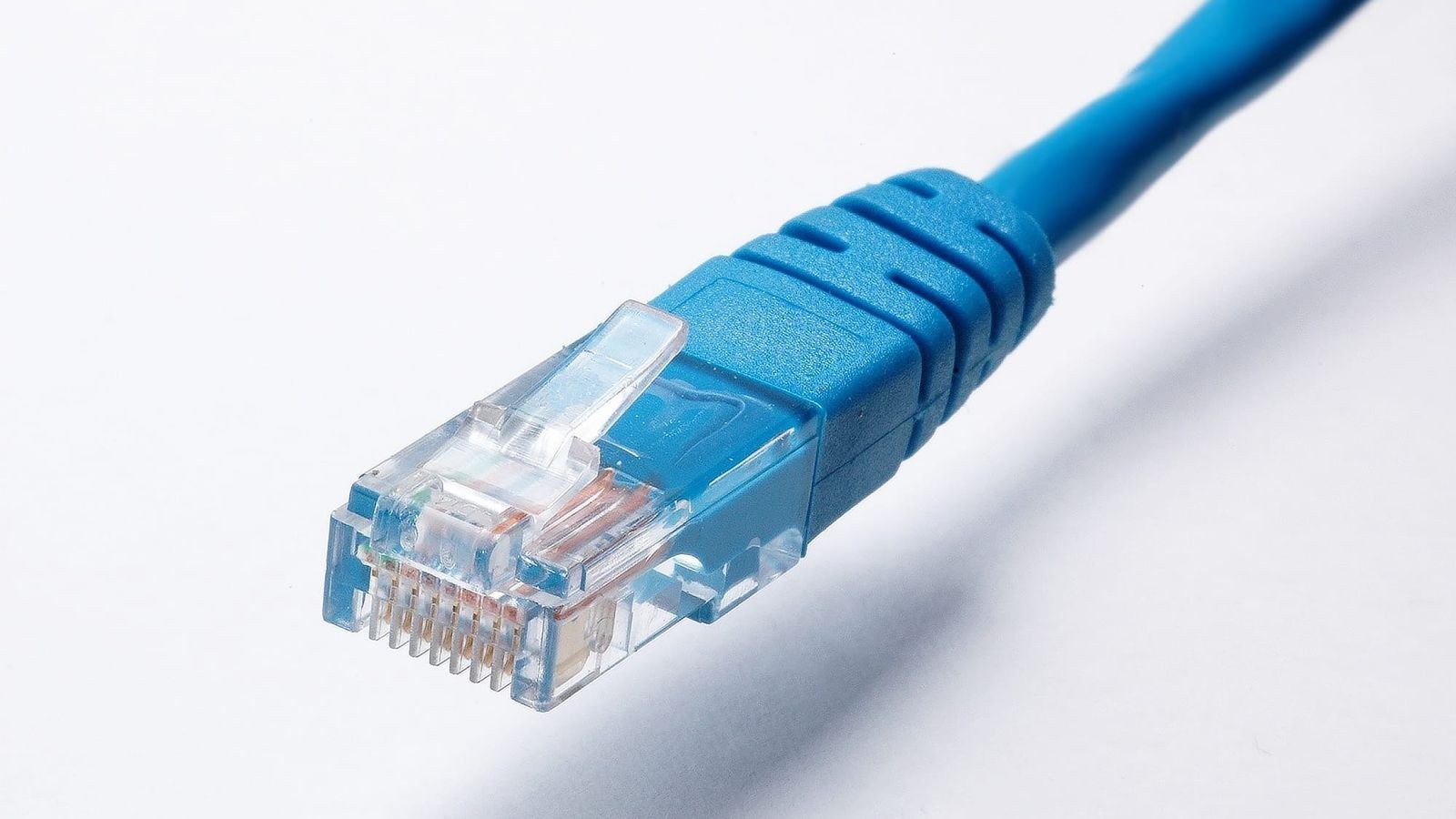
Confirm the TV has a LAN port. Look at the rear or side panel for an RJ45 socket, usually labelled LAN or Ethernet. Many slim sets omit it, and some manufacturers moved the port to a separate connection box. If there is no port, skip ahead to the adapter and alternative sections below rather than abandoning the plan.
-
Measure the route before you buy cable. Walk the path from router to TV and add at least 20 percent for slack, corners and service loops. Buying a cable that is two feet short after you have run it behind furniture is the classic frustration here. Keep total runs under 100 metres, which is not a practical limit in a house.
-
Pick your routing method. The tidiest option is an in-wall run terminating in a wall plate behind the TV. The simplest is a flat cable tucked under carpet edges or along baseboards with clips. Avoid running Ethernet parallel to mains wiring for long stretches, since that can introduce noise; cross at right angles where the two must meet.
-
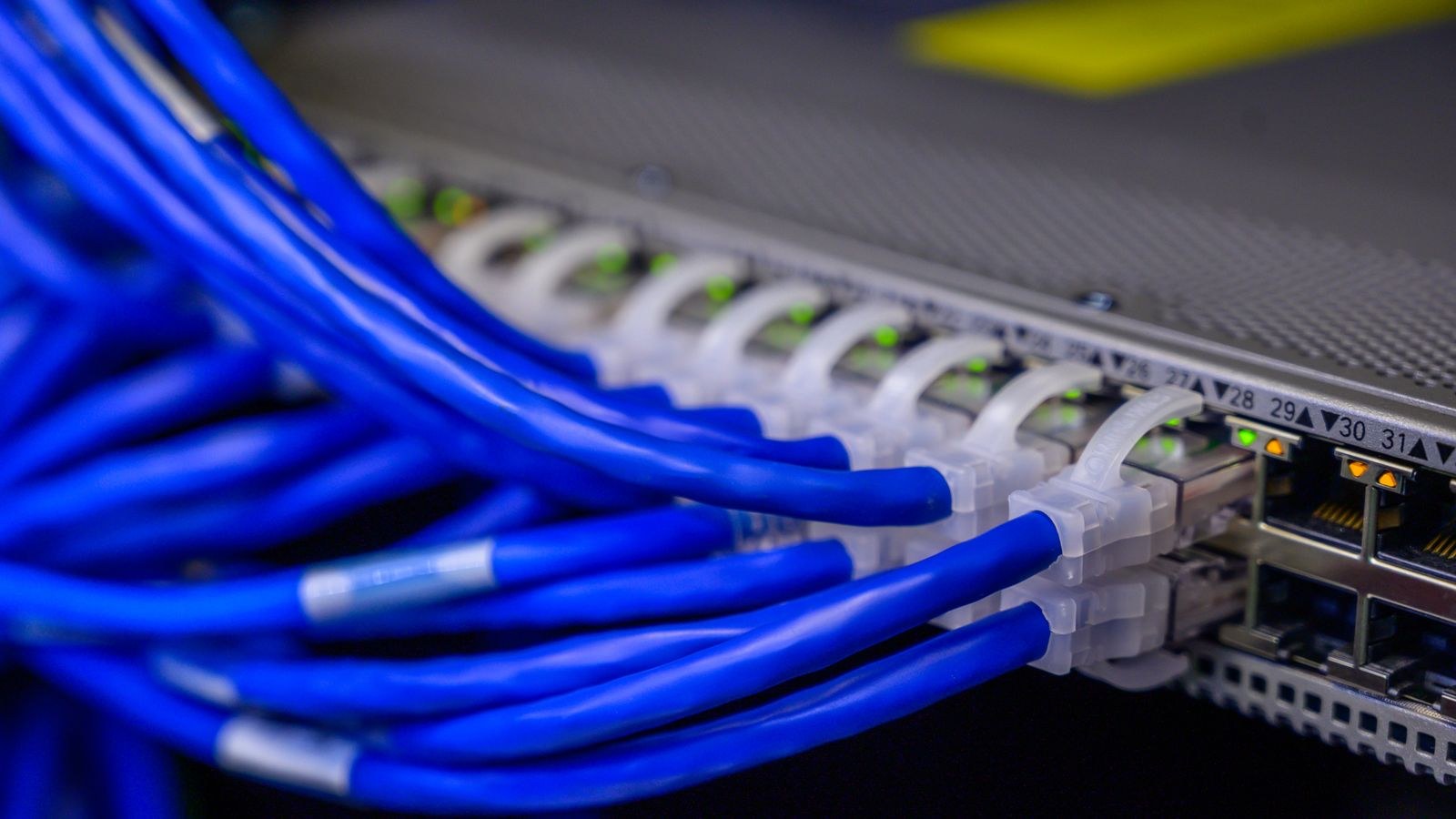
Add a switch if you need more ports. If the TV area also hosts a games console, an AV receiver and a streaming box, run one cable to the room and put a small unmanaged gigabit switch behind the cabinet. This is far cheaper and neater than running four cables, and an unmanaged switch requires no configuration at all beyond plugging it in.
-
Connect and let the TV negotiate. Plug the cable into the TV and the other end into the router or switch. Most sets detect the wired connection automatically. Watch for the link lights at the router end; a steady light plus intermittent flicker means the link is live.
-
Explicitly select the wired connection in the TV’s menu. This step catches almost everyone. Many televisions keep using a saved Wi-Fi profile even with a cable attached. Open network settings, choose wired or Ethernet, and run the connection test. Then disable or forget the Wi-Fi network on that TV so it cannot silently revert.
-
Verify the negotiated speed. In the TV’s network information screen, check the connection status and, where shown, the link speed. If it reports 100 Mbps instead of 1 Gbps, suspect a damaged cable, a bent pin, or a cheap patch lead with only four wires connected. Some older televisions genuinely have 100 Mbps ports, which is still ample for 4K but worth knowing.
-
Run a speed test on the TV itself. Use a built-in test or a speed test app. You want a result comfortably above 25 Mbps, ideally well beyond it, with no wild variation across repeated runs. Consistency is the point of the exercise, so run it three or four times.
-
Play real 4K content and check the quality indicator. Most services display resolution and bitrate somewhere in their info panels. Confirm the stream reaches full 4K and holds it for a sustained period rather than climbing and dropping. Do this in the evening, when the network is busiest.
-
Tidy and label. Secure the cable so it cannot be pulled when the TV is moved, leave a small service loop behind the unit, and label both ends. Future you, tracing a dead port behind a wall plate, will appreciate it.
When You Cannot Run a Cable
Apartments, rentals and solid-wall houses often rule out drilling. Two alternatives get you most of the benefit.
MoCA sends Ethernet over the coaxial cable already installed for television, and it is the better option by a wide margin. Modern MoCA adapters deliver near-gigabit throughput with latency close to real Ethernet. You need a coax outlet near the router and another near the TV, plus a compatible splitter, and if you have cable internet you must fit a point-of-entry filter to keep the signal inside your home.
Powerline sends data over mains wiring and is the easiest to install, but performance varies enormously with the age and layout of your electrical circuits. Both adapters must be on the same circuit for good results, and plugging them into a surge strip rather than the wall will cripple throughput. Treat powerline as a useful fallback rather than a guaranteed one, and test before committing.
Choosing Supporting Hardware
Wiring only helps if the equipment behind it can keep up. A router with a slow processor or 100 Mbps LAN ports becomes the new bottleneck the moment you eliminate the wireless one.
Our roundup of the best Ethernet routers focuses on gigabit port count and switching performance, which is exactly what a wired living room needs. If your priority is video quality specifically, the best routers for 4K streaming guide weighs sustained throughput under load. For adding ports behind the TV cabinet, our list of the best network switches covers compact fanless models suited to living rooms. On cable connections, the gateway matters too, so compare the best modems for streaming if yours is several years old. For the wider picture of how these pieces fit together, our overview of streaming-optimized home networks is a useful companion read.
Safety Notes for Cable Runs
If you drill, check for electrical cables and pipes first with a detector, and never run Ethernet through the same hole or conduit as mains wiring. Use cable rated for the environment: outdoor-rated jacket if the run passes outside, and riser or plenum rated cable where building codes require it.
Keep cables out of walkways and doorways, secure them so they cannot be tripped over or yanked, and avoid sharp bends, which damage the internal pairs and cause the link to fall back to 100 Mbps. When working behind a wall-mounted television, have someone support the set rather than relying on the bracket while you reach behind it.
Troubleshooting a Wired TV
- No connection at all. Swap the patch cable first; faulty leads are the single most common cause. Then try a different router port.
- Link reports 100 Mbps. Damaged cable, poor termination, or a genuinely 100 Mbps TV port. Test the cable on a laptop to isolate it.
- Still buffering after wiring. The TV is probably still on Wi-Fi. Forget the wireless network and re-run the connection test.
- Works, then drops overnight. The TV may be power-cycling its network interface in standby. Disable aggressive eco or quick-start power settings.
- Powerline speeds are terrible. Different circuits or a surge protector in the path. Move to wall sockets on the same circuit or switch to MoCA.
Common Mistakes
The most frequent is plugging the cable in and assuming the job is done. If the TV never switches away from its saved Wi-Fi profile, nothing changes and people conclude wiring made no difference. Always select the wired connection explicitly and then remove the wireless profile.
The second is buying the cheapest bulk cable available, some of which uses copper-clad aluminium that performs poorly on longer runs and is brittle when terminated. Pay slightly more for solid copper. The third is running a single cable to a room that clearly needs three connections, then living with an adapter tangle instead of adding a small switch. And the fourth is putting powerline adapters into surge-protected strips, which filters out the very signal they depend on.
Frequently Asked Questions
Does Ethernet actually improve picture quality?
Indirectly, yes. Streaming services choose bitrate based on measured connection stability, so a steadier link means the service is more willing to sustain full 4K and HDR rather than stepping down mid-film.
What if my TV has no Ethernet port?
Use a USB-to-Ethernet adapter if the set supports one, or wire a streaming box or games console instead and use that for playback. Both approaches give you the wired benefit without replacing the television.
Is Cat6 necessary or is Cat5e enough?
Cat5e handles gigabit comfortably at household distances, so it is technically sufficient. Cat6 costs marginally more and gives you headroom for multi-gigabit later, which makes it the better choice for anything permanent or in-wall.
Should I still leave Wi-Fi enabled on the TV?
Turn it off on that set once the wired link is confirmed. It prevents accidental fallback, and it removes one more client from a band your phones and tablets are competing for.
Final Thoughts
Wiring a television is one of the highest-value hours of work you can spend on a home network. It costs the price of a cable, removes an entire category of streaming problems, and improves wireless performance for everything else by taking the heaviest client off the air. Run Cat6 where you can, use MoCA where you cannot, add a small switch if the cabinet holds more than one device, and confirm afterwards that the TV really selected the wired path. That last check is what separates a fix that works from one that only looks like it should.









