
 Owen Bradley
 If your laptop throttles performance or shuts down unexpectedly during demanding tasks, heat is almost certainly the cause. Two common solutions exist: a cooling pad that sits under the laptop, and standalone or clip-on fans that direct airflow at specific hot spots. They tackle the same problem in different ways, and picking the right one depends on your laptop’s design, your workload, and where you actually use the machine. This guide breaks down how each works and how to choose between them.
Why Laptops Overheat in the First Place
Laptops pack powerful components into thin chassis with limited room for airflow. Under sustained load, such as gaming, rendering, or heavy multitasking, the internal fans struggle to expel heat fast enough, and the processor reduces its speed to protect itself. This throttling is what makes a hot laptop feel sluggish. External cooling accessories help by improving airflow around the chassis, but they work differently depending on their design.
How Cooling Pads Work
A cooling pad is a flat platform with one or more built-in fans that sits beneath your laptop, pulling in cool air and pushing it up through the laptop’s bottom vents. Most models are USB-powered and need no cable beyond the one connecting to your laptop. Many include adjustable height and tilt, which not only improves airflow but also raises the screen to a more ergonomic angle and gives your wrists a more comfortable typing position.
How Standalone and Clip Fans Work
Clip-on and standalone fans attach to the side of your laptop or sit nearby, blowing air directly at the exhaust vents or across the keyboard deck rather than the bottom panel. Some models actively draw hot air out of the exhaust vent, working with the laptop’s internal fans. These tend to be smaller and more portable than a full cooling pad, making them convenient for travel or tight desks, but they generally move less total air.
Step-by-Step: How to Decide Which One You Need
- Identify your laptop’s intake vents. Most laptops draw cool air in through the bottom panel, which favors a cooling pad. If your intake vents are on the sides or rear, a clip fan may prove more effective.
- Check your available desk space. Cooling pads need a flat surface roughly the size of your laptop or larger; if space is tight, a compact clip fan takes up far less room.
- Consider portability needs. If you work from different locations often, a small clip or USB fan is much easier to pack than a full-sized cooling pad.
- Test your current temperatures. Run a monitoring tool during a demanding task and record your CPU and GPU temperatures before buying anything, so you can measure the improvement afterward.
- Match fan noise to your tolerance. Larger cooling pads with bigger, slower fans are typically quieter than small high-RPM clip fans running at full speed.
- Set up your chosen solution with a slight incline. Whether using a pad or a fan, elevating the rear of the laptop improves natural airflow underneath the chassis.
- Recheck temperatures under the same workload. Compare the new readings to your baseline to confirm the cooling solution is genuinely helping.
Which One Actually Cools Better?
In most real-world testing, a good cooling pad outperforms a small clip fan because it moves more total air across a larger surface area and works with the laptop’s designed bottom-intake airflow path rather than against it. Clip fans that actively extract air from the exhaust can be surprisingly effective on laptops with side vents, but as a general rule, if lowering temperatures is your main goal and you mostly work in one place, a cooling pad is the stronger choice. If portability is your priority, a clip fan is a reasonable compromise.
Where to Start Shopping
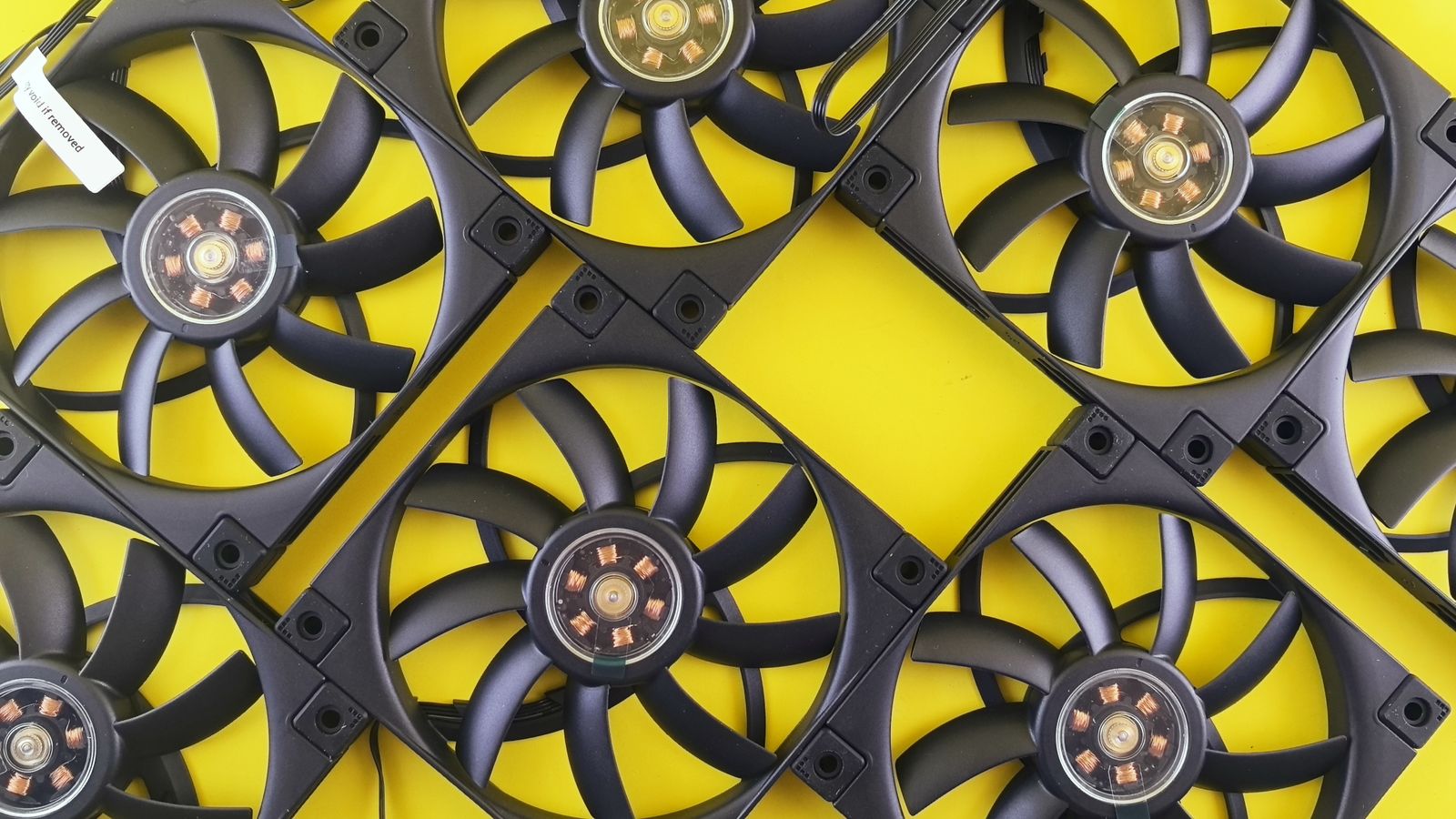
Cooling needs vary by laptop size, vent placement, and typical workload, so it helps to compare options before buying. The best cooling fans for laptops include both pad-style and clip-style designs, which makes it easier to match a solution to your specific chassis and desk space rather than guessing.
Getting the Most From Either Option
External cooling works best when combined with good habits. Always use your laptop on a hard, flat surface rather than a bed or couch, since soft materials block the bottom vents entirely and no accessory fully compensates for that. Clean your laptop’s internal fans and vents periodically, because dust buildup chokes airflow no matter what external cooling you add. Finally, adjust your power settings during heavy tasks so the system can manage heat intelligently alongside your cooling accessory.
Noise, Power, and Everyday Practicality
Cooling performance is only half the decision; you also have to live with the accessory every day. Fan noise is the most common complaint, and it varies widely. Large pads with 140mm or 200mm fans move a lot of air at low speeds, producing a soft hum, while small clip fans often whine at higher pitches that are more distracting during quiet work or calls. Look for models with adjustable fan speed so you can run them quietly for light tasks and ramp them up only when gaming or rendering. Consider power draw too, since a pad with many bright RGB lights and multiple fans pulls more from your USB ports.
Combining External Cooling With Software Tweaks
External accessories work best alongside a few software habits that reduce heat at the source. Cap your frame rate in games that do not need to run flat out, since rendering hundreds of unnecessary frames generates extra heat for no visible benefit. Undervolting the processor, where supported, can lower temperatures significantly without hurting performance. Keep background applications closed during demanding sessions, and choose a balanced or cooling-focused power profile. Together, these steps let a modest cooling pad or fan deliver much bigger real-world temperature drops than hardware alone.
Common Mistakes to Avoid
- Blocking vents with the cooling pad itself. Make sure the pad’s fan openings line up with your laptop’s actual intake locations.
- Choosing on price alone. Extremely cheap pads often use weak fans that barely move air.
- Ignoring internal dust. External cooling helps, but a laptop clogged internally will still overheat.
- Running the laptop on soft surfaces. Beds and couches block bottom vents entirely.
- Expecting miracles from cooling alone. Accessories reduce heat, but a severely underpowered cooling system may still need repasting or servicing.
Frequently Asked Questions
Do cooling pads actually make a measurable difference?
Yes, most cooling pads reduce internal temperatures noticeably, especially on laptops with bottom-mounted intake vents, and they often reduce throttling during sustained workloads.
Are clip fans loud?
Small clip fans can be noisier than larger cooling pads at equivalent airflow because they spin at higher RPM to move a similar volume of air through smaller blades.
Can I use a cooling pad and internal cleaning together?
Yes, and it is recommended. External cooling accessories perform best when combined with periodic internal dust removal for maximum thermal performance.
Will a cooling pad drain my laptop battery?
USB-powered pads draw a small amount of power from your laptop, but the impact is minor. If you are concerned, use a pad with its own power source or run it while plugged into wall power.
Final Thoughts
Cooling pads and standalone fans both help manage laptop heat, but they suit different needs: pads generally cool better for stationary desk use, while clip fans favor portability. Check your laptop’s vent placement, measure your current temperatures, keep the internals clean, and choose the option that matches how and where you actually work. Done right, the right accessory can eliminate throttling and extend the comfortable life of your machine.









