
 Owen Bradley
 A dual monitor setup can transform how you game, work, and multitask. Whether you want a wider field of view for gaming, a secondary screen for streaming chat and stats, or extra workspace for spreadsheets and browser tabs, setting up two monitors is easier than most people expect. This guide walks through the full process from cable connections to fine-tuning display settings, plus tips for optimizing your arrangement for either play or productivity.
Check Your Graphics Card’s Outputs
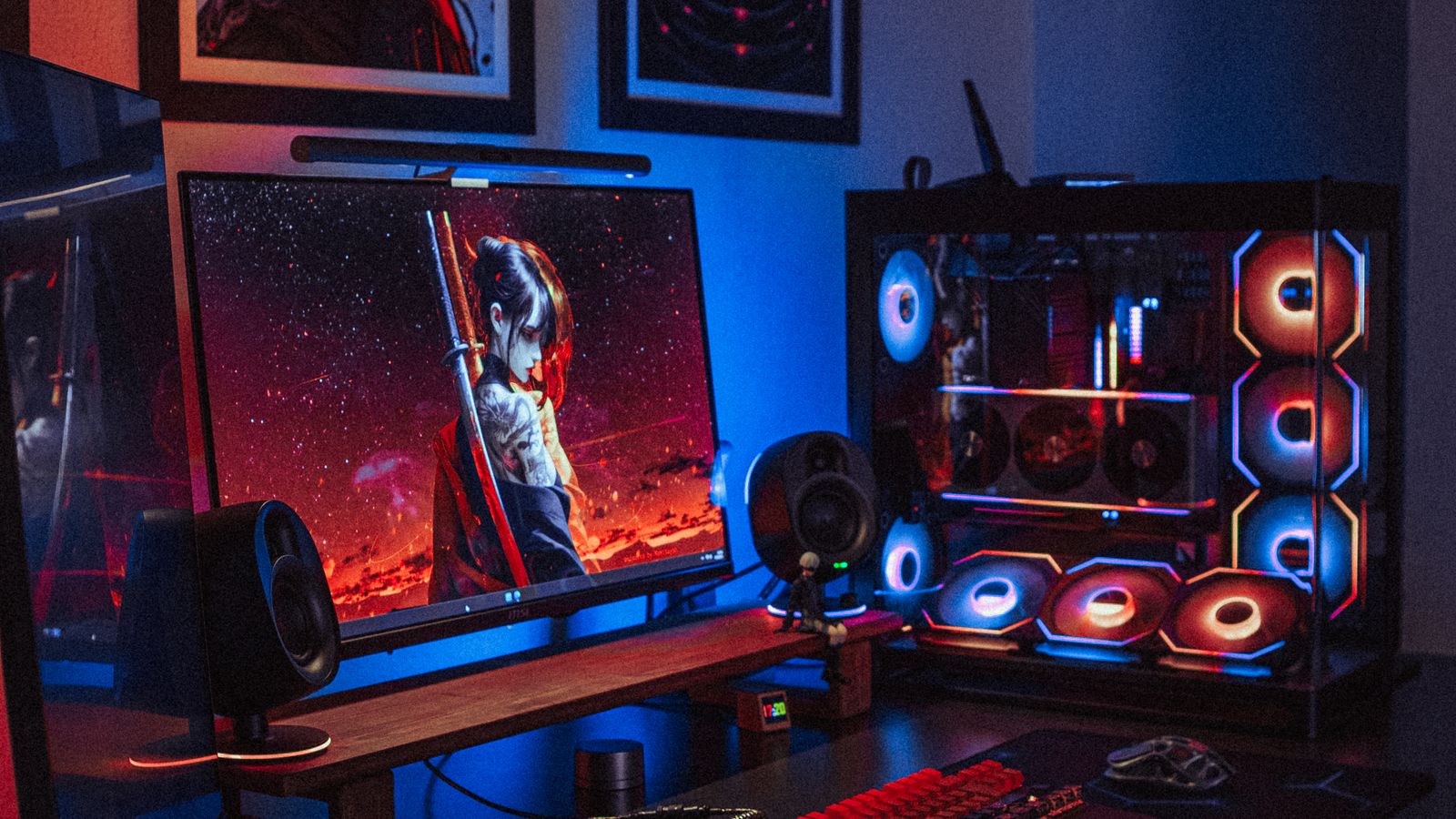
Before buying a second monitor, confirm how many display outputs your graphics card or motherboard supports, and what types they are, such as HDMI, DisplayPort, or DVI. Most modern graphics cards support at least two or three simultaneous displays, but older integrated graphics may be more limited. If you’re building or buying new, checking the best desktop computers with dual monitors can save you the guesswork, since these systems come with output configurations already suited for multi-display use.
Gather the Right Cables
Matching your cables to your monitor’s capabilities is important. DisplayPort and HDMI both support high refresh rates, but the specific version matters for high-resolution, high-refresh gaming. If you want 144Hz or higher at 1440p or 4K, make sure both your cable and port support the required bandwidth. Using an older or low-spec cable is a frequent reason people can’t reach their monitor’s full refresh rate.
Step-by-Step: Setting Up Dual Monitors
- Power down your PC and connect your first monitor to an available output on your graphics card using an HDMI or DisplayPort cable.
- Connect your second monitor to another available output on the same graphics card. Avoid mixing one monitor on the graphics card and one on the motherboard, as this can create performance inconsistencies for gaming.
- Power on your PC and both monitors, then log into your operating system.
- On Windows, right-click the desktop and select Display Settings. On Mac, open System Settings and go to Displays.
- Confirm both monitors are detected. If one isn’t showing up, click “Detect” or check the cable connection.
- Choose your display arrangement (extended or duplicated) and drag the monitor icons to match their physical left-to-right placement on your desk.
- Set your preferred primary display, then adjust resolution and refresh rate individually for each monitor.
- Align the tops of the on-screen monitor icons so your cursor moves smoothly between screens at the correct height.
- Test the setup by dragging a window across both screens to confirm the arrangement feels natural.
Optimizing for Gaming
For gaming, most players prefer using one monitor as the primary display while keeping the second screen free for chat apps, streaming overlays, or guides. If your game supports multi-monitor spanning for an ultra-wide field of view, you’ll need to enable that specifically within the graphics driver’s control panel or the game’s display settings. Pairing your setup with a quality display from the best computer monitors for gaming ensures both screens deliver smooth, responsive performance. Keep in mind that running games across two screens splits the image with a bezel gap in the middle, so many gamers prefer a single primary gaming screen with a secondary utility display.
Optimizing for Productivity
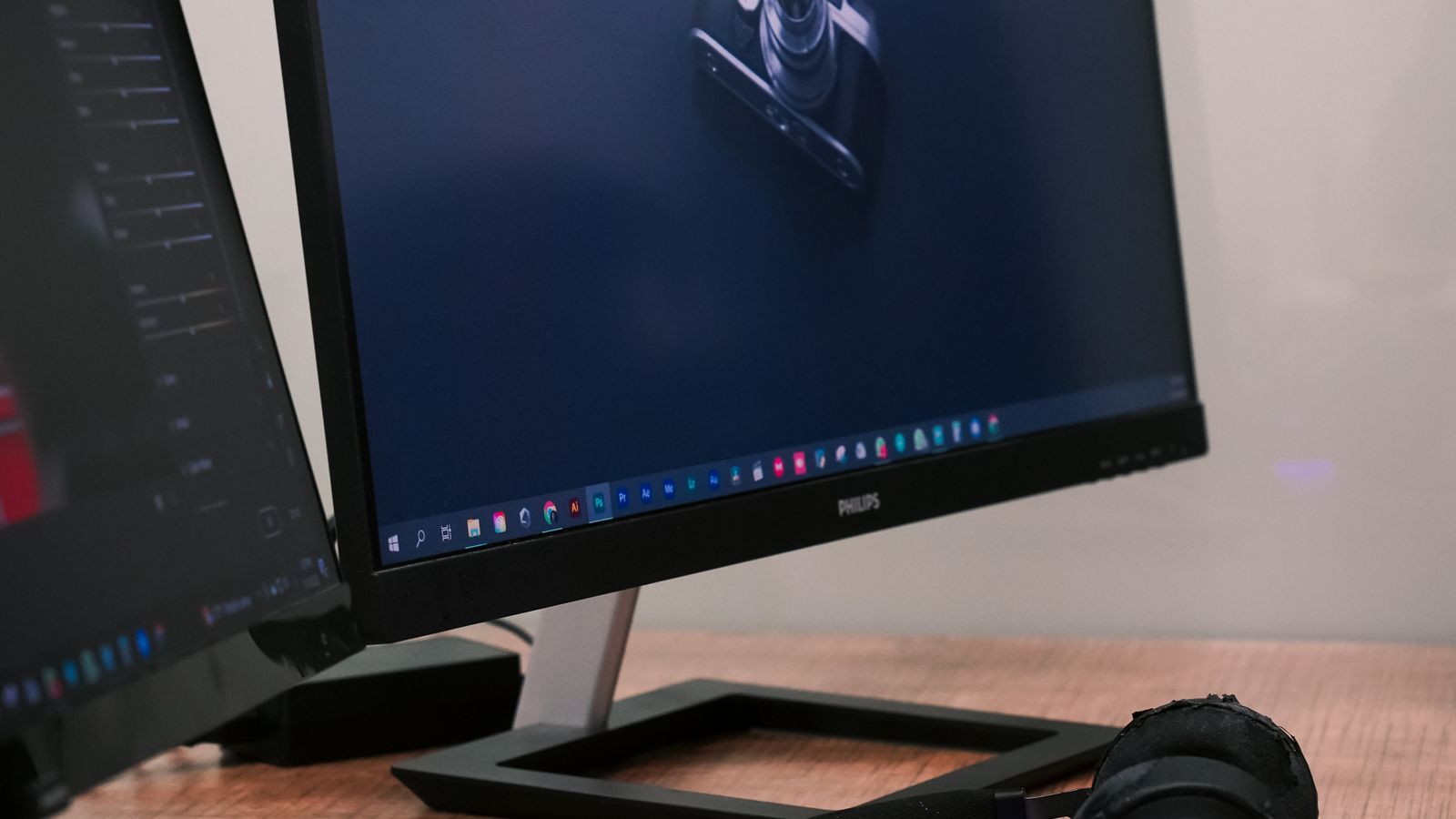
For work, arranging your monitors so your primary tasks sit directly in front of you, with reference material or communication apps on the secondary screen, tends to boost efficiency. Matching both monitors in size and resolution also creates a more seamless experience when dragging windows between them. Consider using keyboard shortcuts or window-snapping features to quickly organize apps across both displays, which reduces the time spent manually resizing windows.
Ergonomics and Positioning
Physical placement matters as much as software settings. Position each monitor about an arm’s length away, with the top of the screen at or just below eye level to avoid neck strain. If one monitor is your main display, place it directly in front of you and angle the secondary screen slightly toward you. A monitor arm or stand can free up desk space and make fine adjustments much easier.
Matching Refresh Rates and Resolutions
When your two monitors have different refresh rates or resolutions, small quirks can appear, such as animations stuttering as a window crosses from one screen to another. For gaming, it’s ideal to run your primary display at its highest supported refresh rate and set the secondary monitor to match as closely as possible. Windows and macOS both let you set refresh rate per display, so take a moment to confirm each screen is running at its rated maximum rather than a lower default the system may have selected automatically.
Managing Windows Across Two Screens
Getting the most from dual monitors is largely about workflow. Built-in window snapping lets you drag a window to a screen edge to instantly resize it, and keyboard shortcuts can move windows between displays without touching the mouse. Setting a clear role for each screen, such as one for your active task and one for reference or communication, keeps you from constantly shuffling windows. Virtual desktops can extend this further, giving you separate workspaces for gaming, work, and browsing.
Cable and Desk Management
Two monitors mean more cables, so tidy routing keeps your setup clean and reduces accidental disconnections. Bundle the power and video cables together, route them behind your desk, and leave a little slack so you can still adjust monitor positions. A dual-monitor arm or stand can dramatically improve the look and ergonomics of your setup while freeing up desk space that stands would otherwise occupy.
Common Mistakes to Avoid
- Mismatched refresh rates causing stuttering when windows move between monitors
- Incorrect arrangement settings that make the mouse cursor jump unexpectedly between screens
- Using a cable type that limits resolution or refresh rate below the monitor’s capability
- Forgetting to set the correct primary display before gaming
- Placing monitors at different heights, which strains your neck as your eyes shift between them
Frequently Asked Questions
Do both monitors need to be the same size or resolution?
No, but matching them creates a more consistent visual experience. Mismatched monitors still work fine, especially when one is dedicated to secondary tasks.
Can I use dual monitors with a laptop?
Yes, most laptops support at least one external monitor through HDMI or USB-C, and some support two with the right dock or adapter.
Why does my mouse cursor disappear between monitors?
This usually means the display arrangement doesn’t match your physical monitor placement. Adjust the arrangement in your display settings to fix cursor movement.
Does a second monitor lower my gaming performance?
Running video or demanding apps on a second screen can use some GPU resources, but simply having a second display open for chat or browser tabs has a negligible impact on most modern systems.
Should both monitors use the same cable type?
They don’t have to, but using DisplayPort or HDMI for both is ideal when you want high refresh rates. Avoid older connections like VGA or DVI for gaming displays, since they can limit resolution and refresh rate.
Can I have one monitor vertical and one horizontal?
Absolutely. Rotating a secondary monitor to portrait orientation is popular for reading documents, coding, or monitoring chat, and you can set the rotation in your display settings to match its physical position.
Final Thoughts
Setting up dual monitors takes just a few minutes but can significantly improve both gaming immersion and everyday productivity. Whether you’re building a new system from the best desktop computers with dual monitors or adding a second screen to your current setup, taking the time to configure your display settings properly makes all the difference.









