Owen Bradley
 Firmware is the quiet layer that decides whether a smart device is a useful appliance or an open door. It patches the vulnerabilities researchers keep finding in cheap network hardware, fixes the battery drain that appeared after the last release, and occasionally adds features you paid for but never received. Yet most households have never deliberately run a smart device firmware update. Some devices patch themselves silently, some wait politely in an app screen nobody opens, and a few have not received a release in three years because the manufacturer quietly stopped. This guide covers the full sweep: how to check every device, the safe order to do it in, how to spot abandoned hardware, and how to avoid the one scenario that genuinely matters, which is bricking a lock or a hub halfway through.
Before You Begin
- Set aside an unhurried hour. Updates cannot be rushed and should never be started five minutes before you leave the house.
- Build a device list from your router’s connected clients page plus a walk around the house for hub-connected devices.
- Check battery levels on every wireless device. Anything below half should be recharged or have fresh cells fitted first.
- Confirm your internet connection is stable. If the line has been dropping, fix that before pushing firmware over it.
- Have physical access to every device. If something needs a reset button pressed, you want to be able to reach it.
- Know your account passwords in case a device demands re-authentication after updating.
Step-by-Step: The Update Sweep
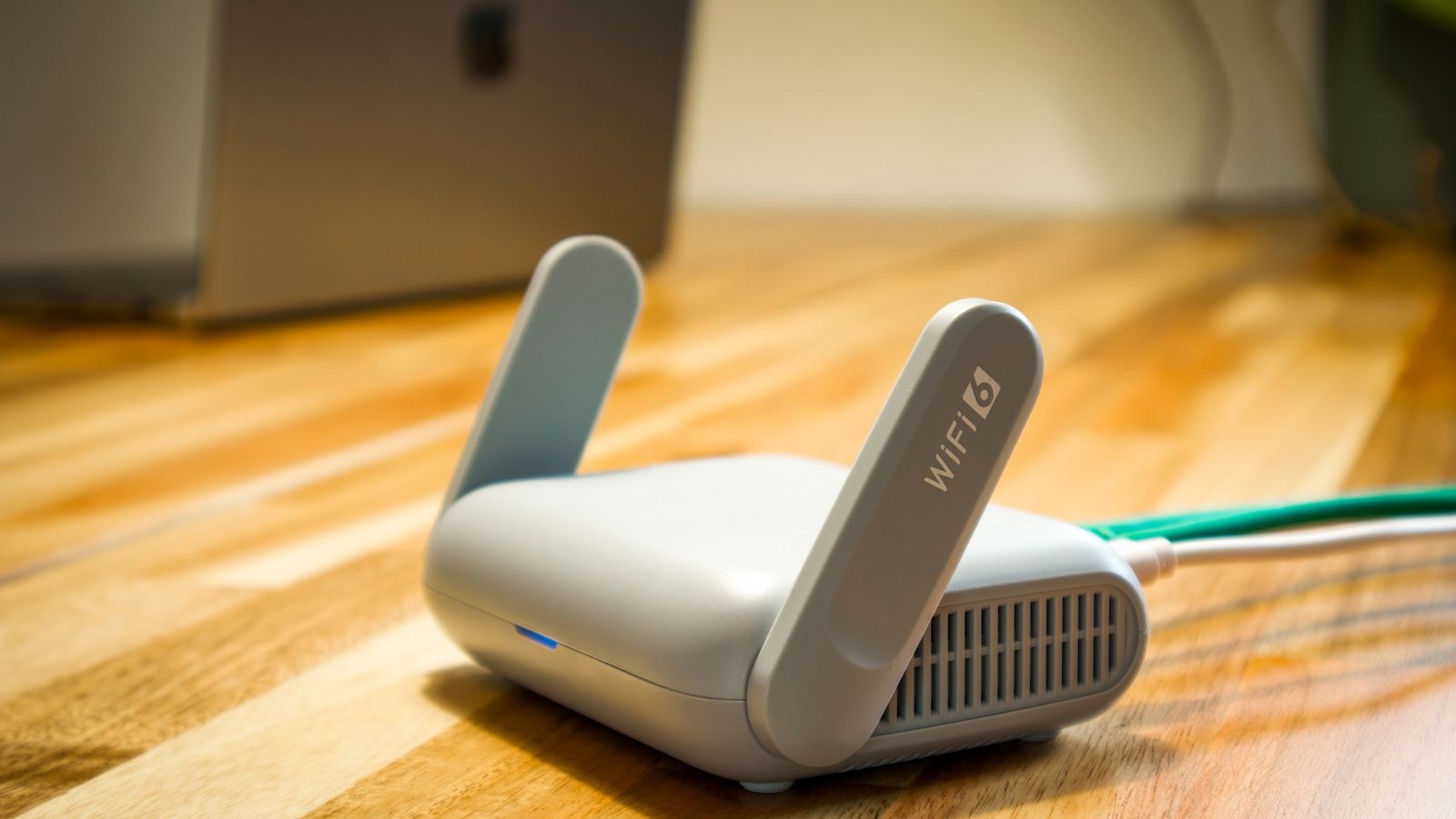
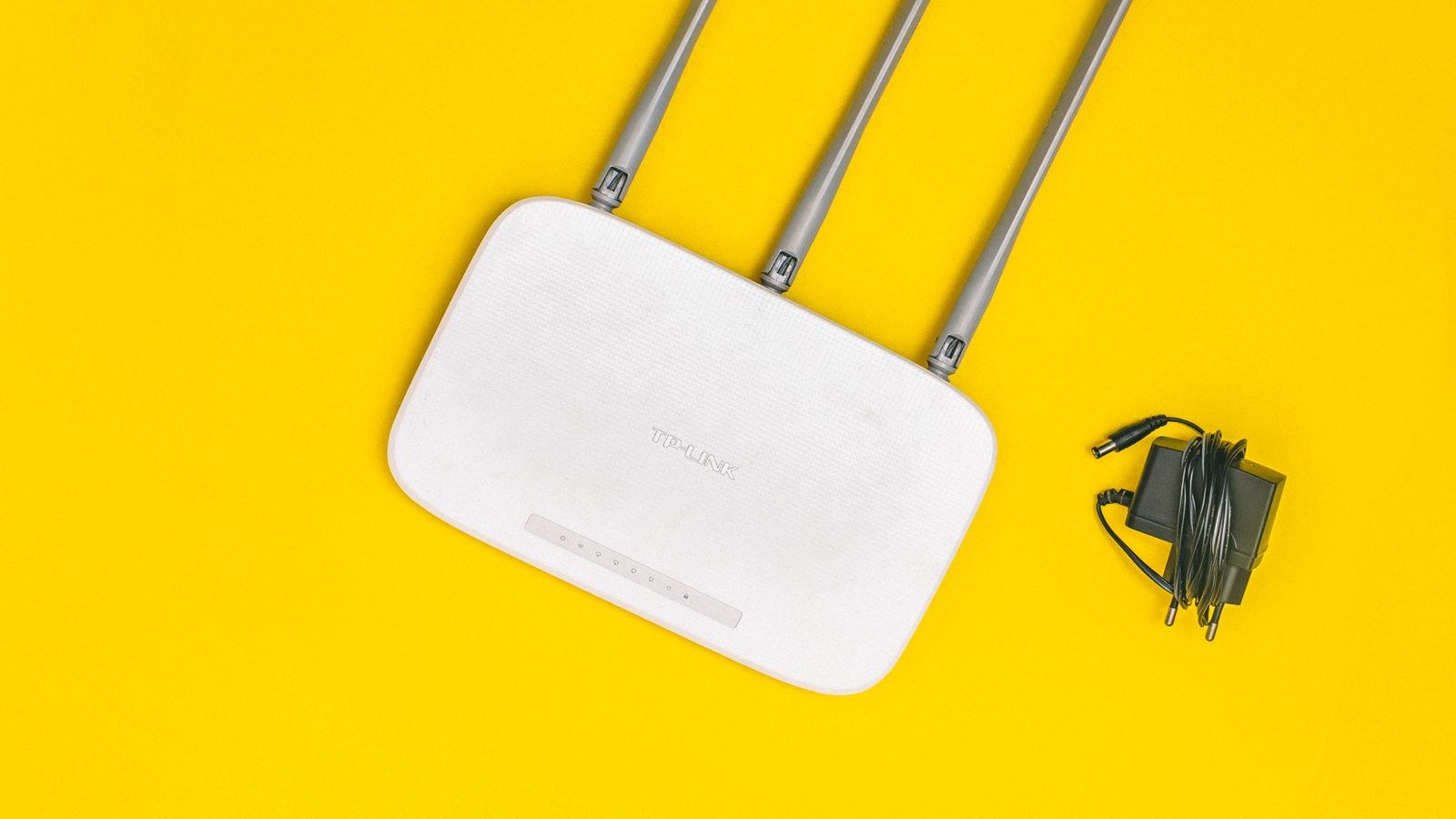
- Update the router first, and on its own. Everything else depends on the network, so patching it later risks knocking devices offline mid-update. Log into the router’s admin page, find the firmware section, and check for a release. Do this while nobody is streaming or on a call, and do not touch anything until the reboot completes. If yours has not seen a release in over a year, note it: the best secure wifi routers publish patches promptly, and an unpatched router undermines every other device behind it.
- Wait fifteen minutes and confirm the network is healthy. Let every device reconnect and verify they all show online before continuing. Starting a device update while half the house is still reconnecting is how partial downloads happen.
- Update hubs and bridges next. These are the second layer of dependency, since bulbs, sensors and locks often receive their firmware through the hub rather than directly. Hub updates typically take longer and may pause automations while they run. Choosing from the best smart hubs that support staged rollouts and keep a rollback image makes this step considerably lower risk.
- Update mains-powered devices before battery ones. Plugs, cameras and speakers cannot lose power mid-write, so they are the safest category. Work through them room by room using the app’s device settings page, where firmware version is usually shown near the bottom.
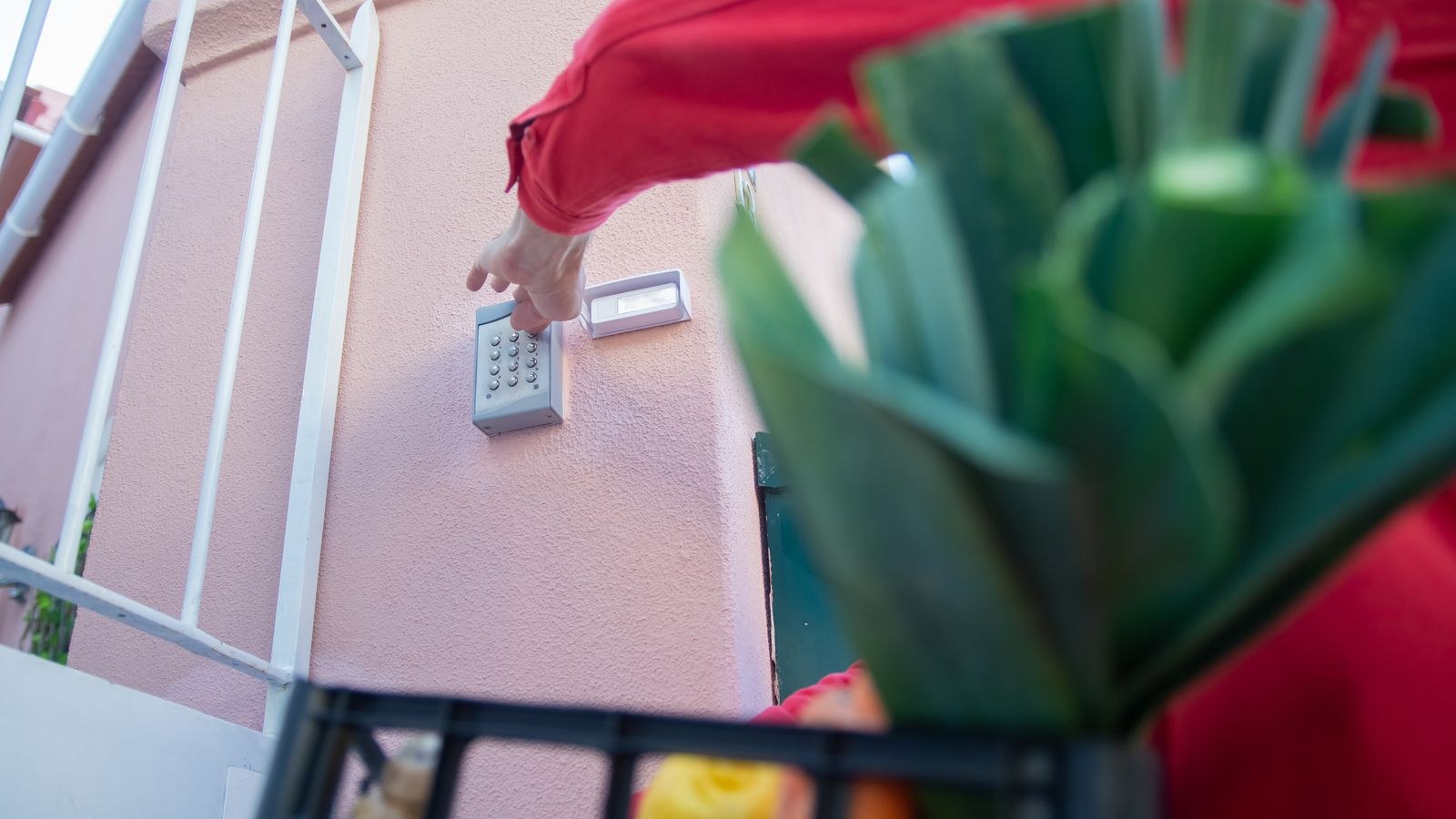
- Handle smart locks with the most care. A lock that fails mid-update is the one outcome that leaves you standing outside. Fit fresh batteries first, not merely charged ones. Stand at the door while the update runs so you can see the status lights. Never start a lock update remotely, and never start one when you are about to leave. If the lock has a physical key override, have it in your pocket. Products among the best smart locks keep the mechanical cylinder for exactly this reason.
- Update battery sensors and bulbs last. These usually update through the hub over a low-power radio, which is slow. A single bulb can take twenty minutes. Do not power-cycle anything that appears stuck until the app has clearly reported a failure.
- Never interrupt a running update. No unplugging, no router reboots, no switching off at the wall, no closing the app if the update runs in the foreground. The write phase is when a device is genuinely vulnerable, and a device with half a firmware image is often unrecoverable.
- Verify each version number after the reboot. Do not assume success because the app stopped showing a prompt. Open the device’s settings page and confirm the version has actually changed. Devices sometimes report “up to date” while sitting on a failed install.
- Test the function, not just the version. After updating a plug, switch it on and off. After a lock, lock and unlock from both the app and the keypad. After a camera, check the live view and a recorded clip. Firmware occasionally resets settings, and you want to find that out now.
- Re-check your automations. Updates can drop a device out of a scene or reset its name. Run through your main routines once and confirm nothing has silently stopped working. Smart plugs are particularly prone to reverting their default power-on state, so if you rely on any of the best smart plugs for lamps or appliances, confirm they still behave as expected after a restart.
- Record what you updated and when. A short note of device, old version and new version turns the next sweep into a ten-minute job and gives you something to point at if a problem starts the following week.
- Set automatic updates for everything low-risk. Plugs, bulbs, sensors and speakers can safely update themselves, ideally scheduled for the small hours. Leave locks, garage controllers and anything load-bearing on manual so you choose the moment.
Spotting Devices That No Longer Get Patches
The uncomfortable part of any firmware sweep is discovering that some devices have simply been abandoned. Manufacturers rarely announce this loudly; support just fades. Several signals are reliable.
- No firmware release in over 18 months for a device that is still sold, or over 12 months for one that is discontinued.
- The product page has vanished from the manufacturer’s site, or the model is missing from the support downloads list.
- The app dropped support for the device or moved it to a “legacy” section.
- A published end-of-support date in the manufacturer’s security policy, which better brands now provide.
- The app itself stopped updating, which usually precedes device abandonment by a few months.
An unsupported device is not automatically useless, but it should be treated as untrusted. Move it to an isolated network segment, block its outbound internet access if your router allows, and never let it hold credentials for anything else. For cameras, locks and anything internet-facing, abandonment is a genuine reason to replace the hardware rather than an inconvenience to tolerate. Platforms among the best smart home systems increasingly publish minimum support commitments in years, and that figure deserves as much weight as any feature when you buy.
Should You Update Immediately or Wait?
For security patches, update straight away. For feature releases, waiting a week or two lets other users find the regressions first, and manufacturers frequently pull a bad release within days. The exception is any update flagged as addressing a security vulnerability, where the risk of waiting clearly outweighs the risk of a bug.
Troubleshooting Failed Updates
The update will not start. Check battery level first, since most devices refuse below a threshold. Then check signal strength, as a weak connection often blocks the download silently. Move the device closer to the hub if you can.
It stalls at a percentage. Give it a full thirty minutes before intervening. Low-power radio transfers are genuinely slow and progress bars are often inaccurate. Only after a clear timeout should you retry.
The device is unresponsive after updating. Power-cycle it once, then leave it for ten minutes, as many devices run a lengthy first-boot migration. If it stays dark, look for the manufacturer’s recovery mode, which usually involves holding a reset button during power-on.
Everything works but automations broke. The device likely rejoined with a new identifier. Remove and re-add it to the affected scenes rather than trying to repair the old reference.
Battery life collapsed after the update. A known pattern with some releases. Check the manufacturer’s forum, and if a rollback is offered, take it.
Mistakes to Avoid
- Updating a smart lock remotely or with low batteries.
- Patching the router last, so devices drop offline mid-update.
- Running several updates simultaneously and losing track of which one stalled.
- Assuming a device is current because the app showed no prompt.
- Interrupting a stalled update before the timeout has genuinely elapsed.
- Downloading firmware files from anywhere other than the manufacturer’s own site.
- Leaving abandoned devices on the main network alongside laptops and storage.
Frequently Asked Questions
How often should I run a full sweep?
Every three months is a sensible rhythm for manual checks, with automatic updates handling low-risk devices in between. Run an extra check whenever a vulnerability in hardware you own makes the news.
Can a firmware update really brick a device?
It is uncommon but real, and almost always caused by power loss or connection loss during the write phase. Stable power, full batteries and a solid network reduce the risk to near zero.
Should I enable automatic updates on everything?
On plugs, bulbs, sensors and speakers, yes. On locks, garage controllers and hubs, keep manual control so you choose a moment when you are home and can respond if something goes wrong.
What if an update makes things worse?
Check whether the manufacturer offers a rollback, report the issue so it is counted, and avoid re-flashing repeatedly. If the device becomes unreliable and no fix appears, treat that as evidence about the brand’s support quality.
Final Thoughts
A firmware sweep is unglamorous maintenance that quietly determines how secure and reliable your smart home actually is. Work outward from the network: router first, then hubs, then mains-powered devices, then battery ones, with locks handled most carefully of all. Verify version numbers rather than trusting the absence of a prompt, test that things still work afterwards, and keep a short written record. Just as importantly, use the sweep to notice what has been abandoned, and either isolate that hardware or replace it. Do this a few times a year and the devices you rely on in 2026 stay patched, predictable and far less likely to become the weak point in your home network.