
 Owen Bradley
 Sore, gritty eyes at the end of a workday are not inevitable, and they are rarely caused by the monitor being “bad”. Digital eye strain comes from a stack of small mismatches: a screen far brighter than the room, text too small to read comfortably, a display parked too close to your face, and hours passing without your focus ever leaving one fixed distance. Fix those and the symptoms usually fade within days. This guide walks through how to reduce eye strain from computer monitors step by step, covering brightness and contrast, text scaling, blue light settings, screen distance, and the break routines that actually work.
Why Screens Tire Your Eyes
Three mechanisms do most of the damage. First, you blink far less when concentrating on a screen, which lets the tear film evaporate and leaves the surface of the eye dry and irritated. Second, your focusing muscles hold a single near distance for hours without relaxing, producing the same ache any muscle gets from a sustained contraction. Third, glare and excessive contrast between a bright screen and a dark room force your pupils to keep adjusting.
Notice that none of these are about harmful light. Screens do not damage your eyes, they fatigue them, which is why the fixes are all about comfort and habit rather than protective equipment.
What You Need
- Your monitor’s on-screen display menu, usually reached with a button or joystick under the bezel
- A tape measure or an arm’s length as a rough gauge for viewing distance
- Access to Windows Display settings or macOS Displays preferences
- Optionally, a bias light or small lamp placed behind the monitor
Step-by-Step: Set Up a Comfortable Display
- Match screen brightness to the room. Open a plain white page and compare it to a sheet of white paper held beside the screen under your room lighting. If the screen glows noticeably brighter, turn it down. If the paper looks brighter, turn the screen up. Most offices land somewhere between 100 and 150 nits, which is far lower than the factory default on almost every monitor.
- Leave contrast near the factory setting. Contrast controls the gap between black and white, and pushing it high crushes detail and makes text edges harsh. Adjust brightness for comfort and leave contrast alone unless text looks visibly muddy.
- Kill glare at the source. Position the monitor perpendicular to windows rather than facing or backing onto them. Overhead lights reflecting off a glossy panel are the second most common culprit; tilt the screen slightly downward to bounce those reflections away from your eyes.
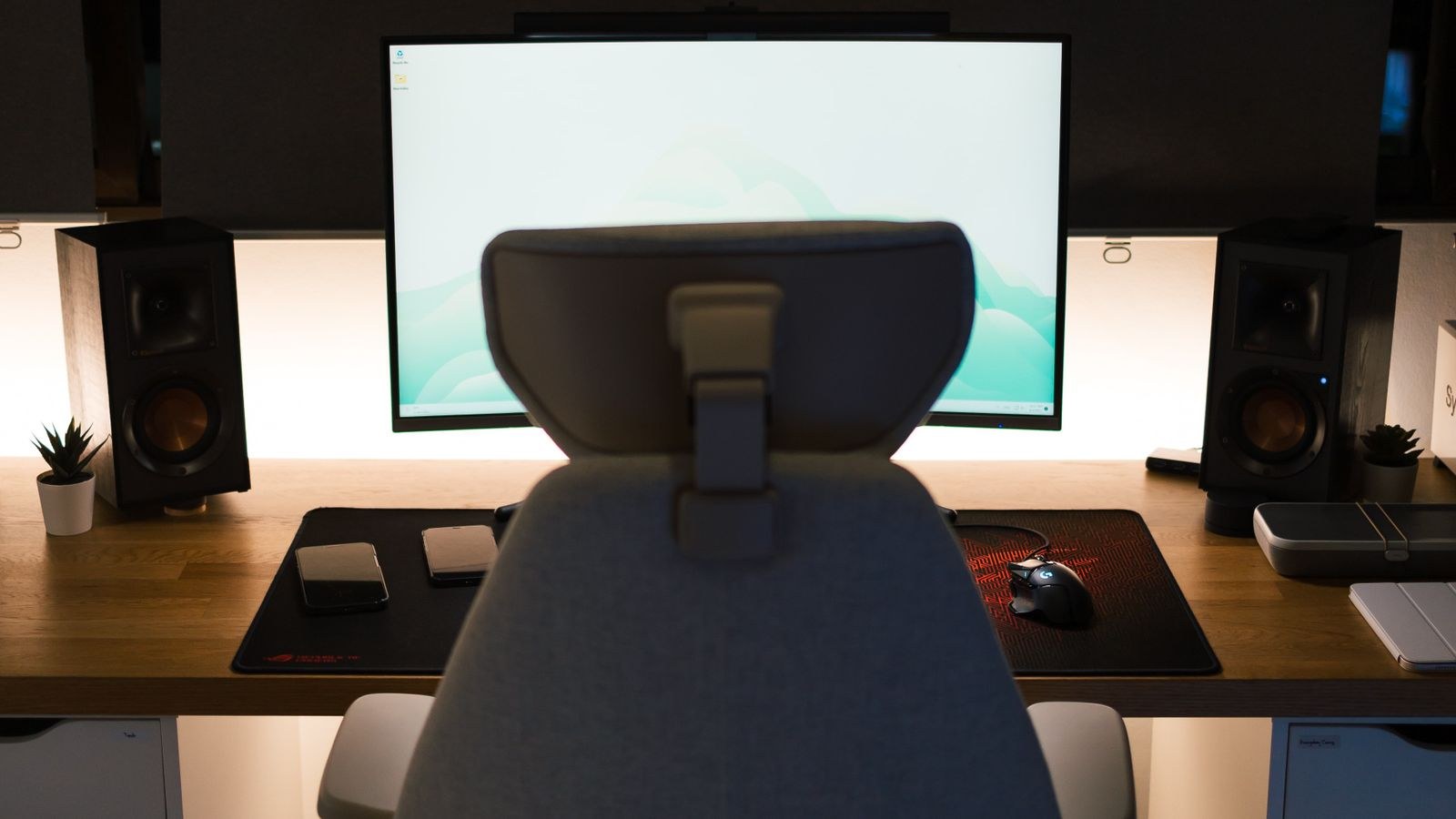
- Add a bias light behind the screen. A soft, neutral white lamp on the wall behind the monitor reduces the contrast between the bright screen and a dark background, which measurably lowers perceived strain during evening work.
- Set the correct viewing distance. Sit back until the screen is roughly an arm’s length away, about 20 to 30 inches for a typical 24 to 27 inch display. Larger panels need to sit further back. If you find yourself leaning in, the problem is text size, not distance.
- Raise text size instead of moving closer. In Windows, use Settings, System, Display, Scale. On macOS, use Displays and choose a scaled resolution. Bump scaling until you can read body text comfortably while sitting back at a full arm’s length. There is no prize for fitting more on screen.
- Run the panel at its native resolution. Any non-native resolution forces interpolation and produces slightly fuzzy text that your eyes constantly try to sharpen. Change scaling, never resolution.
- Set the highest refresh rate your display supports. Higher refresh rates reduce perceived flicker and make scrolling text smoother, which lowers fatigue during long reading sessions.
- Check for backlight flicker. Older or cheaper displays dim by rapidly switching the backlight on and off, which some people perceive as a subtle shimmer. Look for a flicker-free or DC dimming setting in the monitor menu and enable it.
Panel Choice Makes a Real Difference
Some strain is baked into the hardware. Panels with poor viewing angles shift in brightness and colour across the screen, so the corners never look quite the same as the centre and your eyes work harder to compensate. Wide-angle panels stay consistent edge to edge, which is one reason the best IPS monitors are the usual recommendation for people who read text all day.
Pixel density matters just as much. A 27 inch display at 1080p spreads pixels thin enough that letter edges look ragged, and ragged edges are tiring to read. Stepping up to a sharper panel at the same size, as covered in our roundup of the best 1440p monitors, produces cleaner glyphs without needing aggressive font smoothing. For people whose day is almost entirely code and terminals, the displays gathered in the best monitors for developers prioritise exactly that text clarity, while general workspace picks live in the best monitors for home office.
The Truth About Blue Light Settings
Blue light filters are heavily marketed and mildly useful, but not for the reason most people assume. Current evidence does not show that screen blue light damages eyes or that filtering it meaningfully reduces daytime strain. What it does affect is sleep timing, because blue-weighted light in the evening suppresses melatonin.
The sensible approach is to use the free software version: Night Light in Windows or Night Shift on macOS, scheduled to warm the display in the couple of hours before bed. Leave it off during the day, when a neutral white point is both more accurate and more comfortable. Save your money on tinted glasses and spend it on better lighting and a proper monitor arm instead. If you do use a blue light mode all day, be aware it shifts colour badly enough to make any colour-sensitive work unreliable.
Room Lighting and Glare Control
Screen settings only get you so far if the room fights you. Aim for even, moderate ambient light rather than a single bright overhead fixture. Indirect lighting bounced off a ceiling or wall produces far fewer sharp reflections than a bare bulb in a direct line of sight. Position task lighting so it illuminates your desk surface and documents without spilling onto the panel.
Bulb choice affects this more than people expect. Frosted or diffused bulbs at a moderate colour temperature scatter light gently, while clear high-output bulbs create hard reflections on any glossy surface. Our guide on how to choose bulbs to reduce glare covers which types work best for desk areas and how to place them.
Break Routines That Actually Stick
The best known rule is 20-20-20: every 20 minutes, look at something roughly 20 feet away for 20 seconds. It works because it lets your focusing muscles fully relax, and it is short enough that you will actually do it. Set a repeating timer for the first week until it becomes automatic.
Layer two more habits on top. Blink deliberately and completely several times whenever you finish a task, since partial blinks leave the tear film uneven. And take a genuine five minute break away from the desk every hour, ideally standing and looking out of a window, which combines the focus reset with a posture reset. Dry-eye symptoms also respond well to keeping the monitor slightly below eye level, because a downward gaze means your eyelids cover more of the eye surface and slow evaporation.
Common Mistakes to Avoid
- Working with the screen as the only light source. A bright panel in a dark room is the single harshest configuration for your eyes.
- Leaving brightness at the out-of-box setting. Factory defaults are tuned for showroom floors, not offices, and are usually far too bright.
- Shrinking text to fit more on screen. Every hour spent squinting adds up. Scale up and scroll more.
- Assuming glasses or filters replace habits. No lens fixes a lack of blinking or four unbroken hours of near focus.
- Ignoring persistent symptoms. Ongoing headaches, blurred vision, or double vision warrant an eye exam, since an uncorrected prescription is a very common hidden cause.
Frequently Asked Questions
Do blue light glasses reduce eye strain?
Controlled studies have generally found little to no benefit for daytime strain. They may help with evening sleep quality, but built-in software night modes do the same job for free.
Is a curved monitor easier on the eyes?
On larger ultrawide displays, curvature keeps the edges roughly the same distance from your eyes, which slightly reduces refocusing. On a standard 24 or 27 inch screen the effect is negligible.
How bright should my monitor be?
Bright enough to match a sheet of white paper held next to it under your room lighting. That is a better test than any specific number because it accounts for how much ambient light you actually have.
Does dark mode help?
It helps in dim rooms by lowering total light output. In a well-lit room, dark mode can actually hurt readability for some people because light text on dark backgrounds blooms slightly. Use whichever reads more comfortably in your conditions.
Can eye strain damage my vision permanently?
No. Digital eye strain is a fatigue response and resolves with rest and better setup. It does not cause lasting harm, though it can unmask an existing vision problem that needs correcting.
Final Thoughts
Reducing eye strain is mostly about removing mismatches rather than buying anything. Bring screen brightness in line with the room, keep contrast near default, scale text up until you can sit back a full arm’s length, run the panel at native resolution and its highest refresh rate, and add soft indirect light behind and around the display. Then protect your focus muscles with the 20-20-20 rule and real breaks away from the desk. If discomfort persists after a couple of weeks of doing all that, the problem is more likely an uncorrected prescription than the monitor, and an eye exam is the next sensible step.









