
 Owen Bradley
 Few smart home problems are as maddening as zigbee devices dropping offline for no obvious reason. A sensor that reported reliably for months suddenly goes silent, a bulb stops responding at the far end of the hall, or half the network vanishes after you add a new device. The frustrating part is that Zigbee is genuinely robust when it is set up well, so persistent dropouts almost always point to one of a small set of fixable causes: channel overlap with WiFi, too few mains-powered repeaters, a mesh that was built in the wrong order, or a device that simply never joined properly. This guide works through each cause in the sequence that fixes the most problems with the least effort.
Why Zigbee Devices Drop Offline
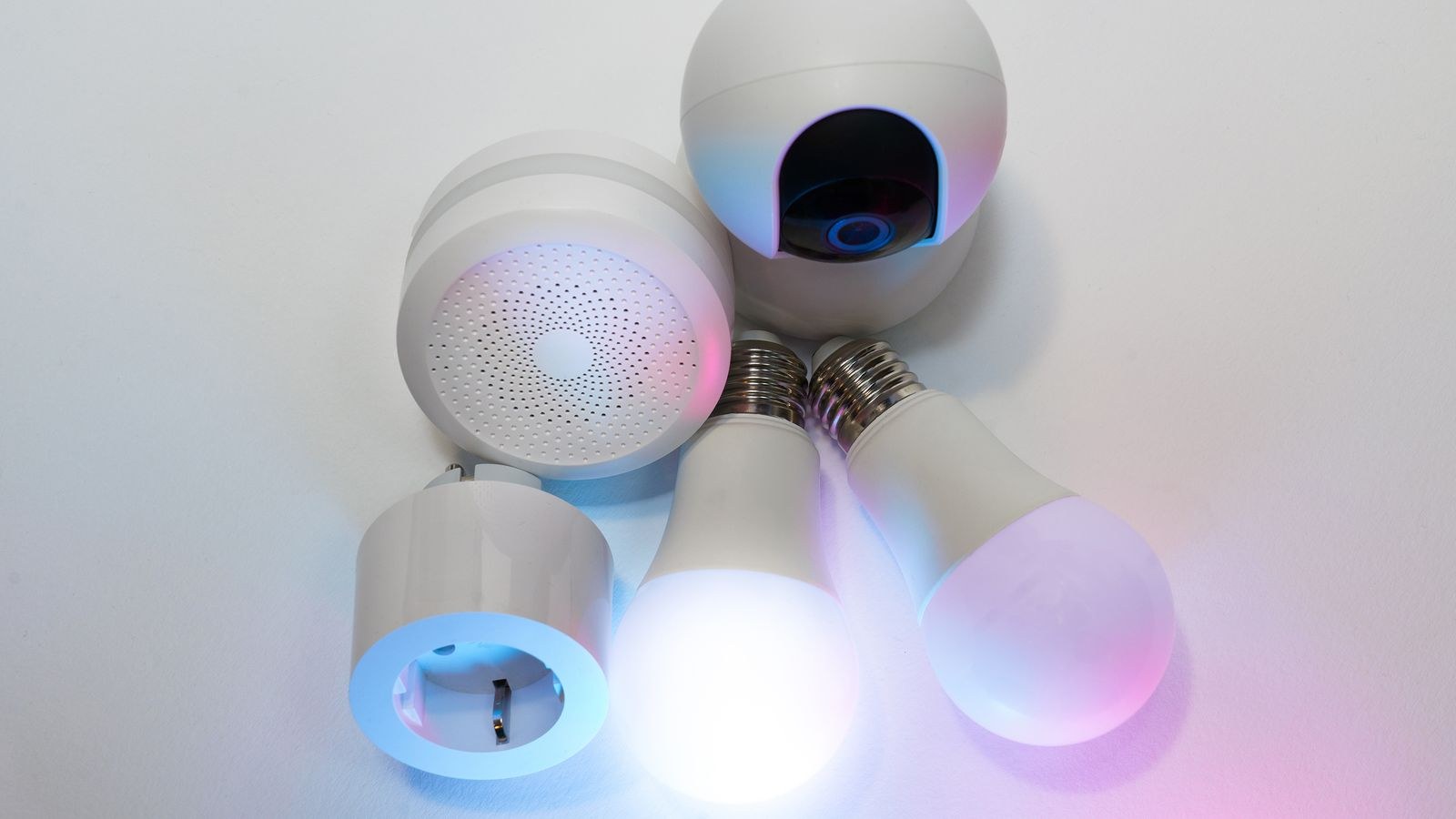
Zigbee is a low-power mesh protocol running on the 2.4GHz band. Mains-powered devices such as plugs, bulbs, and wired switches act as routers, relaying messages for everything else. Battery devices such as door sensors and motion detectors are end devices: they sleep almost all the time, never relay anything, and depend entirely on a nearby router to reach the hub.
That design explains most failures. If your home is full of battery sensors and short on mains-powered relays, there is no mesh to speak of, just a fragile star reaching out from the hub. Add the fact that 2.4GHz WiFi occupies overlapping frequencies and can drown out low-power Zigbee traffic, and you have the two dominant causes of dropouts before you even consider firmware or hardware faults.
Symptoms and What They Usually Mean
- One distant device drops repeatedly. Range or a missing repeater between it and the nearest router.
- Everything drops at certain times of day. Interference from WiFi load, a microwave, or a neighbour’s network.
- Devices drop after you add a new one. A bad route was formed, or a new device is disrupting a channel.
- A whole group goes offline together. The shared repeater they route through has lost power or failed.
- Nothing works after a hub move. The hub is now too close to the WiFi router or inside a metal enclosure.
Step 1: Fix the Physical Layer First
Before touching any settings, sort out placement, because no amount of channel tuning rescues a hub stuffed inside a media cabinet. Move the hub out of enclosed spaces, away from metal shelving, and at least a metre or two from your WiFi router and any powerline adapters. Height helps: a shelf above desk level beats a spot on the floor.
Check power delivery too. A surprising number of dropout cases trace back to a repeater on a switched socket that someone turns off at night, or a hub sharing an overloaded extension lead with high-draw appliances. Give the hub its own outlet and use a wired Ethernet connection if the model supports one, since that removes WiFi congestion from the hub’s own uplink.
Step 2: Move Zigbee Off Your WiFi Channels
This single change solves more dropout problems than anything else. Zigbee and 2.4GHz WiFi share the same band, and WiFi transmits at far higher power. If they overlap, Zigbee loses.
- Find your WiFi channel. Log into your router’s admin page and note the 2.4GHz channel. If it is set to automatic, change it to a fixed channel so it stops wandering into your Zigbee frequency.
- Pick a WiFi channel of 1, 6, or 11. These three do not overlap each other. Choose the one least used by neighbouring networks, which most routers or a phone analyser app can show you.
- Choose a Zigbee channel that sits in the gaps. Zigbee channels 15, 20, 25, and 26 avoid the busiest WiFi ranges. As a rule, WiFi channel 1 pairs well with Zigbee 20 or 25, and WiFi channel 11 pairs well with Zigbee 15.
- Change the Zigbee channel in your hub settings. Be aware that most hubs require every device to rejoin afterwards, so plan for a re-pairing session rather than a quick toggle.
- Wait and observe for 24 hours. Mesh routes rebuild gradually, so judge the result the next day rather than in the first five minutes.
If your hub allows scanning for channel energy, use it before choosing. Picking blind sometimes lands you on top of a neighbour’s network instead of your own. Hubs vary widely in how much control they expose, and our comparison of the best Zigbee hubs highlights which models give you channel selection, mesh diagnostics, and route maps rather than hiding everything behind a simple on-off toggle.
Step 3: Add Mains-Powered Repeaters Where They Are Needed
A Zigbee network without enough routers cannot heal itself. The cheapest and most effective fix is to add mains-powered devices at the points where signal has to travel furthest: hallways, stairwells, the room between the hub and a problem sensor, and near any thick masonry or metal.
Smart plugs are the classic choice because you can move them freely while testing, and they do useful work even when nothing is plugged in. Our picks for the best Zigbee smart plugs note which models repeat reliably, since a few budget plugs deliberately do not route traffic. For permanent coverage in awkward spots, wired hardware is better: Zigbee light switches sit in the wall on constant power and cannot be unplugged by accident, and mains-powered Zigbee bulbs in fixtures that stay energised extend the mesh in rooms where no socket is convenient.
How Many Repeaters Do You Need?
A practical rule is one mains-powered device per room you want covered, and never more than about eight to ten metres of open-plan distance or one solid interior wall between a device and its nearest router. Stone, brick, foil-backed insulation, and mirrors attenuate heavily; plasterboard barely at all. If a device sits behind a fridge, a boiler, or inside a metal meter box, assume you need a repeater immediately outside it.

Step 4: Rebuild the Mesh in the Right Order
Order matters enormously in Zigbee, and getting it wrong is why a network with plenty of repeaters can still perform badly. Devices choose their route when they join, and many stubbornly keep that route afterwards even if a better one appears later. If you paired all your battery sensors first and then added plugs, your sensors are probably still trying to talk directly to the hub across the whole house.
- Power up the hub and let it settle. Give it a few minutes to be fully online before pairing anything.
- Pair mains-powered devices first, nearest to the hub outward. Plugs, switches, and bulbs form the skeleton of the mesh.
- Leave them running for at least an hour. Routers exchange neighbour information and settle into stable positions.
- Pair battery devices last, in their final location. Never pair a sensor next to the hub and then carry it to the far bedroom; it will keep the route it learned at the hub.
- Re-pair any device that was already misbehaving. Remove it from the hub completely first, then add it fresh so it picks a route through the new repeaters.
- Trigger a network heal if your hub offers one. Some hubs can request that routers refresh their tables; otherwise leave the system idle overnight.
If you are rebuilding from scratch rather than repairing, it is worth following a clean process end to end. Our walkthrough on how to set up Zigbee or Z-Wave devices covers the pairing sequence and inclusion quirks that differ between the two protocols.
Step 5: Verify and Monitor
Once rebuilt, confirm the network is actually meshing rather than merely working. Hubs that expose a route map are ideal: look for battery sensors routing via a nearby plug or switch instead of directly to the hub, and check link quality figures if they are shown. Anything reporting persistently weak signal needs a repeater closer to it.
Then run a simple soak test. Leave the system alone for a week and check whether any device reports a last-seen timestamp that is stale. Battery sensors check in periodically even when nothing triggers them, so a sensor silent for a day is offline even if the app still shows it as connected. Fix stragglers one at a time and re-test rather than changing several things at once.
Mistakes That Keep Networks Unstable
- Assuming a repeater is a repeater. Some battery-powered and budget mains devices do not route traffic at all.
- Pairing devices near the hub then relocating them. The learned route stays wrong until you re-pair in place.
- Leaving WiFi on automatic channel selection. The router can drift onto your Zigbee frequency at any time.
- Mixing incompatible profiles. Older Zigbee variants from some brands do not repeat for other manufacturers’ devices.
- Adding twenty devices in one evening. The mesh needs time between joins to build sensible routing tables.
- Ignoring flat batteries. A sensor with a dying cell drops out intermittently long before it dies completely.
Frequently Asked Questions
How far does a Zigbee signal actually reach?
Roughly 10 to 20 metres indoors between mains-powered devices, but walls, appliances, and interference cut that sharply. Treat one solid wall as a good reason to add a repeater rather than testing your luck.
Will changing the Zigbee channel break my devices?
Most hubs require all devices to rejoin after a channel change, so budget time for re-pairing. A few hubs migrate devices automatically, but assume the manual route unless the documentation says otherwise.
Can too many devices overload a Zigbee network?
Each router supports a limited number of direct children, so problems appear as concentration rather than total count. Spreading mains-powered repeaters around the home fixes this far more effectively than reducing device numbers.
Do smart bulbs make good repeaters?
Only when they stay powered. A bulb on a wall switch that people flip off becomes a hole in the mesh every evening, so pair bulbs with a smart switch or leave the circuit permanently live.
Final Thoughts
Zigbee dropouts feel random, but they follow predictable rules. Get the hub out of the cupboard and away from your router, shift the Zigbee channel clear of your WiFi, add mains-powered repeaters so battery sensors always have a relay within easy reach, and rebuild the mesh from the hub outward with mains devices first and sensors last. Then let it settle and watch for a week before declaring victory. A network built in that order tends to stay up for years without attention, which is exactly what a smart home should do in 2026 and beyond.









