Owen Bradley
 Most desk workers spend six to eight hours a day with their hands on a keyboard and a mouse, yet those two devices are usually the last things anyone upgrades. That is backwards. A chair supports you passively, but your input devices dictate the exact angles your wrists, forearms, and shoulders hold all day long. This ergonomic keyboard and mouse guide explains what actually makes a device ergonomic, walks through the main categories, and shows how to switch without wrecking your typing speed for a month. The goal is not to sell you the most exotic gear on the market in 2026, but to help you identify which specific discomfort you have and buy the one device that addresses it.

What Ergonomic Actually Means for Input Devices
The word gets stamped on almost anything with a curve, so it helps to know what a genuinely ergonomic design is trying to fix. Standard flat keyboards force three unnatural positions at once: pronation, where your forearms rotate palms-down; ulnar deviation, where your wrists bend outward toward your little fingers to reach the narrow key layout; and extension, where your wrists tilt upward over the front edge of the board. A conventional mouse adds a fourth, holding your forearm in full pronation while your fingers make thousands of small clicks.
Every ergonomic feature exists to reduce one of those four. Splitting a keyboard fixes ulnar deviation. Tenting the halves fixes pronation. A negative tilt or wrist rest fixes extension. A vertical mouse tackles forearm rotation. If a product does not clearly address one of these, its ergonomic claim is mostly marketing. Identify where you feel strain, then buy the geometry that unloads it.
Signs Your Current Setup Is the Problem
Discomfort tends to show up in predictable places. Aching along the outer edge of the wrist or a tingling sensation in the thumb side of the hand often points to ulnar deviation and extension from a flat, cramped keyboard. Soreness on the top of the forearm usually means pronation strain. Pain concentrated in the mousing shoulder, meanwhile, is frequently a reach problem rather than a device problem: the mouse sits too far right because a full-size keyboard with a number pad pushes it out of range.
That last point is cheap to fix. A compact keyboard pulls your mouse hand back toward your body’s midline, and for many people that alone resolves shoulder ache. Check your reach distance and desk height before assuming you need a specialized device.
Types of Ergonomic Keyboards
Ergonomic keyboards fall into a few clear families, and they differ far more in learning curve than in price.
Contoured and Split-Layout Boards
These keep both halves joined in one housing but angle the key clusters apart and often add a gentle dome. Because the shape is fixed, you cannot fine-tune it, but the adjustment period is short and the layout stays familiar. This is the safest entry point for someone who has never used anything but a flat board, and it covers the majority of desk workers well. Browsing a curated list of the best ergonomic keyboards is a good way to see how the fixed-split shapes compare in footprint and key feel.
Fully Split Keyboards
Two separate halves connected by a cable let you set shoulder-width spacing and independent tenting angles. This is the most effective option for broad-shouldered users and anyone with persistent forearm rotation strain, and it also frees up the space between the halves for a trackpad or notepad. The trade-off is cost and a genuine relearning period, especially if you have never touch-typed with correct hand assignment.
Compact and Tenkeyless Boards
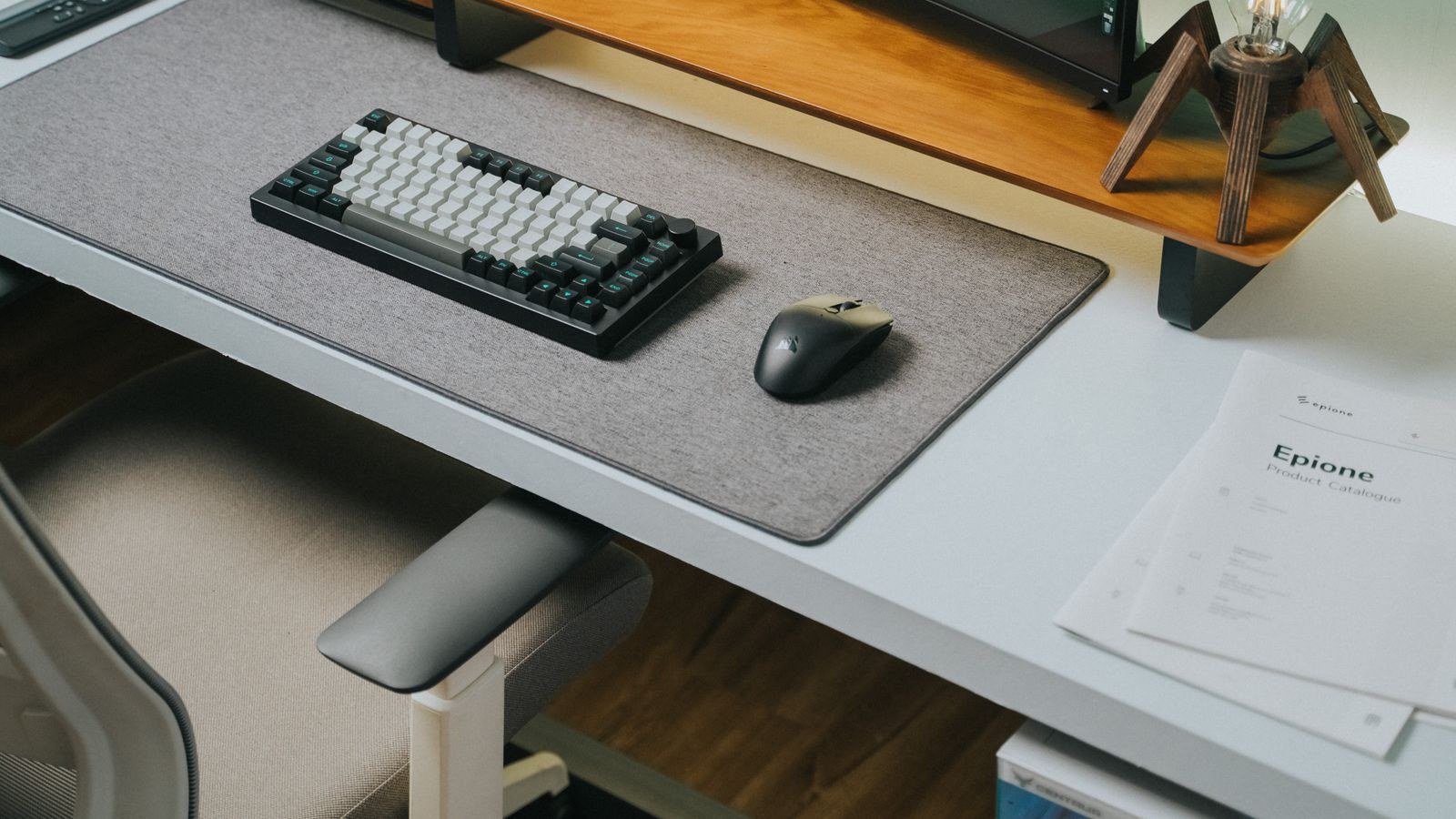
Dropping the number pad shortens the board by roughly four inches. It is not ergonomic in shape, but it is ergonomic in placement, which is often the bigger win. Many people combine a compact board with a separate number pad on the left for occasional data entry. For general desk work, a well-built keyboard for a home office in this category delivers quiet keys and a small footprint at a modest price.
Keyboards With Integrated Wrist Support
A padded platform along the front edge keeps your wrists from bending upward and, more importantly, discourages you from resting them on a hard desk edge. The critical detail is that a wrist rest is for pausing between bursts of typing, not for parking your wrists while you type. Used correctly it helps a great deal; used as a permanent anchor it can create a pressure point. Options among the best keyboards with a wrist rest vary widely in cushion firmness, which is worth checking since a rest that is too soft lets the wrist sink and re-creates the extension you were trying to avoid.
Types of Ergonomic Mice
Mouse ergonomics mostly comes down to forearm rotation and how much you move your arm versus your fingers.
Vertical Mice
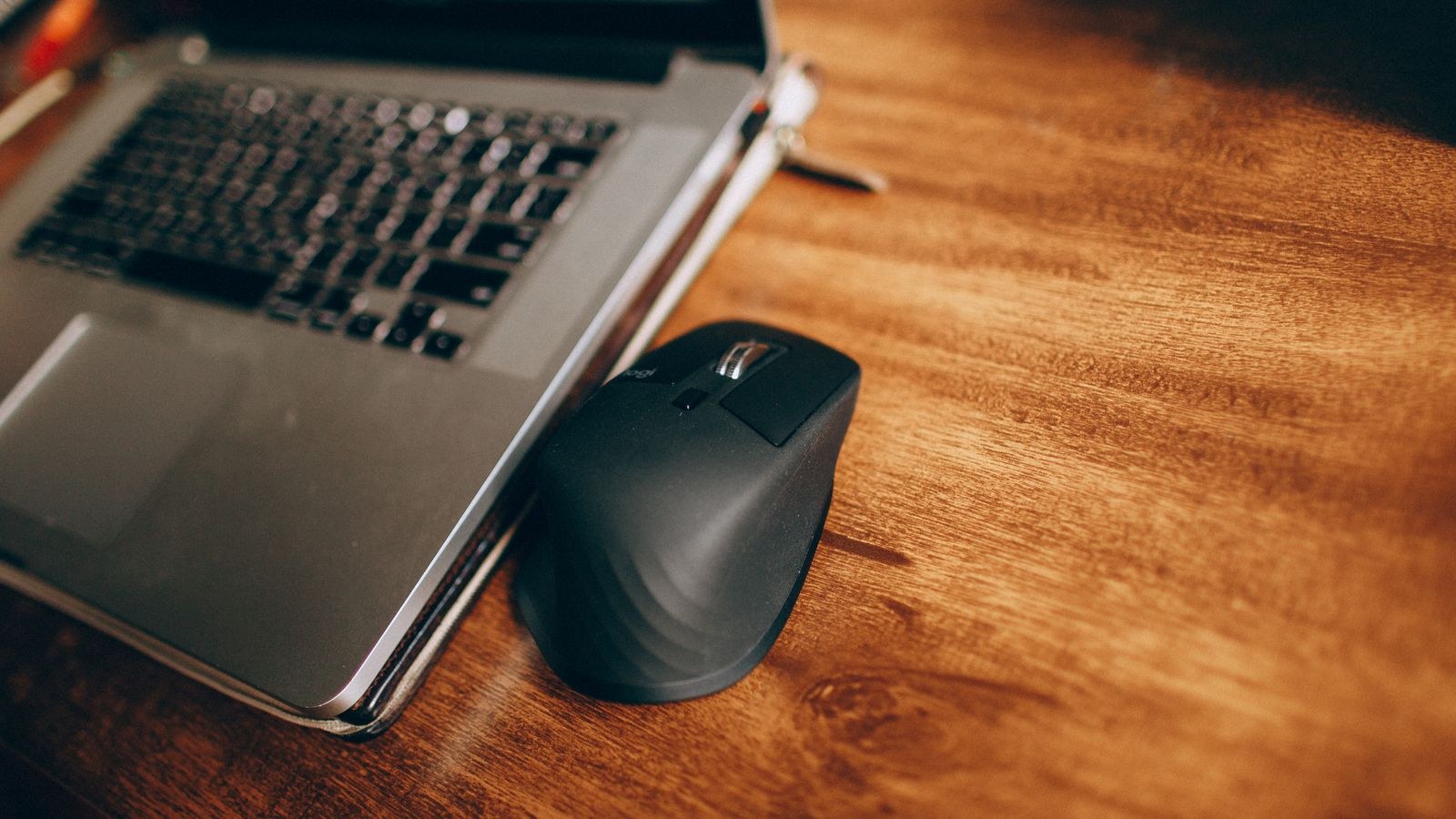
Held at roughly 55 to 90 degrees, a vertical mouse puts your hand in a handshake position and largely eliminates pronation. It is the single most effective fix for forearm and elbow strain, and the adjustment usually takes only a few days. Precision is slightly reduced at first since you steer with the whole arm rather than the wrist, which is fine for office work and less ideal for pixel-level design tasks. The best ergonomic mouse picks cover both the steeply vertical designs and the gentler 55-degree shapes that feel less alien on day one.
Trackballs
A trackball keeps the device stationary and moves only the ball under your thumb or fingers. Because your arm never travels, it suits cramped desks and anyone with shoulder issues. It is also the strongest option if repetitive arm sweeping is what aggravates your symptoms. Expect about a week before cursor accuracy feels normal again.
Ambidextrous and Shared-Desk Mice
Symmetrical shapes work for either hand, which matters in two situations: hot-desking environments where several people share a station, and deliberate hand-switching, where you alternate mousing hands through the day to spread the load. Alternating hands is an underrated strategy for anyone already dealing with strain. An ambidextrous mouse makes that switch practical because you are not fighting a contoured shell molded for the other hand.
Key Specs Worth Checking
- Size versus your hand. Measure from wrist crease to middle fingertip. Under 17cm is a small hand, over 19cm is large. A mouse sized wrong forces either a claw grip or a stretched palm, both of which cause strain regardless of the shape.
- Switch weight on the keyboard. Lighter actuation, roughly 45g or below, means less finger force per keystroke across thousands of presses. Heavy switches feel satisfying and tire you out.
- Tenting angle. Anything from 10 to 30 degrees relieves pronation. Adjustable is better than fixed because the ideal angle depends on your shoulder width and desk height.
- Negative tilt capability. The front edge sitting higher than the back is genuinely better for the wrist than the traditional flip-out feet, which do the opposite.
- Wireless versus wired. Wireless reduces cable drag and lets you position split halves freely. Modern low-latency receivers are fine for all office work.
- Programmable buttons. Mapping copy, paste, and browser navigation to thumb buttons removes hundreds of awkward finger stretches per day.
Budget Tiers and Where the Money Goes
At the entry level, around $30 to $60, you can get a fixed-split keyboard with a decent wrist rest or a solid vertical mouse. This tier resolves most everyday discomfort and is where the majority of desk workers should start. The build is plastic and the switches are membrane, but the geometry, which is the part that matters for your body, is largely the same as on expensive models.
The middle tier, roughly $70 to $150, buys mechanical switches, better wireless, multi-device pairing, and adjustable tenting. This is a comfort and durability upgrade more than an ergonomic one. The top tier, above $150, is where fully split boards with per-hand positioning and heavily programmable layouts live. Spend there only if you have specific, persistent symptoms or type for a living. Buying an expensive board before you know which geometry helps you is the most common way to waste money in this category.
How to Switch Without Losing Typing Speed
Every split or contoured keyboard costs you speed at first, and that temporary drop is why most people abandon them. Plan for it. Expect roughly 50 to 60 percent of your normal words per minute on day one, recovery to about 90 percent within two weeks, and full speed within a month for a fixed-split design. Fully split boards take longer, often six weeks.
- Switch on a light workday, ideally a Thursday, so you have a weekend to practice without deadline pressure.
- Do not keep the old keyboard on the desk. Bouncing between layouts doubles the adjustment period. Put it in a drawer.
- Spend fifteen minutes a day on a typing drill site for the first week. Deliberate practice cuts the relearning curve roughly in half compared to just working through it.
- Change one device at a time. Keyboard first, then the mouse two weeks later, so you can tell which change helped and which hurt.
- Resist raising the tenting angle immediately. Start flat or near-flat and increase every few days as your forearms adapt.
Setting Up the Devices Correctly
Good hardware in the wrong position still hurts. Set your chair first so your feet are flat and your thighs are roughly parallel to the floor, then set the desk or keyboard tray so your elbows sit at 90 to 110 degrees with shoulders relaxed. Your wrists should be straight and floating, not resting, while you actively type.
Place the mouse at the same height and depth as the keyboard, close enough that your upper arm stays near your torso. If you reach forward or out to the side, the mouse is too far away. Finally, check that your monitor top edge sits at or just below eye level, because a low screen pulls your head forward and loads the same muscles your new keyboard is trying to relieve.
Common Mistakes That Undo the Benefit
The first is resting wrists on the pad while typing rather than between bursts, which converts a support surface into a pressure point on the carpal tunnel. The second is buying a keyboard with a shape that has nothing to do with your symptoms, such as a heavily tented board when your actual problem was a mouse sitting eight inches too far right.
Third is the all-at-once overhaul, which makes it impossible to know what worked. Fourth, and most common, is expecting hardware to substitute for movement. No input device removes the strain of sitting motionless for hours. Short breaks every 30 to 45 minutes do more for wrist and shoulder health than any purchase in this guide.
Frequently Asked Questions
Will an ergonomic keyboard fix existing wrist pain?
It can reduce the load that contributes to it, but persistent numbness, night pain, or weakness deserves a medical opinion rather than a hardware fix. Treat equipment as prevention and support, not treatment.
Is a vertical mouse or a trackball better?
Choose vertical if your strain is in the forearm or elbow from rotation. Choose a trackball if the problem is shoulder fatigue from sweeping your arm across the desk, or if your desk space is tight.
Do I need a mechanical keyboard to be ergonomic?
No. Switch type affects feel and durability, not posture. A membrane fixed-split board with light actuation is ergonomically equivalent to a mechanical one with the same geometry.
How long before a split keyboard feels normal?
Two weeks to reach roughly 90 percent of your old speed on a fixed-split design, and about a month to full speed. Fully separated halves typically take four to six weeks.
Should I use a wrist rest with a vertical mouse?
Usually not. Vertical mice work best when the whole forearm moves freely, and a rest tends to anchor the wrist and reintroduce the small repetitive motions you were trying to avoid.
Final Thoughts
The most effective approach to ergonomic input devices is diagnostic rather than aspirational. Work out which of the four strain patterns you actually have, buy the single device whose geometry unloads it, and give yourself a proper adjustment window before judging the result. Usually that means one modest purchase, not a full overhaul. Pair the right hardware with correct desk height, a mouse within easy reach, and regular breaks, and you will get far more relief than any spec sheet promises alone.