
 Owen Bradley
 Headset surround sound is one of the most misunderstood features in gaming audio. Every headset box promises 7.1, yet a stereo headset only ever has two drivers, one per ear, so nothing is physically surrounding you. What virtual surround actually does is process a multi-channel game mix so your brain interprets sounds as coming from specific directions, using the same timing and frequency cues your ears use in the real world. Whether that helps or hurts depends on the implementation and the game. This tutorial shows you how to enable it in Windows, on Xbox, and in vendor software, then how to test honestly whether it improves your directional awareness.
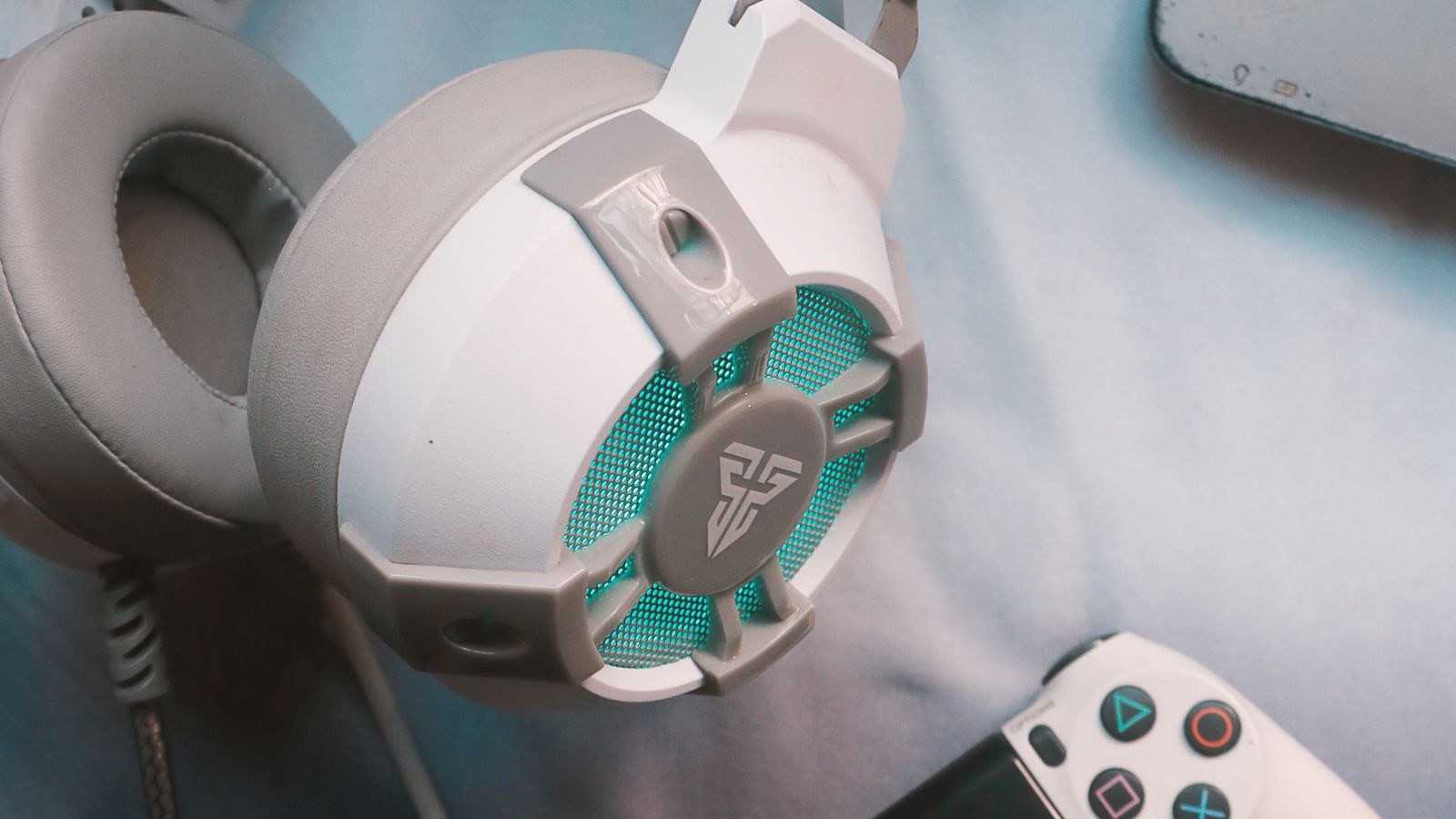
What You Need Before You Start
- Your headset, connected and working in stereo. Confirm normal audio plays correctly first, because surround processing sits on top of a working stereo path.
- The connection type noted. USB and wireless dongle headsets can expose their own multi-channel device. Analogue 3.5mm headsets rely entirely on the operating system or a vendor app for processing.
- Vendor software installed if your headset ships with it, downloaded from the official support page.
- A game with positional audio for testing, ideally one where footstep direction matters.
- A quiet ten minutes, since surround comparisons need careful listening rather than a quick check.
Step by Step: Turning On Headset Surround Sound
- Confirm your headset’s surround type. There are three routes. Hardware surround headsets contain multiple small drivers per earcup and need no processing. USB or wireless headsets with onboard processing expose a multi-channel device and handle everything themselves. Stereo headsets rely on software virtualisation supplied by the operating system or a vendor app. Knowing which you have prevents you enabling two layers at once, which is the most common cause of muddy results.
- Set the headset as the default playback device. Open sound settings, select the headset explicitly, and play a test sound. If your headset offers both a stereo and a multi-channel entry, note both names. Choosing the wrong entry silently disables surround while everything appears to work.
- Enable spatial audio in Windows. Open the properties for the playback device and find the spatial sound option. Select the spatial format you want rather than leaving it off. Windows includes a built-in option at no cost, and additional formats can be installed separately. Apply, then play any content to confirm audio still passes.
- Configure the speaker setup to 7.1 where applicable. For USB headsets that present as a multi-channel device, open the speaker configuration and select 7.1 surround rather than stereo, then run the channel test. You should hear each test tone move around your head. If tones only ever play left or right, the device is still operating in stereo.
- Enable surround in the vendor software instead, if you have it. Most headset brands include their own virtualisation with a headset-specific tuning that generally beats a generic solution. Turn it on there and, importantly, turn the operating system’s spatial audio off. Two processing layers stacked together smear the imaging and make everything sound distant and hollow.
- Enable surround on Xbox. Open the audio settings from the guide, choose headset audio, then select the spatial format. Some formats require an app installed from the store and a licence, while the basic option is available directly. Set headset format to the surround option and confirm the chat mixer is balanced so game audio is not being suppressed.
- Set the game to output surround. This is the step most people skip and it is essential. In the game’s own audio settings, choose the headphone or 7.1 output mode rather than stereo. A virtualiser can only place sounds that the game actually sent as separate channels; feed it a stereo mix and it has nothing to work with. Many games also include a dedicated headphone mode, which is often better than routing full 7.1 through an external virtualiser.
- Disable competing enhancements. Turn off bass boost, loudness equalisation, and generic audio enhancements in the device properties. These shift the frequency balance that positional cues depend on and reduce the accuracy of the effect.
- Test with a controlled comparison. Load a familiar game, stand still, and have a sound move around you, or use a training range. Toggle surround on and off while listening for two things specifically: whether you can distinguish front from behind, and whether height or elevation is discernible. Stereo already handles left and right well, so improvement in left-right placement proves nothing.
- Decide honestly and keep the better setting. If surround makes footsteps easier to locate, keep it. If it makes everything sound distant, reverberant, or smeared, turn it off and stay in stereo. There is no correct answer that applies to everyone, because the processing is based on generalised ear shape models that fit some listeners better than others.
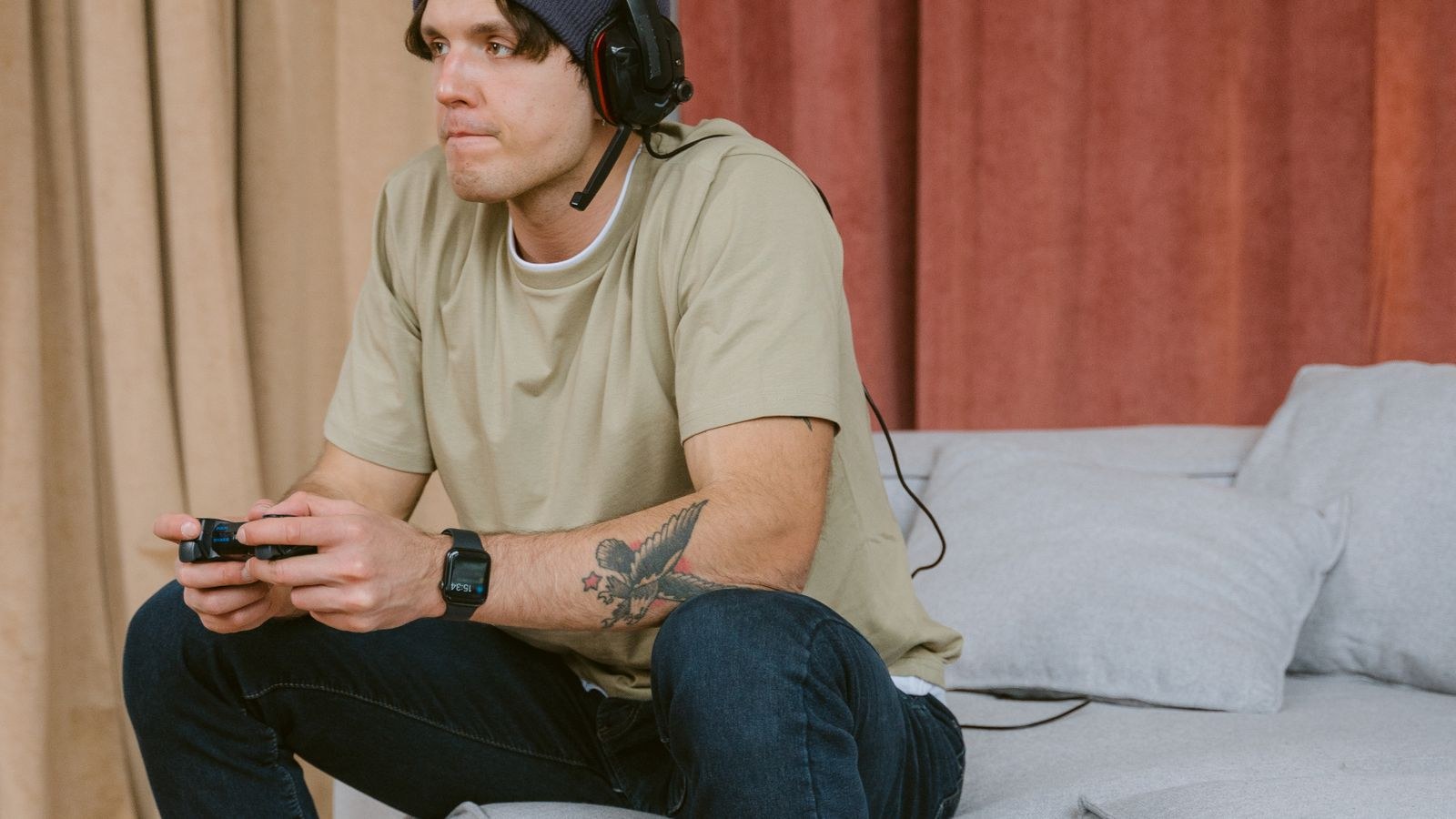
Does Virtual Surround Actually Help in Competitive Games?
This deserves a straight answer rather than marketing copy. Virtual surround genuinely improves front-to-back distinction and elevation, which stereo handles poorly. In games where an opponent above you or directly behind you is a meaningful threat, that is a real advantage. What it does not reliably improve is left-right accuracy, which stereo already conveys precisely through simple level and timing differences.
The trade-off is that processing adds a degree of reverberation and can soften the sharp transient edge of a footstep, which is exactly the cue many competitive players rely on. That is why a significant number of high-level players deliberately use stereo. If your priority is reaction speed on clean transients rather than a spacious soundstage, stereo may serve you better, and the headsets in our roundup of the best headsets for esports and competitive play tend to be tuned for exactly that clarity regardless of surround support.
For single-player and immersive games the calculation flips. A wide, enveloping soundstage adds a great deal to atmosphere, and the slight softening costs you nothing. Many players sensibly keep two profiles and switch between them by genre.
Understanding the Formats You Will See
Several competing spatial formats appear in settings menus and the differences matter less than the marketing suggests. Channel-based virtualisation takes a 7.1 mix and folds it into two ears using head-related transfer functions. Object-based formats let the game describe a sound’s position in three dimensions and render it directly for your headphones, which is generally more accurate for elevation. Some formats are free, others require a paid licence, and some are bundled with specific headsets.
Rather than chasing a format name, judge by result. A well-implemented channel-based virtualiser on a headset with an accurate frequency response outperforms a premium object-based format on a headset with a bloated bass response, because heavy bass masks the subtle midrange cues that positional hearing depends on. Headsets built with a flatter, more neutral tuning, like many in our list of the best spatial audio headsets, tend to virtualise more convincingly for that reason.
Hardware Surround Versus Virtual Surround
A small number of headsets place several physically separate drivers in each earcup to reproduce discrete channels. In principle this removes the need for processing. In practice, cramming multiple small drivers into a cup usually compromises the size and quality of the main driver, and the tiny separations involved deliver less convincing imaging than a good virtualiser through a single well-designed driver. Most manufacturers have moved away from the approach for that reason.
If you are shopping specifically for surround capability, the more useful question is whether the headset includes a well-regarded virtualisation solution and a driver with clean midrange, not how many drivers are listed. Our comparison of the best 7.1 surround sound headsets covers how the two approaches compare in practice, while the broader best headsets for gaming roundup weighs surround against comfort, microphone quality and build. If you also switch between a PC and a console, check the multi-platform models in our list of the best computer gaming headsets, since surround support often differs between the two connection modes on the same headset.
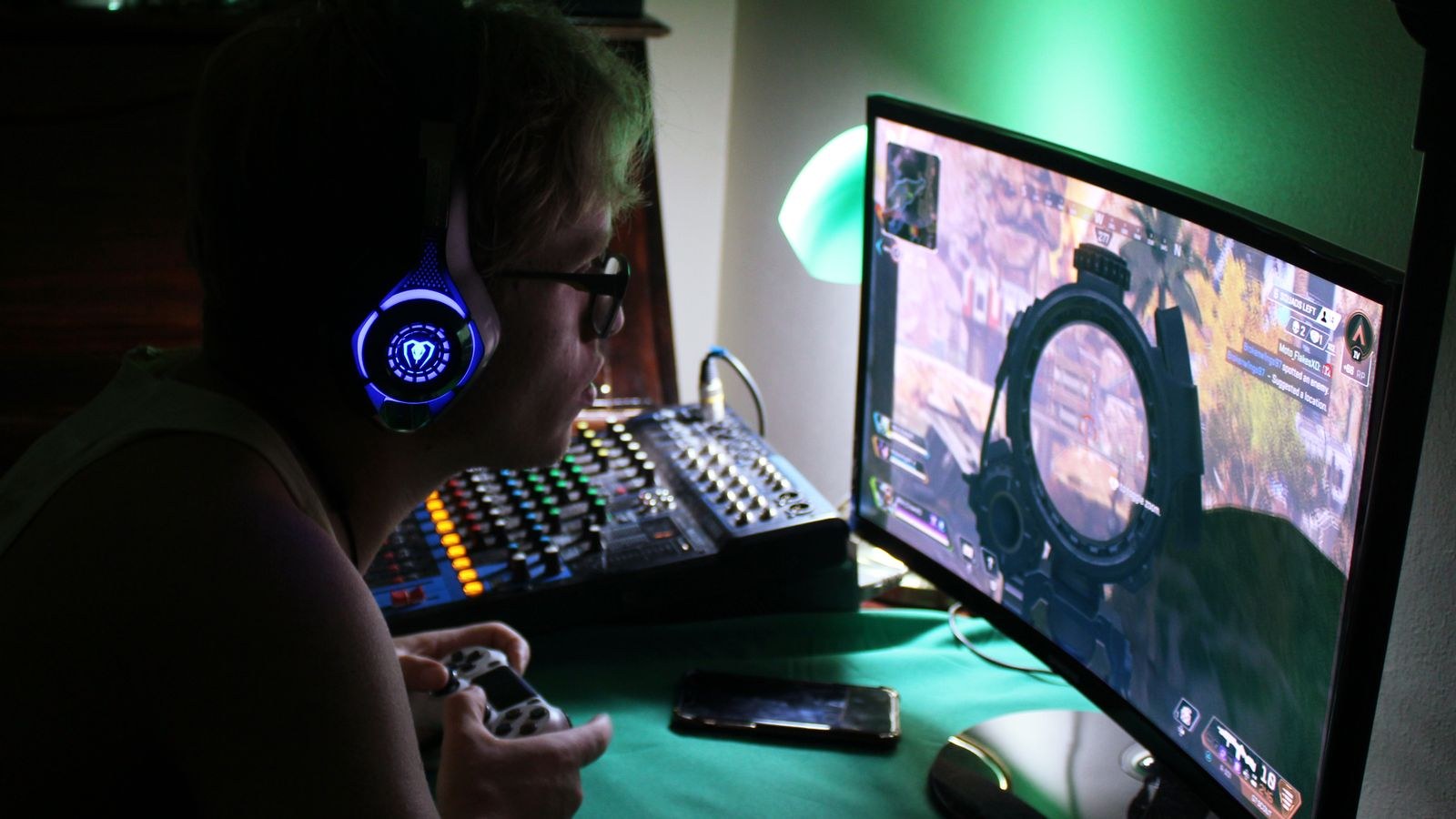
Common Mistakes to Avoid
- Stacking two virtualisers. Running the operating system’s spatial audio and the vendor app at the same time produces hollow, distant audio. Use one only.
- Leaving the game in stereo. The game must output surround for a virtualiser to have channels to place. This is the most frequent reason surround seems to do nothing.
- Judging by left-right accuracy. Stereo already does that well. Test front, back and elevation, which is where virtualisation actually contributes.
- Leaving bass boost enabled. Exaggerated low frequencies mask the midrange detail that carries directional cues.
- Assuming more channels means better. A convincing virtualiser through two good drivers beats several cramped drivers per cup.
- Not testing before a match. Changing spatial settings alters how distance sounds, and adapting mid-game costs you rounds.
Frequently Asked Questions
Can a stereo headset really do surround sound?
Yes, through virtualisation. Two drivers plus processing that mimics how your ears and head alter incoming sound can convey direction convincingly, which is how all headphone surround works.
Does surround sound add input latency?
Processing adds a very small delay, typically only a few milliseconds. It is not usually perceptible, though some competitive players prefer stereo for the cleanest possible transient response.
Should I enable it in Windows or in the headset software?
In the headset software if it has a good implementation, since it is tuned for that specific driver. Whichever you choose, disable the other so only one layer of processing is active.
Why does surround make my game sound distant?
Usually two virtualisers running at once, or an aggressive reverb component in the processing. Disable one layer and retest before concluding surround does not suit you.
Does surround work for music and films too?
For films with a multi-channel soundtrack, yes, and it can be very effective. For stereo music it generally adds artificial reverb and most listeners prefer it switched off.
Final Thoughts
Enabling surround sound on a gaming headset takes only a few minutes, but getting a genuine benefit depends on three details people routinely miss: run exactly one virtualiser, set the game itself to output surround, and disable bass boost and other enhancements that mask directional cues. Once configured, test properly by toggling it on and off while listening for front, back and elevation rather than left and right. Keep it if it helps you locate sounds and switch back to stereo if it does not, because the processing suits some listeners and some genres far better than others. Either way you will have made the decision on evidence rather than on what the box promised.









