Owen Bradley
 The end of the day is where home automation quietly earns its keep. Nobody wants to walk the house at midnight checking locks, dimming lamps and nudging the thermostat down, yet those are exactly the tasks that pay off in comfort, security and energy savings. A google home bedtime routine bundles all of them behind a single spoken phrase or a nightly schedule, so the house winds itself down while you brush your teeth. This guide walks through building one from scratch in the Google Home app, covers both voice and scheduled triggers, and explains how to handle the awkward cases like locks that refuse to close and a partner who goes to bed at a different hour.
What You Need First
Everything happens inside the Google Home app, so start by updating it and confirming you are signed in with the account that owns the home structure. Routines are tied to that home, and household members added as guests may not see or edit them.
Then check what hardware you have to work with:
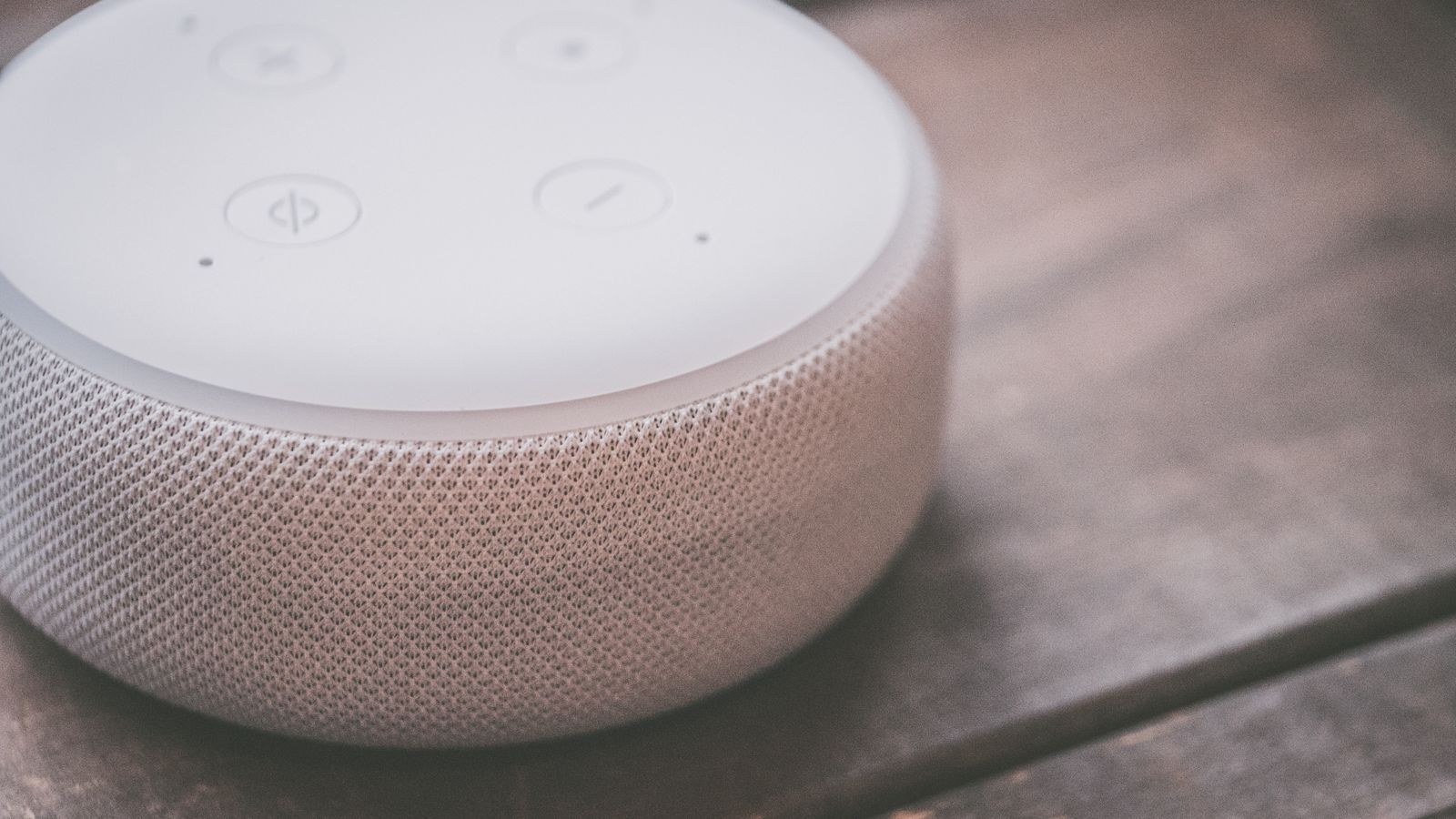
- A speaker or display to hear the voice trigger and speak confirmations. If your bedroom currently has nothing, that is the first gap to fill, and the best Google smart speakers roundup separates the small nightstand units from the ones worth putting in a living room.
- Smart lighting you can dim rather than simply switch. Bulbs give the finest control over brightness and warmth, and the best smart bulbs for Google Home covers the models that dim smoothly at low levels. Where a lamp is hard-wired or shared, a wall unit from the best smart switches for Google Home keeps manual control intact.
- Smart plugs for anything with a hard power switch, like a TV, a games console, a heater or a string of decorative lights. See the best smart plugs for Google Home for compact models that do not block the neighbouring socket.
- A connected thermostat if you want the temperature setback, which is usually the biggest money saver in the whole routine. The best thermostats for Google Home list explains which models expose full temperature control to routines rather than just a mode change.
- A smart lock if you want doors secured automatically. Note that most locks will lock via a routine but will not unlock, for obvious safety reasons.
Confirm each device responds to a direct voice command before you build anything. A device that ignores you outside a routine will ignore you inside one too.
Step-by-Step: Building the Bedtime Routine
- Open the Google Home app and find Routines. Depending on your app version this sits under Automations or in the Settings menu of your home. Google already provides a starter Bedtime routine you can edit instead of creating a new one, which saves a little setup.
- Create or open the routine and name it clearly. “Bedtime” is fine if only one person uses it; if two people go to bed separately, use names like “Bedtime Sam” so the phrases never collide.
- Add your starter, or trigger. Choose When I say for a voice phrase, or At a specific time for a schedule. You can add both to the same routine, which is the setup most people end up preferring.
- Set the voice phrase. Add two or three variations such as “goodnight,” “bedtime” and “I’m going to bed” so you do not have to remember exact wording half asleep. Avoid phrases that contain a device or room name.
- Set the schedule if you want a fallback. Pick a time later than you normally go to bed, and select the days it should run. A schedule set for 11:30pm acts as a safety net on the nights you forget to say anything.
- Add the lighting action. Choose Adjust smart home devices, select your rooms, and set the lights you want off to off. For the bedroom itself, set a low brightness instead of off so you are not left in total darkness mid-routine.
- Add the thermostat setback. Add another smart home action and set your target overnight temperature. A drop of a few degrees is usually enough to save meaningfully without waking anyone from cold.
- Add the lock action. Select your lock and set it to locked. If your lock requires a PIN for voice control, you will be prompted to configure that once.
- Add plugs and media. Switch off the television plug, the console, or any decorative lighting. Add a Stop media action if speakers may still be playing elsewhere in the house.
- Add a spoken confirmation. Use the Say something action with a short line like “everything is off, goodnight.” This tells you at a glance whether the routine actually ran.
- Optionally add sleep sounds. Google’s built-in sleep sounds or a low-volume playlist can close the routine. Set the speaker volume in a separate action first so it never starts loud.
- Save, then run it manually once. Trigger it from the app and physically walk the house to confirm every device did what you expected. Fix anything that failed before you rely on it tonight.

Voice Trigger or Schedule: Which to Use
A voice trigger is precise. It fires exactly when you decide the day is over, which suits irregular schedules and households where bedtime moves around. The downside is that it depends on you remembering, and on a speaker being within earshot of wherever you happen to be standing.
A schedule never forgets, which is exactly what makes it useful and occasionally annoying. If it fires while you are still watching a film, lights go out mid-scene. The practical compromise is to set the schedule an hour later than your normal bedtime so it only ever catches the nights you fell asleep on the sofa.
You can also chain a presence or sensor condition into the mix on some setups, so the routine only runs if nobody is detected downstairs. Keep such conditions simple; complex logic is where nightly automations become unpredictable and get switched off in frustration.
Handling Two People With Different Bedtimes
This is the single biggest reason bedtime routines get abandoned. If one routine turns off every light in the house, the person still reading downstairs will not tolerate it for long. Two approaches work well.
The first is zoned routines: build “Bedtime Upstairs” that only touches the bedroom, hallway and thermostat, and a separate “Last One Out” that handles downstairs lights, locks and media. Whoever goes to bed last runs the second one.
The second is voice match. With each person’s voice enrolled, Google can recognise who spoke and run a personalised version of the same phrase, adjusting that person’s own room and leaving the rest alone. This takes a few minutes to set up per person but removes almost all of the friction.
Troubleshooting the Usual Failures
- The lock does not engage. Most locks refuse to lock if the bolt is obstructed or the door is not fully closed. Fix the door alignment rather than the routine, and add a spoken confirmation so you learn about failures immediately.
- Some lights stay on. Usually one bulb has dropped off the network or was excluded from the room. Re-check room assignments, since routines that target a room miss any device not filed into it.
- The routine runs but nothing speaks. Check which speaker is set as the output device, and confirm its volume is not at zero from earlier in the evening.
- The thermostat ignores the setback. Some models block external changes while in a scheduled mode of their own. Disable the thermostat’s internal schedule for that window and let the routine own it.
- Actions run out of order. Put slow cloud devices first and keep the spoken confirmation last so it genuinely confirms completion.

Mistakes That Undermine a Good Routine
Turning every light off at once is the classic error. Leaving a hallway light at low brightness for a few minutes, then off, is far more livable. Overloading the routine is the second: twelve actions take a long time to complete and make failures harder to spot. Vague device names are the third, because when everything is called “plug” or “light 2” you cannot tell what a routine is doing when you revisit it in six months. Finally, never automate anything unsafe to run unattended, and avoid putting space heaters or cooking appliances under any scheduled control.
Frequently Asked Questions
Can a bedtime routine unlock my door in the morning?
No. Voice and routine unlocking is deliberately restricted on most smart locks for security reasons. You can lock automatically but should unlock with a code, app or key.
Will the routine still run if my phone is off?
Yes. Routines are processed by Google’s servers and the speakers in your home, not by your phone. Your phone only matters for triggers based on your location.
Can I have the routine run only on weeknights?
Yes. When you add a scheduled starter you choose the days it applies to, so you can build a weeknight version and a separate, later weekend version.
Does the routine work without internet?
Largely not. Voice recognition and routine processing are cloud based, so an outage will stop it. Locally controlled devices may still respond to physical switches.
How many actions can one routine hold?
Enough for a full house, but practical performance drops well before the limit. Keep it under roughly ten actions and split anything longer into two routines.
Final Thoughts
A bedtime routine works best when it is boring and dependable. Pick the five or six things you genuinely do every night, add a spoken confirmation so failures announce themselves, and use a late schedule as a backstop for the nights you forget the phrase. Solve the two-people problem early with zoned routines or voice match, because that is what kills most setups. Get those foundations right and by the end of 2026 the routine will simply be part of how the house runs, saving you a nightly walk through every room.