Owen Bradley
 One cable to the laptop, two screens lighting up, power flowing, network connected. That is the promise of a USB-C dock, and when it works it genuinely transforms a desk. When it does not, the symptoms are maddeningly specific: both monitors detected but one mirroring the other, a second screen that refuses to go past 30Hz, or a display that only appears after you unplug and replug in a particular order. Almost every one of those problems comes down to three things the marketing never mentions: DisplayPort alt mode lanes, MST support, and how much bandwidth a single cable can actually carry. This guide walks through connecting a docking station to two monitors and getting the resolution and refresh rate you paid for.
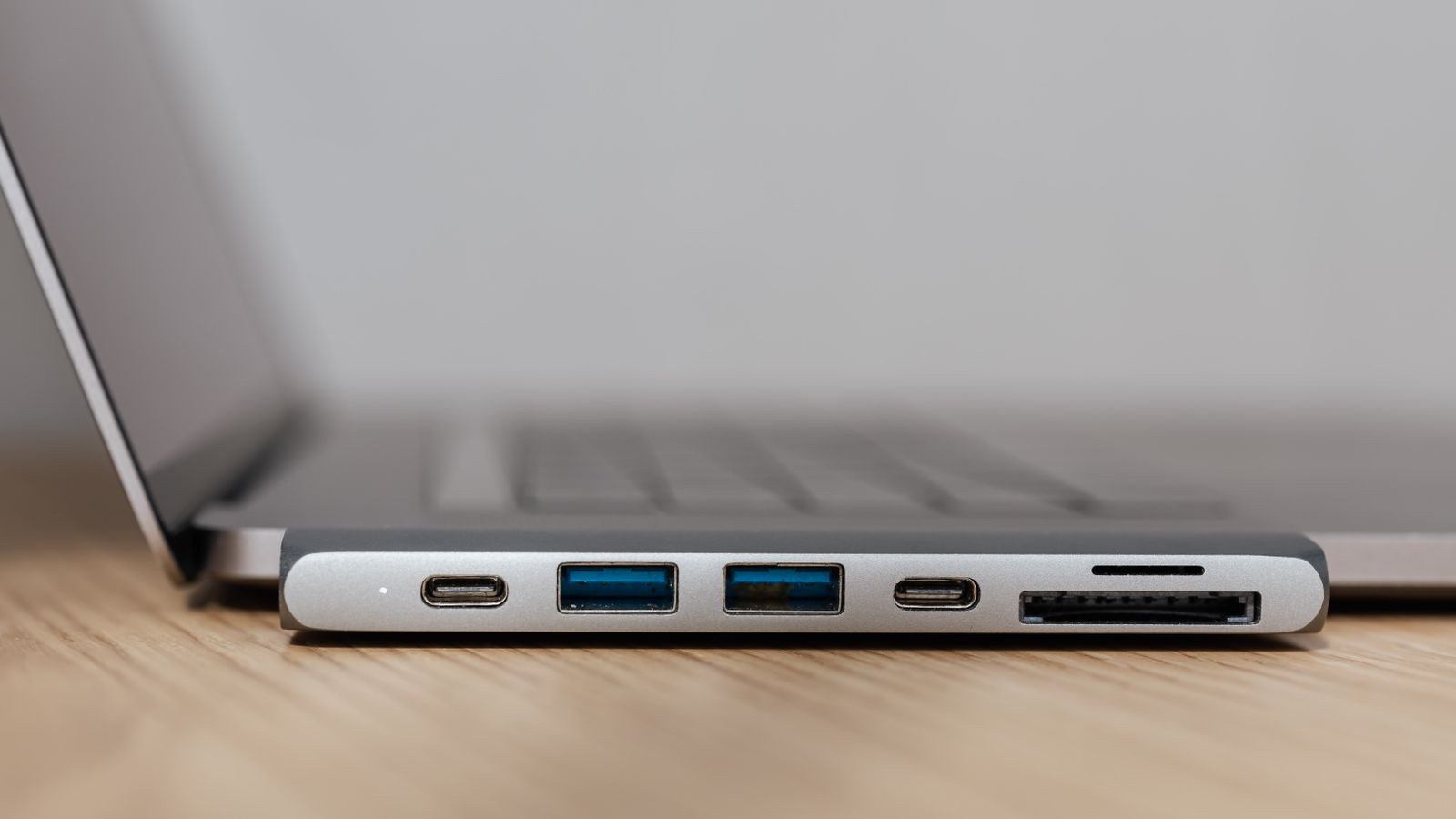
Check What Your Laptop’s USB-C Port Can Do
Not every USB-C port carries video, and this is where most dual-monitor plans fail before any hardware arrives. A USB-C port only outputs display signals if it supports DisplayPort alt mode, which reassigns some of the cable’s high-speed lanes to video. Look for a DisplayPort logo or a Thunderbolt lightning bolt beside the port, or check the specification sheet for your exact model.
Then find out how many lanes it gives you. In four-lane mode, the port dedicates all high-speed lanes to video, delivering the most bandwidth but reducing the data speed available to USB devices. In two-lane mode, half go to video and half stay with USB, which limits what two displays can do simultaneously. A Thunderbolt port sidesteps much of this, carrying far more total bandwidth and typically driving two high-resolution displays without compromise.
What You Will Need
- A laptop with a USB-C port supporting DisplayPort alt mode, or a Thunderbolt port
- A dock with two video outputs, matched to the connectors your monitors accept
- Two monitors and their respective DisplayPort or HDMI cables
- The dock’s power supply, since bus-powered hubs rarely run two screens reliably
- Current graphics drivers and, where available, a firmware update for the dock
MST Versus DisplayLink: Two Very Different Docks
Docks split into two families, and knowing which you have explains most behaviour.
MST docks use Multi-Stream Transport, a DisplayPort feature that splits one video stream into several independent ones inside the dock. There is no extra software and no CPU overhead, but it depends entirely on your laptop’s graphics stack supporting MST. Some platforms, notably certain Apple silicon machines, do not, and on those a supposedly dual-output MST dock will simply mirror the same picture to both screens.
DisplayLink docks take a different route: a driver compresses the video on the CPU and sends it over standard USB data, where a chip in the dock decodes it. Because it does not rely on alt mode lanes at all, it works almost anywhere, including on hardware that refuses MST. The trade-off is a software driver, a small CPU load, and slight compression artefacts on fast motion, which makes it excellent for documents and poor for gaming.
If you are still deciding which hardware fits your machine, the roundup of the best graphics cards and docks covers how the two families compare in practice across different laptop platforms.
Connecting the Dock and Both Monitors
- Power the dock first. Plug in the dock’s own mains adapter before anything else. A dock running purely off the laptop’s port rarely has the headroom for two displays plus peripherals.
- Connect both monitors to the dock. Use the dock’s dedicated video ports. If it offers DisplayPort and HDMI, prefer DisplayPort for the higher refresh rate monitor.
- Set the monitor input mode. On each monitor’s on-screen menu, select the correct input and enable the higher DisplayPort version if the option exists. Many screens ship set to an older mode that caps bandwidth.
- Connect the dock to the laptop last. Use the cable supplied with the dock, into the port you confirmed supports alt mode or Thunderbolt.
- Install drivers if needed. DisplayLink docks need their driver installed before either screen will appear. MST docks usually need nothing, but update your graphics driver anyway.
- Enable MST in the monitor menu. If you are daisy-chaining monitors rather than using two dock ports, the first monitor needs DisplayPort MST or daisy-chain mode switched on.
- Confirm both displays are detected. Open your operating system’s display settings and check two separate panels appear before configuring anything else.
Set Extend Rather Than Mirror
A freshly connected dock frequently defaults to mirroring, which makes two monitors behave as one. In display settings, choose the option to extend the desktop, then arrange the display icons to match how the screens physically sit on your desk so your pointer crosses between them naturally. Set the correct primary display, since that is where the taskbar and new windows appear. Then check the scaling on each screen individually; mixing a high-resolution panel with a standard one at the same scaling makes text on one look tiny.
The monitors themselves determine how far you can push this. Screens that accept a USB-C input can often take video and power over the same cable, simplifying the whole chain. The best USB-C monitors covers panels built for that, and the best dual monitor setups shows sensible pairings for a single-cable desk.
Understanding the Bandwidth Ceiling
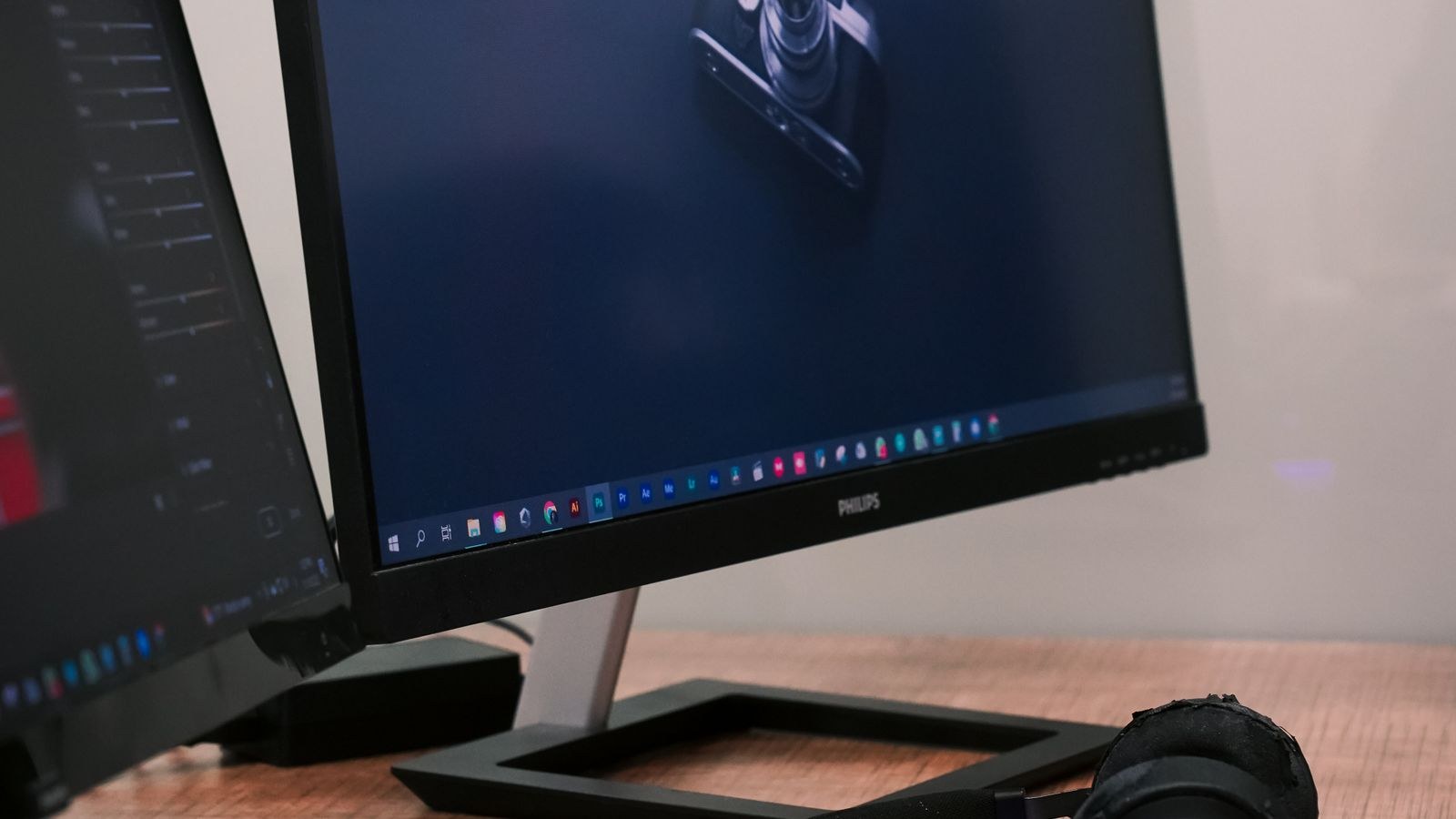
This is the part that explains almost every disappointing result. A single USB-C cable carries a finite amount of data, and every pixel and every refresh consumes some of it. Two displays share that budget, so what one screen manages alone may be impossible for two.
In practice, a four-lane alt mode connection comfortably drives two 1080p screens at 60Hz, and usually two 1440p screens at 60Hz. Pushing both to 4K at 60Hz sits at or beyond the limit for many docks, which is why you often see one screen drop to 30Hz. That 30Hz result is not a fault; it is the dock fitting the signal into the space available. Thunderbolt connections carry substantially more and handle demanding dual-4K configurations far more readily.
Two features stretch the budget. Display Stream Compression packs more pixels into the same bandwidth with visually lossless quality, but the laptop, dock and monitor must all support it. Reducing refresh rate or resolution on one screen is the blunt alternative, and often the practical one: setting a secondary reference screen to 1440p frees enough headroom for your main display to run properly.
Deciding What to Prioritise
Rather than fighting for maximum everything, decide what each screen is for. A primary screen used for detailed work deserves the resolution and refresh rate. A secondary screen holding chat windows, documentation or email loses nothing at a lower refresh rate. Allocating bandwidth deliberately gives a better desk than splitting it evenly. Anyone building a workspace around several information-dense windows will find the best monitors for multitasking useful for choosing panels that suit that split.
Troubleshooting a Second Screen That Will Not Appear
- Verify alt mode support. Test the dock on a different port or machine. If video works elsewhere, your original port likely lacks alt mode.
- Swap the video cables. A marginal HDMI or DisplayPort cable that works at 1080p can fail entirely at higher bandwidth. Try a known-good certified cable.
- Use the dock’s own cable. Generic USB-C cables vary enormously; many carry data and power but not full video lanes.
- Check the monitor input version. Enable the newer DisplayPort or HDMI mode in the monitor’s menu, which is frequently disabled by default.
- Update dock firmware. Manufacturers regularly fix display negotiation bugs, and this resolves an outsized share of dual-monitor faults.
- Reduce the demand. Temporarily lower one screen to a smaller resolution. If it appears, you have confirmed a bandwidth limit rather than a hardware fault.
- Power cycle in order. Unplug the dock from mains and laptop, wait thirty seconds, reconnect mains first, then the laptop.
Common Mistakes to Avoid
- Assuming every USB-C port carries video. Many are data and charging only.
- Running an unpowered dock. Two displays and peripherals need more than the laptop port can supply.
- Using a random USB-C cable. Charging cables often lack the lanes video requires.
- Expecting MST on unsupported hardware. If your platform ignores MST, only a DisplayLink dock will extend to two screens.
- Chasing dual 4K at 60Hz on a basic dock. Check the specified maximum before buying, not after.
- Leaving monitors on legacy input modes. An old DisplayPort setting silently caps your refresh rate.
Getting the Layout Right
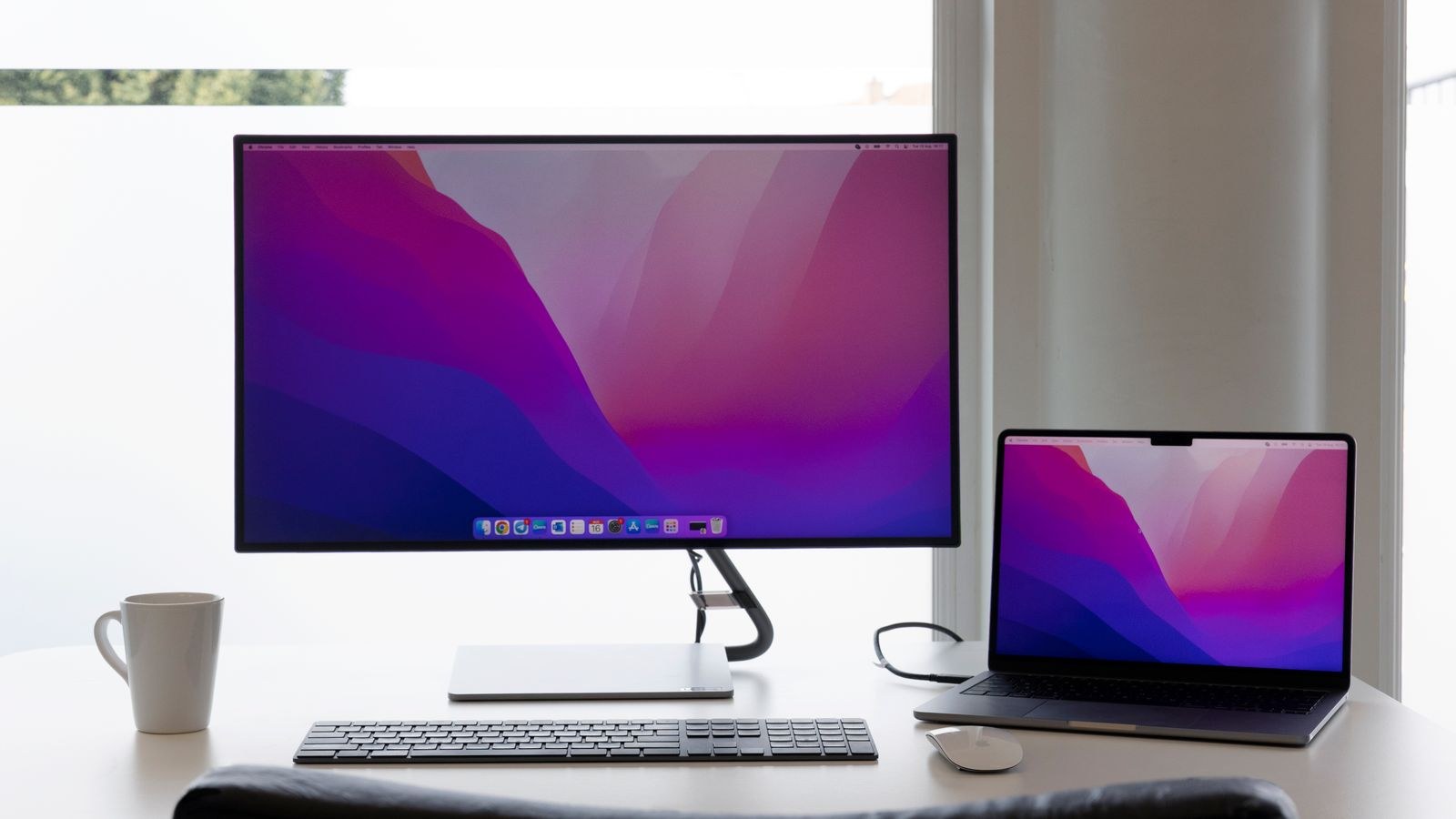
Once both screens work, spend ten minutes on ergonomics. Set both monitors so the top of the screen sits at or just below eye level, with the primary display directly in front of you rather than off to one side. If the two panels differ in height or stand design, a matched pair of arms fixes the mismatch far better than books under one base. For a fuller walkthrough of positioning, spacing and window management across two screens, the guide on how to set up dual monitors for gaming or work covers the physical arrangement in detail.
Frequently Asked Questions
Why do both monitors show the same image?
Either your display settings are on mirror rather than extend, or your laptop does not support MST. Change the setting first; if extend is unavailable, you likely need a DisplayLink dock.
Can one USB-C cable really run two 4K monitors?
Sometimes, on Thunderbolt or with Display Stream Compression support throughout the chain. On a standard alt mode connection, expect one screen to drop to 30Hz or a lower resolution.
Do I need a powered dock?
For two monitors, yes. Bus-powered hubs are designed for occasional single-screen use and become unstable once you add displays, drives and peripherals.
Is DisplayLink worse than MST?
Not worse, different. It works on hardware MST cannot, at the cost of a driver, some CPU load and mild compression on fast motion. For office work the difference is rarely noticeable.
Why did my refresh rate drop after adding the second screen?
The two displays now share one bandwidth budget. Lower the secondary screen’s resolution or refresh rate to give the primary display the headroom it needs.
Final Thoughts
Connecting a docking station to two monitors is really a bandwidth negotiation, and it goes smoothly when you approach it in the right order. Confirm your port supports DisplayPort alt mode or Thunderbolt, choose an MST or DisplayLink dock to match what your platform actually supports, power the dock from mains, connect the displays and then the laptop, and switch from mirror to extend. If a screen refuses to reach the resolution you expected, treat it as a bandwidth budget to be allocated rather than a fault to be fixed, and give the headroom to the display you look at most.