
 Owen Bradley
 A Thread border router is the quiet piece of hardware that turns a handful of low-power smart devices into a genuinely reliable mesh network. Thread itself is a wireless protocol built for battery sensors, locks, and bulbs, but Thread devices cannot reach your phone or the internet on their own. They need a border router to translate between the Thread mesh and your home WiFi or Ethernet network. The good news is that you may already own one without realising it, because many modern speakers, displays, and hubs include the radio. This guide walks through identifying a border router, adding one properly, and verifying that your Thread mesh is healthy rather than merely powered on.
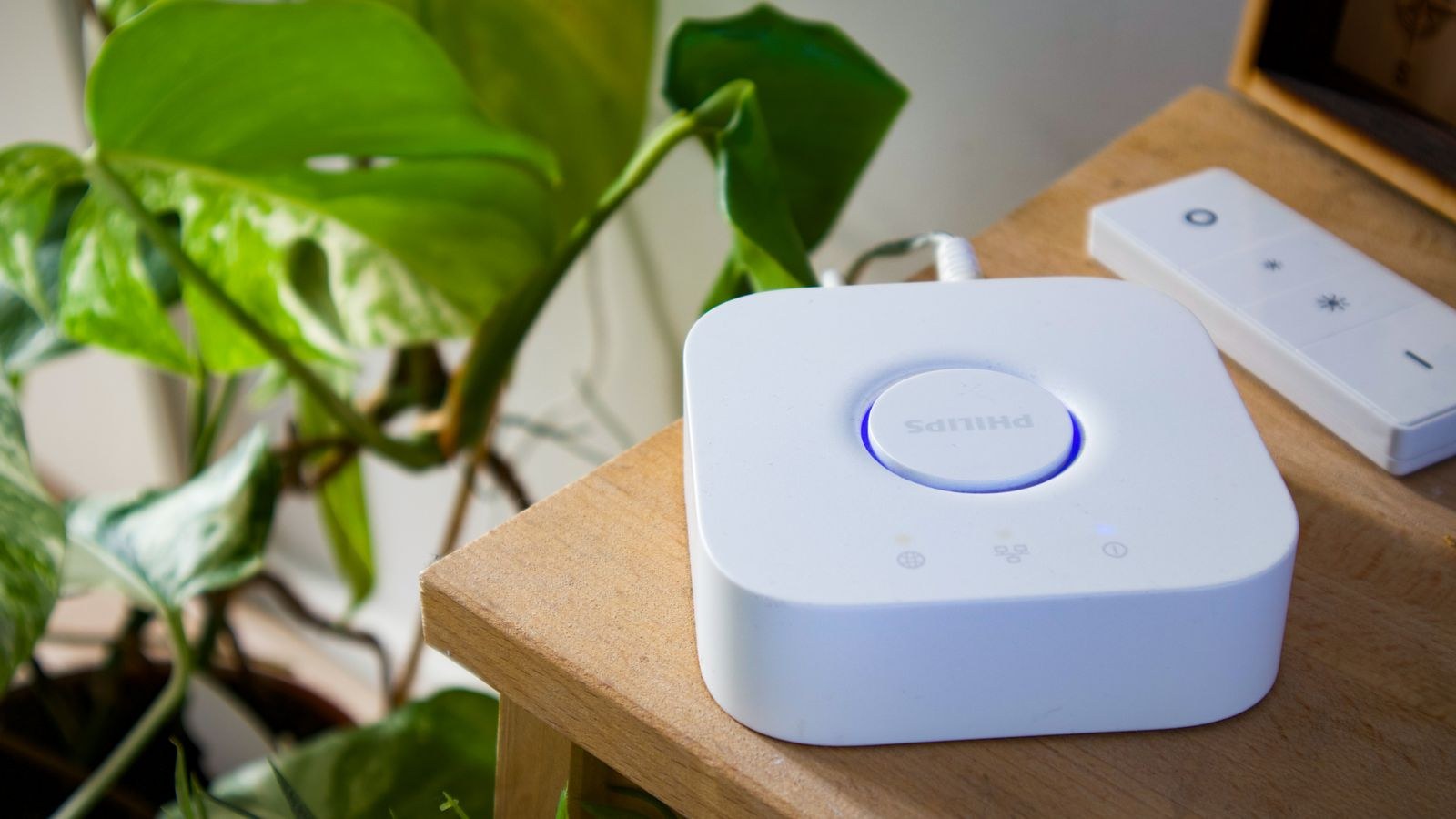
What a Thread Border Router Actually Does
Think of the border router as a doorway. On one side sits the Thread mesh, a self-healing network of low-power devices that relay messages for each other. On the other side sits your regular home network. The border router carries traffic between the two, assigns addresses, and keeps the mesh credentials that let new devices join. Without one, a Thread lock or sensor is effectively stranded, visible only to other Thread devices and unreachable from an app.
Two details matter before you shop. First, a border router is not a WiFi router, despite the name, and it does not replace one. Second, Thread border routers are usually built into products you buy for another reason, such as a voice speaker or a security hub, rather than sold as standalone boxes. That means the practical question is rarely “which border router should I buy” and more often “which of my existing devices already is one”.
Step 1: Find Out Whether You Already Own One
Start with an inventory rather than a purchase. Recent smart speakers, smart displays, streaming boxes, and dedicated automation hubs from the major ecosystems frequently include a Thread radio. Check the product page or the specification sheet for the word Thread, and be careful to distinguish current models from older ones that share the same product name but lack the radio. Generation matters far more than branding here.
If you find nothing with Thread support, the simplest fix is to add a device you would want anyway. Our roundup of the best smart hubs flags which models carry a Thread radio, and the best smart speakers list is a good place to look if you want voice control in the same box. For a kitchen or hallway where a screen earns its place, the best home hubs with screens often double as border routers while showing camera feeds and timers.
Ecosystem Compatibility Comes First
A border router only serves the ecosystem it belongs to unless the devices support Matter. If your smart home is centred on one voice assistant, buy a border router from that ecosystem so commissioning is seamless. If you run more than one platform, prioritise Matter-certified hardware, because a Matter over Thread device can generally be shared across platforms afterwards. Readers building around Apple’s platform will find the compatibility notes in our guide to the best Apple HomeKit accessories useful for checking which products commission cleanly.
Step 2: Place the Border Router Sensibly
Thread runs on the crowded 2.4GHz band, the same neighbourhood as WiFi, Zigbee, Bluetooth, and microwave ovens. Placement therefore does real work. Put the border router roughly central to the devices it will serve, at least a metre or two away from your WiFi router, and out of metal cabinets or media units. Avoid stacking it on top of a games console or set-top box, where heat and radio noise both collect.
Height helps as well. A shelf at waist level or above beats a spot on the floor behind furniture. If your home is long or spread over several floors, plan for a second border router later rather than trying to make one unit cover everything from a corner.
Step 3: Add the Border Router to Your Network
The actual setup is short. Work through it in order and do not skip the firmware step, since Thread support is often enabled or improved by an update rather than shipped active on day one.
- Connect power and, if available, Ethernet. A wired backhaul gives the border router a stable path to the internet and removes WiFi congestion from the equation. If the device is wireless only, place it where WiFi signal is strong.
- Set it up in its own app first. Use the manufacturer’s app or the ecosystem app to complete normal onboarding: account sign-in, room assignment, and network selection.
- Install every pending firmware update. Check for updates twice, because some devices download one update and then reveal another. Wait for the device to reboot fully before continuing.
- Confirm the Thread radio is active. Look for a Thread entry in the device settings or a network section listing a Thread network name. If nothing appears, the radio may activate only once you commission your first Thread accessory.
- Commission one Thread accessory. Scan the accessory’s Matter or setup code with your phone. The app hands the credentials to the border router automatically, so there is no manual key entry.
- Add the remaining accessories one at a time. Pause a minute between each so the mesh can settle and routes can form rather than all forming at once.

Step 4: Check That the Mesh Is Genuinely Meshing
A network that responds is not necessarily a network that is meshed. In Thread, mains-powered accessories such as plugs and bulbs act as routers, relaying traffic for battery devices that sleep most of the time. If every accessory in your home talks directly to the border router, you have a star, not a mesh, and coverage will stop dead at the edge of that single radio’s range.
Most ecosystem apps expose some form of Thread network diagnostic. Look for a list showing each accessory’s role, typically labelled router, child, or leader. You want several mains-powered devices showing as routers, spread through the house. If a distant battery sensor is listed as connecting directly to the border router, add a mains-powered Thread device between the two and it will usually adopt the closer relay within a few minutes.
Signs of a Healthy Thread Mesh
- Multiple routers. At least a few mains-powered devices are acting as relays rather than endpoints.
- One Thread network, not several. Two border routers from the same ecosystem should share a network name and merge automatically.
- Fast response. Commands to lights and plugs land in well under a second, consistently, from anywhere in the house.
- Stable status. Accessories stay responsive after a night idle rather than needing a nudge in the morning.
Step 5: Add a Second Border Router for Redundancy
One border router is a single point of failure. If it is unplugged, updating, or rebooting, every Thread accessory in the house loses its path to the internet, and remote control stops working even though the mesh itself stays alive locally. Adding a second unit from the same ecosystem solves this: the two share the same Thread network credentials, and if one goes offline the other takes over, usually within seconds.
Position the second unit on a different floor or at the opposite end of the home so it extends coverage rather than duplicating it. Larger houses, or homes with a detached office or garage, benefit most. If you are expanding to cover a whole property, our comparison of the best hubs for smart homes is a useful starting point for pairing units, and the broader smart home hub buying guide explains how hub choice shapes everything you add later in 2026.
Troubleshooting Common Thread Problems
If an accessory refuses to commission, the usual culprit is Bluetooth rather than Thread. Commissioning happens over Bluetooth Low Energy, so hold your phone within a metre of the accessory during setup and move both close to the border router if the first attempt fails. Turn the phone’s WiFi and Bluetooth off and on again before retrying.
If devices join but respond slowly, check for channel conflict. Thread and your 2.4GHz WiFi may be sitting on overlapping channels. Moving your WiFi to a fixed channel of 1, 6, or 11 often clears the interference without touching Thread settings at all. If accessories drop overnight, suspect a mains-powered relay that is on a switched socket and losing power when a wall switch is flipped.
Two separate Thread networks in one home is another frequent issue, usually caused by border routers from different ecosystems each forming their own mesh. This is not a fault, but it does split your relays into two weaker groups. Where possible, standardise on one ecosystem’s border routers and let Matter handle cross-platform sharing.
Mistakes to Avoid
- Buying a hub without checking the generation. Identical product names often hide very different radios inside.
- Putting the border router beside the WiFi router. Proximity creates interference on the same band rather than convenience.
- Filling the home with battery devices only. Battery accessories sleep and never relay, so the mesh never forms.
- Skipping firmware updates. Thread stability improves substantially with updates, and older firmware causes odd dropouts.
- Adding everything at once. Bulk commissioning gives the mesh no time to build sensible routes.
Frequently Asked Questions
Do I need a Thread border router for Matter devices?
Only for Matter over Thread accessories. Matter devices that connect over WiFi or Ethernet talk to your normal router and need no border router at all. Check the packaging, since both types carry the same Matter logo.
Can I use more than one border router?
Yes, and it is recommended. Multiple border routers from the same ecosystem share credentials, provide failover, and extend coverage. There is no practical benefit to running more than two or three in a typical home.
Does a Thread border router replace my WiFi router?
No. It bridges Thread traffic onto your existing network and still depends on that router for internet access. You keep your normal WiFi setup exactly as it is.
Why do my Thread devices still work when the internet is down?
Thread is a local mesh, so device-to-device automations and local control continue working offline. Only remote access and cloud voice commands stop until the connection returns.
Final Thoughts
Adding a Thread border router is less about buying new hardware and more about understanding what you already own and giving it a sensible place to work. Audit your speakers and hubs for a Thread radio, update the firmware, commission accessories one at a time, and then check the diagnostics to confirm that mains-powered devices are genuinely relaying traffic. Add a second border router once the network matters to you, keep it away from your WiFi router, and mix in mains-powered accessories so the mesh has relays to work with. Do that and Thread delivers exactly what it promises: fast, local, low-power control that keeps responding long after other protocols start to wobble.









