
 Ryan Delgado
 Shopping for a new webcam feels harder than it should. Every listing claims to be the sharpest, clearest, or most reliable option around. If you’re trying to find the best USB webcams for video calls, streaming, or hybrid work, the real differences come down to resolution, autofocus speed, low-light handling, and whether the built-in microphone is actually usable. This guide breaks down what matters, then points you toward the right pick for your setup and budget.
Quick answer: Among the best USB webcams we compared, the Logitech C920x HD Pro is the strongest all-around pick for 2026, thanks to sharp 1080p video, dependable autofocus, and a massive track record of verified reviews. Keep reading for the full ranked list, budget-friendly alternatives, and buying advice below.
Pros
- Designed with SUPPORT WORK FROM ANYWHERE WITH SYNC Whether employees are in for reliable daily operation
- Designed with Business grade HD video webcam Full 1080p HD video at for reliable daily operation
- Designed with Widest field of view 90-degree extended view plus pan tilt for reliable daily operation
Cons
- Requires verifying available physical space for Logitech C930e Web prior to setup

Pros
- Records and streams 1080p at 30 fps through a five-element glass lens
- Automatic light correction lifts detail in a room lit only by a monitor
- Two microphones sit either side of the lens for stereo capture on calls
- Body is 1.7 x 3.7 x 2.7 inches with a clip that folds down to a tripod thread
- Ships with a 3-month XSplit VCam licence for background blur without a green screen
Cons
- No physical privacy shutter, so a lens cover has to be sourced separately
- Capped at 30 fps, so 60 fps 1080p streaming is off the table
- The bundled background-removal licence lasts 3 months, after which that job falls to the conferencing app

Pros
- 1080p sensor with HD autofocus and automatic light correction for backlit desks
- 78 degree diagonal field of view frames one person plus room to hold up a document
- Two omnidirectional mics capture speech from roughly one metre away
- Attachable privacy screen flips over the lens so the state is obvious at a glance
- Quarter-inch thread under the clip lets it sit on a tripod instead of a monitor bezel
Cons
- Field of view is fixed at 78 degrees with no pan, tilt or zoom in the camera itself
- The mics stay switched off until enabled in the Logi Tune desktop app
- No infrared sensor, so Windows Hello face sign-in is not supported

Pros
- Records and streams at up to 1080p HD resolution for calls and video
- Dual built-in microphones capture stereo audio without needing a separate mic
- Compact 2.8 by 3.3 by 1.7 inch body clips onto most monitors without extra mounting hardware
- Sold in Renewed condition, inspected and tested to function like a new unit
Cons
- Renewed condition means it is a used unit that has been refurbished, not a factory-sealed new webcam
- No stated autofocus or low-light specs beyond basic 1080p capture, so performance in dim rooms is unclear
- Older USB-A connector rather than USB-C, so newer laptops with USB-C-only ports need an adapter
At 2.8 inches deep, 3.3 inches wide, and 1.7 inches high, the C920 is small enough to clip onto the top of most laptop or external monitors using its built-in clip, without needing a separate tripod or mount for everyday use. It connects over USB-A, so no wireless pairing or app setup is required to start using it.
- Built-in clip mount fits most monitor and laptop screen thicknesses
- USB-A connection works plug-and-play on most Windows and Mac systems
- Compact size travels easily if moved between a laptop and desktop setup
Laptops with USB-C-only ports will need a USB-A-to-USB-C adapter, since the webcam itself uses a standard USB-A cable.

Pros
- Captures sharp 2K QHD video resolution with 30fps smooth streaming
- Sony STARVIS CMOS sensor delivers clear low-light video performance
- Built-in noise reduction microphone ensures crisp voice capture
- Integrated sliding privacy shutter protects personal lens privacy
- Universal mounting clip attaches securely to laptop and monitor screens
Cons
- Requires connecting via standard USB 2.0 Type-A port on PC or laptop
- Fixed USB cable length requires planning desktop cable routing

Pros
- Full Clarity Look clearer in video calls with Full HD 1080p resolution
- Auto-Light Balance RightLight boosts brightness by up to 50%, reducing
- Privacy with a Slide The integrated webcam cover makes it easy to get
- Built-In Mic The built-in microphone lets others hear you clearly
- Easy Plug-And-Play The Brio 100 works with most video calling
Pros
- Autofocus locks from as close as 7 cm, so a book page, circuit board or knitting swatch held near the lens stays sharp
- Autofocus can be switched off and the focal point set by hand, useful when you present from one consistent seated distance
- 2 MP CMOS sensor delivering 1920 x 1080 at 30fps through a 74-degree lens that keeps background clutter out of shot
- 6.5 ft (2 m) USB cable, long enough to reach a floor-standing tower from a monitor-mounted position
- Folding clip works on a monitor bezel, a laptop lid, a tripod or flat on a desk, then packs flat into a bag
Cons
- 74-degree field of view is narrower than the 90-degree lenses on many rivals, so it will not frame two people sitting side by side
- Caps at 1080p and 30fps, with no 60fps mode and no 4K option for streaming
- USB-A connector with no USB-C variant offered, so a newer thin laptop needs an adapter

Pros
- 1080p video at 30 frames per second delivers clear detail for video calls on PC or Mac
- 90-degree field of view with 4x digital zoom plus pan and tilt suits whiteboard presentations
- UVC H.264 encoding processes video inside the camera, easing the load on the host computer
- Universal tripod-ready clip mounts to laptops, LCD monitors, or CRT monitors without extra hardware
- Certified for Microsoft Lync 2013 and Skype, and compatible with most UC conferencing applications
Cons
- Ships in business packaging without the companion webcam software bundled with some retail camera models
- No physical privacy shutter is included, so a separate cover or software mute handles camera privacy
- USB-A connection only, so newer USB-C-only laptops need an adapter
A universal clip on the camera body fits laptop screens, LCD monitors, and older CRT monitors, and it is also tripod-ready for a fixed desk setup. At 1.7 inches deep by 3.7 inches wide by 2.8 inches tall, the camera stays compact on top of a monitor bezel.
- Clip mount adjusts to different screen thicknesses without tools
- Tripod thread allows a fixed camera position separate from a monitor
- Compact body avoids blocking much of the screen above which it sits
Setup is largely limited to clipping the camera into place and connecting the USB cable, since no separate power adapter is required.

Pros
- PDAF autofocus keeps subjects sharp between 7.9 and 118 inches from the lens without manual adjustment
- Dual omnidirectional microphones pick up clear voice audio up to 8 feet away
- 4K/30FPS CMOS sensor captures footage at true 4K once switched on through companion software
- Physical privacy cover blocks the lens directly, without relying on a software toggle alone
- Compatible with Windows 10/11, macOS 10.14 and above, and Android TV 7.0 and above
Cons
- Ships defaulting to 1080p; reaching 4K requires switching modes through companion software or a third-party app like OBS
- Requires a USB-A (USB 2.0) port specifically; USB-C ports may not recognize the camera without an adapter
The NOVA 4K uses a CMOS sensor capturing footage at 4K resolution and 30FPS, though it defaults to 1080p output until 4K mode is switched on through the built-in camera software or apps like PotPlayer or OBS. PDAF autofocus keeps a subject in focus across a fixed range of 7.9 to 118 inches from the lens, though manual focus override is not supported.
- 4K/30FPS capture available once switched on through companion software
- PDAF autofocus covers 7.9-118 inches without needing manual adjustment
- Fixed 73-degree field of view keeps framing consistent, though it cannot be widened or narrowed
The companion software also handles auto light correction, including backlight compensation, useful for rooms with a bright window behind the subject.
Two built-in omnidirectional microphones capture voice audio clearly from up to 8 feet away, tuned across a 100Hz-10kHz frequency range for natural-sounding speech rather than a narrow, tinny pickup band. For best results, the guidance is to keep the microphones unobstructed and use them in a reasonably quiet room.
- Dual omnidirectional mics cover speech from multiple directions around a desk
- Effective pickup range extends to about 8 feet from the camera
- 100Hz-10kHz frequency range targets clear voice reproduction over background hum
Because the microphones are optimized for voice at moderate distances, they are not intended to replace a dedicated conference mic in a large meeting room with several people spread far apart.

Pros
- Sony 1/2.55-inch sensor captures 4K at 30fps or steps down to smooth 1080p at 60fps for faster-motion streams
- Adjustable field of view from 40 to 73 degrees lets you frame a tight headshot or a wider desk setup
- Built-in rotatable privacy cover blocks the lens physically, without needing to unplug the camera between uses
- Dual noise-reduction microphones filter background sound through the companion software, with the option to toggle noise cancelling off
Cons
- 4K resolution requires the right software or app, such as OBS or PotPlayer, since not all platforms output the full 4K feed by default
- EMEETLINK software installation is required to access the noise-cancelling toggle and other adjustable settings
- Compact 2.95-inch depth body has a fixed mount design suited to monitor clips rather than tripod-first setups
What to Look for in a USB Webcam
Not every webcam handles the same job well. A camera built for polished video calls isn’t necessarily the right choice for late-night streaming, and a bargain pick might struggle the moment your room gets dim. Before you compare specific models, it helps to understand the handful of specs that actually change your day-to-day experience.
Resolution: 1080p vs. 2K vs. 4K
Most people never need to go past 1080p for video calls, and plenty of the best USB webcams on this list top out there for good reason. It’s sharp enough for Zoom, Teams, and Meet without straining your upload bandwidth. If you plan to record tutorials or stream at a larger size, a 2K or 4K sensor like the ones on the Dell WB3023 or EMEET NOVA gives you extra room to crop and zoom without losing detail.
Autofocus and Low-Light Performance
Autofocus matters more than most buyers expect. A camera that hunts and blurs every time you lean forward gets distracting fast, especially in client-facing calls. Look for phase-detection autofocus (PDAF) if you move around a lot, and check for auto light correction if your home office doesn’t get much natural light.
Built-in Microphone and Field of View
A built-in mic won’t beat a dedicated USB microphone, but a decent one saves you a cable and a purchase. Dual noise-reduction mics, like those on the EMEET models, handle typing and background hum better than a single basic mic. Field of view (FOV) also matters: a wider 78° lens fits more of your desk setup, while a narrower FOV keeps the background tighter and more private.
Best USB Webcams for Different Needs
Instead of ranking every USB webcam the same way, it helps to match the camera to how you’ll actually use it. The best USB webcams for you depend on whether you prioritize calls, streaming, or budget. Below are the picks that stood out for specific situations, based on their specs, pricing, and review history.
Best for Everyday Video Calls
The Logitech C920x HD Pro earns its spot as the default recommendation for most people. It delivers clear 1080p video at 30fps, works out of the box with Teams, Zoom, and Meet, and has one of the largest review counts of any webcam on Amazon. If you only want one camera that just works, this is it.
Best Certified for Zoom and Microsoft Teams
If your workplace requires certified hardware, the Logitech C920e is built specifically for that. It’s officially certified for Zoom and Microsoft Teams, which matters if IT has to approve your equipment. The mic is enabled by default, so setup for a home office is quick.
Best Budget USB Webcam
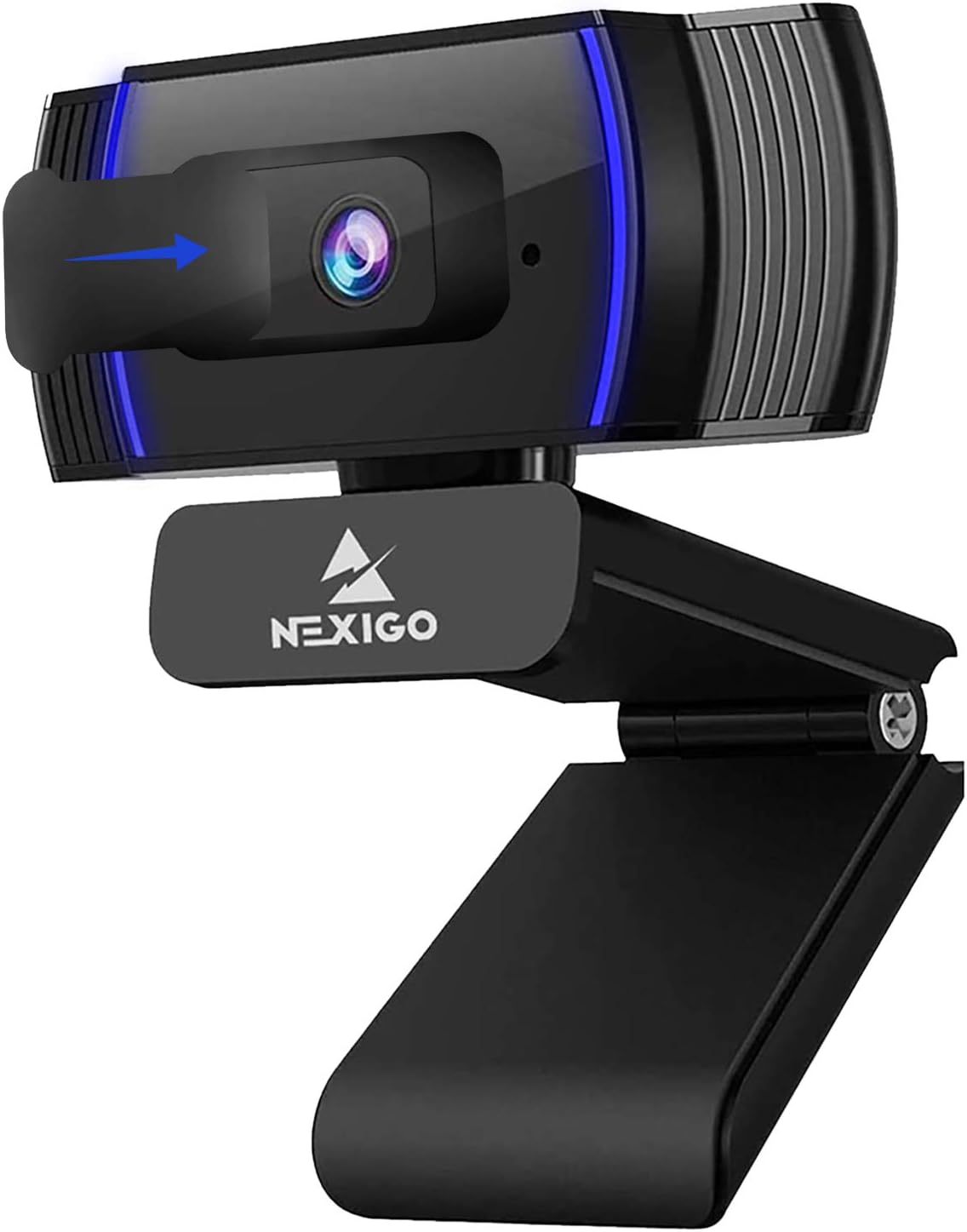
The NexiGo N930AF is proof that a lower price doesn’t mean giving up autofocus or 1080p clarity. It has racked up tens of thousands of reviews, which is a strong signal for long-term reliability at this price point. For an even smaller budget, the Logitech Brio 100 trims extras but still covers video calls competently.
Best for Sharper 2K Detail
The Dell WB3023 steps up to 2K QHD resolution with a Sony sensor and a wide 78° field of view. It’s Teams certified and adds HDR plus face detection, which helps in mixed lighting. Choose this one if you want noticeably crisper video without jumping to a full 4K setup.
Best for Streaming and Content Creation
Streamers and creators need more than a basic feed, and the EMEET NOVA answers with 4K resolution, PDAF autofocus, and dual omnidirectional mics. If you’d rather prioritize frame rate for fast-motion content, the EMEET S600 offers 1080p at 60fps along with a large Sony sensor for better low-light footage.
Common Mistakes to Avoid When Buying a USB Webcam
A few small oversights account for most of the return requests and disappointed reviews you’ll see for webcams. Watch for these before you check out.
- Ignoring USB port compatibility — confirm your laptop or dock has an available USB-A or USB-C port that matches the cable.
- Skipping the FOV spec — a webcam that’s too wide will show your whole room; too narrow can crop your shoulders awkwardly.
- Assuming higher resolution always means better video — sensor quality and low-light handling matter just as much as pixel count.
- Overlooking privacy features — a physical shutter or privacy cover is worth prioritizing if the camera sits on a shared monitor.
- Forgetting software compatibility — some advanced features, like auto-framing, only work with the manufacturer’s own app installed.
None of these mistakes are dealbreakers on their own, but stacking two or three of them is usually what leads to a webcam sitting in a drawer within a month.
Who Should Skip a Standalone USB Webcam
A dedicated USB webcam isn’t for everyone. If your laptop’s built-in camera already looks acceptable on calls and you rarely present or stream, upgrading might not be worth the desk clutter. Likewise, professional streamers chasing cinematic depth of field are usually better served by a mirrorless camera and a capture card rather than any webcam on this list. For nearly everyone else, though, a dedicated USB webcam is a clear upgrade over a laptop’s tiny built-in sensor.
Pairing your webcam with the right audio setup also changes the experience more than people expect. If your calls involve a noisy room or multiple speakers, it’s worth reading our guide to the best USB headsets for a cleaner audio pickup than any webcam mic can offer. Gamers streaming alongside video calls may also want to check our picks for the best webcams for streaming, which lean harder into frame rate and low-latency capture.
How to Get Better Video From Any USB Webcam
Even the sharpest sensor looks flat under bad lighting or a bad angle. A few small adjustments make more visible difference than upgrading to a pricier camera.
Lighting and Camera Position
Face a window or a desk lamp instead of sitting with light behind you. Backlighting is the single biggest reason people look dim or washed out on calls. Raise the webcam to roughly eye level too, since a low angle pointed up your nose rarely flatters anyone.
Background and Framing
Keep some breathing room above your head in the frame, and avoid sitting so close that the lens distorts your face. A tidy, simple background reads as more professional than a busy one, even without a fancy setup. If your USB webcam includes a wide FOV setting, consider narrowing it slightly for calls so the frame stays focused on you rather than the whole room.
Test your microphone and video together before an important meeting, not during it. Most USB webcams include a companion app where you can preview exposure, framing, and audio levels ahead of time. That five-minute check saves you from discovering a lighting or mic issue in front of a client.
Frequently Asked Questions
Do I need a 4K webcam for video calls?
No. Most video call platforms compress your feed well below 4K anyway, so 1080p is plenty sharp for everyday meetings. A 4K sensor mainly helps if you plan to record, crop, or stream at a larger output size.
Will a USB webcam work with my laptop’s built-in camera app?
Most USB webcams are plug-and-play and show up automatically as a camera source in Zoom, Teams, or Meet. You generally just need to select the new camera from the app’s video settings menu.
Is a built-in microphone good enough, or do I need a separate mic?
A built-in mic is fine for casual calls, but a separate microphone or headset will always sound clearer for meetings, interviews, or streaming. If audio quality matters to your work, check the current price on Amazon for a dedicated mic alongside your webcam.
What resolution and frame rate should I look for in a streaming webcam?
For streaming, prioritize a higher frame rate, like 60fps at 1080p, over squeezing out extra resolution. Smooth motion reads better on stream than a slightly sharper but choppier 4K feed.
How many USB webcams should I compare before buying?
Comparing our 10 picks above should cover almost every use case, from budget video calls to 4K streaming setups. Narrow the list by matching the “best for” category to how you’ll actually use the camera daily.
If you’re still deciding between two or three options, go back to how you’ll actually use the camera most days. Someone on back-to-back client calls should weight autofocus and mic quality heavily, while a streamer should prioritize frame rate and low-light sensitivity. Either way, the picks above cover the range from budget-friendly to feature-packed, so you can compare specs and availability before settling on one.




