 Marcus Bell
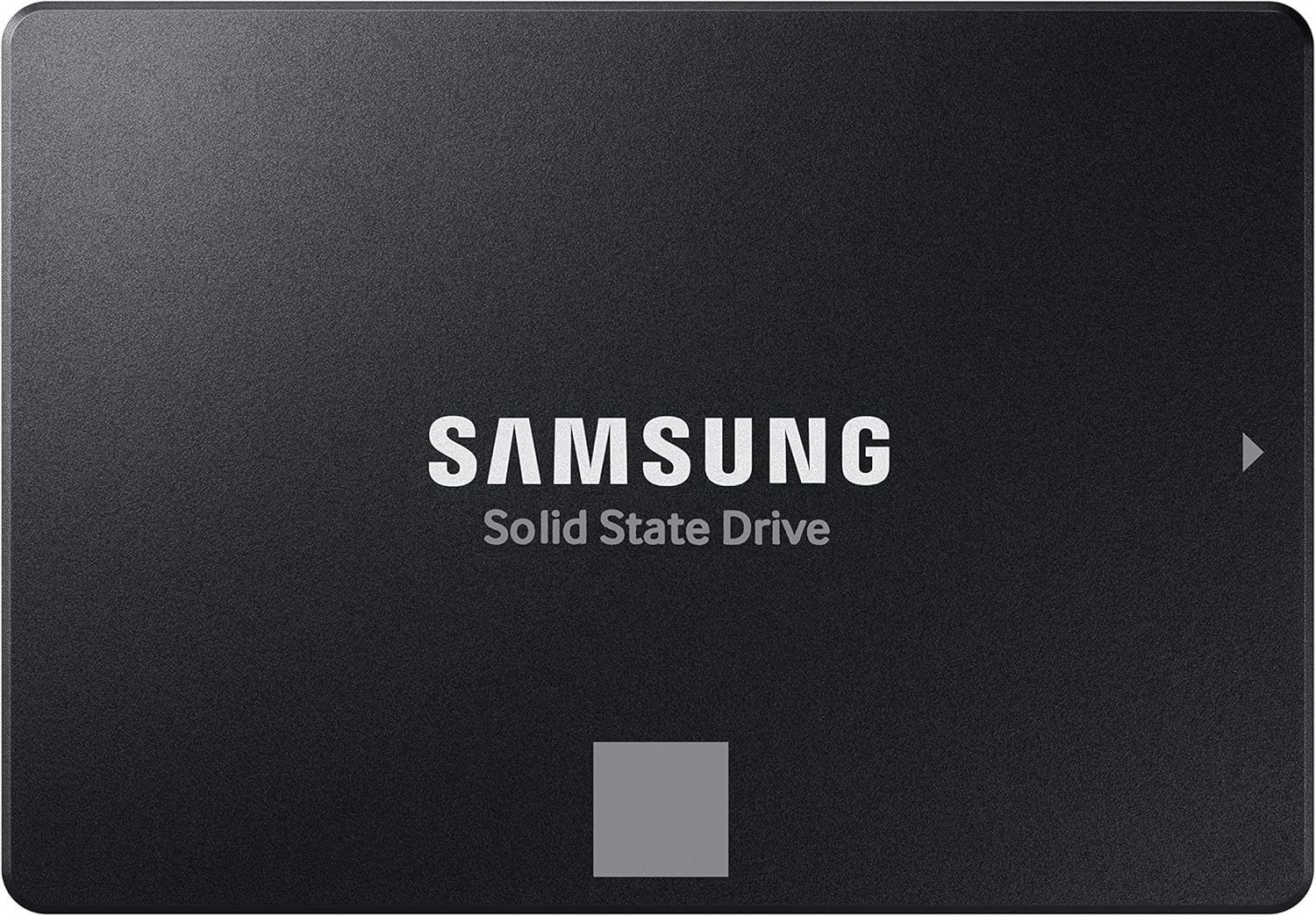
 Quick answer: If you only have time to check one option, the best SSDs for office work usually comes down to the Samsung 870 EVO 1TB — it balances speed, reliability, and price for everyday business tasks in 2026. Keep reading for the full ranked list, use-case picks, and buying advice below.
Pros
- Sequential reads to 560 MB/s and writes to 530 MB/s, which saturates the SATA III interface rather than the flash
- Warranted for 600 TBW at the 1TB capacity under a 5-year limited warranty
- Standard 2.5-inch 7mm form factor drops into desktop bays, laptop caddies and NAS trays alike
- Bundled management software reports S.M.A.R.T. health, applies firmware updates and runs secure erase from Windows
- A larger variable write buffer holds speed through long transfers such as 8K video ingest instead of collapsing part way
Cons
- SATA III caps throughput near 560 MB/s, so a free M.2 PCIe slot would deliver several times the sequential speed
- No mounting bracket or SATA cable in the box, so 3.5-inch desktop bays need an adapter tray sourced separately
- Cover ends at five years or 600 TBW written, whichever arrives first
Sequential throughput reaches 560 MB/s reading and 530 MB/s writing, which is the ceiling of the SATA III interface rather than a limit of the flash itself. A larger variable write buffer holds that speed through long transfers instead of collapsing part way into a big file copy.
- Endurance: the 1TB capacity is warranted for 600 TBW, which works out to roughly 300GB written every day for five years.
- Warranty: five years limited, ending at five years or 600 TBW, whichever arrives first.
- S.M.A.R.T. reporting is supported, so wear levels and drive health can be tracked long before failure.
For everyday desktop work, boot and application loading feel close to identical to far faster NVMe drives, because those tasks are dominated by small random reads rather than sequential bandwidth.
The drive uses the standard 2.5-inch 7mm SATA form factor, the same shape as the mechanical laptop drives it usually replaces. That makes it one of the few upgrades that still fits machines a decade old, provided they have a spare SATA port and a bay.
- Desktops: mounts in a 2.5-inch bay, or a 3.5-inch bay with an adapter tray that is not supplied.
- Laptops: drops into any 7mm caddy, while older 9.5mm bays need a spacer to sit tight.
- NAS and video recorders: compatibility has been tested across major chipsets, motherboards and recording devices.
Migration software clones an existing system across so Windows does not need reinstalling, and the management utility then handles firmware updates, health checks and secure erase once the drive is in place.
This is a SATA drive, and the interface sets the ceiling. If your machine has a free M.2 slot wired for PCIe, an NVMe drive will move sequential data several times faster at the same capacity.
- Choose SATA when the machine predates M.2, when the M.2 slot is already occupied, or when you need bulk storage alongside a smaller boot drive.
- Choose NVMe for large video scratch work, virtual machine images, or anything genuinely bottlenecked by raw sequential throughput.
In practice a 1TB SATA drive makes an excellent games library or project archive next to a boot NVMe, since load times in most titles are limited by CPU decompression rather than by the storage interface. Ageing laptops with a single SATA bay see the largest jump of all, often turning a sluggish machine back into a daily driver.
Pros
- Reaches 560/530 MB/s sequential read and write, effectively the ceiling the SATA III bus allows - no drive on this interface goes faster
- Standard 2.5-inch, 7 mm case drops into any laptop drive bay or desktop cage without a special adapter
- Intelligent TurboWrite reserves part of the NAND as a fast single-bit cache, so short bursts land at full speed
- Bundled Windows utility handles firmware updates, drive health monitoring, secure erase and cloning an existing system drive
- Uses SATA rather than M.2, so it works in older machines whose motherboards have no NVMe slot at all
Cons
- SATA III caps throughput near 550 MB/s, so an NVMe drive in an M.2 slot will be several times faster on large sequential transfers
- 500 GB fills fast if you install modern games, many of which run past 100 GB each on their own
- Neither a SATA data cable nor a mounting bracket is supplied, so a desktop install may need parts you do not already have
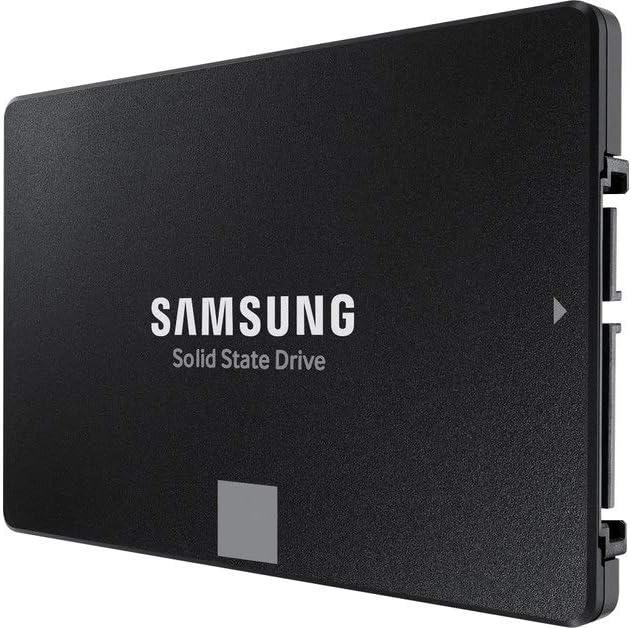
The headline figures are 560 MB/s read and 530 MB/s write sequential. Those are not arbitrary numbers - they are essentially the ceiling of the SATA III bus, which tops out near 600 MB/s before protocol overhead is subtracted. In practice that means this drive is running the interface as hard as it can be run, and no SATA SSD from any maker will be meaningfully quicker.
Sustained writes are handled by Intelligent TurboWrite, which treats part of the NAND as a fast single-bit cache. Short bursts - installing an application, saving a project file - land in that buffer at full speed. Copy tens of gigabytes in one go and the buffer eventually fills, after which writes settle to the drive's native rate. Random access, which is what actually makes a computer feel responsive, is where the gap over a mechanical hard disk is enormous.
Physically this is the most universal storage format there is: a 2.5-inch, 7 mm-thick case with a SATA data connector and a SATA power connector. Any laptop with a traditional drive bay takes it directly, and any desktop with a 2.5-inch cage - or a 3.5-inch bay plus a simple mounting bracket - will hold it.
- Needs one SATA data cable and one SATA power lead in a desktop
- Slots into a laptop caddy vacated by a mechanical hard disk
- Also works inside a USB enclosure as portable external storage
Neither cable nor bracket is in the box, so check what your case already provides before you start. On the software side, the bundled Windows utility handles firmware updates, health checks, secure erase and migration from an existing system drive.
The honest comparison is against an NVMe M.2 drive. On paper NVMe wins by a wide margin, with sequential figures several times higher because it communicates over PCIe lanes instead of the older SATA bus. If your motherboard has a free M.2 slot and you are chasing raw transfer numbers, that is the faster route.
SATA still earns its place in three situations. Older desktops and laptops built before M.2 became standard have no slot to use at all. Machines whose single M.2 slot is already occupied can still add capacity here. And bulk storage - game libraries, photo archives, project files - barely notices the interface difference, because those workloads are governed by random access and file size rather than peak sequential speed. At 500 GB, treat it as a fast system drive or a working scratch disk rather than a whole library.

Pros
- Sequential 560 MB/s read and 510 MB/s write, which is effectively the ceiling of the SATA 6 Gb/s interface
- Random 95,000 read and 90,000 write IOPS keeps a Windows boot volume responsive with many small files in flight
- AES 256-bit encryption runs in hardware on the controller, so full-disk encryption does not tax the CPU
- Integrated power loss immunity protects in-flight writes when mains power disappears without warning
- Five-year limited warranty on a 2.5-inch 7 mm case that drops into almost any laptop bay or desktop bracket
Cons
- SATA interface caps throughput near 560 MB/s, far below what an M.2 NVMe module delivers in the same system
- A 3.5-inch desktop bay needs a mounting bracket, and a SATA data cable is not always in the carton
- The 2.5-inch shape will not fit slim laptops built solely around M.2 slots
Sequential throughput runs to 560 MB/s read and 510 MB/s write, which is effectively the ceiling of the SATA 6 Gb/s link. Random performance is the number that matters more for a boot drive: up to 95,000 read and 90,000 write IOPS across all file types.
- Micron 3D NAND with a dynamic write cache
- 1 TB in the 2.5-inch 7 mm form factor, part of a 250 GB to 4 TB family
- AES 256-bit hardware encryption handled on the controller
- Integrated power loss immunity to protect in-flight writes during an outage
- Five-year limited warranty
Against a mechanical hard drive the difference is not subtle, particularly on boot and when loading large project files. Against an NVMe drive it loses on raw sequential figures while feeling much the same in ordinary desktop use.
The drive is a standard 2.5-inch, 7 mm SATA unit, the most widely supported shape in desktop and laptop storage.
- Laptops with a 2.5-inch bay take it directly, and 9.5 mm bays may want a spacer
- Desktops need a 3.5-inch bracket, which is not always included
- Requires one SATA data cable and one SATA power lead from the supply
- Runs on SATA 6 Gb/s and drops back gracefully on older 3 Gb/s ports
Slim laptops built solely around M.2 slots cannot take this drive at all, so check the chassis before ordering. For migration, the maker publishes a step-by-step guide and bundles imaging software that handles moving an existing Windows install across without a clean reinstall.
This is the sensible target for a machine still running a spinning hard drive, or an older laptop with no M.2 slot at all. Moving the system volume to solid state is the single change that most transforms an ageing desktop.
- Boot drive swap: 1 TB holds Windows, a game library and a working photo catalogue together
- Second drive: leaves the OS in place and moves large project files onto flash
- External use: drops into a USB 3.0 caddy as a fast portable disk
If your board has a spare M.2 slot wired for PCIe, an NVMe module will be several times faster on sequential transfers. Where there is no slot, or where it is already occupied, SATA remains the only route to flash storage in that machine.
Pros
- Sequential reads to 540MB/s, close to the practical ceiling of the SATA III interface
- 2.5-inch 7 mm form factor drops into almost any laptop bay or desktop drive cage
- 3D NAND flash draws far less power than a spinning 2.5-inch disk, easing laptop battery load
- No moving parts, so a knocked machine cannot suffer the head crash a mechanical drive can
- 1TB of capacity holds a Windows install plus a large game library on one drive
Cons
- SATA III caps throughput near 540MB/s, well short of the 3,000MB/s-plus an NVMe M.2 drive reaches
- DRAM-less controller design means sustained large writes slow once the SLC cache fills
- No SATA cable, mounting bracket or 9.5 mm spacer in the box, so some installs need extra parts
Sequential reads run to 540MB/s, which sits close to the practical ceiling of the SATA III interface. In everyday terms that means a boot measured in seconds, applications that open on the first click, and project files that load without the stutter a mechanical drive introduces.
- 1TB of 3D NAND flash in a 2.5-inch shell
- Sequential reads to 540MB/s over SATA III
- No moving parts, so vibration and shock cannot cause head crashes
- Lower power draw than a spinning 2.5-inch disk, easing laptop battery load
Where the design shows its limits is sustained writing. A DRAM-less controller leans on a fast SLC cache, and once that cache fills during a very large copy, write speed settles to a lower steady figure. Normal desktop use rarely reaches that boundary.
The drive uses the standard 2.5-inch, 7 mm form factor with SATA data and power connectors, the same fitment laptop hard disks have used for well over a decade. If your machine has a 2.5-inch bay or a caddy, it will fit physically.
- Works in laptops with a 2.5-inch bay and desktops with a spare SATA port
- Compatible with Windows, macOS on machines that still accept SATA, and Linux
- Mounts in a desktop 3.5-inch bay using an adapter bracket
- Also works inside a USB enclosure as an external drive
Two things to check first: whether your laptop bay is 7 mm or 9.5 mm, since the thinner drive may need a spacer to sit tight, and whether the motherboard has a free SATA data cable, because none is supplied.
Most people fit this as a replacement for an existing hard disk, which means moving Windows and your files across rather than starting fresh. Cloning software plus a USB-to-SATA cable copies the old drive onto the new one, then you swap the physical drive and boot.
- Clone first, confirm the copy boots, then wipe the old drive
- A USB-to-SATA adapter is needed for laptops with only one bay
- Enable AHCI in the system firmware before installing, not afterwards
- Leave roughly 10% of capacity free so wear levelling has room to work
As a longer-term path, SATA is a mature interface with no headroom left in it. If the machine has a spare M.2 slot, an NVMe drive will be several times faster, so this makes most sense in systems where SATA is the only option available.

Pros
- 1 TB of capacity in the standard 2.5 inch, 7 mm form factor that laptop bays are built around
- SATA at 6 Gbps works in any machine with a spare port, including systems that have no M.2 slot
- Hardware AES 256-bit encryption with TCG Opal 2.0 support for drive-level security
- An SLC write cache absorbs bursts, so large file copies stay quick
- Backed by a 5 year limited warranty
Cons
- SATA tops out near 560 MB/s, roughly a seventh of what a current NVMe drive delivers
- Needs both a SATA data cable and a power lead, neither of which is supplied
- Older cases with only 3.5 inch bays require a mounting bracket that is not in the box
This is a 2.5 inch drive in the 7 mm thickness that laptop bays and desktop caddies are built around, connecting over SATA at 6 Gbps. That interface is the whole point: it works in machines with no M.2 slot at all, which covers most systems more than a few years old.
- 1 TB of capacity on a single drive.
- Hardware AES 256-bit encryption with TCG Opal 2.0 for drive-level security.
- An SLC cache absorbs bursts of writes, so file copies stay quick until that cache fills.
SATA sets a hard ceiling near 560 MB/s regardless of what the flash could manage. In everyday terms that still transforms a machine coming off a mechanical hard disk, because random access rather than sequential throughput is what makes an old system feel slow.
In a laptop the swap is usually one access panel, one bracket and four screws. In a desktop the drive needs a SATA data cable running to the board and a SATA power connector from the supply, neither of which comes with the drive itself.
- Cases with only 3.5 inch bays need an adapter bracket to hold a 2.5 inch drive securely.
- Cloning software is downloaded from the maker rather than supplied on media.
- After cloning, set the boot order in firmware so the system starts from the new drive.
If the plan is to keep the old disk as secondary storage, remember a laptop with a single bay cannot do both. An external enclosure for the removed drive is the usual answer, and it doubles as a backup target once the migration is finished.
NVMe drives are several times quicker on paper, but they need an M.2 slot and firmware that can boot from it. A SATA drive answers a different question: how to bring an existing machine forward without replacing the motherboard.
- Well suited to laptops and desktops built before M.2 became standard.
- Useful as a second drive in a modern system where the M.2 slots are already occupied.
- Works as a fast game or project library alongside a smaller NVMe boot drive.
A 5 year limited warranty, together with features such as power-loss immunity, points to a drive designed for long service rather than benchmark headlines. Where the storage bottleneck is still a spinning disk, moving to SATA flash is the single change that alters day-to-day feel the most.

Pros
- 1.75 million hours mean time to failure gives a clear reliability benchmark for long-term use
- Sequential read speeds up to 560 MB/s outperform any mechanical hard drive in the same slot
- 2.5-inch, 7mm SATA III form factor fits both laptop bays and desktop drive cages
- Active power draw runs up to 25% lower than earlier WD Blue SSD generations
- Free downloadable software handles drive cloning and status monitoring
Cons
- SATA III interface caps throughput well below what NVMe drives in the same product line reach
- 600 TBW endurance figure is measured at this drive's specific capacity point, heavier write workloads will reach it sooner
- No listed heatsink or enclosure, so a separate case is needed for external use
This drive is built on SATA III rather than NVMe, positioning it as a reliable, drop-in upgrade over a mechanical hard drive.
- Sequential read speeds up to 560 MB/s and write speeds up to 530 MB/s
- 2.5-inch, 7mm form factor using the SATA III 6 Gb/s interface
- Rated for 1.75 million hours mean time to failure based on internal stress testing
- Endurance rated at up to 600 terabytes written, calculated using the JEDEC client workload standard
Because it uses 3D NAND technology, capacity scales up to larger sizes in the same product line while keeping the compact 2.5-inch footprint.
This drive is built to slot into existing SATA-based systems without requiring newer NVMe support.
- Uses the widely supported SATA III 6 Gb/s interface, compatible with most laptops and desktops built in the last decade
- WD F.I.T. Lab certification confirms compatibility testing across a wide range of computers
- The 7mm height fits standard laptop 2.5-inch drive bays without needing a spacer
- Free software supports cloning an existing hard drive directly to this SSD during an upgrade
Because it is SATA-based, this drive suits upgrading an older laptop or desktop rather than maximizing throughput on a system with NVMe M.2 slots available.
Power draw is a specific focus of this generation of WD Blue SSD, aimed at laptop users.
- Active power draw runs up to 25% lower during sequential reads than the previous WD Blue SSD generation
- Lower power draw translates to extended time before a laptop needs recharging under sustained drive activity
- 3D NAND technology contributes to both the efficiency gains and the drive's overall reliability profile
- Free monitoring software tracks drive health and power-related metrics over time
Because the efficiency gains are measured specifically at the 500GB capacity point, actual power savings may vary slightly at other capacities in the same lineup.

Pros
- Value optimized SSD Built with Samsung V-NAND Technology, the 860 QVO
- Enhanced read write speeds Sequential read and write performance levels
- Intelligent Turbowrite Accelerates write speeds and maintains long-term
- Secure encryption Protect data by selecting security options, including
- Warranty and compatibility 3-year limited warranty
Cons
- Requires checking placement surface dimensions before setup
- Requires routine care to keep exterior housing dust-free
- Initial setup requires checking operating instructions carefully
The SAMSUNG 860 QVO 1TB Solid State Drive V-NAND SATA 6Gb s offers reliable functional utility tailored for modern home and workplace environments. Designed to enhance daily productivity, this unit integrates Value optimized SSD Built with Samsung V-NAND Technology, the 860 QVO alongside Enhanced read write speeds Sequential read and write performance levels. Users will find the intuitive design straightforward to operate across various room configurations and daily routines. The versatile construction adapts easily to personal workspaces, providing consistent practical value and streamlined usability. Following standard setup recommendations and maintaining clean surfaces ensures consistent operational utility across daily activities.
Built using resilient structural components, this unit features a sturdy outer housing engineered to resist operational wear. Precision manufacturing ensures that all joints and surface connections remain firmly aligned during regular daily activity. Intelligent Turbowrite Accelerates write speeds and maintains long-term reinforces overall physical stability over extended service periods. Structural integrity remains firm throughout regular usage, giving owners peace of mind. Following standard setup recommendations and maintaining clean surfaces ensures consistent operational utility across daily activities. This functional equipment provides steady performance and practical convenience when properly integrated into your workspace.
Initial setup requires placing the unit on a flat, stable surface with adequate clearance around all sides for proper operation. Ensure all power or connection cables are routed neatly without sharp bends to prevent wire strain. Regular care involves wiping exterior housing surfaces with a soft cloth to remove dust buildup. Inspecting mechanical connections periodically preserves operational efficiency and maintains cosmetic appearance over time. Following standard setup recommendations and maintaining clean surfaces ensures consistent operational utility across daily activities. This functional equipment provides steady performance and practical convenience when properly integrated into your workspace.

Pros
- Sequential read speeds up to 7450 MB/s and write speeds up to 6900 MB/s on PCIe 4.0
- M.2 2280 form factor fits standard motherboard NVMe slots without an adapter
- Random performance improves more than 55 percent over the previous-generation 980 PRO
- In-house controller with smart heat control targets sustained speeds under extended write loads
- Also sold in 1TB and 4TB capacities if 2TB is not the right fit
Cons
- Requires a PCIe 4.0-capable motherboard slot to hit rated speeds; PCIe 3.0 systems will bottleneck well below 7450 MB/s
- No heatsink is included on this specific model, so thermal throttling is possible in cases with limited M.2 slot airflow
- Rated sequential figures were measured on a specific reference test system, so real-world throughput will vary with your own hardware and OS
The Samsung 990 PRO is an M.2 2280 NVMe drive running over PCIe 4.0, rated for sequential read speeds up to 7450 MB/s and sequential write speeds up to 6900 MB/s. It uses Samsung's in-house controller with smart heat control logic to manage thermal load during sustained transfers.
Random performance is stated to improve more than 55 percent over the previous-generation 980 PRO, and power efficiency improves by up to 50 percent per watt over that same predecessor. Intelligent Turbo Write technology is used to sustain the rated write speeds within a defined data transfer size window.
- Up to 7450 MB/s read, 6900 MB/s write
- M.2 2280 NVMe, PCIe 4.0 interface
- 55%+ random performance gain over 980 PRO
To reach the rated 7450 MB/s figures, your motherboard's M.2 slot needs to support PCIe 4.0; installed in a PCIe 3.0 slot, the drive still functions but is capped at roughly half that bandwidth. Check your board's manual or manufacturer site to confirm which specific M.2 slot supports the full PCIe 4.0 lane count, since some boards split bandwidth across multiple M.2 slots.
This particular model does not ship with a heatsink, so cases or motherboards without their own M.2 heatsink cover may see more aggressive thermal throttling under long sustained writes than a heatsink-equipped variant of the same drive. Standard M.2 2280 mounting screws are used, matching nearly all consumer motherboards released in the last several years.
This listing covers the 2TB capacity point, positioned between the 1TB and 4TB options in the same 990 PRO line for users who need more headroom than a boot-only drive but don't require the largest available size. The drive is aimed at gaming, video editing, and heavy workstation tasks where sustained transfer speed matters as much as raw capacity.
- 2TB capacity sits between 1TB and 4TB options
- Best paired with a PCIe 4.0 or newer motherboard
- Consider a heatsink-equipped variant for airflow-limited cases
Builders currently on SATA SSDs or older NVMe drives get the largest practical jump from this upgrade, while systems already running PCIe 4.0 drives near this speed class will see a smaller day-to-day difference.

Pros
- Read speeds up to 535MB/s and write speeds up to 350MB/s over SATA III
- Shock resistant up to 1500G and vibration resistant across a wide frequency range
- Slim 2.5-inch, 7mm form factor fits thin laptop drive bays
- Rated to operate across a temperature range of 0 to 70 degrees Celsius
Cons
- SATA III interface caps throughput below what NVMe drives reach
- No SATA cable or mounting bracket mentioned as included for desktop installs
- Sold at 1TB in this listing, with no smaller or larger capacity bundled
The SSD PLUS is a SATA III drive rated for read speeds up to 535MB/s and write speeds up to 350MB/s, a substantial step up from a 5400 RPM mechanical hard drive. The 2.5-inch, 7mm-thick body is built to slot into slim laptop bays as easily as standard desktop drive cages.
- Up to 535MB/s read / 350MB/s write
- 2.5-inch, 7mm form factor
- Shock resistant up to 1500G, vibration resistant across a wide frequency range
Operating temperature is rated from 0 to 70 degrees Celsius, giving it a wider tolerance range than many consumer electronics need in typical indoor use.
This drive connects over SATA III at 6 Gb/s, the same interface and physical connector used by most laptop and desktop 2.5-inch drive bays, making it a straightforward swap for an aging hard drive or older SSD. It is not an M.2 or NVMe drive, so systems that only expose M.2 slots will not accept it directly.
- SATA III, 6 Gb/s interface
- 2.5-inch/7mm form factor for laptop and desktop bays
- Not compatible with M.2 or NVMe-only systems
Confirm a free SATA data and power connection, or use a SATA-to-USB enclosure, before planning the swap into a specific machine.
At 1TB, the SSD PLUS lands in a middle ground of SanDisk's SATA SSD lineup, positioned as a step up from a base hard drive for shoppers who want a straightforward system speed boost. Compared with SanDisk's other lines, this model favors reliability and burst write performance over the top sequential-read numbers a NVMe drive can reach.
- 1TB capacity for this listing
- Positioned as a general-purpose upgrade from hard disk storage
- Other SanDisk SATA and USB-C lines offer higher speeds and capacities
Anyone chasing higher sequential speeds than SATA III allows should compare SanDisk's NVMe or portable USB-C SSD lines instead of this SATA model.

Pros
- Sequential speeds up to 535MB/s read and 500MB/s write, well above a typical mechanical hard drive's 100-160MB/s
- 250GB of storage in a compact 2.5 in form factor with no moving parts to fail mechanically
- Backwards compatible with SATA II 3GB/s systems, so it still works in older motherboards at reduced speed
- Backed by up to a 3-year manufacturer warranty
- Ultra-low power consumption compared to a spinning hard drive, useful for laptops running on battery
Cons
- 250GB capacity fills up quickly with modern game installs or large media libraries, leaving limited headroom
- SATA III's 6GB/s interface caps performance well below what NVMe M.2 drives can reach
- No included mounting bracket or SATA cable for desktop installations that lack a built-in 2.5 in drive bay
This SSD delivers sequential speeds of up to 535MB/s read and 500MB/s write over a SATA III (6GB/s) interface, in a standard 2.5 in form factor with 250GB of capacity. With no moving parts, it avoids the mechanical failure points of a traditional hard drive.
- Non-volatile NAND flash storage rated as significantly more durable than spinning hard disk platters
- Backwards compatible with SATA II 3GB/s connections, running at reduced speed on older hardware
- Ultra-low power draw benefits laptop battery life compared to a mechanical hard drive
For most everyday computing tasks, the jump from a hard drive to this SSD is felt immediately in boot times and application load speed, even though its SATA III interface caps out below newer NVMe drives.
This drive uses the standard 2.5 in SATA III connector and form factor, making it compatible with most desktop and laptop systems that have an available 2.5 in drive bay and SATA data and power connections.
- Works in systems with SATA II ports as well, though limited to SATA II's slower transfer speed
- No M.2 slot required, unlike NVMe SSD upgrades
- Desktop installations without a built-in 2.5 in bay may need a separate mounting bracket, sold apart from this drive
Before buying, checking whether a laptop or desktop has a free 2.5 in bay (rather than only M.2 slots) confirms this drive will physically fit as an upgrade or replacement.
Replacing a mechanical hard drive with this SSD is the most common upgrade path, delivering noticeably faster boot times along with quieter, cooler operation since there are no spinning platters.
- 250GB capacity suits an operating system plus a core set of applications, though large game libraries will need a secondary drive
- For higher sustained performance, higher-tier NVMe drives step up to PCIe interfaces
- Existing SATA hard drive data typically needs to be cloned or manually transferred to this SSD during setup
For a straightforward HDD-to-SSD upgrade on an older system, this drive covers the core capacity and interface needs without requiring a motherboard with M.2 support.
Slow storage is one of the quietest productivity killers in any workspace. If your laptop takes forever to boot, spreadsheets lag when you open ten tabs, or video calls freeze while files sync in the background, the best SSDs for office work can fix that bottleneck without a full computer upgrade. This guide walks you through what actually matters when shopping for office storage, then breaks down which drive fits your budget, workload, and setup.
How to Choose an SSD for Office Work
Not every drive on the shelf is built the same way, and office needs differ from gaming or video editing needs. Before you compare prices, think through these five factors.
Capacity: match it to your actual files
Most office workers do fine with 500GB to 1TB. That covers your operating system, Office apps, a handful of large spreadsheets, and years of documents. If you archive video calls, work with design files, or keep local backups, size up to 2TB.
SATA vs NVMe: speed you’ll actually notice
SATA drives top out around 550-560 MB/s, which is still a massive jump from a spinning hard drive. NVMe drives connect through the M.2 slot and can hit multiple gigabytes per second. For typing, browsing, and spreadsheets, SATA feels instant. For heavy multitasking or large file transfers, NVMe pulls ahead.
Reliability and warranty
You’re trusting this drive with client files, invoices, and project history. Look for a manufacturer with a strong track record and at least a three-year warranty. A drive with thousands of verified reviews and a high average rating is a reasonable proxy for real-world durability.
Form factor and compatibility
Check whether your laptop or desktop has a free 2.5″ SATA bay or an M.2 slot before buying. Most business laptops from the last several years support both, but older machines may only have room for a 2.5″ drive.
Best SSDs for Office Work by Use Case
Instead of ranking these strictly by spec sheet, here’s how to match each drive to the way you actually work.
Best overall for everyday office tasks
The Samsung 870 EVO 1TB earns its top spot because it pairs consistent SATA-III speeds with a long history of dependable performance. It’s rated at 4.8 stars across tens of thousands of reviews, which tells you this isn’t a drive that fails quietly a year in. For anyone running Windows, Office, a browser with dozens of tabs, and a video call app simultaneously, this drive keeps things smooth without a steep price tag.
Best budget pick for basic tasks
If your workload is mostly email, documents, and browsing, the PNY CS900 250GB covers the essentials at a lower price point. It won’t hold a large media library, but as a boot drive paired with cloud storage for bigger files, it’s a practical entry point for a secondary machine or a budget-conscious upgrade.
Best for multitasking and heavy workloads
If you run virtual machines, large databases, or juggle several resource-heavy apps at once, step up to NVMe. The Samsung 990 Pro 2TB delivers sequential speeds many times faster than SATA, which shortens file transfers and app load times noticeably. It’s overkill for basic email and typing, but if your role involves data analysis or rendering, the extra headroom is worth it.
Best large-capacity option for document-heavy roles
Paralegals, designers, and anyone managing large archives should look at the Crucial MX500 1TB. It’s a well-reviewed SATA drive with a strong reputation for consistent read speeds, giving you enough room for years of case files, project folders, or client assets without constantly offloading data.
Best value under $200
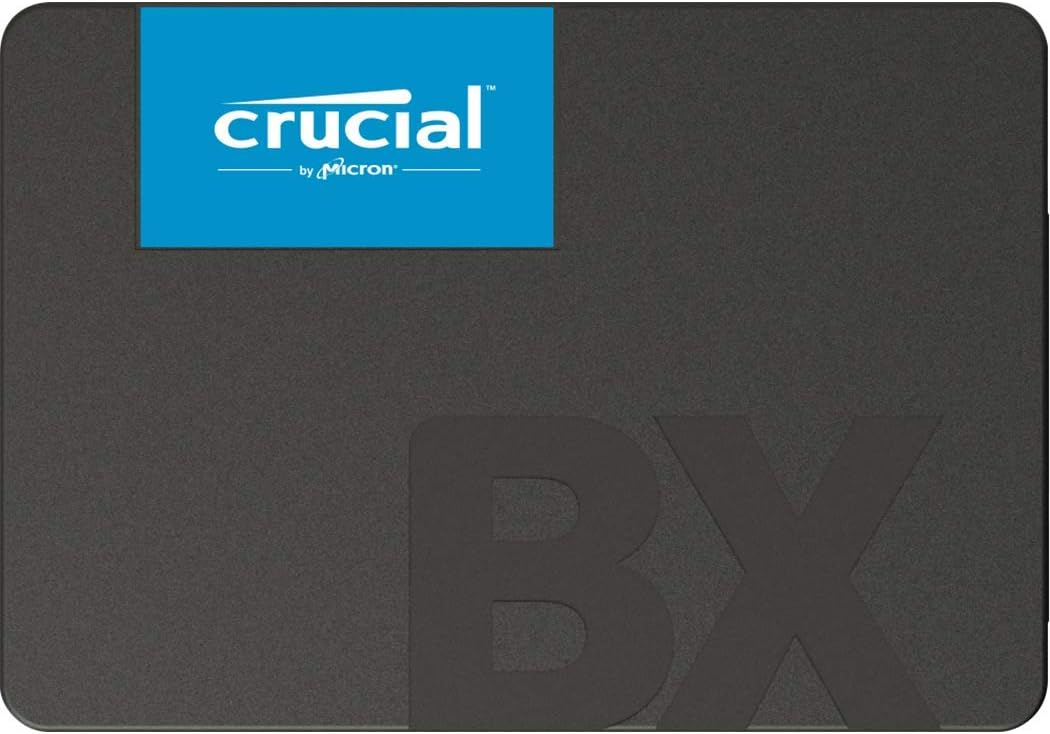
The Crucial BX500 1TB is a solid pick if you want 1TB of storage without spending near the top of the range. It handles everyday office software comfortably, and 3D NAND construction gives it decent endurance for regular read and write cycles over a normal workday.
Best alternative for a small home office
If you want a second reputable brand to compare against Samsung and Crucial, the WD Blue 1TB is worth a look. It’s built for steady daily use rather than bursts of extreme performance, which suits a quiet home office setup running a single monitor and standard business apps. If you’re building out a full home office SSD setup, this is a dependable second option to compare.
SATA vs NVMe for Office Work: Which Do You Actually Need
Most office tasks don’t come close to maxing out a SATA drive’s speed. Opening a spreadsheet, loading a browser tab, or saving a Word document happens in a fraction of a second either way. Where NVMe pays off is when you’re moving large files constantly, running multiple virtual environments, or working with software that reads and writes big datasets. If your day is mostly documents, email, and video calls, SATA is the practical choice and saves you money you can put toward a second monitor or more RAM instead.
There’s also a durability angle worth weighing. Both SATA and NVMe drives use similar flash memory underneath, so the real difference in day-to-day reliability comes down to the controller, firmware, and how well the brand supports it long-term. A well-reviewed SATA drive from an established maker will often outlast a cheaper, unproven NVMe drive, even though the spec sheet favors NVMe on paper. When you compare specs and availability side by side, weigh the brand’s track record as heavily as the raw transfer speed.
Setting Up Your New SSD Without the Headache
Buying the right drive is only half the job. If you’re replacing an existing boot drive, look for a model that includes free cloning software, since Samsung and Crucial both offer their own tools that copy your operating system, apps, and files over automatically. This avoids a full reinstall of Windows and your business software.
For a fresh install instead of a clone, back up your documents to an external drive or cloud storage first. Once the new SSD is installed, you’ll want to check your device’s BIOS to confirm it’s recognized, then enable TRIM support in your operating system so the drive keeps performing well over time. Most modern versions of Windows and macOS enable this automatically, but it’s worth a quick check after setup.
If you’re upgrading multiple workstations at once, buy one drive first and test the process end to end. That way, you catch any compatibility surprises, like a laptop that only fits a 7mm-thick drive, before you commit to ordering the rest.
Common Mistakes When Buying an Office SSD
A few buying mistakes show up again and again, and they’re easy to avoid once you know what to check.
- Buying too little capacity. Running a drive near full slows it down and leaves no room for updates or temp files.
- Ignoring the warranty length. A short warranty can be a sign the manufacturer doesn’t expect the drive to last.
- Assuming every SSD fits every machine. Always confirm your device supports SATA, M.2 NVMe, or both before ordering.
- Skipping a backup plan. No drive is immune to failure, so pair any SSD with cloud backup or an external drive for critical files.
- Overpaying for speed you won’t use. A high-end NVMe drive is wasted on a machine that mostly runs spreadsheets and email.
It’s also worth noting the trade-offs. NVMe drives run hotter under sustained load and can throttle in cramped laptop chassis, so a budget SATA drive isn’t automatically the wrong choice. If you already own a machine with only SATA support, an NVMe drive won’t work at all, so double-check compatibility before you compare specs further.
Who Should (and Shouldn’t) Upgrade
If your current drive is a traditional hard drive, almost any SSD on this list will feel like a major upgrade. If you already run an SSD from the last few years and mainly do document work, the performance gain from swapping to a newer model may be minor. In that case, your money is often better spent on more RAM for office work or a second monitor, both of which can do more for daily multitasking than a marginally faster drive.
On the other hand, if you’re still working from a nearly full 256GB drive, feeling constant slowdowns, or planning to add a second monitor and heavier software, upgrading now makes sense. Pair a roomy SSD with a comfortable office chair and a proper desk setup, and the whole workstation feels noticeably more capable.
FAQ: Best SSDs for Office Work
Do I need NVMe for basic office work?
No. A SATA SSD handles documents, spreadsheets, browsing, and video calls without any noticeable lag. NVMe only matters if you move large files constantly or run demanding software.
How much storage do I need for office use?
500GB to 1TB covers most professionals comfortably. Go with 2TB if you store large media files, keep local backups, or rarely delete old projects.
Will an SSD upgrade actually speed up my computer?
Yes, especially if you’re moving from a hard drive. Boot times, app launches, and file saves all improve noticeably, often more than a RAM or processor upgrade alone would deliver.
Can I use an SSD in an older laptop?
Most laptops from the last decade support 2.5″ SATA SSDs. Check your device’s specs or manual before ordering, since some ultra-thin models only support M.2 drives.
Is a higher price always worth it for office use?
Not necessarily. Once a drive meets your capacity and reliability needs, extra speed from a premium NVMe model often goes unused in typical office tasks. Match the drive to your actual workflow rather than the highest spec available.