
 Marcus Bell
Picking memory for a design rig is confusing because Photoshop, Illustrator, and Figma all treat RAM differently than games do. If you have ever watched a file save stall while forty layers sit open, the best ram for graphic design setup is the fix, not a faster processor. This guide breaks down capacity, speed, and DDR generation so you can buy the right kit the first time instead of guessing and returning parts later.
Quick answer: For most designers in 2026, the best ram for graphic design is the CORSAIR Vengeance LPX 32GB kit — our #1 rated choice for everyday layout, photo editing, and multitasking. See the full ranked list, alternatives, and buying advice below.

Pros
- 32 GB supplied as two 16 GB modules, leaving two slots free on a four-slot board for a later step to 64 GB
- 3200 MT/s at CL16-20-20-38 on 1.35 V, loaded from a single stored profile
- 34 mm module height clears most 120 mm and 140 mm tower coolers and fits small-form-factor cases
- Solid aluminium heatspreader over an eight-layer PCB to move heat into the case airflow path
- Hand-sorted ICs and a matched pair, so both sticks are validated to run the same timings
Cons
- DDR4 notch only, so it will not seat in an AM5 or DDR5-only board even where the chipset name looks similar
- Boots at the JEDEC default near 2133 MT/s until the stored profile is switched on in BIOS
- Black heatspreaders with no lighting, so it will not match an RGB-themed build
The kit is 32 GB as two 16 GB DDR4 modules, specified at 3200 MT/s with timings of CL16-20-20-38 at 1.35 V.
- CL16 at 3200 sits at the tight end of mainstream DDR4, which matters most on Ryzen systems where the memory clock ties to the fabric clock
- 1.35 V is the standard overclocked DDR4 voltage, well inside what any consumer board supplies
- ICs are hand-sorted before assembly, and the pair is matched and sold together so both sticks are validated at identical settings
- An eight-layer PCB underneath handles signal integrity when pushing past the stored profile
Two 16 GB modules rather than four 8 GB ones is the right shape for a four-slot board: two slots stay free for a later step to 64 GB, and a two-DIMM load is easier on the memory controller than a fully populated board.
Module height is 34 mm, which is the entire reason the LPX line exists. Taller heatspreaders and most RGB kits stand 44 mm or more and collide with wide tower coolers sitting over the first DIMM slot.
- 34 mm clears the fan on most 120 mm and 140 mm tower coolers without shifting that fan up the heatsink
- It also fits low-profile ITX cases where the side panel sits close to the board
- The heatspreader is solid aluminium, bonded across the ICs to move heat into the case airflow path
- This is DDR4 with a DDR4 notch position, so it will not physically seat in an AM5 board or a DDR5-only LGA1700 board
Confirm the motherboard is a DDR4 model before ordering. Several 12th and 13th generation Intel chipsets shipped as both DDR4 and DDR5 board variants under near-identical model names.

Pros
- 16GB supplied as two 8GB DDR3L-1600 modules, PC3L-12800, 204-pin SODIMM, CL11, dual rank 2Rx8
- Runs at 1.35V and steps up to 1.5V boards, so it drops into both DDR3L and older DDR3 Mac sockets
- Covers MacBookPro8,1 through 9,2, iMac12,1 through 15,1 and MacMini5,x and 6,x by model identifier
- Modules measure 30 by 67.6 mm and install with a single Phillips screwdriver, with no paste or brackets involved
- Lifetime warranty with US-based technical support behind it
Cons
- Non-ECC unbuffered only, so ECC workstations and servers fall outside its scope
- Fits only Macs with accessible SODIMM slots, so Retina models with soldered memory cannot be upgraded at all
- PCB colour varies between black and green by production batch, so a visually matched pair is not guaranteed
The specification list is what determines whether a Mac will post with these installed, so it is worth reading closely.
- DDR3L 1600MHz, also written PC3L-12800 or PC3L-12800S on module labels
- 204-pin SODIMM, the laptop-size format used across this generation of Apple machines
- CL11 latency, dual rank 2Rx8, built on 512x8 chips
- 1.35V low-voltage design that also tolerates 1.5V sockets
- Physical size of 30 mm high by 67.6 mm long, standard for the slot
- Two 8GB modules per kit, which fills both slots in a dual-slot Mac
Non-ECC and unbuffered is the correct type for consumer Macs. Registered or ECC memory of the same speed will not work in these machines, and mixing an ECC module alongside these will prevent boot entirely.
Compatibility here is defined by model identifier rather than marketing name, which is the reliable way to check. Hold Option and open System Information to find yours.
- MacBook Pro 13, 15 and 17 inch Early 2011 and Late 2011, plus 13 and 15 inch Mid 2012, identifiers MacBookPro8,1 through MacBookPro9,2
- iMac 21.5 and 27 inch from Mid 2011 through Mid 2015, identifiers iMac12,1 through iMac15,1
- Mac mini Mid 2011 and Late 2012, identifiers MacMini5,1 through MacMini6,2
Anything outside that list needs a different module type. Later MacBook Pro Retina models and the slim 21.5 inch iMac designs solder their memory to the board, so no module of any kind fits them. Check the identifier before ordering rather than trusting the year alone, since Apple shipped several designs per year.
Installation is one of the few remaining Mac upgrades that needs no specialist kit.
- On a Mac mini, twist off the base cover and the slots are immediately underneath
- On a MacBook Pro, remove the bottom case screws with a Phillips driver and the modules sit stacked in two slots
- On a 27 inch iMac, a hatch behind the stand gives access without opening the display
Release the clips, angle the old module out, seat the new one at the same angle and press until the clips snap. Fill both slots with matching modules so the machine runs dual channel. Going from 8GB to 16GB is the practical ceiling on most of these machines, so treat this as the final memory upgrade rather than a step towards a larger one later.

Pros
- 16GB as a matched 2x8GB pair, so both memory channels populate on a dual-channel board
- Reaches 3200MHz at CL16-20-20-38 timings on 1.35V
- 34 mm tall heatspreader clears tower coolers and fits small-form-factor cases
- Solid aluminium spreader draws heat off the chips during long compile or render runs
- Hand-sorted chips with compatibility testing across Intel and AMD DDR4 platforms
Cons
- 3200MHz needs a stored profile enabled in firmware; left at JEDEC defaults the kit boots slower
- Desktop DIMM format only, so it will not fit laptops, mini PCs with SODIMM slots, or DDR5 boards
- CL16 at 3200MHz sits behind the CL14 kits enthusiasts chase for latency-sensitive work
The kit is specified for 3200MHz at CL16-20-20-38 on 1.35V, supplied as a matched pair of 8GB modules so both memory channels populate on a standard board.
- Dual-channel mode roughly doubles usable memory bandwidth over a single module
- CL16 at 3200MHz works out to a real latency of 10 nanoseconds
- Chips are hand-sorted, which is where the overclocking headroom comes from
These are the tuned figures rather than the defaults. Out of the box the modules present a JEDEC profile at a lower clock so that any machine will boot, and the full speed is applied by enabling the stored profile in firmware. On AMD systems in particular, 3200MHz is the point where the memory clock and the fabric clock stay in step.
Height is the practical specification here. The heatspreader tops out at 34 mm, low enough to slide under the fan of most large tower air coolers instead of forcing the fan to be raised or a slot to be left empty.
- Fits small-form-factor and mini-ITX builds where tall lit modules foul the side panel
- Clears the fins on common 120 mm and 140 mm tower coolers
- Solid aluminium spreader carries heat off the chips during long render or compile runs
The finish is plain black with no lighting at all, which is a genuine consideration in a glass-panel build where every other component is lit. In a closed case or a small workstation it is simply one less thing drawing power and needing software to control it.

Pros
- G.SKILL RipjawsV Series DDR4 U-DIMM Memory Kit, Model F4-3200C16D-16GVKB
- 16GB total capacity kit containing 2x8GB modules, rated for up to
- Non-ECC, DDR4 U-DIMM, 288-pin, for Desktop PC Gaming
- Includes JEDEC default profile, and Intel XMP memory overclock profile
- Do not mix memory kits. Memory kits are sold in matched kits that are
Pros
- 32GB across two 16GB modules, leaving the second slot pair free on a four-slot board
- Ships with both a JEDEC default profile and an Intel XMP overclock profile
- 288-pin non-ECC U-DIMM sticks binned and tested as a matched pair
- The manufacturer publishes a qualified vendor list and a configurator tool for checking a specific board first
Cons
- Boots at the slower JEDEC profile until XMP is enabled manually in BIOS
- Non-ECC, so it is unsuitable for workstations and servers that need error correction
- DDR4 only, so it will not carry over to a DDR5 motherboard, and the heatspreader height can clash with a large tower cooler overhanging the first slot
This is a 32GB kit made of two 16GB modules, rated for DDR4-3200 at CL16-18-18-38 on 1.35V.
- CL16 at 3200 MT/s is a tighter latency than the CL18 and CL22 bins common on general-purpose DDR4
- Two modules rather than four leaves the second slot pair free and places less strain on the memory controller
- Non-ECC 288-pin U-DIMM in the desktop form factor, under a black heatspreader
DDR4-3200 is the sweet spot on Ryzen platforms, where the memory clock and the internal fabric clock stay synchronised at that speed. On Intel builds the same kit gives comfortable headroom over the JEDEC baseline. Both modules are binned and tested as a matched pair, which is precisely why mixing two separate kits is discouraged.

Pros
- 32GB kit (2x16GB) runs at 6000MHz with CL36 timings for overclocked DDR5 performance
- Supports both Intel XMP 3.0 and AMD EXPO profiles, so one kit works across Intel and AMD builds
- Aluminum heat spreaders are designed to dissipate heat during sustained, memory-intensive gaming sessions
- Backed by Micron's component- and module-level testing across the Crucial Pro Series line
Cons
- Full 6000MHz speed depends on XMP/EXPO support and stability on the specific motherboard, which is not guaranteed on every board
- Officially listed compatibility centers on 12th-14th Gen Intel Core and Ryzen 7000-series-or-newer CPUs, so older platforms may not run it at rated speed
- Two-module kit fills only 2 of the 4 DIMM slots on most desktop boards, leaving expansion headroom but not a full 4-stick set out of the box
This Crucial Pro kit provides 32GB of DDR5 memory across two 16GB modules, running at 6000MHz with CL36-38-38-80 timings tuned for overclocked performance. Aluminum heat spreaders, designed with an Origami-inspired folded structure, are built to dissipate heat during extended gaming or multitasking sessions.
- 32GB total (2x16GB modules)
- 6000MHz speed at CL36-38-38-80 timings
- Aluminum heat spreaders for thermal dissipation
Micron backs the kit with component- and module-level testing, aimed at ensuring consistent performance across units rather than relying on binning alone.
At 32GB across two modules, this kit leaves open DIMM slots on most consumer motherboards for adding another 32GB later if a build's needs grow, without replacing the existing modules. The 6000MHz CL36 spec also gives meaningful headroom over baseline DDR5 speeds for gaming and multitasking workloads.
- Two free DIMM slots remain open on most 4-slot boards
- 6000MHz CL36 offers a step up from baseline DDR5 kits
- Suited to AAA gaming and multitasking-heavy workloads
Anyone planning a future upgrade to 64GB should confirm their motherboard and CPU memory controller support running four modules at the same rated speed before buying a matching second kit.

Pros
- Boosts System Performance 32GB DDR5 RAM laptop memory kit (2x16GB) that
- Accelerated gaming performance Every millisecond gained in fast-paced
- Optimized DDR5 compatibility Best for 12th Gen Intel Core and AMD Ryzen
- Trusted Micron Quality Backed by 42 years of memory expertise, this
- ECC Type Non-ECC, Form Factor SODIMM, Pin Count 262-Pin, PC Speed
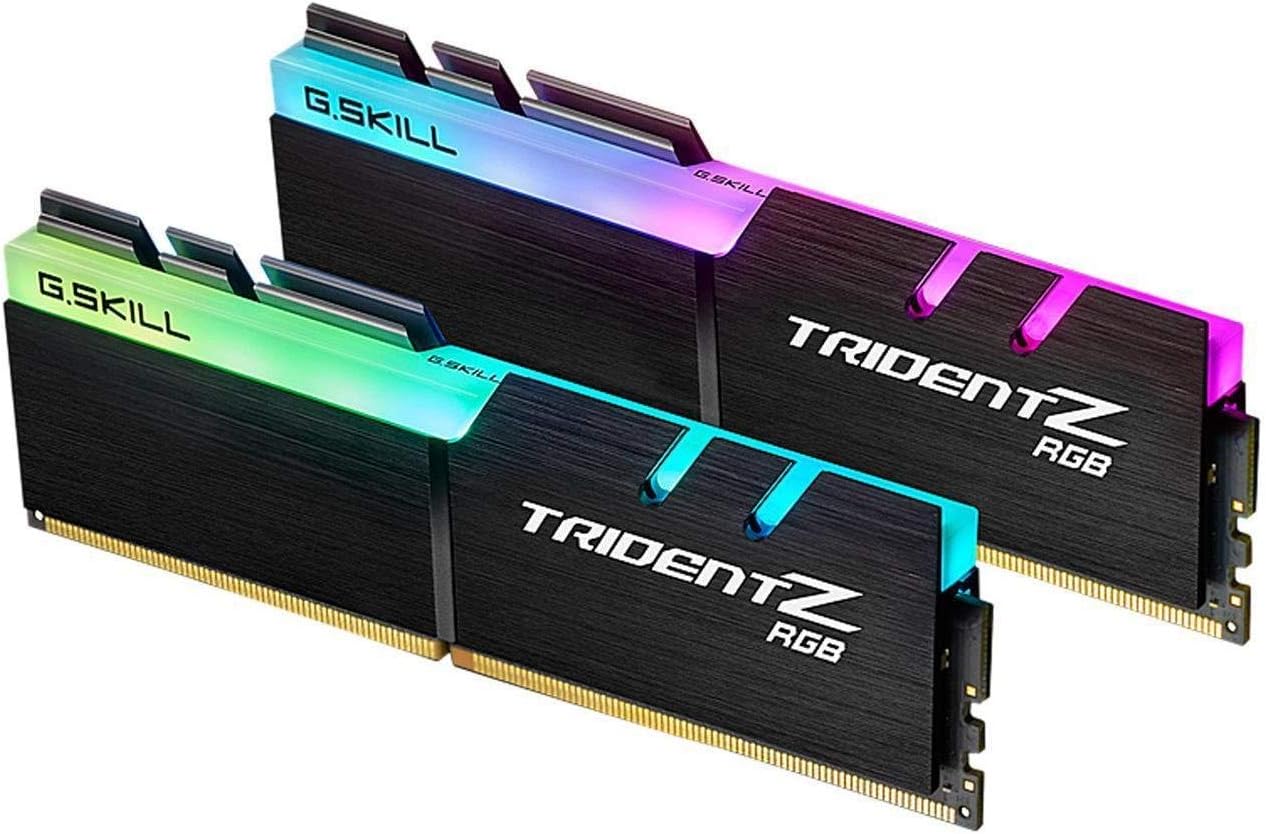
Pros
- 32GB kit ships as two matched 16GB modules, built for DDR4-3600 speeds at CL18-22-22-42 timings
- Runs at 1.35V, within the standard voltage range most DDR4 motherboards support without a BIOS voltage override
- Includes both a JEDEC default profile and an Intel XMP profile, so the kit boots safely at default speed before any overclock is enabled
- Aluminium heatspreaders with an RGB light diffuser only add height and lighting; the module PCB itself is a standard 288-pin U-DIMM footprint
Cons
- Reaching the 3600MT/s speed requires manually enabling the XMP profile in BIOS; at default settings, the kit runs at the slower JEDEC speed
- Modules are matched as a kit and are not intended to be mixed with other kits or single modules, limiting later capacity upgrades to identical kits
- RGB lighting and full effect customization depend on separate software support tied to the motherboard, which is not included with the memory itself
This kit provides 32GB of total capacity across two matched 16GB modules, built for DDR4-3600MT/s at CL18-22-22-42 timings and 1.35V. It is a non-ECC, 288-pin U-DIMM design intended for desktop motherboards rather than server ECC platforms. Two profiles are stored on the modules: a conservative JEDEC default speed that the system boots at automatically, and an Intel XMP profile carrying the full 3600MT/s speed and timings.
The aluminium heatspreader uses a hairline-finish design with a light diffuser strip running along the top for the RGB lighting effects, sitting on top of hand-screened memory ICs mounted to a 10-layer PCB. The taller heatspreader height compared to low-profile memory kits is worth checking against CPU cooler clearance before installing.

Pros
- Dual voltage part runs at either 1.35V or 1.5V, so it drops into both DDR3L and older DDR3 notebooks
- 204-pin SODIMM measuring 30 x 67.6 mm, the standard size for laptops, mini PCs and all-in-ones
- CL11 latency at 1600 MHz on a 2Rx8 double-sided layout built from 512x8 dies
- Lifetime warranty from date of purchase, with technical support based in the United States
- Unbuffered and non-ECC, matching what consumer notebook chipsets actually expect
Cons
- DDR3 only — the key notch will not seat in a DDR4 or DDR5 socket, so machine compatibility must be checked first
- Some chipsets drop to 1333 MHz when both slots hold 2Rx8 double-sided modules
- Sold as a single 8GB module with no heat spreader, rather than as a matched pair
This is an 8GB DDR3L SODIMM clocked at 1600 MHz, sold under the PC3L-12800 and PC3-12800 designations. Timing is CL11, and the organisation is 2Rx8 — a double-sided module with eight chips per side, built from 512x8 dies.
- Voltage: a dual voltage part that runs at the JEDEC 1.35V low-voltage standard, or falls back to 1.5V for earlier DDR3 boards.
- Form factor: 204 pins on a 30 x 67.6 mm board, the standard laptop and mini PC module size.
- Error correction: none, since this is unbuffered non-ECC memory as consumer notebooks expect.
The green PCB is bare with no heat spreader, which is normal for SODIMMs because they sit under a keyboard or behind a service hatch where airflow is limited anyway and a spreader would only add thickness.
Confirm three things about the machine before ordering: that it takes DDR3 rather than DDR4 or DDR5, that it has a free SODIMM slot or one holding a smaller module, and that the board supports 8GB in a single slot.
- DDR4 and DDR5 sockets are keyed differently, so a mismatched module will not seat. Nothing gets damaged, but nothing works either.
- Early DDR3-era chipsets sometimes cap at 4GB per slot, which is a board limitation rather than a fault in the module.
- Mixed pairs run at the slower module's timing, so pairing this with an existing 1333 MHz stick brings both down to that speed.
Touch a bare metal chassis point before handling the module to discharge static, then press it into the slot at an angle until the retaining clips snap closed on both sides.
Two of these fill most dual-slot laptops for 16GB total, which is a sensible ceiling for a DDR3-era machine running a modern browser with many tabs open. Past that point the CPU generation becomes the limiting factor rather than memory capacity.
- A 2Rx8 caution: some chipsets step down to 1333 MHz when both slots hold double-sided modules. In practice the capacity gain outweighs that small clock drop.
- Warranty is lifetime from date of purchase, with technical support based in the United States.
- Retiring machines: DDR3 modules move easily between old laptops, mini PCs and all-in-ones, so a spare stick rarely sits idle for long.
For a machine still running 4GB, adding a module like this is the single largest responsiveness change available short of replacing the drive.

Pros
- 32GB kit (2x16GB) runs at DDR5-6000 with CL36-36-36-96 timings at 1.35V
- Ships with both AMD EXPO and Intel XMP 3.0 profiles, covering overclock setup on either platform
- Low-profile 33mm height clears large CPU air coolers that taller heat spreaders can collide with
- 288-pin U-DIMM format is validated across current Intel 600/700/800-series and AMD 600/800-series boards
Cons
- Matte black is the finish for this specific kit code, with matte white sold as a separate SKU
- Kits are matched pairs only, so mixing modules from a different kit risks instability
- Rated 6000MT/s speed only applies once XMP or EXPO is manually enabled, since boards default to JEDEC speed
This kit pairs two 16GB DDR5 U-DIMMs for a 32GB total, rated to run at 6000MT/s with CL36-36-36-96 timings at 1.35V once the overclock profile is enabled. At default JEDEC settings without XMP or EXPO active, the modules boot at a lower stock SPD speed instead.
- 288-pin U-DIMM form factor for standard desktop motherboards, non-ECC
- Low-profile 33mm module height, built to clear large tower-style CPU coolers that taller RGB heat spreaders often hit
- Hand-screened DRAM ICs selected for the rated speed and timing combination
The matte black anodized finish follows a minimal design without RGB lighting, aimed at builders who want the performance spec without an illuminated heat spreader.
How Much RAM Do Graphic Designers Actually Need?
Capacity matters more than clock speed for most creative work. A designer flipping between Illustrator, a browser full of reference tabs, and a Slack window needs headroom that a casual laptop user never touches, and that headroom is exactly what separates a smooth session from a stuttering one.
16GB: the bare minimum
16GB gets you through light Illustrator or Canva-style work without crashing, but you will notice slowdowns once Photoshop layers pile up or Chrome eats memory in the background. Treat this as a floor, not a target, especially if you plan to keep the machine for a few years.
32GB: the sweet spot
32GB is where most graphic designers land, and it is why our top picks center on 32GB kits. It comfortably handles large PSD files, vector work, and several open apps at once without forcing you to close anything just to keep things responsive.
64GB and beyond: power users
If your workload blends design with 4K video editing or 3D rendering, 64GB prevents your system from swapping to disk during exports. Most pure graphic design work will not need this much, so save the money unless you already know your projects demand it.
DDR4 vs DDR5 Memory for Design Work
Your motherboard decides this for you, so check compatibility before comparing prices. A DDR4 kit like the G.Skill RipjawsV 32GB remains excellent value and works in the vast majority of existing desktop builds released over the past several years.
DDR5 kits, such as the Crucial Pro DDR5 32GB, run at higher base speeds and suit newer platforms built around current-generation processors. Design software rarely saturates that extra bandwidth the way gaming or 3D rendering does, so do not upgrade a whole motherboard just to chase DDR5 for Photoshop alone. If your current board only accepts DDR4, a good DDR4 kit will still deliver a smooth editing experience.
Key Specs to Check Before Buying Memory for Graphic Design
A few numbers on the box matter more than marketing claims. Here is what to actually compare before adding a kit to your cart.
- Capacity: 32GB kits (two 16GB sticks) hit the sweet spot for layered files and multitasking.
- Dual-channel kits: buy matched pairs, not a single stick, for a real bandwidth boost over single-channel setups.
- CAS latency (CL): lower CL at the same speed responds slightly faster, though the difference is minor for design apps specifically.
- Voltage and XMP/EXPO: confirm your motherboard supports the profile so the kit actually runs at its rated speed out of the box.
- Form factor: desktops use DIMMs; laptops need SODIMM modules like the Timetec 8GB SODIMM.
Best RAM for Graphic Design by Use Case
Instead of ranking every kit the same way, match your workflow to the option below. Each pick solves a different problem, so read the use case first and the brand second.
Best overall for everyday design work
The CORSAIR Vengeance LPX 32GB kit covers layout, photo retouching, and general multitasking without a premium price tag. Its strong review history reflects how reliably it runs across different motherboards, which matters more than most buyers realize. It is the safest default if you are not sure exactly what you need yet.
Best budget-friendly 32GB kit
The G.Skill RipjawsV 32GB delivers the same capacity most designers want at a lower cost than flashier RGB kits. Choose this if your build already runs fine and you just need more headroom for bigger files.
Best for newer DDR5 platforms
If your motherboard only supports DDR5, the Crucial Pro DDR5 32GB kit gives you fast, stable memory with room to grow into video work later without another upgrade cycle.
Best for designers who also render or overclock
The G.Skill Trident Z RGB 32GB kit adds overclocking headroom and a higher rated speed for anyone mixing design with 3D or rendering side projects on the same machine.
Best for Mac-based designers
Older Mac towers and iMacs need specific modules, not generic desktop RAM, and mismatched timings can stop a Mac from booting entirely. The Timetec Mac RAM 16GB kit is built for exactly that compatibility gap.
Best for upgrading a design laptop
If you design on a laptop, capacity often matters less than simply not being stuck at a single 8GB stick. The Timetec 8GB SODIMM module is an affordable way to add a second stick and unlock dual-channel speed on machines that support it.
How RAM Affects Specific Design Apps
Not every creative tool leans on memory the same way, so it helps to know where your bottleneck actually sits.
Photoshop and scratch disk behavior
Photoshop uses RAM first and falls back to your scratch disk once memory fills up. A well-sized 32GB kit keeps you off the scratch disk far longer, which is why capacity beats raw speed here.
Illustrator and vector-heavy files
Illustrator is lighter on memory than Photoshop for most files, but complex vector art with hundreds of objects and effects can still climb past 16GB in active use, especially with multiple documents open.
Figma and browser-based design tools
Because Figma runs inside a browser, your RAM gets split between the design file, browser tabs, and background processes. Extra capacity here buys you the freedom to keep references and messaging apps open without slowing the canvas.
Why RAM Speed Matters Less Than You Think for Photoshop
It is tempting to chase the highest MHz number on the shelf, but most design software is more sensitive to capacity than raw speed. Photoshop and Illustrator lean on scratch disk and RAM together, so a fast SSD paired with adequate memory beats a top-speed kit that is too small for your files. If you are also comparing storage, our guide to SSDs for graphic design covers how scratch disk speed changes the equation.
Common Mistakes When Buying RAM for Graphic Design
A few buying mistakes show up again and again, and they are easy to avoid once you know what to look for.
- Ignoring DDR generation: DDR4 and DDR5 are not interchangeable, and the wrong kit simply will not fit the socket.
- Buying a single stick instead of a kit: single-channel memory loses noticeable bandwidth compared to a matched pair.
- Chasing RGB and speed over capacity: a flashy 16GB kit still bottlenecks large files faster than a plain 32GB kit.
- Forgetting laptop form factor: SODIMM and desktop DIMM modules are not interchangeable, so double-check before ordering.
- Skipping the motherboard’s supported speed list: a kit rated above your board’s max frequency will simply run slower than advertised.
Who Should Skip Upgrading Their RAM
If you already run 32GB and rarely see memory warnings in Task Manager or Activity Monitor, more RAM will not speed up your workflow. In that case, a faster GPU or SSD is usually the better investment for your budget. Our guide to GPUs for graphic design and our guide to monitors for graphic design both cover upgrades that matter more once memory stops being the bottleneck in your workflow.
How to Install and Confirm Your New RAM Works
Ground yourself before touching any component, then seat sticks in the motherboard slots your manual recommends for dual-channel mode. After booting, open your system information panel and confirm both capacity and speed match what you paid for, since some kits default to a lower speed until enabled manually. Enable XMP or EXPO in the BIOS if the kit is not already running at its rated speed, and run a short stress test afterward to confirm stability before you trust the machine with client files.
Frequently Asked Questions
Is 16GB enough for graphic design?
It works for light Illustrator or Canva-style tasks, but most designers outgrow it once Photoshop layers or multiple apps stack up. 32GB is the safer long-term choice for most workflows.
Does RAM speed matter for Photoshop and Illustrator?
Capacity affects performance more than raw MHz for these apps. A well-sized 32GB kit at a moderate speed will feel faster in daily use than an undersized, ultra-fast kit.
Can I mix RAM brands or capacities?
You can technically mix sticks, but matched kits from the same set avoid timing mismatches and instability. Buying a single kit rather than combining leftovers is the safer route.
How much RAM do I need if I also edit video?
Once video editing enters the mix, 64GB prevents timeline stutters and slow exports. Pure graphic design without heavy video rarely needs that much memory.
Is DDR5 worth it for graphic design specifically?
Only if your motherboard already requires it. The performance gap in Photoshop or Illustrator between DDR4 and DDR5 is small enough that it should not drive a full platform upgrade on its own.
The right kit comes down to your platform, your file sizes, and whether you multitask across a dozen apps at once. Match your workflow to one of the picks above, check the current price on Amazon, and you will have memory that keeps up with your projects instead of fighting them.


