 Priya Raghavan
 Finding the best mouse under $200 used to mean choosing between flashy gaming features and genuine all-day comfort. That’s no longer true. This price range now covers ultra-light esports sensors, ergonomic trackballs built for tendon-friendly workdays, and productivity mice that glide across glass. Below, you’ll find picks sorted by how you actually use a computer, not just spec sheets, so you can match a mouse to your hand, your games, and your desk setup.
Quick answer: For most people shopping in 2026, the best mouse under $200 is the Logitech MX Master 3S — our #1 rated choice thanks to its comfortable shape, fast scrolling, and multi-device support. See the full ranked comparison, alternatives, and buying advice below.

Pros
- 61g total weight keeps the mouse light for fast wrist and arm movements during extended sessions
- HERO 2 sensor tracks up to 44,000 DPI and 888 IPS, covering high-sensitivity and high-speed swipes alike
- 60-90 hours of battery life on LIGHTSPEED wireless reduces how often the mouse needs charging
- 8kHz polling rate over wireless matches wired-tier responsiveness without a cable
- 10-level actuation points and 5-level rapid trigger reset let each main click be tuned per game
Cons
- Advanced actuation and haptic customization require the separate Logitech G HUB software to configure
- 8kHz polling performance is tested specifically on the G640 mousepad, so results may vary with other surfaces
- POWERPLAY 2 wireless charging is sold separately, so continuous charge-free play needs an additional purchase
The HERO 2 sensor tracks up to 44,000 DPI, 888 IPS, and 88 g of acceleration, aimed at competitive accuracy across a range of sensitivities.
- Haptic Inductive Trigger System (HITS) replaces traditional microswitches with inductive sensing
- 10-level actuation points and 5-level rapid trigger reset allow per-key click tuning
- Click latency is reduced by up to 30ms compared with standard microswitches
Because actuation points and rapid trigger settings are adjustable in fine increments, the mouse can be tuned differently for different games rather than using one fixed click response for everything.
LIGHTSPEED wireless delivers 60-90 hours of battery life per charge, with 8kHz polling for low-latency wireless tracking that avoids the lag associated with older wireless mice.
- USB-C cable included for charging or wired play while charging
- POWERPLAY 2 compatibility allows charge-free wireless play, though the pad is sold separately
- 8kHz polling was tested on the G640 mousepad, so real-world performance can vary by surface
For players who want to avoid charging altogether, pairing the mouse with a POWERPLAY 2 pad keeps it topped up during play, though that adds to the total equipment cost beyond the mouse itself.
At 61g, the mouse uses a 0.7mm thin-wall case to cut weight while extra-large UHMWPE feet keep glide smooth across mousepads.
- Compatible with both PC and Mac
- Advanced features such as actuation tuning and haptic intensity require Logitech G HUB software
- USB-A to USB-C cable is included for charging and wired connection
Because the deeper customization options live inside G HUB rather than on the mouse itself, getting the most out of the adjustable click haptics and rapid trigger settings means installing the software rather than relying on out-of-box defaults.

Pros
- 49G ULTRA LIGHTWEIGHT ESPORTS MOUSE Built with input from competitive
- INDUSTRY LEADING SPEED RELIABILITY Powered by Razer HyperSpeed Wireless
- OPTICAL SCROLL WHEEL FOR COMPETITIVE ACCURACY Uses optical actuation
- FOCUS PRO 50K DPI OPTICAL SENSOR GEN-3 Tracks up to 930 IPS and 90 G
- LONG BATTERY LIFE Improved wireless efficiency provides up to 180 hours
Cons
- Requires checking placement surface dimensions before setup
- Requires routine care to keep exterior housing dust-free
- Initial setup requires checking operating instructions carefully
The Razer Viper V4 Pro Wireless Esports Gaming Mouse 49g offers reliable functional utility tailored for modern home and workplace environments. Designed to enhance daily productivity, this unit integrates 49G ULTRA LIGHTWEIGHT ESPORTS MOUSE Built with input from competitive alongside INDUSTRY LEADING SPEED RELIABILITY Powered by Razer HyperSpeed Wireless. Users will find the intuitive design straightforward to operate across various room configurations and daily routines. The versatile construction adapts easily to personal workspaces, providing consistent practical value and streamlined usability. Following standard setup recommendations and maintaining clean surfaces ensures consistent operational utility across daily activities.
Built using resilient structural components, this unit features a sturdy outer housing engineered to resist operational wear. Precision manufacturing ensures that all joints and surface connections remain firmly aligned during regular daily activity. OPTICAL SCROLL WHEEL FOR COMPETITIVE ACCURACY Uses optical actuation reinforces overall physical stability over extended service periods. Structural integrity remains firm throughout regular usage, giving owners peace of mind. Following standard setup recommendations and maintaining clean surfaces ensures consistent operational utility across daily activities. This functional equipment provides steady performance and practical convenience when properly integrated into your workspace.
Initial setup requires placing the unit on a flat, stable surface with adequate clearance around all sides for proper operation. Ensure all power or connection cables are routed neatly without sharp bends to prevent wire strain. Regular care involves wiping exterior housing surfaces with a soft cloth to remove dust buildup. Inspecting mechanical connections periodically preserves operational efficiency and maintains cosmetic appearance over time. Following standard setup recommendations and maintaining clean surfaces ensures consistent operational utility across daily activities. This functional equipment provides steady performance and practical convenience when properly integrated into your workspace.
Pros
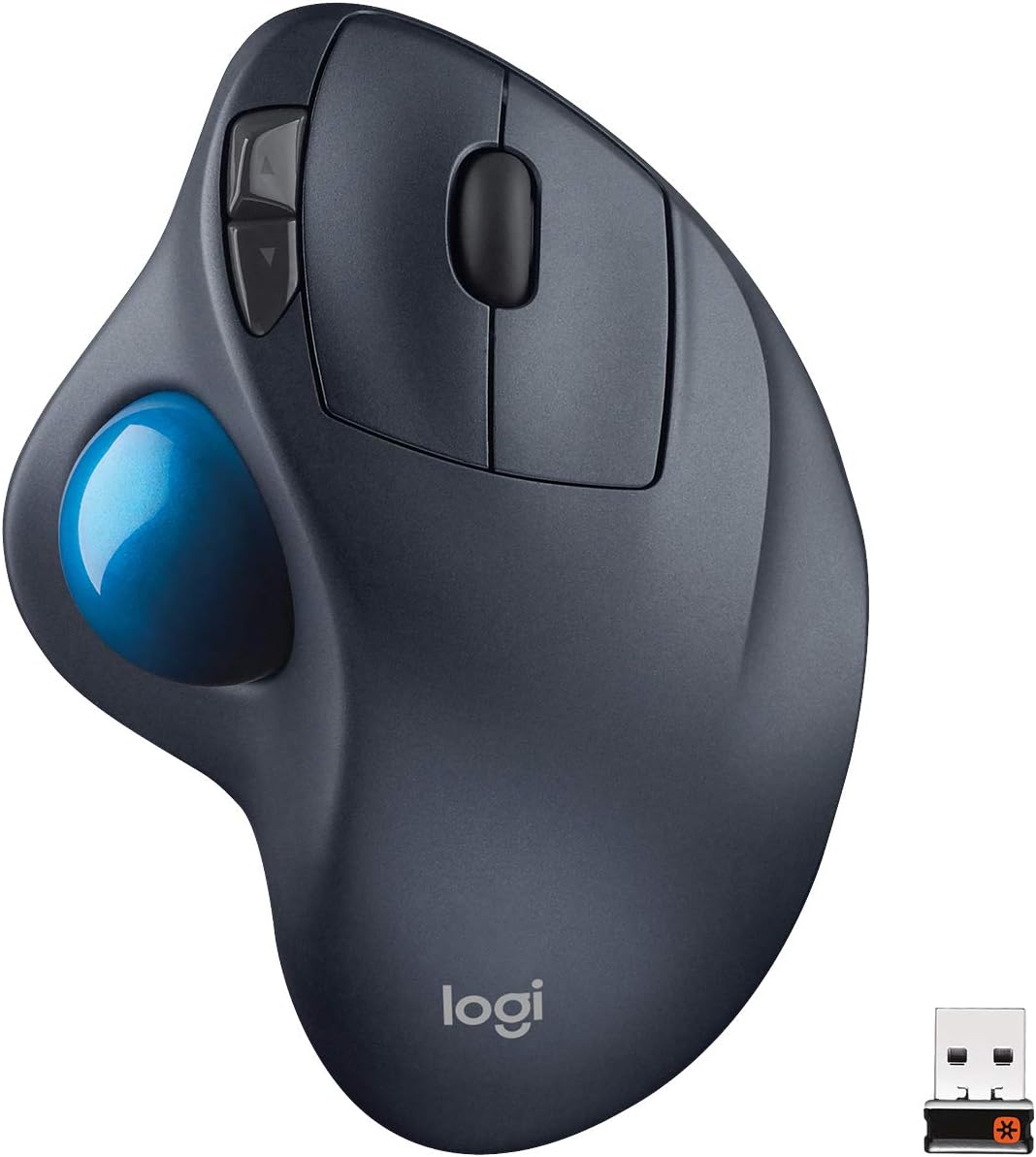
- Thumb ball means the body never moves, so wrist and forearm stay still all day
- Tracks on a sofa arm, a bed or a crowded desk, because no surface tracking is needed
- Up to 18 months on one AA cell, with a low-battery indicator on the body
- Unifying receiver hosts up to six compatible devices on one USB port
- Back and forward buttons plus a scroll wheel all sit under the fingers without moving the hand
Cons
- Sculpted for right hands only, with no left-handed version ever produced
- 2.4GHz dongle only, with no Bluetooth, so you cannot switch between two machines on a keypress
- The ball has to be popped out and the bearings wiped about monthly or tracking turns gritty
The ball sits under your thumb and the body itself never moves, so your wrist and forearm stay still. That is the entire argument for this shape, and it lands hardest for two groups of people.
- Anyone with wrist pain or RSI from dragging a conventional mouse across a desk all day
- Anyone short on desk space, since a cluttered desk, a train tray table, a sofa arm or a bed all work equally well
Two caveats before you commit. The shell is sculpted for right hands only, and no left-handed version was ever made. There is also a genuine adjustment period: most people are slower for the first week, and precise photo editing takes longer to relearn than general browsing and spreadsheet work does.
The connection is Logitech's Unifying receiver on 2.4GHz, not Bluetooth. The nano dongle can live in a laptop permanently and will host up to six Unifying devices, so a matching keyboard or number pad can share the same port.
- A single AA cell runs it for up to 18 months, with an onboard indicator warning before it dies
- No charging cradle and no proprietary battery pack to fail years down the line
- Because it is a dongle, a tablet or USB-C-only laptop needs an adapter
The trade-off is device switching. Without Bluetooth you cannot hop between a work laptop and a personal machine on a keypress, and losing the tiny receiver means buying a replacement Unifying dongle, so keep it in the storage slot when travelling.
Trackballs demand one maintenance habit that ordinary mice do not: the ball has to come out regularly.
- Push the ball out from the hole underneath rather than levering it from the top
- Wipe the three support bearings inside the socket, where skin oil and dust build into a visible ring
- Clean the ball itself with a dry cloth, as alcohol dulls the surface over time
Do this roughly once a month and the cursor stays smooth for years. Skip it for six months and you get the stuttering, gritty feel that fills the negative reviews of every trackball ever sold. The job takes about ninety seconds. Note also that there is no DPI button on the body, so pointer speed is set in operating system settings rather than on the device.
Pros
- Wired USB or PS/2 connection needs zero pairing or battery setup for plug-and-play use
- Ambidextrous sculpted shape supports either hand without a mirrored left-hand model needed
- 4 programmable buttons can be set to switch applications, open browsers or trigger full-screen mode
- Optical trackball tracking works on almost any surface, avoiding the need for a mousepad, except clear glass or mirrors
- Stationary base design means the cursor moves without the whole device sliding around a desk
Cons
- No wireless option - the cable length limits placement to within reach of a USB or PS/2 port
- Does not track on clear glass or mirrored surfaces, an explicit exception noted for its optical sensor
- Listed system compatibility stops at Windows 10 and older Mac OS X versions, with no confirmed Windows 11 driver support mentioned
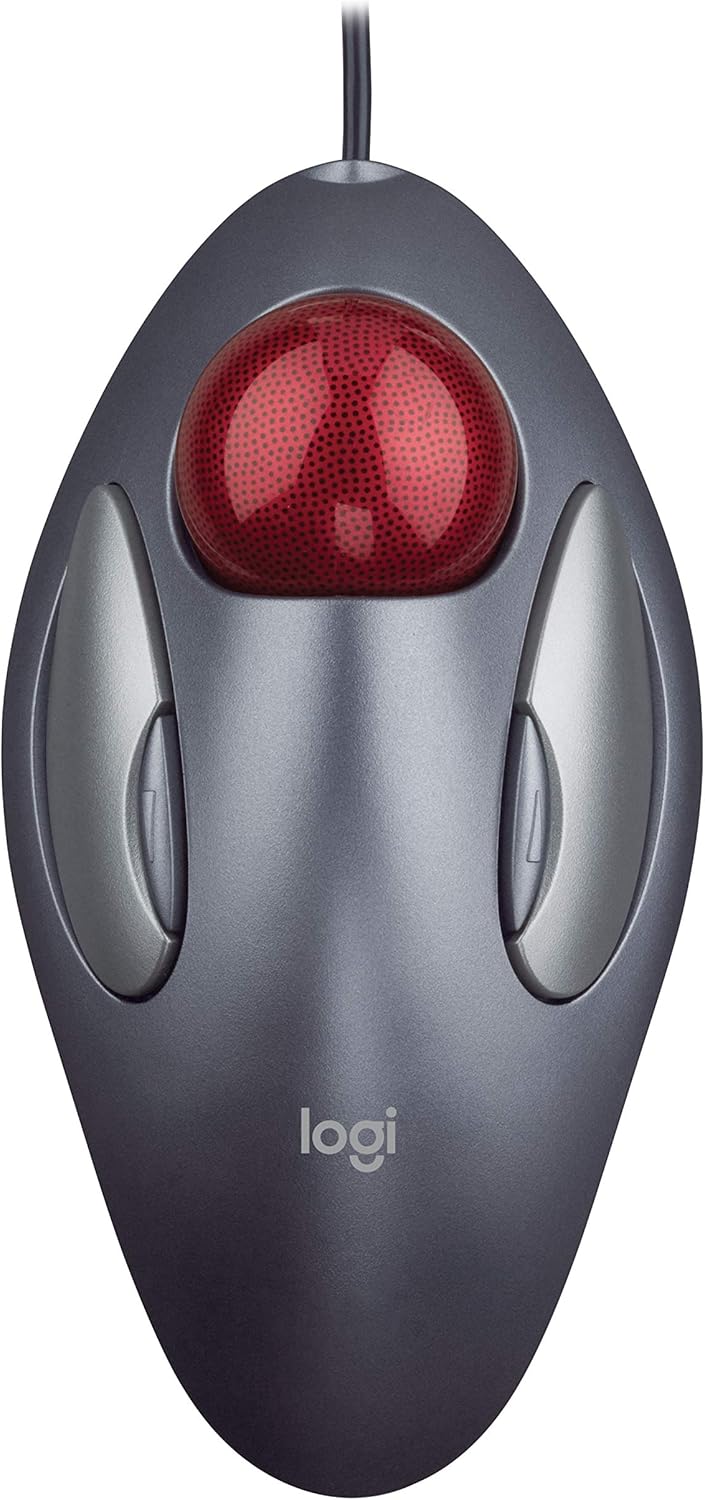
The ambidextrous, sculpted shape lets either hand operate the trackball comfortably, with a long palm rest designed to keep the wrist stationary while only the thumb or fingers move the ball itself - the whole device stays put on the desk rather than being pushed around like a standard mouse. This suits users managing wrist strain from repeated mouse movement, since cursor control comes from small trackball rotations instead of full arm motion. 4 programmable buttons, including two dedicated back/forward buttons, cover common navigation tasks like browsing or switching between open documents without leaving the keyboard's reach.
Connection is wired, working over a USB or legacy PS/2 port depending on the cable supplied, and the device requires no software installation or battery to function - it works immediately once plugged in. Listed system compatibility covers Windows Vista through Windows 10 and Mac OS X 10.4 or later, reflecting its longer-standing design rather than a newly released peripheral, so buyers running the newest Windows or macOS releases should confirm basic HID mouse support still applies before relying on the programmable buttons. The optical sensor tracks on almost any surface except clear glass or mirrored finishes.
This trackball suits desktop users who want a stationary pointing device to reduce arm movement across a wide desk, or anyone who has tried a standard mouse and found wrist or forearm fatigue building up over long sessions. Because it needs a direct wired connection, it fits a fixed desk setup better than a laptop used in varying locations. It is not the choice for someone wanting the smallest, most portable pointing device, or for use directly on a glass desktop, since the trackball's optical sensor cannot track on clear or mirrored surfaces.

Pros
- Made in the USA
- Designed with robust structural components for daily operation
- Designed with robust structural components for daily operation
Cons
- Requires checking placement surface dimensions before setup
- Requires routine care to keep exterior housing dust-free
- Initial setup requires checking operating instructions carefully
The Logitech G300s Wired Gaming Mouse 2 5K Sensor 2 500 DPI offers reliable functional utility tailored for modern home and workplace environments. Designed to enhance daily productivity, this unit integrates Made in the USA alongside practical ergonomic engineering. Users will find the intuitive design straightforward to operate across various room configurations and daily routines. The versatile construction adapts easily to personal workspaces, providing consistent practical value and streamlined usability. Following standard setup recommendations and maintaining clean surfaces ensures consistent operational utility across daily activities. This functional equipment provides steady performance and practical convenience when properly integrated into your workspace.
Built using resilient structural components, this unit features a sturdy outer housing engineered to resist operational wear. Precision manufacturing ensures that all joints and surface connections remain firmly aligned during regular daily activity. durable structural assembly reinforces overall physical stability over extended service periods. Structural integrity remains firm throughout regular usage, giving owners peace of mind. Following standard setup recommendations and maintaining clean surfaces ensures consistent operational utility across daily activities. This functional equipment provides steady performance and practical convenience when properly integrated into your workspace.
Initial setup requires placing the unit on a flat, stable surface with adequate clearance around all sides for proper operation. Ensure all power or connection cables are routed neatly without sharp bends to prevent wire strain. Regular care involves wiping exterior housing surfaces with a soft cloth to remove dust buildup. Inspecting mechanical connections periodically preserves operational efficiency and maintains cosmetic appearance over time. Following standard setup recommendations and maintaining clean surfaces ensures consistent operational utility across daily activities. This functional equipment provides steady performance and practical convenience when properly integrated into your workspace.

Pros
- 8K DPI Darkfield sensor tracks accurately on glass surfaces down to 4mm thick, where standard optical mice fail
- MagSpeed scroll wheel shifts between ratchet and free-spin scrolling at up to 1000 lines per second for fast document jumps
- Pairs across up to 3 devices via Bluetooth Low Energy or the included Logi Bolt USB receiver, with one-key switching
- Keyboard battery is a 1500mAh rechargeable Li-Po cell, and the mouse runs a separate 500mAh cell, so charging is decoupled between the two
- Backlit keys use proximity sensors to light only when hands approach, cutting needless battery drain
Cons
- Keyboard weighs 810g, more than twice the 141g mouse, so the combo isn't a light travel set
- Advanced automation and lighting customization both require installing the Logi Options+ app, with no full feature set built in
- FileVault-enabled macOS machines can block Bluetooth password entry at startup, forcing use of the Bolt USB receiver instead
The keyboard uses a laptop-style low-profile key design with spherically-dished keycaps shaped to fingertips, aimed at fast, quiet typing rather than a mechanical feel. The mouse pairs with it through a MagSpeed electromagnetic scroll wheel that switches automatically between notched and free-spin scrolling.
- Free-spin mode can move through long documents at up to 1000 lines per second
- The mouse uses an 8K DPI Darkfield sensor that tracks on glass surfaces at least 4mm thick, along with most other desk surfaces
- 7 programmable buttons on the mouse cover back/forward, app-switch, wheel mode-shift and a gesture button
Both devices are engineered for sustained desk sessions, with the keyboard's angle and the mouse's sculpted shape aimed at reducing wrist strain over multi-hour use.
The keyboard and mouse each carry their own rechargeable Li-Po battery rather than sharing a single cell. The keyboard's pack is rated at 1500mAh, while the smaller mouse uses a 500mAh cell, so the two devices are recharged and monitored independently.
- Backlit keyboard keys use proximity sensing to light up only as hands approach, then dim again after use to save charge
- Both devices connect over Bluetooth Low Energy, or through the included Logi Bolt USB receiver for a single wireless dongle covering both
- Up to 3 devices can be paired simultaneously, with quick switching between them
Because charging is separate for each device, one can run low while the other still has charge left, so keeping track of two battery levels is part of ownership.
Both devices list support for Windows, macOS, Linux, Chrome OS, iPadOS and Android, though basic functions only are guaranteed outside Windows and macOS without the Logi Options+ app installed. The app itself is only available for Windows and macOS, which limits how much customization Linux and Chrome OS users can access.
- macOS systems with FileVault enabled can block Bluetooth password entry at boot or restart, requiring the Logi Bolt USB receiver instead
- The included Bolt receiver is not interchangeable with older Logitech Unifying receivers from other devices
- Multi-device switching works across operating systems, useful for anyone alternating between a work laptop and a personal desktop
For most desk setups running Windows or macOS, the combo behaves as a fully featured pairing; other systems get reduced functionality.

Pros
- Snaps flat to a slim profile for storage in a bag or pocket, unlike rigid-shell mice that stay bulky
- Full scroll plane supports both vertical and horizontal scrolling from a single scroll zone
- Connects via Bluetooth to Windows and Mac computers without a separate USB dongle taking up a port
- Audible snap action powers the mouse on and off, removing the need for a separate power switch
- Optimized left and right click zones are tuned for precise tracking across the arc-shaped shell
Cons
- Bluetooth-only connectivity means it won't work with systems lacking Bluetooth unless a dongle is added separately
- No listed battery capacity or type, so runtime and replacement schedule aren't specified
- Curved, flattening shell trades ergonomic bulk for portability, offering less palm support than a full-size mouse
The signature feature of this mouse is its flattening shell, which snaps from a curved, ergonomic arc into a flat profile for storage, powering the mouse off in the process with an audible snap. Snapping it back into its curved position powers it on again, removing the need for a separate physical power switch.
A full scroll plane supports both vertical and horizontal scrolling from the same scroll zone, letting you navigate wide spreadsheets or long documents without switching input methods. Optimized left and right click zones are tuned across the curved shell for precise tracking, keeping click response consistent even though the shape differs from a traditional mouse body.
Flattened, the mouse is thin and light enough to slip into a laptop bag or jacket pocket without adding noticeable bulk.
This mouse connects over Bluetooth, pairing directly with Windows and Mac computers without requiring a separate USB receiver or dongle, which frees up a port that a traditional wireless mouse's dongle would otherwise occupy. Because it's Bluetooth-only, it depends on the host computer having built-in Bluetooth or an aftermarket Bluetooth adapter installed.
Pairing follows the standard Bluetooth process for the host operating system, and once connected, the mouse operates independently of any bundled receiver that could be lost while traveling. No wired USB fallback is offered, so a working Bluetooth connection is required for the mouse to function at all.
This mouse suits frequent travelers and anyone who wants a mouse that packs down flat for a laptop bag rather than staying bulky on a desk. The curved-to-flat design trades some of the palm support of a full-size ergonomic mouse for a genuinely pocketable travel companion.
Because it connects over Bluetooth without a dongle, it fits setups with limited USB ports, such as slim ultrabooks or tablets. Buyers who want maximum ergonomic support for long daily desk use, or who prefer a wired connection for zero input lag, may find a full-size wired or dongle-based mouse a better primary option, keeping this one as a travel-specific choice instead.

Pros
- Logitech MX Master 3S Standard Edition comes with a Logi Bolt USB
- Install free Logi Options App to enable Logi AI Prompt Builder for your
- 8K DPI Any-surface tracking Use MX Master 3S cordless computer mouse to
- Quiet Clicks MX Master 3S Bluetooth mouse with Quiet Clicks - offering
- Magspeed scrolling A computer mouse with remarkable speed, precision,
Cons
- Requires checking placement surface dimensions before setup
- Requires routine care to keep exterior housing dust-free
- Initial setup requires checking operating instructions carefully
The Logitech MX Master 3S Wireless Mouse Standard Edition offers reliable functional utility tailored for modern home and workplace environments. Designed to enhance daily productivity, this unit integrates Logitech MX Master 3S Standard Edition comes with a Logi Bolt USB alongside Install free Logi Options App to enable Logi AI Prompt Builder for your. Users will find the intuitive design straightforward to operate across various room configurations and daily routines. The versatile construction adapts easily to personal workspaces, providing consistent practical value and streamlined usability. Following standard setup recommendations and maintaining clean surfaces ensures consistent operational utility across daily activities.
Built using resilient structural components, this unit features a sturdy outer housing engineered to resist operational wear. Precision manufacturing ensures that all joints and surface connections remain firmly aligned during regular daily activity. 8K DPI Any-surface tracking Use MX Master 3S cordless computer mouse to reinforces overall physical stability over extended service periods. Structural integrity remains firm throughout regular usage, giving owners peace of mind. Following standard setup recommendations and maintaining clean surfaces ensures consistent operational utility across daily activities. This functional equipment provides steady performance and practical convenience when properly integrated into your workspace.
Initial setup requires placing the unit on a flat, stable surface with adequate clearance around all sides for proper operation. Ensure all power or connection cables are routed neatly without sharp bends to prevent wire strain. Regular care involves wiping exterior housing surfaces with a soft cloth to remove dust buildup. Inspecting mechanical connections periodically preserves operational efficiency and maintains cosmetic appearance over time. Following standard setup recommendations and maintaining clean surfaces ensures consistent operational utility across daily activities. This functional equipment provides steady performance and practical convenience when properly integrated into your workspace.

Pros
- HERO 25K sensor tracks with zero smoothing, filtering or acceleration for precise 1:1 movement
- LIGHTSPEED wireless protocol delivers a 68% faster response rate than the previous generation
- Battery lasts up to 130 hours per charge, extended further when RGB lighting is left off
- 13 programmable buttons cover more custom bindings than typical 6 to 8-button gaming mice
- POWERPLAY compatible, so the mouse can trickle-charge wirelessly on a compatible pad during play
Cons
- POWERPLAY charging pad is sold separately, so wireless charging capability requires an additional purchase to use
- USB-C charging cable is included, but a full battery cycle still requires a wired charging session when the pad isn't in use
- RGB lighting left fully active will draw down the 130-hour battery figure faster than running with lighting disabled
At the core of this mouse is a HERO 25K sensor paired with hybrid optical-mechanical LIGHTFORCE switches on the primary buttons.
- Sensor tracking has zero smoothing, filtering or acceleration applied for direct, high-precision movement
- 13 programmable buttons are available for custom bindings across games and workflows
- A dual-mode scroll wheel switches between free-spin and ratcheted scrolling, with left/right tilt for two extra inputs
The DPI-shift button is reversible and removable, letting the control be repositioned closer to the thumb or removed entirely depending on grip style.
This mouse is built for PC and macOS systems, connecting over LIGHTSPEED wireless or a wired USB-C connection.
- LIGHTSYNC RGB lighting and full button customization are managed through Logitech's G HUB software
- The mouse is compatible with a POWERPLAY wireless charging pad, sold separately, for charge-while-you-play use
- USB-C is used for both wired play and charging, replacing the micro-USB connectors found on older Logitech mice
Anyone moving from an older Logitech wireless mouse should confirm their existing USB dongle or charging accessories aren't compatible, since this generation has moved to USB-C across the board.
Battery life reaches up to 130 hours per charge, with the LIGHTSPEED wireless protocol delivering a 68% faster response rate than the previous G502 generation.
- Active play detection helps optimize battery use by adjusting LIGHTSYNC RGB behavior during gameplay
- Charging is handled over USB-C, with POWERPLAY pad compatibility for passive wireless top-ups during use
- Running RGB lighting continuously will reduce the maximum 130-hour figure compared to lighting-off use
For the longest stretches between charges, dialing back or disabling RGB effects makes a meaningful difference versus running full lighting effects throughout every session.

Pros
- HERO sensor The reborn MX518 features our exclusive HERO 25K sensor. It
- 32-Bit arm Processor With on-board memory and 1 ms report rate, it
- On-board memory Save up to five profiles to the on-board memory, using
- On-the-fly DPI cycle up and down through as many as five DPI settings,
- 8 programmable buttons Use G HUB to program your favourite commands and
Cons
- Requires checking placement surface dimensions before setup
- Requires routine care to keep exterior housing dust-free
- Initial setup requires checking operating instructions carefully
The Logitech G MX518 Gaming Mouse Hero 25K Sensor 25 600 DPI offers reliable functional utility tailored for modern home and workplace environments. Designed to enhance daily productivity, this unit integrates HERO sensor The reborn MX518 features our exclusive HERO 25K sensor. It alongside 32-Bit arm Processor With on-board memory and 1 ms report rate, it. Users will find the intuitive design straightforward to operate across various room configurations and daily routines. The versatile construction adapts easily to personal workspaces, providing consistent practical value and streamlined usability. Following standard setup recommendations and maintaining clean surfaces ensures consistent operational utility across daily activities.
Built using resilient structural components, this unit features a sturdy outer housing engineered to resist operational wear. Precision manufacturing ensures that all joints and surface connections remain firmly aligned during regular daily activity. On-board memory Save up to five profiles to the on-board memory, using reinforces overall physical stability over extended service periods. Structural integrity remains firm throughout regular usage, giving owners peace of mind. Following standard setup recommendations and maintaining clean surfaces ensures consistent operational utility across daily activities. This functional equipment provides steady performance and practical convenience when properly integrated into your workspace.
Initial setup requires placing the unit on a flat, stable surface with adequate clearance around all sides for proper operation. Ensure all power or connection cables are routed neatly without sharp bends to prevent wire strain. Regular care involves wiping exterior housing surfaces with a soft cloth to remove dust buildup. Inspecting mechanical connections periodically preserves operational efficiency and maintains cosmetic appearance over time. Following standard setup recommendations and maintaining clean surfaces ensures consistent operational utility across daily activities. This functional equipment provides steady performance and practical convenience when properly integrated into your workspace.
How to Choose the Best Mouse Under $200
Once you’re spending real money on a mouse, a few specs matter more than others. Sensor accuracy, switch durability, and grip shape decide whether a mouse feels great after five minutes or after five hours. Here’s what to check before you compare individual models.
Sensor Accuracy and DPI Range
Most mice at this price use optical sensors capable of well beyond 16,000 DPI, but raw DPI numbers matter less than tracking accuracy at the speed you actually move your hand. Competitive players care about consistent tracking during fast flicks, while office users mostly need smooth, predictable cursor movement at low-to-mid DPI settings.
Wireless vs. Wired Connections
Wireless mice in this range use low-latency 2.4GHz dongles, Bluetooth, or both, so lag isn’t the trade-off it used to be. Wired mice still edge out wireless in raw response time and skip battery charging entirely, which matters if you hate remembering to plug in overnight.
Switches, Buttons, and Build Quality
Mechanical or optical switches rated for tens of millions of clicks mean less risk of the dreaded “double-click” bug down the road. Extra programmable buttons help gamers bind abilities or macros, while productivity users benefit more from a reliable scroll wheel and forward and back buttons for browsing.
Ergonomics and Grip Style
Your grip style, whether palm, claw, or fingertip, should guide your shape choice more than any spec sheet. If you deal with wrist or hand fatigue by the end of the day, a vertical or trackball design can relieve pressure that a standard shape can’t.
Best Mouse Under $200 for Competitive Gaming
If ranked matches and fast reflexes are the priority, these two picks lean hardest into esports-focused engineering: light weight, high polling rates, and sensors tuned for precision over gimmicks.
Razer Viper V4 Pro
At just 49 grams, the Razer Viper V4 Pro is one of the lightest wireless mice you can buy, and its 50K DPI optical sensor with 8K polling keeps tracking crisp even during fast, low-sensitivity swipes. The Gen-4 optical switches also sidestep click bounce, which matters for anyone who fires off rapid inputs. It sits at the higher end of this price range, but for players who notice every gram, it’s worth checking the current price on Amazon.
Logitech G PRO X2 SUPERSTRIKE
The Logitech G PRO X2 SUPERSTRIKE swaps traditional mechanical switches for magnetic analog ones, letting you adjust actuation points and click feel to match your reflexes. At 61 grams with sub-8K polling, it’s built for players who want tournament-grade consistency without babysitting a charging cable every night. Reviewers consistently praise the adjustable click haptics as a genuine upgrade over standard clicks, not just a marketing bullet point.
Building a full competitive setup? Pairing either mouse with one of the best headsets under $200 keeps comms crisp during ranked play, and a fast panel from our best monitors under $200 roundup makes sure your display isn’t the bottleneck.
Best Budget-Friendly Gaming Options
Not everyone needs a flagship wireless sensor. These two picks prove a wired connection and a lower price tag can still deliver serious gaming performance.
Logitech G300s
The Logitech G300s keeps things simple: a lightweight ambidextrous shell, a 2,500 DPI sensor, and nine programmable controls for under $160. It won’t out-spec the flagship picks above, but for casual gaming, MOBA button binds, or a reliable backup mouse, it punches well above its price point.
Logitech G502 X Plus
If you want RGB flair and a wireless connection without paying flagship prices, the Logitech G502 X Plus pairs optical switches with 13 programmable buttons and wireless charging support. The extra weight compared to ultralight esports mice actually helps some players with palm grips feel more stable during long sessions.
Best All-Around Mouse for Work and Everyday Use
Most people don’t need esports specs. They need a mouse that feels good for eight hours a day and doesn’t fight their workflow. This is where shopping for the best mouse under $200 shifts from chasing specs to prioritizing comfort and software polish.
Logitech MX Master 3S
The Logitech MX Master 3S is the mouse named as the top overall pick above, and nearly 8,700 reviews back that up. Its MagSpeed scroll wheel lets you flick through long spreadsheets in seconds, while the sculpted shape supports a relaxed palm grip during long sessions. It works across multiple computers via Logi Bolt or Bluetooth, so switching between a work laptop and a home desktop takes one click, not a cable swap.
Best Ergonomic Pick: Trackball Comfort
If you deal with wrist strain, a trackball changes the equation because your hand stays still while your thumb or fingers do the work. The Logitech M570 Trackball is the more approachable of the trackball designs in this category, with a sculpted right-hand shape and a USB receiver that works without any pairing steps. It won’t suit competitive gaming, but for anyone whose hands ache by mid-afternoon, it’s worth trying before you assume you need a new desk setup instead.
Best Portable and Combo Options
Some buyers care less about gaming specs and more about a mouse that travels well or completes a clean desk setup. These two fit that brief.
Microsoft ARC Mouse
At just over 100 dollars, the Microsoft ARC Mouse folds nearly flat for a laptop bag and unfolds into a comfortable curved shape once you’re at a desk. Bluetooth pairing means no dongle to lose, which matters more than it sounds like until you’ve actually misplaced one on a work trip.
Logitech MX Keys S Combo
If you’re setting up a new desk from scratch, the Logitech MX Keys S Combo bundles a backlit keyboard with a compatible mouse, both running on the same Logi Bolt receiver. It’s an easy way to standardize your setup, especially if you’re also comparing options from our best desks under $200 guide or upgrading your seating with the best chairs under $200 picks.
Common Mistakes to Avoid When Buying a Mouse
A few buying mistakes show up constantly with mice in this price bracket, and most are easy to avoid once you know what to check.
- Chasing DPI numbers alone. A sensor can advertise 50K DPI and still feel worse than a well-tuned 8K sensor if tracking isn’t consistent at your actual sensitivity.
- Ignoring grip style. A shape that feels great in someone else’s hands can strain yours if your grip or hand size is different.
- Skipping battery specs on wireless picks. Battery life ranges widely across this list, and that gap matters if you travel often or forget to charge devices overnight.
- Assuming ergonomic means slow. Trackballs and vertical mice have a short learning curve, but most people adjust within a week and don’t look back.
- Overlooking software support. Programmable buttons are only useful if the companion software is stable and easy to configure on your operating system.
Before you settle on a model, it also helps to know what you don’t need. Gamers rarely need Bluetooth multi-device switching, and office workers rarely need sub-1ms click latency, so don’t pay extra for specs that won’t change how you actually use the mouse day to day.
Frequently Asked Questions
Is a $200 mouse actually better than a $50 mouse?
For most casual use, the difference is smaller than the price gap suggests. Where the extra cost pays off is sensor consistency, build quality over years of use, and ergonomic shapes that reduce fatigue, not raw speed alone.
Do I need a wireless mouse for gaming?
Not necessarily. Modern wireless sensors in this price range match wired latency closely enough that most players won’t notice a difference. Wired mice remain a solid, slightly lower-cost route if you never plan to unplug your setup anyway.
What’s the difference between a trackball mouse and a regular mouse?
A trackball keeps your hand mostly stationary while a ball under your thumb or fingers moves the cursor, instead of moving the entire device across a mat. It takes some adjustment, but many people with wrist pain find it more comfortable long-term.
How long should a good mouse under $200 last?
Switches in this range are typically rated for tens of millions of clicks, which translates to several years of daily use for most people. Battery packs on wireless models tend to hold up well too, though heavy daily use will wear them down faster than occasional use.
Should I buy a gaming mouse if I don’t play competitively?
You can, but you’re paying for sensor precision and polling rates you likely won’t use. A general productivity mouse or ergonomic pick usually serves casual users better and often costs less for similar comfort.