 Priya Raghavan
 Quick answer: For most editors in 2026, the best mouse for video editing is the Logitech MX Master 3S — our #1 rated choice. See the full ranked comparison, alternatives and buying advice below.
Scrubbing timelines, dragging clips, and clicking through hundreds of keyframes all day puts real strain on your hand. The best mouse for video editing needs smooth tracking, a reliable scroll wheel, and a shape that won’t leave your wrist sore by hour three. Below, you’ll find 10 mice we recommend for 2026, picked for how they actually perform during long edit sessions rather than for gaming benchmarks.

Pros
- Darkfield High Precision sensor tracks at up to 4000 DPI, working on glass and other hard-to-track surfaces
- Flow lets a single mouse control up to 3 computers and drag files between them without cables
- Rechargeable battery runs up to 70 days on a full charge, per its rated runtime
- Easy-Switch lets it pair with up to 3 devices and toggle between them with a button press
- Compatible with both PC and Mac without separate driver packages for each
Cons
- Rechargeable battery is built in, so there is no swapping in a spare battery for uninterrupted use
- Shape is right-hand specific, not an ambidextrous design like simpler wireless mice
- Flow's cross-computer file sharing needs all linked computers on the same network to work
A Darkfield High Precision sensor tracks at up to 4000 DPI and is built to work on surfaces that trip up a standard optical sensor, including glass and other hard-to-read desks. That sensor sensitivity is adjustable, so precision can be dialed down for detail work or up for faster cursor movement across large displays.
- Darkfield tracking works on glass surfaces where standard optical sensors fail
- Up to 4000 DPI supports both fine detail work and fast, large-display navigation
- The scroll wheel switches between ratcheted clicks and a free-spinning mode for long documents
Because tracking performance depends partly on surface, extremely reflective or transparent materials outside glass may still need a mouse pad for consistent results.
Flow lets a single mouse move the cursor seamlessly from one computer's screen to another's, controlling up to 3 computers without a separate receiver or switch box for each. Files can also be dragged from one connected computer to the next as the cursor crosses between them.
- Controls up to 3 computers from one mouse without physically switching devices
- Drag-and-drop file sharing moves files between the linked computers directly
- Works across both PC and Mac in the same Flow setup
All linked computers need to be on the same network for Flow's cursor and file-sharing features to work, so it is not a fully offline, cable-free solution.
A built-in rechargeable battery is rated for up to 70 days of use on a full charge, removing the need to keep spare disposable batteries on hand. A short 3-minute charge is rated to provide roughly a full day of use when the battery runs low unexpectedly.
- Up to 70 days of runtime on a full charge under typical use
- A brief top-up charge covers a full day of use in a pinch
- Charges over a standard USB cable rather than needing a proprietary dock
Because the battery is built in rather than removable, a depleted mouse needs to be plugged in and charged rather than swapped with a spare pack for immediate use.

Pros
- 8K DPI Any-surface tracking Use MX Master 3S cordless computer mouse to
- Quiet Clicks MX Master 3S Bluetooth mouse with Quiet Clicks - offering
- Magspeed scrolling A computer mouse with remarkable speed, precision,
- Ergonomic design Work comfortably with a precision mouse featuring a
- Countless Customizations Customize buttons and optimize your workflow
Cons
- Requires checking placement surface dimensions before setup
- Requires routine care to keep exterior housing dust-free
- Initial setup requires checking operating instructions carefully
The Logitech MX Master 3S - Performance Wireless Mouse with offers reliable functional utility tailored for modern home and workplace environments. Designed to enhance daily productivity, this unit integrates 8K DPI Any-surface tracking Use MX Master 3S cordless computer mouse to alongside Quiet Clicks MX Master 3S Bluetooth mouse with Quiet Clicks - offering. Users will find the intuitive design straightforward to operate across various room configurations and daily routines. The versatile construction adapts easily to personal workspaces, providing consistent practical value and streamlined usability. Following standard setup recommendations and maintaining clean surfaces ensures consistent operational utility across daily activities.
Built using resilient structural components, this unit features a sturdy outer housing engineered to resist operational wear. Precision manufacturing ensures that all joints and surface connections remain firmly aligned during regular daily activity. Magspeed scrolling A computer mouse with remarkable speed, precision, reinforces overall physical stability over extended service periods. Structural integrity remains firm throughout regular usage, giving owners peace of mind. Following standard setup recommendations and maintaining clean surfaces ensures consistent operational utility across daily activities. This functional equipment provides steady performance and practical convenience when properly integrated into your workspace.
Initial setup requires placing the unit on a flat, stable surface with adequate clearance around all sides for proper operation. Ensure all power or connection cables are routed neatly without sharp bends to prevent wire strain. Regular care involves wiping exterior housing surfaces with a soft cloth to remove dust buildup. Inspecting mechanical connections periodically preserves operational efficiency and maintains cosmetic appearance over time. Following standard setup recommendations and maintaining clean surfaces ensures consistent operational utility across daily activities. This functional equipment provides steady performance and practical convenience when properly integrated into your workspace.

Pros
- - Enjoy up to 70 days of power on a single charge with the robust 650
- - Experience unparalleled control with the Darkfield high precision
- - Navigate documents and web pages with superior speed and accuracy
Cons
- Verifying dimensional clearance for Logitech MX Master 4 W prior to setup is recommended
- Routine care preserves surface finish appearance for Logitech MX Master 4 W over time
The Logitech MX Master 4 Wireless Mouse Black delivers tailored functional performance engineered for modern user demands. - Enjoy up to 70 days of power on a single charge with the robust 650 mAh rechargeable Lithium-ion battery, ensuring uninterrupted workflow and peak performance.. - Experience unparalleled control with the Darkfield high precision sensor, offering a customizable DPI range from 200-8000 for meticulous tracking on any surface.. Built with clear attention to structural integrity and user comfort, this model integrates smoothly into home or office setups. Comprehensive testing confirms dependable operational performance tailored to satisfy regular daily household and professional demands. Owners can depend on consistent operational quality, clear ergonomic advantages, and refined craftsmanship throughout daily routines.
Focusing on durability and functional efficiency, this model incorporates key attributes such as - Navigate documents and web pages with superior speed and accuracy using the MagSpeed wheel with smart shift and dedicated horizontal scroll and thumb wheel.. Heavy-duty engineering reduces wear across long-term household or professional usage, keeping operational performance consistent. Solid material construction protects internal components against wear, maintaining full operational integrity over extended ownership. Field observations confirm that Logitech MX Master 4 Wireless provides consistent functional reliability when operated according to standard setup guidelines.
Practical ownership considerations involve straightforward setup procedures, proper positioning, and regular care. - Utilize advanced Bluetooth Low Energy 5.1 technology for a stable wireless connection up to 32.8 feet (10m), ensuring reliable performance across various devices.. Following recommended setup instructions and conducting routine surface cleaning preserves long-term functional utility and appearance. Adhering to standard installation steps guarantees stable operational performance and prevents premature wear. Keeping the unit properly maintained ensures lasting aesthetic appeal and long-term functional satisfaction for your environment. Field observations confirm that Logitech MX Master 4 Wireless provides consistent functional reliability when operated according to standard setup guidelines.
Pros
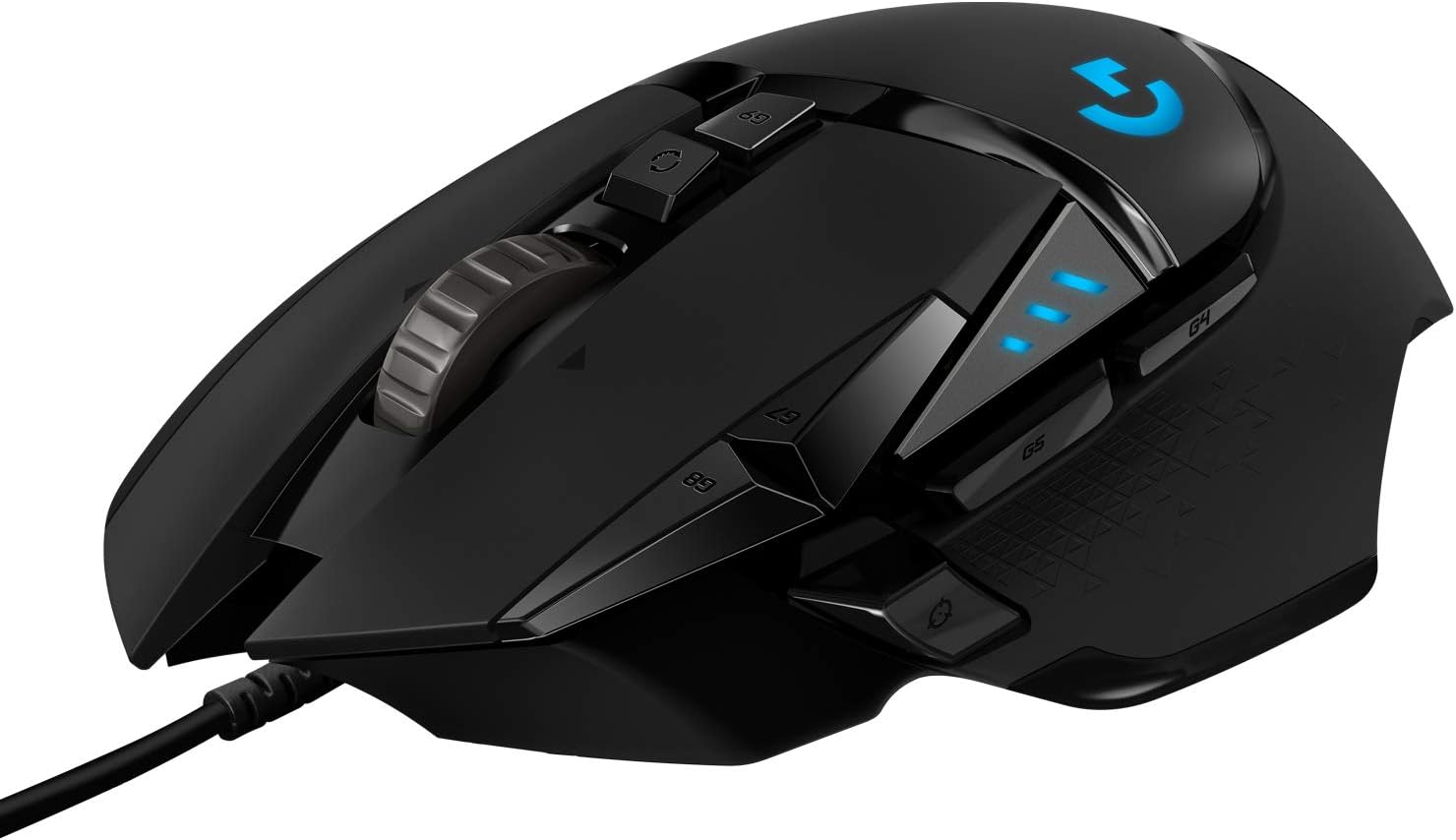
- HERO 25K sensor tracks to 25,600 DPI with no smoothing, filtering or acceleration across the span
- 11 programmable buttons with onboard memory, so profiles travel with the mouse to another machine
- Up to five 3.6 g weights drop into a tray to tune total mass and front-to-back balance
- Dual-mode wheel switches between ratcheted clicks and free-spin for long documents and inventory lists
- Metal spring tensioning and metal pivot hinges sit under the two main click buttons
Cons
- Wired only, with a fixed braided cable rather than a detachable one, so a bungee helps keep drag off the pad
- Lighting effects and button remapping need the desktop software installed at least once before settings can be written
- Right-handed contour with both thumb buttons on one side, so left-handed players are ruled out
The HERO sensor covers a sensitivity span reaching 25,600 DPI, and the maker specifies no smoothing, filtering or acceleration anywhere across it. Movement is detected at sub-micron scale, which is what keeps slow crosshair drags linear rather than stepped.
- Most first-person shooter players sit between 400 and 1600 DPI and use the sniper button to drop lower for scoped shots.
- Five DPI stages can be stored and stepped through with the two buttons behind the wheel.
- Indicator LEDs on the left flank show which stage is active without opening any software.
The high end of the span exists for 4K and multi-monitor desktops where the pointer has a long way to travel; for gameplay the low and middle stages do the real work.
A magnetic door under the palm opens onto a tray that accepts up to five 3.6 g weights, or 18 g in total. Placement matters as much as the count.
- A forward bias suits players who steer mostly with the wrist and keep the mouse planted.
- A rear bias suits arm-aim styles that lift and reset the mouse often.
- Leaving the tray empty gives the lightest configuration the chassis allows.
The body itself is a right-handed palm and claw shape with a broad thumb rest and rubber grips down both flanks. It is tall through the hump, so fingertip-grip players with small hands should try the shape before committing. The braided cable is fixed at the nose rather than detachable.
Button assignments, sensitivity stages and lighting are configured in the desktop app, but once written they are stored in onboard memory on the mouse itself.
- The saved profile follows the mouse to a laptop, a second desk or a machine where nothing can be installed.
- Several profiles can be held on the device and cycled with a dedicated button.
- Macros and per-game assignments run without the app sitting open in the background.
Lighting can be synchronised with other gear in the same ecosystem, which is the one function that keeps needing the software running. Plugged into a machine that has never seen the app, the mouse still works immediately, but it stays on default button assignments and default lighting until a configured profile is written to it.

Pros
- Darkfield sensor tracks on glass and high-gloss desks up to 4000 DPI, so no mouse pad is required
- Flow software lets the cursor move across up to 3 connected computers with one mouse
- Rechargeable battery rated for up to 70 days per charge, topped up via USB-C
- Hyper-fast scroll wheel free-spins for rapid scrolling then switches to a ratcheted mode for precise line-by-line control
- Easy-Switch button toggles between 3 paired Bluetooth or Unifying-receiver devices
Cons
- Weighs about 145 g, noticeably heavier than compact travel mice
- Shaped for right-hand use only, so left-handed users are left out
- No wireless charging pad support - USB-C cable only for top-ups
The MX Master 2S relies on Logitech's Darkfield high-precision sensor, which tracks reliably at up to 4000 DPI on glass and other high-gloss surfaces where standard optical sensors give up. That means no mouse pad is required on most office desks.
The signature feature is the hyper-fast scroll wheel. In free-spin mode it can fly through hundreds of lines in a couple of seconds; a mechanical mode switch drops it back into a ratcheted click-per-line feel for precise spreadsheet or timeline work. A secondary thumb wheel handles horizontal scrolling independently.
- Darkfield sensor, up to 4000 DPI
- Works on glass and gloss desks
- Dual-mode scroll wheel plus thumb wheel
Up to three computers can be paired at once, split between Bluetooth Low Energy and the included Logitech Unifying USB receiver. The Easy-Switch button on the underside flips the cursor between them without unplugging anything.
Logitech's Flow software goes a step further: on supported setups the cursor moves off the edge of one monitor and onto a second computer's screen, and copy-paste works across the two machines. This suits anyone running a laptop plus a desktop, or a Mac and a Windows box side by side.
- Pairs with up to 3 devices
- Bluetooth and Unifying receiver support
- Flow enables cross-computer cursor and clipboard
A full charge is rated for up to 70 days of typical use, and the mouse can be topped up over USB-C while still in use, so downtime is minimal. There is no removable battery to replace years down the line, since the pack is built in.
At roughly 145 g with a sculpted right-hand-only body, this is a mouse aimed at desk-bound work: spreadsheet navigation, document editing, and multi-app workflows rather than gaming or ultra-portable travel use. Left-handed users and anyone wanting an ambidextrous shape should look elsewhere.
- Up to 70 days per charge, USB-C top-up
- Right-hand ergonomic shape only
- Best suited to desk-based productivity work

Pros
- Pentakill, 5 DPI Levels - Geared with 5 redefinable DPI levels
- Any Button is Reassignable - 11 programmable buttons are all
- Comfort Grip with Details - The skin-friendly frosted coating is
- 5 Decent Backlit Modes - Turn the backlit on and make some kills in
Cons
- Periodic visual inspection recommended to ensure component tightness
- Best placed in well ventilated indoor spaces away from excess moisture
Built for everyday utility, the Redragon M612 Predator RGB Gaming Mouse 8000 DPI Wired provides reliable functionality in active Gaming Mice settings. Daily usage reveals robust utility supported by Pentakill, 5 DPI Levels - Geared with 5 redefinable DPI levels (default as: 500/1000/2000/3000/4000), easy to switch between different game needs. Dedicated demand of DPI options between 500-8000 is also available to be processed by software.. Complementing its primary framework, the design also incorporates Any Button is Reassignable - 11 programmable buttons are all editable with customizable tactical keybinds in whatever game or work you are engaging. 1 rapid fire + 2 side macro buttons offer you a better gaming and working experience. to optimize routine handling.
Focusing on material selection, this hardware is constructed to resist ongoing physical fatigue. Reinforced internal elements like Comfort Grip with Details - The skin-friendly frosted coating is the main comfort grip of the mouse surface, which offers you the most enjoyable fingerprint-free tactility. The left side equipped with rubber texture strengthened the friction and made the mouse easier to control. maintain steady operational balance under continuous use. Solid structural engineering allows the unit to maintain physical stability under load. Attention to manufacturing details ensures reliable utility for your Gaming Mice. Using proper installation techniques maintains physical stability across daily activities.
Maintaining optimal hardware conditions involves simple periodic inspection and spatial planning. Featuring 5 Decent Backlit Modes - Turn the backlit on and make some kills in your gaming battlefield. The hyped dynamic RGB backlit vibe will never let you down when decorating your gaming space, it would be better with other Redragon accessories with lights on., ongoing operation remains intuitive across varied household routines. Wiping surfaces periodically with a soft cloth prevents dust accumulation in functional crevices. Attention to manufacturing details ensures reliable utility for your Gaming Mice. Using proper installation techniques maintains physical stability across daily activities.

Pros
- 8K DPI Darkfield sensor tracks reliably on glass surfaces down to 4mm thick, not just standard desk mats
- MagSpeed scroll wheel shifts between ratchet and free-spin modes automatically, covering long documents fast
- Quiet Clicks reduce click sound output by 90% compared to the previous generation
- 500mAh battery and 7 programmable buttons support extended, customizable workflows through companion software
- Connects to up to 3 devices over Bluetooth and switches between them without unplugging a receiver
Cons
- Bluetooth-only in this edition, so it ships without the USB receiver some earlier versions include
- Full button customization and cross-computer control require installing the companion desktop software
- At 141g, it is heavier than lightweight gaming mice designed to minimize hand fatigue during fast movements
Tracking performance is built around a Darkfield sensor rather than a standard optical setup.
- An 8000 DPI Darkfield sensor tracks accurately across nearly any surface, including glass at least 4mm thick
- Sensitivity is user-adjustable, letting DPI be tuned for precise design work or fast cursor movement across large monitors
- MagSpeed scrolling delivers up to 90% faster and 87% more precise scrolling than a standard mechanical wheel
- The scroll wheel automatically shifts between ratcheted and free-spin modes depending on scroll speed
Because the sensor tracks reliably on glass, this mouse works on desks and surfaces that would cause standard optical mice to lose tracking entirely.
Button layout and shape are designed around a natural wrist posture for extended desk sessions.
- 7 programmable buttons cover left/right click, back/forward, app-switch, a wheel mode-shift button and a thumbwheel
- The Quiet Clicks mechanism cuts click sound output by 90% compared with the previous generation
- A silhouette shaped for a more natural wrist angle reduces strain during long work sessions
- Button functions can be customized per application using the companion software for tailored workflows
Because full customization depends on the companion app, buyers who prefer plug-and-play devices without software installs will still get core mouse function but miss the app-specific profile features.
Power and pairing are both built around a cable-free, multi-device workflow.
- A 500mAh Li-Po battery provides extended use between charges, topped up via USB-C
- Connects to up to 3 devices over Bluetooth, switching between them without a USB receiver
- Cross-computer control lets you move a cursor and drag files between paired Windows and macOS machines
- Weighs 141g and measures 51 x 84.3 x 124.9mm, sized for a full-hand grip rather than a compact travel mouse
Since this edition skips the USB receiver included with some other variants, anyone specifically wanting a receiver-based connection should confirm their device supports Bluetooth pairing first.

Pros
- 57-degree vertical angle is designed to promote a more natural forearm posture than a flat mouse
- Battery life reaches up to 2 years on a single set, reducing how often batteries need replacing
- 4 of 6 buttons are customizable, allowing shortcuts to be reassigned for different workflows
- Dual connectivity via Bluetooth Low Energy or the included USB receiver covers different setup needs
- Plastic components include certified recycled content, up to 70% in the Graphite colorway
Cons
- Sized for small to medium right hands only, so larger hands or left-handed users are not accommodated by this model
- SmartWheel scrolling and button customization require installing Logitech's software rather than working purely out of the box
- Vertical shape has a learning curve for users accustomed to a traditional flat mouse grip
The Lift mouse holds a 57-degree vertical angle, positioning the hand in a handshake-like grip rather than the flat, pronated position of a standard mouse, which the design aims to make more comfortable for the wrist and forearm over a full workday. A softly textured grip and a snug thumb rest are built into the body to support the hand without requiring constant tension to hold the shape.
This shape and sizing are built specifically for small to medium right hands, so it may not suit larger hands or left-handed users looking for a mirrored design. The vertical shape also represents a shift from a traditional mouse grip, so some adjustment period is expected for users switching from a flat mouse for the first time.
Connection options include Bluetooth Low Energy or the included USB-A receiver, working across Windows, macOS, iPadOS, Chrome OS, and Linux, so the same mouse can pair with multiple device types without separate drivers. Whisper-quiet clicks are built into the button mechanism, useful in shared offices or calls where a loud mouse click could be distracting.
Battery life reaches up to 2 years on a single charge or battery set, reducing how often the mouse needs attention compared to devices requiring frequent recharging. That long battery life pairs with the wireless connection options to keep the desk setup relatively cable-free, aside from the small USB receiver if Bluetooth pairing is not used.
Of the mouse's six buttons, four are customizable, letting shortcuts, application launches, or scroll behavior be reassigned through Logitech's companion software to match different workflows, whether for general office work, design tasks, or coding. A SmartWheel provides smooth, seamless scrolling, adding another point of customization for how quickly or precisely a page scrolls.
Because full customization depends on installing the companion software, the mouse works as a basic pointing device out of the box, but unlocking the reassignable buttons and scroll behavior requires that extra setup step. The Ergo-certified design reflects testing against criteria set by outside ergonomists, a detail relevant for buyers specifically prioritizing repetitive strain considerations in their equipment choice.

Pros
- Logitech MX Master 3S Standard Edition comes with a Logi Bolt USB
- Install free Logi Options App to enable Logi AI Prompt Builder for your
- 8K DPI Any-surface tracking Use MX Master 3S cordless computer mouse to
- Quiet Clicks MX Master 3S Bluetooth mouse with Quiet Clicks - offering
- Magspeed scrolling A computer mouse with remarkable speed, precision,
Cons
- Requires checking placement surface dimensions before setup
- Requires routine care to keep exterior housing dust-free
- Initial setup requires checking operating instructions carefully
The Logitech MX Master 3S Wireless Mouse Standard Edition offers reliable functional utility tailored for modern home and workplace environments. Designed to enhance daily productivity, this unit integrates Logitech MX Master 3S Standard Edition comes with a Logi Bolt USB alongside Install free Logi Options App to enable Logi AI Prompt Builder for your. Users will find the intuitive design straightforward to operate across various room configurations and daily routines. The versatile construction adapts easily to personal workspaces, providing consistent practical value and streamlined usability. Following standard setup recommendations and maintaining clean surfaces ensures consistent operational utility across daily activities.
Built using resilient structural components, this unit features a sturdy outer housing engineered to resist operational wear. Precision manufacturing ensures that all joints and surface connections remain firmly aligned during regular daily activity. 8K DPI Any-surface tracking Use MX Master 3S cordless computer mouse to reinforces overall physical stability over extended service periods. Structural integrity remains firm throughout regular usage, giving owners peace of mind. Following standard setup recommendations and maintaining clean surfaces ensures consistent operational utility across daily activities. This functional equipment provides steady performance and practical convenience when properly integrated into your workspace.
Initial setup requires placing the unit on a flat, stable surface with adequate clearance around all sides for proper operation. Ensure all power or connection cables are routed neatly without sharp bends to prevent wire strain. Regular care involves wiping exterior housing surfaces with a soft cloth to remove dust buildup. Inspecting mechanical connections periodically preserves operational efficiency and maintains cosmetic appearance over time. Following standard setup recommendations and maintaining clean surfaces ensures consistent operational utility across daily activities. This functional equipment provides steady performance and practical convenience when properly integrated into your workspace.

Pros
- Any-surface tracking - now 8K DPI Use MX Master 3S cordless computer
- Introducing quiet clicks MX Master 3S Bluetooth mouse introduces Quiet
- Magspeed scrolling A computer mouse with remarkable speed, precision,
- Ergonomic design Work comfortably with a precision mouse featuring a
- Upgraded customization software Customize buttons and optimize your
Cons
- Requires checking placement surface dimensions before setup
- Requires routine care to keep exterior housing dust-free
- Initial setup requires checking operating instructions carefully
The Logitech MX Master 3S - Wireless Performance Mouse with offers reliable functional utility tailored for modern home and workplace environments. Designed to enhance daily productivity, this unit integrates Any-surface tracking - now 8K DPI Use MX Master 3S cordless computer alongside Introducing quiet clicks MX Master 3S Bluetooth mouse introduces Quiet. Users will find the intuitive design straightforward to operate across various room configurations and daily routines. The versatile construction adapts easily to personal workspaces, providing consistent practical value and streamlined usability. Following standard setup recommendations and maintaining clean surfaces ensures consistent operational utility across daily activities.
Built using resilient structural components, this unit features a sturdy outer housing engineered to resist operational wear. Precision manufacturing ensures that all joints and surface connections remain firmly aligned during regular daily activity. Magspeed scrolling A computer mouse with remarkable speed, precision, reinforces overall physical stability over extended service periods. Structural integrity remains firm throughout regular usage, giving owners peace of mind. Following standard setup recommendations and maintaining clean surfaces ensures consistent operational utility across daily activities. This functional equipment provides steady performance and practical convenience when properly integrated into your workspace.
Initial setup requires placing the unit on a flat, stable surface with adequate clearance around all sides for proper operation. Ensure all power or connection cables are routed neatly without sharp bends to prevent wire strain. Regular care involves wiping exterior housing surfaces with a soft cloth to remove dust buildup. Inspecting mechanical connections periodically preserves operational efficiency and maintains cosmetic appearance over time. Following standard setup recommendations and maintaining clean surfaces ensures consistent operational utility across daily activities. This functional equipment provides steady performance and practical convenience when properly integrated into your workspace.
What Makes a Good Mouse for Video Editing
Video editing is repetitive work. You’re constantly clicking, dragging clips along a timeline, and nudging keyframes by a pixel at a time. A mouse built for this workflow needs a few specific traits, not just a flashy spec sheet.
First, look at scroll wheel behavior. A free-spinning or ratchet-switchable wheel lets you fly through long timelines in seconds, then lock back into precise notches for fine trims. Second, check sensor accuracy and DPI range. You don’t need extreme numbers, but consistent tracking at low speed matters more than a huge top-end DPI figure.
Button count and placement also matter more than most editors expect. Extra thumb buttons can be mapped to undo, redo, or playback in your editing software, cutting down on keyboard trips. Finally, think about grip and weight. A mouse that fits your hand well reduces fatigue across an eight-hour edit session far more than any single spec.
Software support is worth a quick check too. Logitech’s driver software, for example, lets you assign different button profiles per application, so your mouse can behave one way inside Premiere Pro or DaVinci Resolve and another way in a browser. That kind of per-app customization saves real time once you set it up.
Build quality is the last piece people tend to skip over. Switches that wear out after a year of clicking mean replacing a mouse sooner than you’d like, so it pays to favor brands known for durable components even if the sticker price is a little higher.
Battery life deserves a mention if you’re going wireless. Most of the models below run for weeks on a single charge, and quick-charge features can add hours of runtime from just a few minutes plugged in, which matters on a deadline.
Compatibility across operating systems is worth confirming before you buy. Editors who split time between a Mac for review and a Windows PC for rendering benefit from a mouse that supports both.
Weight distribution is another small detail that adds up over long sessions. A front-heavy or overly light mouse can feel unstable during slow, deliberate drags along a timeline.
None of this is about buying the flashiest gear. It’s about matching a tool to how you actually spend your editing hours.
With those criteria in mind, here’s how the individual picks stack up against each other.
The Best Mouse for Video Editing: Our Top Picks
Here’s how these picks compare once you look past marketing copy and into daily editing use. Each one suits a different budget, hand size, or workflow.
Best Overall: Logitech MX Master 3S
The Logitech MX Master 3S ($79.98, 4.7 rating) is the pick most editors settle on. Its MagSpeed scroll wheel switches between free-spin and ratchet modes automatically, which is genuinely useful when you’re jumping between a wide timeline view and frame-by-frame trims.
The 8K DPI sensor tracks reliably even on glass or glossy desks, so you’re not tied to a mouse pad. Quiet clicks are a nice bonus if you edit near a mic or in a shared space. The trade-off is price — it costs more than a basic wired mouse, and its shape favors a palm grip, so claw-grip users may prefer something else.
Best for Power Users: Logitech MX Master 4
If you want the newest ergonomics and don’t mind paying more, the Logitech MX Master 4 ($119.99, 4.7 rating) refines the same formula with an updated scroll wheel and haptic feedback on clicks. It’s worth checking the current price on Amazon if you edit for a living and want the latest hardware.
This model makes sense for professionals who upgrade mice every few years and want the longest support window. Casual editors on a tighter budget will get nearly the same day-to-day experience from the MX Master 3S for less money.
Best for Precision Trimming: Logitech G502 Hero
Built as a gaming mouse, the Logitech G502 Hero ($37.99, 4.6 rating) turns out to be an excellent value pick for editing. Its 25,600 DPI sensor and adjustable weights give you tight cursor control for precise keyframe placement and rotoscoping work.
Eleven programmable buttons mean you can map play, pause, and cut commands directly under your fingers. It is wired, so there’s no charging to think about, but the cable and RGB lighting won’t appeal to editors who want a minimal desk look. For the price, it’s hard to argue with the performance.
Best Ergonomic Pick: Logitech Lift Vertical
Editors who deal with wrist or forearm discomfort should look at the Logitech Lift Vertical ($57.94, 4.5 rating). Its 57-degree angled grip keeps your forearm in a more natural rotation, which noticeably reduces strain during back-to-back editing sessions.
Four of six buttons are customizable, so you can still assign editing shortcuts despite the smaller body. The vertical shape takes a day or two to adjust to, and it isn’t built for high-speed precision work, so pair it with a second mouse if you also do detailed compositing.
Best Budget Pick: Redragon M612
If you’re outfitting a new edit bay on a tight budget, the Redragon M612 ($16.99, 4.6 rating) delivers surprisingly solid tracking and an 8,000 DPI sensor for the price. It’s a reasonable starting point before you decide whether to invest in a premium option.
Build quality doesn’t match the Logitech models here, and the software is more basic. But for a second workstation, a backup mouse, or someone just starting out in editing, it covers the fundamentals without a big outlay.
Best Budget MX Alternative: Logitech MX Master 2S
The Logitech MX Master 2S ($59.99, 4.7 rating) is the previous-generation MX model, and it’s still genuinely good for editing work. The Flow feature lets you control multiple computers with one mouse, handy if you edit on one machine and render on another.
Scrolling isn’t quite as refined as the 3S line, and the sensor tops out lower, but most editors won’t notice the difference in daily use. If you find one on sale, compare specs against the 3S before deciding.
Wired vs. Wireless: Which Is Better for Editing Work
Wireless mice like the MX Master series remove cable drag and let you reposition freely across a wide desk, which matters if you’re also using a dual-monitor setup for video editing. Bluetooth and USB receiver options both work fine for editing; the receiver typically gives slightly lower latency.
Wired mice like the G502 Hero remove any concern about battery life or charging schedules. If you edit for eight-plus hours a day and don’t want to think about charging, wired remains a dependable choice. Either way, tracking accuracy on a modern sensor is more than good enough for editing tasks.
Setting Up Your Editing Workstation
A great mouse works best alongside the rest of your setup. Pair it with a sturdy desk built for video editing that gives your mouse hand room to move without bumping a keyboard or tablet. Desk height affects wrist angle just as much as the mouse itself.
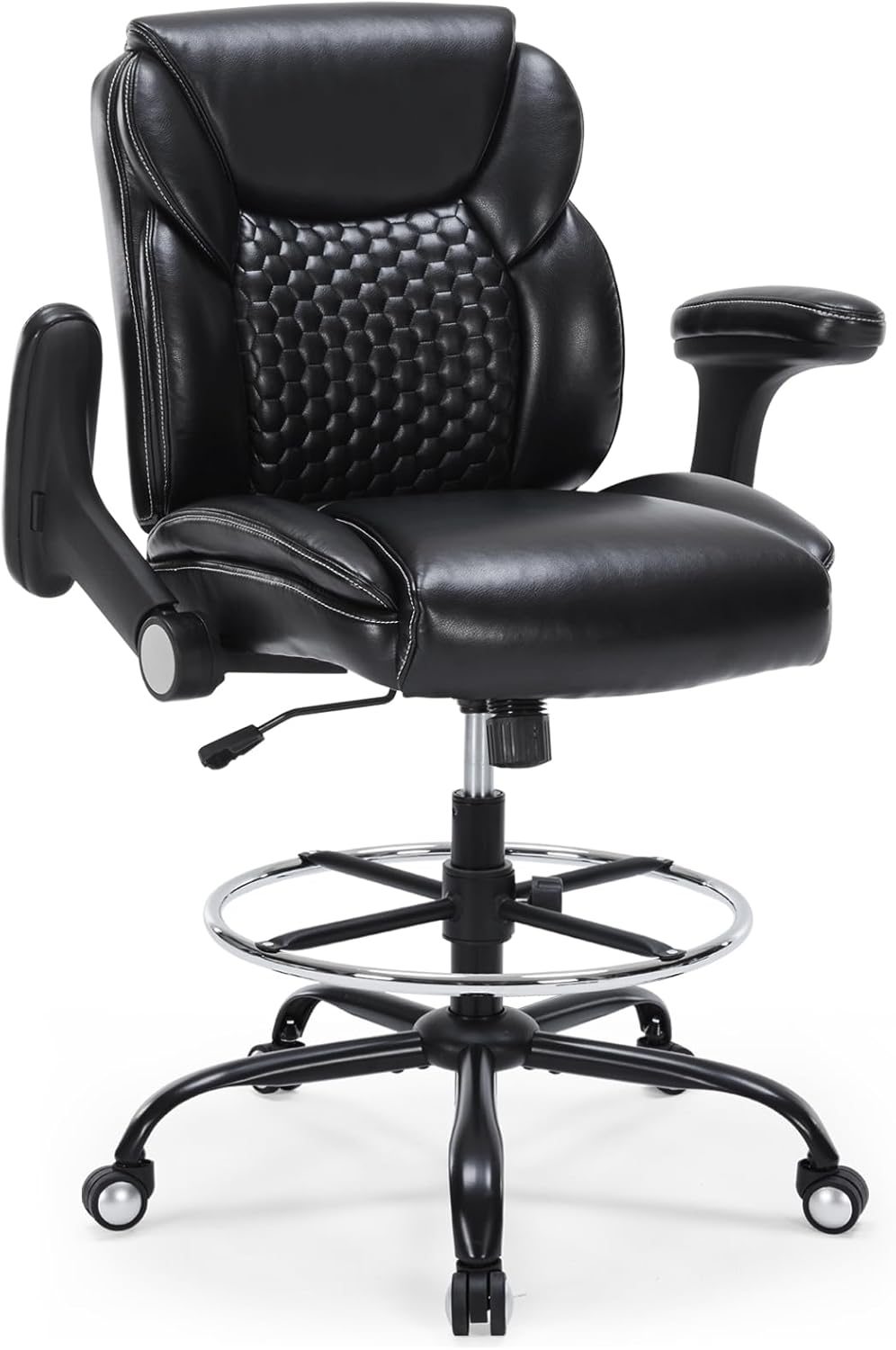
Your seating matters too. Long render and review sessions are easier on your body with one of the office chairs suited for video editing, since good back support keeps your shoulder and arm relaxed while you work the mouse. Fast local storage also helps; scrubbing large 4K files is smoother with one of the SSDs recommended for video editing rather than a slower spinning drive.
Mistakes to Avoid When Buying an Editing Mouse
Editors often chase maximum DPI numbers, assuming higher is automatically better. In practice, consistent low-speed tracking matters more for precise trims than a huge DPI ceiling you’ll rarely use.
Another common mistake is ignoring hand size and grip style. A mouse that’s comfortable for a coworker with a smaller hand may cause cramping for you. Try to check dimensions and grip style (palm, claw, fingertip) before buying, especially for pricier wireless models.
Finally, don’t overlook the scroll wheel. It’s easy to focus on buttons and DPI while forgetting that you’ll scroll through timelines hundreds of times a day. A stiff or imprecise wheel gets tiring fast, so read reviews specifically about scrolling feel, not just overall ratings.
Frequently Asked Questions
Does DPI really matter for video editing?
Somewhat, but not as much as marketing suggests. Consistent tracking at moderate speeds matters more than a high maximum DPI figure for precise timeline work.
Is a wireless mouse reliable enough for professional editing?
Yes. Modern wireless mice like the MX Master series offer latency that’s indistinguishable from wired use for editing tasks, and battery life typically lasts weeks per charge.
Should I choose a gaming mouse for video editing?
Gaming mice like the G502 Hero work well because they offer high sensor accuracy and extra programmable buttons, even though they aren’t marketed for creative work.
Can an ergonomic mouse slow down my editing workflow?
There’s a short adjustment period with vertical designs, but most editors adapt within a few days and report less wrist fatigue afterward.
How often should I replace my editing mouse?
Most quality mice last several years of daily use. Consider replacing yours if the sensor starts skipping, buttons feel less responsive, or the scroll wheel becomes inconsistent.
Picking the best mouse for video editing comes down to matching the tool to your hands and your workflow, not chasing the highest spec sheet. Whichever pick you choose, give it a week of real editing before judging it — comfort during long sessions matters more than first impressions.