
 Priya Raghavan
 Typing all day, jumping between spreadsheets, and juggling three browser tabs at once puts real strain on your hand. The best mouse for productivity should feel invisible in your hand, respond instantly, and keep working long after a cheap mouse would give up. This guide breaks down what actually matters for office work, remote work, and hybrid setups, then walks through 10 models worth your attention in 2026. Whether you sit at one desk all day or bounce between a laptop and a home office rig, you’ll find honest notes on who each pick fits best, plus mistakes to avoid before you buy.
Quick answer: For most people in 2026, the best mouse for productivity is the Logitech MX Master 3S — our #1 rated choice. See the full ranked comparison, alternatives and buying advice below.

Pros
- Darkfield High Precision sensor tracks at up to 4000 DPI, working on glass and other hard-to-track surfaces
- Flow lets a single mouse control up to 3 computers and drag files between them without cables
- Rechargeable battery runs up to 70 days on a full charge, per its rated runtime
- Easy-Switch lets it pair with up to 3 devices and toggle between them with a button press
- Compatible with both PC and Mac without separate driver packages for each
Cons
- Rechargeable battery is built in, so there is no swapping in a spare battery for uninterrupted use
- Shape is right-hand specific, not an ambidextrous design like simpler wireless mice
- Flow's cross-computer file sharing needs all linked computers on the same network to work
A Darkfield High Precision sensor tracks at up to 4000 DPI and is built to work on surfaces that trip up a standard optical sensor, including glass and other hard-to-read desks. That sensor sensitivity is adjustable, so precision can be dialed down for detail work or up for faster cursor movement across large displays.
- Darkfield tracking works on glass surfaces where standard optical sensors fail
- Up to 4000 DPI supports both fine detail work and fast, large-display navigation
- The scroll wheel switches between ratcheted clicks and a free-spinning mode for long documents
Because tracking performance depends partly on surface, extremely reflective or transparent materials outside glass may still need a mouse pad for consistent results.
Flow lets a single mouse move the cursor seamlessly from one computer's screen to another's, controlling up to 3 computers without a separate receiver or switch box for each. Files can also be dragged from one connected computer to the next as the cursor crosses between them.
- Controls up to 3 computers from one mouse without physically switching devices
- Drag-and-drop file sharing moves files between the linked computers directly
- Works across both PC and Mac in the same Flow setup
All linked computers need to be on the same network for Flow's cursor and file-sharing features to work, so it is not a fully offline, cable-free solution.
A built-in rechargeable battery is rated for up to 70 days of use on a full charge, removing the need to keep spare disposable batteries on hand. A short 3-minute charge is rated to provide roughly a full day of use when the battery runs low unexpectedly.
- Up to 70 days of runtime on a full charge under typical use
- A brief top-up charge covers a full day of use in a pinch
- Charges over a standard USB cable rather than needing a proprietary dock
Because the battery is built in rather than removable, a depleted mouse needs to be plugged in and charged rather than swapped with a spare pack for immediate use.

Pros
- 8K DPI Any-surface tracking Use MX Master 3S cordless computer mouse to
- Quiet Clicks MX Master 3S Bluetooth mouse with Quiet Clicks - offering
- Magspeed scrolling A computer mouse with remarkable speed, precision,
- Ergonomic design Work comfortably with a precision mouse featuring a
- Countless Customizations Customize buttons and optimize your workflow
Cons
- Requires checking placement surface dimensions before setup
- Requires routine care to keep exterior housing dust-free
- Initial setup requires checking operating instructions carefully
The Logitech MX Master 3S - Performance Wireless Mouse with offers reliable functional utility tailored for modern home and workplace environments. Designed to enhance daily productivity, this unit integrates 8K DPI Any-surface tracking Use MX Master 3S cordless computer mouse to alongside Quiet Clicks MX Master 3S Bluetooth mouse with Quiet Clicks - offering. Users will find the intuitive design straightforward to operate across various room configurations and daily routines. The versatile construction adapts easily to personal workspaces, providing consistent practical value and streamlined usability. Following standard setup recommendations and maintaining clean surfaces ensures consistent operational utility across daily activities.
Built using resilient structural components, this unit features a sturdy outer housing engineered to resist operational wear. Precision manufacturing ensures that all joints and surface connections remain firmly aligned during regular daily activity. Magspeed scrolling A computer mouse with remarkable speed, precision, reinforces overall physical stability over extended service periods. Structural integrity remains firm throughout regular usage, giving owners peace of mind. Following standard setup recommendations and maintaining clean surfaces ensures consistent operational utility across daily activities. This functional equipment provides steady performance and practical convenience when properly integrated into your workspace.
Initial setup requires placing the unit on a flat, stable surface with adequate clearance around all sides for proper operation. Ensure all power or connection cables are routed neatly without sharp bends to prevent wire strain. Regular care involves wiping exterior housing surfaces with a soft cloth to remove dust buildup. Inspecting mechanical connections periodically preserves operational efficiency and maintains cosmetic appearance over time. Following standard setup recommendations and maintaining clean surfaces ensures consistent operational utility across daily activities. This functional equipment provides steady performance and practical convenience when properly integrated into your workspace.

Pros
- Unifying receiver carries up to six compatible devices on one USB-A port
- Back and forward thumb buttons plus a side-to-side tilt wheel
- Runs on two AA cells with a quoted two-year life, or one cell for less weight
- Rubber side grips and a full-size contoured shell suit a palm grip
- Receiver stows inside the battery bay for travel
Cons
- Right-handed shape only, with the thumb rest moulded into the left side
- No Bluetooth, so a spare USB-A port or an adapter is mandatory
- Sensor sits around 1000 DPI, low for high-resolution multi-monitor desks
This is a full-size contoured mouse shaped for a palm grip, with a sculpted right flank and soft rubber side grips. Hands that hover in a claw grip or reach with fingertips will find the body tall under the arch.
- Back and forward thumb buttons for browser and file manager navigation
- Scroll wheel tilts left and right for horizontal scrolling in spreadsheets
- Middle click and a wheel press round out the control set
All the extra controls work through the standard driver on Windows and macOS, and the Logitech Options utility adds per-application assignment if you want the thumb buttons doing something else. The shape is strictly right-handed, with the thumb rest moulded into the left side, so left-handed users should look elsewhere. Tracking is tuned for desk surfaces and cloth mats rather than glass.
Connection is 2.4 GHz wireless through a Logitech Unifying receiver, a nano dongle that sits almost flush in a USB-A port. One receiver can carry up to six compatible Logitech mice and keyboards at once, so a whole desk setup runs on a single port.
- No Bluetooth, so a spare USB-A port is mandatory
- Machines with only USB-C need an adapter or a hub
- Range is quoted around 10 m in clear line of sight
Pairing is handled by the Unifying software and takes about a minute per device. The dongle stores inside the battery bay for travel, which stops it disappearing in a bag. Losing the receiver is the one real failure point, since a replacement has to be re-paired with that same utility.
Power comes from two AA cells housed under the top shell, with Logitech quoting up to two years of use before a swap. There is no internal rechargeable pack, which means no charging cable and no cell that degrades beyond replacement, but it does mean keeping AAs in the drawer.
- An on/off switch underneath stops drain while the mouse travels
- A battery indicator light warns before the cells die
- Fitting one cell instead of two lowers weight at the cost of runtime
Maintenance otherwise means wiping the glide feet and lifting dust out of the scroll wheel slot every few months. The rubber side grips are the part that ages fastest on heavily used units, so keep hand cream and solvent cleaners away from them.
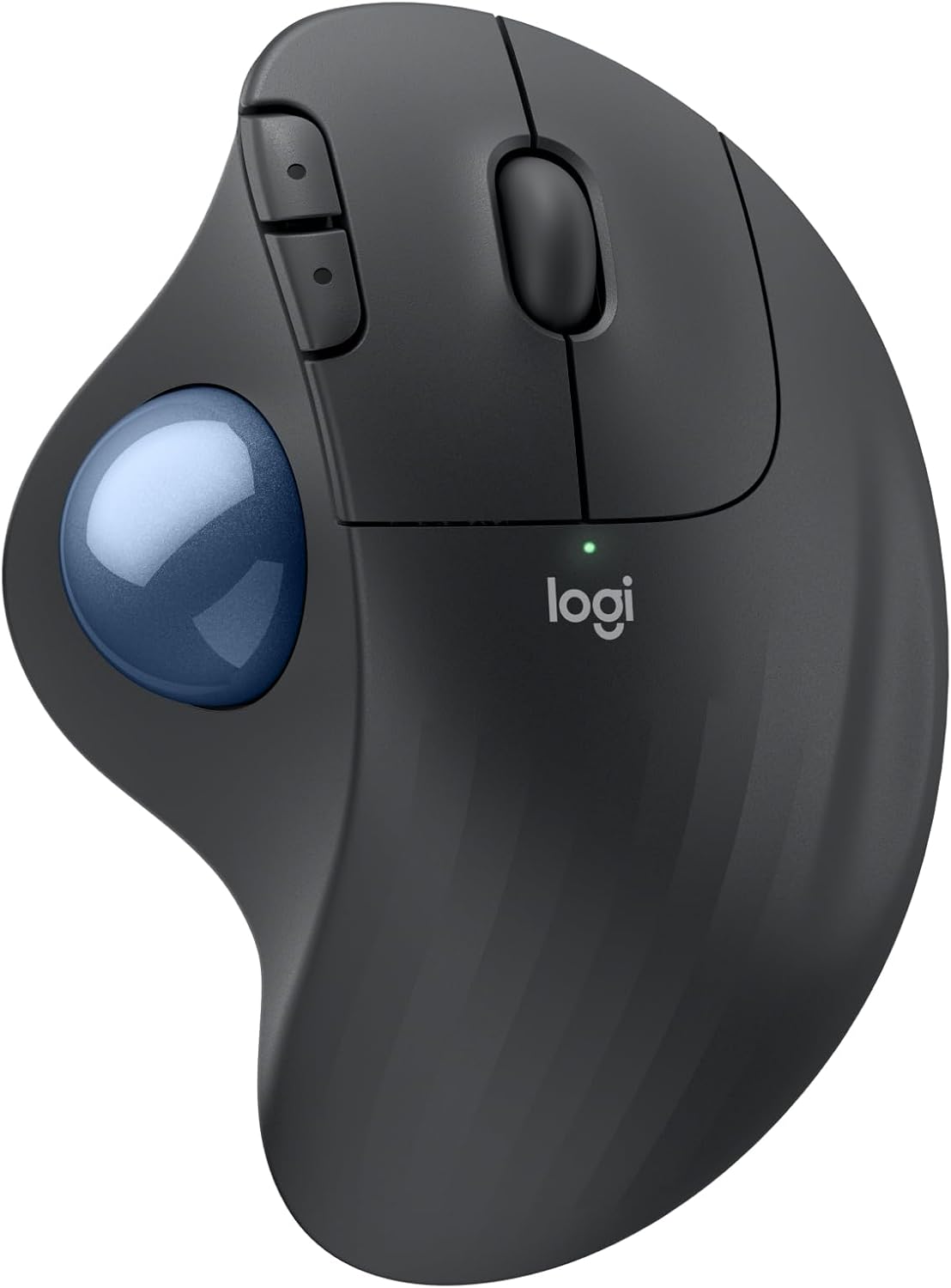
Pros
- Thumb-controlled trackball design cuts forearm strain versus a standard mouse, per Logi Ergo Lab testing
- Delivers up to 18 months of battery life on a single AA battery
- 3 customizable buttons plus adjustable cursor speed through the Logi Options+ app
- Connects via Bluetooth or the included Logi Bolt USB receiver for flexible pairing
- Made with certified post-consumer recycled plastic, 52% in the Graphite finish
Cons
- Cursor speed customization and Smart Actions require installing the separate Logi Options+ app
- Thumb-trackball control has a learning curve for users switching from a standard mouse
- AA battery compartment means periodic battery swaps rather than a rechargeable built-in cell
The ERGO M575S uses a sculpted shape and thumb-controlled trackball, developed with Logi Ergo Lab experts and user-tested for all-day comfort.
- Cursor moves without needing to move the hand or arm across a desk surface
- Realigns the forearm into a more natural resting posture during use
- 3 customizable buttons support shortcuts and Smart Actions through the companion app
Because the cursor is driven by the thumb rather than whole-hand movement, the mouse needs far less desk space than a traditional mouse, which suits tight or cluttered desks. Switching from a standard mouse to thumb-trackball control does take an adjustment period, since the muscle memory and tracking motion differ from moving an entire hand across a mousepad.
The mouse connects either through Bluetooth or the included Logi Bolt USB receiver, giving flexibility across different computer setups.
- Rated for up to 18 months of battery life on a single AA battery
- Works across both PC and Mac systems
- Cursor speed and button assignments are adjustable through the Logi Options+ app
Running on a single AA battery rather than a proprietary rechargeable cell means replacements are available anywhere, though it also means no built-in charging port or charge-level app notification some rechargeable mice offer. The dual-connection option (Bluetooth or receiver) is useful for switching the same mouse between a laptop and a desktop without repairing each time.
The plastic components are made from certified post-consumer recycled plastic, at 52% for the Graphite finish and 21% for the Off-White version.
- Reduces reliance on newly manufactured plastic in the housing
- Pairs with the Wave Keys ergonomic keyboard for a matched desk setup
- Quiet-click buttons reduce noise during use compared with standard mechanical mouse clicks
For buyers factoring recycled material content into a purchase, the percentage varies by color choice, so the Graphite option uses notably more recycled plastic than the Off-White version. The overall build favors a compact, low-noise desk accessory over a gaming-oriented mouse with RGB lighting or extreme sensor speeds.

Pros
- ERGONOMIC WRIST RELIEF LIBRARY-QUIET CLICKS Stop torturing your wrist
- DITCH BULKY HUBS SYNC 3 DEVICES Working between the office and coffee
- CRUSH SPREADSHEETS WITH DUAL SCROLL WHEELS Stop dragging your cursor
- PINPOINT ACCURACY ACROSS ANY WORKSPACE Whether making pixel-perfect
- A MONTH OF POWER 5-MINUTE EMERGENCY TOP-UP Dead batteries mid-meeting
Cons
- Requires checking placement surface dimensions before setup
- Requires routine care to keep exterior housing dust-free
- Initial setup requires checking operating instructions carefully
The PHILIPS Ergonomic Wireless Mouse Multi-Device Bluetooth offers reliable functional utility tailored for modern home and workplace environments. Designed to enhance daily productivity, this unit integrates ERGONOMIC WRIST RELIEF LIBRARY-QUIET CLICKS Stop torturing your wrist alongside DITCH BULKY HUBS SYNC 3 DEVICES Working between the office and coffee. Users will find the intuitive design straightforward to operate across various room configurations and daily routines. The versatile construction adapts easily to personal workspaces, providing consistent practical value and streamlined usability. Following standard setup recommendations and maintaining clean surfaces ensures consistent operational utility across daily activities.
Built using resilient structural components, this unit features a sturdy outer housing engineered to resist operational wear. Precision manufacturing ensures that all joints and surface connections remain firmly aligned during regular daily activity. CRUSH SPREADSHEETS WITH DUAL SCROLL WHEELS Stop dragging your cursor reinforces overall physical stability over extended service periods. Structural integrity remains firm throughout regular usage, giving owners peace of mind. Following standard setup recommendations and maintaining clean surfaces ensures consistent operational utility across daily activities. This functional equipment provides steady performance and practical convenience when properly integrated into your workspace.
Initial setup requires placing the unit on a flat, stable surface with adequate clearance around all sides for proper operation. Ensure all power or connection cables are routed neatly without sharp bends to prevent wire strain. Regular care involves wiping exterior housing surfaces with a soft cloth to remove dust buildup. Inspecting mechanical connections periodically preserves operational efficiency and maintains cosmetic appearance over time. Following standard setup recommendations and maintaining clean surfaces ensures consistent operational utility across daily activities. This functional equipment provides steady performance and practical convenience when properly integrated into your workspace.

Pros
- Darkfield High Precision tracking works on glass surfaces at least 4mm thick, unlike standard optical sensors
- Logitech Flow controls up to 3 connected computers and lets copy-paste move files between them directly
- A 3-minute quick charge delivers a full day of use, with a full charge lasting up to 70 days
- Speed-adaptive scroll wheel switches from click-to-click precision to fast free-spin scrolling automatically
- Up to 4,000 DPI tracking gives fine control for detailed cursor work
Cons
- Rechargeable internal battery is not user-replaceable, so capacity will fade as the years and charge cycles add up
- Logitech Flow's multi-computer control requires installing the software on every connected machine, not just one
- Ergonomic hand-sculpted shape favors right-handed use, with no left-handed version offered
Darkfield High Precision tracking lets this mouse work reliably on surfaces that defeat standard optical sensors, including glass at least 4mm thick, without needing a mouse pad. Tracking resolution reaches up to 4,000 DPI, giving fine control suited to detailed cursor work like photo editing or spreadsheet navigation as well as general browsing.
The speed-adaptive scroll wheel automatically switches between slow, click-to-click scrolling for precise line-by-line movement and a fast, free-spinning mode for flying through long documents or web pages, without needing to manually toggle a mode switch the way some other mice require.
A 3-minute quick charge provides enough power for a full day of typical use, and a complete charge holds up to 70 days before needing to be topped up again, cutting down on how often the mouse needs to be plugged in compared with battery-swap designs. The internal battery is not user-replaceable, though, so its maximum capacity will gradually decline over years of charge cycles.
Logitech Flow software lets this mouse control up to three separate computers, moving the cursor between them by pushing to the screen edge, and enables copying text, images, or files on one machine and pasting directly on another. Flow needs to be installed on every computer being controlled, not just the one the mouse is paired to first.
The body is hand-sculpted to support the palm and wrist in a right-handed grip, with side buttons and the scroll wheel positioned for comfortable reach during long work sessions. Side-to-side thumb scrolling adds horizontal navigation for wide spreadsheets or timelines without needing to hold a modifier key.
Because the shape is optimized specifically for right-handed use, left-handed users will find the button placement and palm support less natural, and no mirrored left-handed version of this model is offered. The mouse connects over Bluetooth, so no USB receiver is needed, though a wired connection is not available as a fallback.

Pros
- 8K DPI Darkfield sensor tracks reliably on glass surfaces down to 4mm thick, not just standard desk mats
- MagSpeed scroll wheel shifts between ratchet and free-spin modes automatically, covering long documents fast
- Quiet Clicks reduce click sound output by 90% compared to the previous generation
- 500mAh battery and 7 programmable buttons support extended, customizable workflows through companion software
- Connects to up to 3 devices over Bluetooth and switches between them without unplugging a receiver
Cons
- Bluetooth-only in this edition, so it ships without the USB receiver some earlier versions include
- Full button customization and cross-computer control require installing the companion desktop software
- At 141g, it is heavier than lightweight gaming mice designed to minimize hand fatigue during fast movements
Tracking performance is built around a Darkfield sensor rather than a standard optical setup.
- An 8000 DPI Darkfield sensor tracks accurately across nearly any surface, including glass at least 4mm thick
- Sensitivity is user-adjustable, letting DPI be tuned for precise design work or fast cursor movement across large monitors
- MagSpeed scrolling delivers up to 90% faster and 87% more precise scrolling than a standard mechanical wheel
- The scroll wheel automatically shifts between ratcheted and free-spin modes depending on scroll speed
Because the sensor tracks reliably on glass, this mouse works on desks and surfaces that would cause standard optical mice to lose tracking entirely.
Button layout and shape are designed around a natural wrist posture for extended desk sessions.
- 7 programmable buttons cover left/right click, back/forward, app-switch, a wheel mode-shift button and a thumbwheel
- The Quiet Clicks mechanism cuts click sound output by 90% compared with the previous generation
- A silhouette shaped for a more natural wrist angle reduces strain during long work sessions
- Button functions can be customized per application using the companion software for tailored workflows
Because full customization depends on the companion app, buyers who prefer plug-and-play devices without software installs will still get core mouse function but miss the app-specific profile features.
Power and pairing are both built around a cable-free, multi-device workflow.
- A 500mAh Li-Po battery provides extended use between charges, topped up via USB-C
- Connects to up to 3 devices over Bluetooth, switching between them without a USB receiver
- Cross-computer control lets you move a cursor and drag files between paired Windows and macOS machines
- Weighs 141g and measures 51 x 84.3 x 124.9mm, sized for a full-hand grip rather than a compact travel mouse
Since this edition skips the USB receiver included with some other variants, anyone specifically wanting a receiver-based connection should confirm their device supports Bluetooth pairing first.
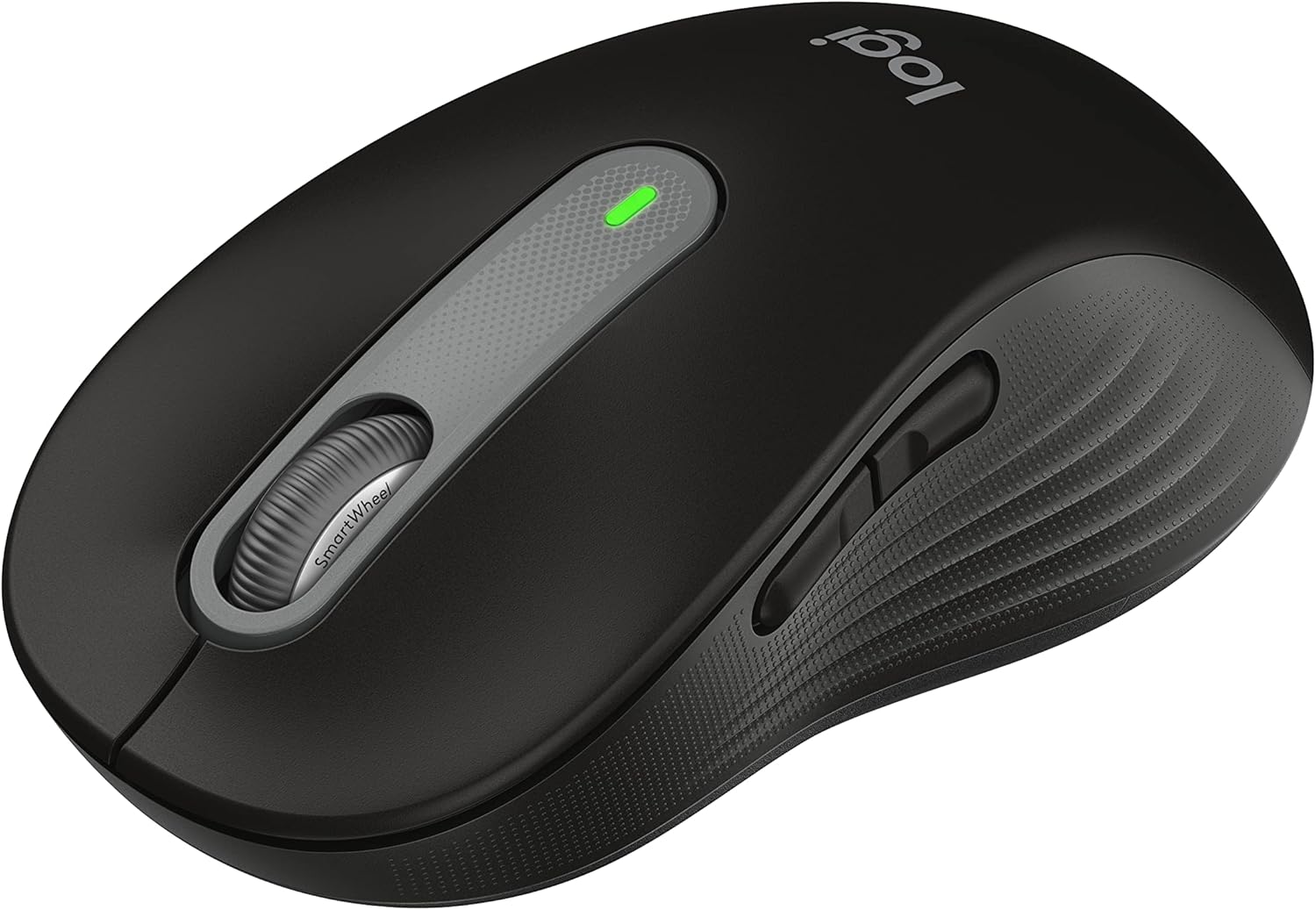
Pros
- SmartWheel flicks between line-by-line precision scrolling and fast free-spin scrolling for long pages
- Connects via Bluetooth Low Energy or the included USB receiver, covering two connection types
- SilentTouch technology cuts click noise by roughly 90% compared to a standard mechanical click
- Runs up to 24 months on a single AA battery, included in the box
- Side buttons are remappable through companion software for shortcuts like back/forward or copy/paste
Cons
- Sized for larger hands only — no dedicated version for small or medium hands in this listing
- Requires free companion software to customize buttons; out of the box, side buttons default to browser back/forward
- Uses a single AA battery rather than a built-in rechargeable cell, so battery swaps are part of the maintenance routine
A SmartWheel on top of the mouse switches scroll behavior with a flick: notched, line-by-line movement for careful work in spreadsheets or documents, or a fast free-spin mode that races down long web pages and feeds with a single spin. Two customizable side buttons sit within thumb's reach and can be remapped through companion software to shortcuts such as copy, paste, or browser navigation.
SilentTouch technology quiets the primary click by around 90 percent compared to a standard mouse click, useful in shared offices, calls, or late-night work sessions where clicking noise would otherwise carry.
- SmartWheel: precision or free-spin scrolling
- 2 customizable side buttons
- ~90% quieter primary clicks
The M650 L connects two ways: Bluetooth Low Energy for a cable-free pairing straight to a laptop or tablet, or an included USB receiver for a more consistent wireless link on a desktop. Either connection works across Windows, macOS, Linux, ChromeOS, iPadOS, and Android, and it carries Works with Chromebook certification.
A single AA battery, included at purchase, powers the mouse for up to 24 months of typical use, so there's no built-in cell to degrade over years of charge cycles — just a battery swap when it eventually runs low.
- Bluetooth LE or included USB receiver
- Cross-platform: Windows, macOS, Linux, ChromeOS, iPadOS, Android
- Up to 24 months on one AA battery
The L designation means this is the large-hand version of the Signature M650 line, shaped with a contoured body, a soft thumb rest, and rubber side grips meant to hold a larger hand comfortably through a full workday. A smaller version sized for small-to-medium hands is also sold, so it's worth checking hand size against both models before choosing.
This mouse suits office and home-office users who want quiet clicks and flexible scrolling more than gaming-grade sensor speed or RGB lighting — it's built for everyday productivity rather than competitive play. Plastic components include a share of certified post-consumer recycled material.
- Shaped for larger hands specifically
- Built for office/productivity use, not gaming
- Contains recycled plastic content

Pros
- 57-degree vertical angle is designed to promote a more natural forearm posture than a flat mouse
- Battery life reaches up to 2 years on a single set, reducing how often batteries need replacing
- 4 of 6 buttons are customizable, allowing shortcuts to be reassigned for different workflows
- Dual connectivity via Bluetooth Low Energy or the included USB receiver covers different setup needs
- Plastic components include certified recycled content, up to 70% in the Graphite colorway
Cons
- Sized for small to medium right hands only, so larger hands or left-handed users are not accommodated by this model
- SmartWheel scrolling and button customization require installing Logitech's software rather than working purely out of the box
- Vertical shape has a learning curve for users accustomed to a traditional flat mouse grip
The Lift mouse holds a 57-degree vertical angle, positioning the hand in a handshake-like grip rather than the flat, pronated position of a standard mouse, which the design aims to make more comfortable for the wrist and forearm over a full workday. A softly textured grip and a snug thumb rest are built into the body to support the hand without requiring constant tension to hold the shape.
This shape and sizing are built specifically for small to medium right hands, so it may not suit larger hands or left-handed users looking for a mirrored design. The vertical shape also represents a shift from a traditional mouse grip, so some adjustment period is expected for users switching from a flat mouse for the first time.
Connection options include Bluetooth Low Energy or the included USB-A receiver, working across Windows, macOS, iPadOS, Chrome OS, and Linux, so the same mouse can pair with multiple device types without separate drivers. Whisper-quiet clicks are built into the button mechanism, useful in shared offices or calls where a loud mouse click could be distracting.
Battery life reaches up to 2 years on a single charge or battery set, reducing how often the mouse needs attention compared to devices requiring frequent recharging. That long battery life pairs with the wireless connection options to keep the desk setup relatively cable-free, aside from the small USB receiver if Bluetooth pairing is not used.
Of the mouse's six buttons, four are customizable, letting shortcuts, application launches, or scroll behavior be reassigned through Logitech's companion software to match different workflows, whether for general office work, design tasks, or coding. A SmartWheel provides smooth, seamless scrolling, adding another point of customization for how quickly or precisely a page scrolls.
Because full customization depends on installing the companion software, the mouse works as a basic pointing device out of the box, but unlocking the reassignable buttons and scroll behavior requires that extra setup step. The Ergo-certified design reflects testing against criteria set by outside ergonomists, a detail relevant for buyers specifically prioritizing repetitive strain considerations in their equipment choice.

Pros
- Single AA battery is rated for up to 24 months of use before a replacement is needed
- A cross-computer control feature moves the cursor, text, and files across up to 3 paired computers with one mouse
- Hyper-fast scroll wheel includes an instant-stop feature plus a toggle to click-to-click mode for precise line-by-line scrolling
- 6 customizable buttons can be remapped to shortcuts through companion software
- Buttons are rated to withstand up to 10 million clicks over the mouse's lifespan
Cons
- Sculpted body is shaped specifically for right-hand use, so it is not suited to left-handed grip
- Uses a single AA battery rather than a built-in rechargeable cell, so a spare battery is worth keeping on hand
- The included USB receiver pairs easily with Windows and Mac, but other systems may need Bluetooth pairing instead
The mouse connects either through Bluetooth or an included USB wireless receiver, and supports pairing with up to 3 devices at once. A cross-computer control feature extends this further, letting the cursor, text, and files move seamlessly between up to 3 connected computers just by moving the mouse to the edge of one screen.
- Dual connectivity covers both Bluetooth and a dedicated USB receiver
- One receiver can also connect up to 6 compatible wireless peripherals total
- Cross-computer control enables copy-paste and cursor movement across multiple computers
- Compatible with Windows, macOS, Chrome OS, Linux, and iPadOS
A single AA battery powers the mouse for up to 24 months, reducing how often batteries need swapping compared to mice that need charging every few weeks. The sculpted body is shaped specifically for a right-hand palm-rest grip, aimed at reducing wrist strain during long sessions.
- 24-month rated battery life covers most of a year of typical daily use
- Sculpted, rubberized body is built for right-hand comfort specifically
- Hyper-fast scroll wheel includes an instant-stop feature for precise stopping
- A click-to-click toggle switches the scroll wheel to a notched, line-by-line mode when needed
Six buttons on the mouse can be remapped through companion software to assign custom shortcuts, useful for anyone who wants quick access to specific commands without reaching for the keyboard. The switches under those buttons are rated to withstand up to 10 million clicks.
- 6 customizable buttons allow assigning shortcuts specific to different workflows
- Switches are built to withstand up to 10 million clicks for long-term durability
- Companion software centralizes button mapping and device pairing settings
- Right-hand-only shape means left-handed users may find the grip less comfortable
What Makes the Best Mouse for Productivity?
A productivity mouse is judged by comfort over hours, not flashy specs. Look past marketing numbers and focus on how a mouse behaves during a normal workday. Here’s what actually moves the needle for office work, writing, spreadsheets, and design tasks.
- Sensor precision: DPI (dots per inch) measures how far the cursor moves per inch of physical movement. You don’t need extreme DPI for work, but tracking should stay smooth on glass, wood, or fabric desks.
- Ergonomic shape: A relaxed grip reduces wrist fatigue during long sessions, especially if you sit for eight hours a day.
- Programmable buttons: Extra buttons for back/forward, app switching, or scroll speed save dozens of clicks daily.
- Multi-device pairing: Many remote workers switch between a laptop and desktop, so quick device swapping matters.
- Battery life and charging: A mouse that dies mid-meeting is worse than no mouse at all.
Keep these criteria in mind as you compare the picks below. The right choice depends on your hand size, desk setup, and how many devices you use daily.
Top Picks for Power Users and Multitaskers
If you regularly juggle multiple monitors or move files between a work laptop and a personal desktop, this category deserves your attention first. The Logitech MX Master 3S leads the pack with an 8K DPI sensor, near-silent clicks, and scrolling that shifts from ratcheted to free-spin automatically. Its cross-computer control lets you copy text on one machine and paste it on another, which is a genuine time-saver for anyone running two setups.
The earlier Logitech MX Master 2S is still worth checking the current price on Amazon if you want the same flow features at a lower cost. It trades the newest sensor generation for a proven design that thousands of reviewers still rely on daily. Both models pair with Windows, Mac, and Linux, which matters if your office runs a mixed environment. If you already own the older model, the upgrade mainly buys you quieter clicks and a slightly sharper sensor rather than a completely different experience.
Neither of these mice suits players who need instant, twitch-speed clicks for competitive games. If gaming is your main use case, a dedicated gaming-focused mouse with a lighter shell will serve you better than any productivity-focused model on this list.
Best Ergonomic Options for All-Day Comfort
Wrist and forearm strain build up quietly, then show up as pain weeks later. Ergonomic mice change your hand angle to reduce that pressure, and a few designs here take very different approaches to solving it.
The Logitech Ergo M575S is a trackball mouse, meaning you move a ball with your thumb instead of sliding the whole device. That keeps your wrist stationary, which helps if you already feel soreness by mid-afternoon. It takes a few days to adjust, so give it a fair trial before judging it based on your first hour.
For a vertical grip that angles your hand into a more natural handshake position, the Logitech Lift is worth checking the current price on Amazon. Its compact size also suits smaller hands better than bulkier vertical mice on the market. If ergonomic comfort is your top priority, browse our full ergonomic mouse roundup for more shapes and sizes beyond this list.
The Philips ergonomic pick in our list rounds out this category with a quieter click and side-scroll wheel, a nice touch for shared offices where noise matters. It’s a solid entry point if a trackball or vertical shape feels like too big a jump from a standard mouse.
Budget-Friendly Picks That Still Boost Productivity
Not everyone needs premium features to work faster. Several models here deliver solid daily performance well under the price of flagship options, without feeling like a compromise for everyday tasks.
The Logitech M510 has stuck around for years because it simply works, with a long battery life and a shape that suits most hand sizes. The Logitech Signature M650 L adds quieter clicks and a larger body for bigger hands, making it a comfortable full-size option for desks with room to spare.
If you split time between a laptop, tablet, and desktop, the Logitech M720 Triathlon lets you switch between three paired devices with one button press. It’s a practical pick for hybrid workers who move between rooms or offices during the day. None of these three match the sensor precision of the MX Master line, but for everyday clicking, scrolling, and browsing, that gap rarely matters in practice.
Matching a Mouse to Your Grip Style
How you rest your hand on a mouse affects comfort as much as the mouse itself. Most people fall into one of three grip styles, and knowing yours narrows down the field quickly.
- Palm grip: Your whole hand rests on the mouse. Larger, full-size mice like the Signature M650 L or MX Master series feel most natural here.
- Claw grip: Your fingertips arch and only the palm’s base touches the mouse. Mid-size shapes work best, since bulky mice feel awkward under an arched hand.
- Fingertip grip: Only your fingertips touch the mouse, with your palm hovering above it. Lighter, smaller mice suit this style better than the larger ergonomic picks here.
If you’re unsure which grip you use, place your hand on your current mouse and notice where contact happens. That quick check often explains why a “great” mouse never quite felt right for you.
Ambidextrous Alternatives Worth Knowing
Most mice in this guide are shaped for right-handed use, which is worth flagging upfront. If you’re left-handed or simply prefer a symmetrical shape, none of today’s picks will fit as well as a dedicated ambidextrous mouse built for either hand. Being upfront about this gap matters, because the wrong shape can undo any productivity gains a feature list promises on paper.
Common Mistakes to Avoid When Buying a Productivity Mouse
A few recurring mistakes show up when people shop for a work mouse, and most are easy to avoid once you know them.
- Buying a gaming mouse for office work: Extreme DPI and RGB lighting rarely translate into faster spreadsheet work, and the lighter shells often skip ergonomic support entirely.
- Skipping the multi-device check: Not every mouse pairs with more than one computer, so confirm this before buying if you switch machines often during the week.
- Ignoring hand size: A mouse that fits a small hand can feel cramped for larger palms, and vice versa, no matter how good the reviews look.
- Overlooking software requirements: Some programmable buttons only work fully once you install the manufacturer’s companion app on every device you use.
- Forgetting about surface compatibility: Glass or glossy desks can confuse older optical sensors, so check reviews for tracking notes before you decide.
How to Match a Mouse to Your Workflow
Instead of chasing the single “best” mouse, match your pick to how you actually work. That approach holds up far better over months of daily use than picking whatever ranks highest.
- Multi-monitor power users: Look at the MX Master 3S or MX Master 2S for cross-computer flow and precise scrolling between screens.
- Wrist pain or long typing sessions: The Ergo M575S trackball or Logitech Lift reduce repetitive wrist movement throughout the day.
- Tight budget: The M510 or Signature M650 L cover the basics without extra cost or unnecessary features.
- Frequent device switching: The M720 Triathlon and MX Master series both support fast multi-device pairing with one click.
- Shared or quiet office: Models with quiet clicks, like the MX Master 3S and Philips pick, cut down on noise around coworkers.
If you’re also rethinking your full desk setup, our wireless mouse guide covers additional models beyond this productivity-focused list.
Frequently Asked Questions
What’s the difference between a productivity mouse and a gaming mouse?
Gaming mice prioritize raw sensor speed and click response for competitive play. Productivity mice focus on comfort, multi-device support, and programmable shortcuts for daily office tasks instead.
Is a wireless mouse better for productivity than a wired one?
Wireless mice reduce desk clutter and let you switch positions more freely. Most models on this list also offer battery life measured in weeks, so charging rarely interrupts your day.
Do ergonomic mice actually reduce wrist pain?
They can help by changing your hand angle or removing the need to slide the whole device. Results vary by person, so give any ergonomic mouse a week or two before deciding if it helps you.
How many buttons do I really need on a productivity mouse?
Most people benefit from back/forward buttons and a clickable scroll wheel at minimum. Extra buttons help most if you’re willing to set up custom shortcuts in the companion software.
Can one mouse work across multiple computers?
Yes, several models here, including the MX Master series and the M720 Triathlon, support pairing with up to three devices. Switching usually takes one button press or a quick software toggle.
Whichever model you choose, prioritize the way it feels in your hand over any single spec on paper. Compare specs and availability for your top two or three picks, then let the one that fits your daily workflow win.






Comments are closed.
No reviews yet. Be the first to share your experience!