 Priya Raghavan
 Dead zones, buffering video calls, and a router that just cannot reach the back bedroom are frustrations most modern homes share. As we fill our spaces with phones, laptops, smart TVs, cameras, and dozens of smart home gadgets, a single traditional router often struggles to keep up. That is exactly why the best mesh network systems have become the go-to upgrade for reliable, whole-home coverage. Instead of one box fighting to blanket every room, a mesh system uses several units that work together as one seamless network, handing your devices off smoothly as you move around.
This guide walks you through how mesh WiFi works, the features that actually matter, and how to match a system to your home size, internet speed, and budget. Rather than ranking products one by one, we will focus on helping you choose confidently so you end up with the right setup the first time.

Pros
- Covers up to 5,500 square feet using 3 mesh units working together
- Single network name keeps devices connected while roaming between rooms
- Each unit includes 2 Gigabit Ethernet ports, 6 total across the 3-pack
- Adaptive routing automatically selects the best path for each connected device
- Includes a free lifetime HomeCare subscription with antivirus and parental controls
Cons
- Uses Wi-Fi 5 (802.11ac) rather than the newer Wi-Fi 6 standard
- Requires the TP-Link Deco app for setup and most configuration changes
- Ethernet backhaul needs wired connections between units for maximum throughput, otherwise relying on wireless backhaul
Three Deco M5 units work together to cover up to 5,500 square feet, replacing a traditional router and extender setup with a single mesh network. Adaptive Routing technology automatically selects the best path for each connected device, aiming to maintain stable connections for over 100 devices across a home.
- Coverage: Up to 5,500 sq. ft. with 3 units.
- Device support: Rated for 100+ connected devices.
- Network: Single Wi-Fi name for seamless roaming.
- Wi-Fi standard: 802.11ac (Wi-Fi 5).
Additional Deco units can be added later to extend coverage further without creating a separate network name to manage.
Setup runs through the TP-Link Deco app, guiding you through plugging in each unit and connecting them into one network within minutes. Each Deco M5 unit includes 2 Gigabit Ethernet ports, for 6 total across the 3-pack, supporting wired backhaul between units for more consistent throughput than wireless-only mesh connections.
- Setup method: Guided steps through the TP-Link Deco app.
- Ethernet ports: 2 Gigabit ports per unit, 6 total.
- Backhaul: Supports wired Ethernet backhaul between units.
- Voice control: Works with Alexa for network commands.
Any unit in the set can function as the main router, so placement flexibility doesn't depend on which box is labeled first.
A free lifetime HomeCare subscription bundles antivirus protection, parental controls, and Quality of Service tools for managing bandwidth across devices. The system works as a full router replacement, so it connects directly to an existing modem regardless of ISP, rather than requiring a specific provider's equipment.
- Security suite: Antivirus and parental controls included.
- QoS tools: Bandwidth prioritization across devices.
- ISP compatibility: Works as a router replacement with most modems.
Because it replaces the router entirely, confirm your ISP allows customer-owned routers before replacing rental equipment with this system.

Pros
- Three units combine to blanket homes up to 5,500 square feet under a single network name
- AC1900 3x3 dual-band radios support up to 100 connected devices
- Each unit carries 2 Gigabit Ethernet ports, 6 across the pack, and any one can act as the router
- Wired Ethernet backhaul is supported, so a Cat 5e run between floors frees the radios for clients
- Per-person profiles cap online time and block sites by category
Cons
- Wi-Fi 5 hardware, so Wi-Fi 6 phones and laptops gain none of the OFDMA benefits
- Two Ethernet ports per unit, and the main node loses one to the modem, leaving a single free socket there
- No USB port, so a shared drive or printer has to hang off something else
Three nodes are quoted to cover up to 5,500 square feet, which in practice means a three-storey house or a long single-level layout where one router leaves dead corners. Each unit is a 3x3 AC1900 dual-band radio, and clients hand off between them under one network name and one password.
- Up to 100 devices across the mesh, covering phones, laptops, TVs and smart plugs
- Wireless backhaul costs bandwidth, so nodes should sit within clear reach of each other
- Wired Ethernet backhaul restores full radio capacity for client devices
Throughput at the furthest node depends almost entirely on how that node reaches the main unit. Running a cable between floors is the single biggest improvement you can make to a mesh of this kind.
Setup runs entirely from the phone app on Android or iOS. Plug the first node into the modem with the supplied Ethernet lead, follow the prompts to name the network, then power up the remaining two units and let them join automatically.
- The whole process usually takes under fifteen minutes for three nodes
- An app account is required, so an internet connection is needed during setup
- Parental profiles are built per family member, with time limits and site categories
- Guest network can be toggled by Alexa voice command once linked
Because configuration lives in the app rather than a web page, there is no browser-based admin interface. That keeps things simple, but anyone used to editing settings from a desktop browser will need the phone to hand for every change.
The main node replaces a router but not a modem. Cable, fibre and DSL households keep the existing modem or ONT and connect it to one of the node's Gigabit ports. If your provider supplied a combined modem-router, put that unit into bridge or modem mode first to avoid a double NAT.
- 2 Gigabit Ethernet ports per node, 6 across the three-pack
- The main node gives one port to the modem, leaving one free socket at that location
- PPPoE, dynamic and static IP setups are all handled from the app
Gigabit is the ceiling on every port, so a multi-gigabit incoming line will be capped by the hardware. For lines at or below 1 Gbps, the ports are not the bottleneck.

Pros
- Three units cover up to 4,500 sq ft, enough for a three-storey house or a wide single-level layout
- Wi-Fi 6 handles 75 or more connected devices without the airtime contention older standards hit
- Doubles as a Zigbee smart home hub, so compatible bulbs and plugs join without a separate bridge
- Guided app setup with free seven-day US phone and email support during the first weeks
- Automatic firmware updates and cross-compatibility with later eero hardware, so the system can be extended rather than replaced
Cons
- Supports internet plans only up to 500 Mbps, so a gigabit fibre line is halved by the router itself
- The two extenders have no Ethernet ports at all, so a wired console or desktop in a back room still needs a switch or a powerline adapter
- Dual-band with no dedicated backhaul radio, meaning each wireless hop shares airtime with clients and roughly halves throughput
The three-pack is rated at up to 4,500 sq ft, which in practice means one gateway plus two extenders placed so that each unit still hears the previous one clearly.
- Put the gateway where the internet line enters, then place extenders roughly two thirds of the way toward the dead spot rather than inside it
- Thick masonry, foil-backed insulation and wet rooms cut range far more than the square footage figure suggests
- Because there is no dedicated backhaul radio, a device connected through an extender shares that radio with the link back to the gateway, so speed drops with each hop
A three-storey house usually wants one unit per floor. A long single-storey layout does better with the units in a line than clustered in the middle, since mesh only helps where the units can hear each other.
Setup runs entirely through the eero app and takes about ten minutes for the gateway plus a couple of minutes per extender.
- Plug the gateway into the modem by Ethernet, create or sign in to an eero account, and let the app find the unit over Bluetooth
- Add extenders one at a time, checking the app placement test before committing to a socket
- The system publishes a single network name across both bands, which is what makes roaming seamless but also what breaks 2.4 GHz-only smart devices during pairing
- Firmware updates install automatically overnight, so there is no maintenance routine
Zigbee support is built into the gateway, so compatible bulbs, sensors and plugs pair through Alexa without a separate hub. Advanced controls such as content filtering and network security sit behind the paid eero subscription tier.
The important number is the 500 Mbps plan ceiling. This is a hardware limit, not a licence, and it is the main reason to consider a newer eero instead.
- Fits well with cable, DSL and fibre plans up to 500 Mbps, which covers most household packages
- On a gigabit plan the eero 6 becomes the bottleneck; a Pro or a Wi-Fi 6E model is the correct match there
- It needs a separate modem or an ONT; it is a router and mesh system, not a modem, so an all-in-one ISP box has to be put into bridge or modem-only mode
- Leaving the ISP router in routing mode creates double NAT, which breaks port forwarding and some game consoles
Ask the ISP for bridge mode before installation day and the setup goes cleanly.

Pros
- A single point is specified for up to 1,500 sq ft, and three points extend the same network to 4,500 sq ft
- AC1200 dual-band radios, with clients steered between 2.4 and 5 GHz automatically
- Setup runs from the Google Home app in a few steps with no web console to configure
- Parental controls pause the network for a named device or block explicit content
- Joins an existing Nest Wifi network as another point rather than needing a matched set
Cons
- Wi-Fi 5 hardware, so there is no Wi-Fi 6 OFDMA or WPA3 support for newer clients
- Two gigabit Ethernet ports per unit, one of which becomes the WAN uplink, leaving a single wired port
- Administration is app-only through a Google account, with no local web interface and no USB port for a drive or printer
A single point is specified for up to 1,500 square feet, which suits a flat or a compact two-bedroom house. Adding points extends the same network rather than creating a second one, and three points together reach roughly 4,500 square feet.
- AC1200 dual-band radios, with the system steering clients between 2.4 and 5 GHz automatically.
- Points talk to each other wirelessly, or over Ethernet if you can run a cable between them.
- Devices hand off between points as you move, keeping one network name throughout the house.
Coverage figures assume open-plan space. Solid masonry, foil-backed insulation and long narrow layouts all eat into them, and a house with thick internal walls needs points closer together than the square footage alone suggests. One point per floor is a sensible starting rule.
Setup runs entirely through the Google Home app. You scan a code on the underside of the unit, connect it to the modem with the supplied Ethernet lead, name the network and set a password. There is no web-based admin console and no configuration file to edit.
- Each point has two gigabit Ethernet ports; on the primary unit one becomes the WAN uplink.
- Additional points join by scanning their own code, then sit roughly halfway toward the dead spot.
- Firmware updates arrive automatically rather than needing manual downloads.
Because management ties to a Google account, that account becomes the key to the network: guest access, device pausing and parental controls all live inside the app. Anyone who prefers a local administration page with manual firmware control should know that before committing.
This replaces a router but not a modem. If your provider supplied a combined modem and router box, the usual approach is to put that unit into bridge or modem-only mode and let the mesh handle routing, DHCP and Wi-Fi from there.
- Fibre and cable connections both work, provided the provider box can pass a single Ethernet handoff.
- Some providers require their own equipment for television services, which then sits alongside rather than behind the mesh.
- Static addressing, port forwarding and reserved addresses are all handled inside the app.
Bear in mind this is Wi-Fi 5 hardware. Clients that support Wi-Fi 6 connect happily, they simply fall back to the older standard, so a house full of newer phones and laptops will not see the airtime efficiency a Wi-Fi 6 mesh would deliver.
Pros
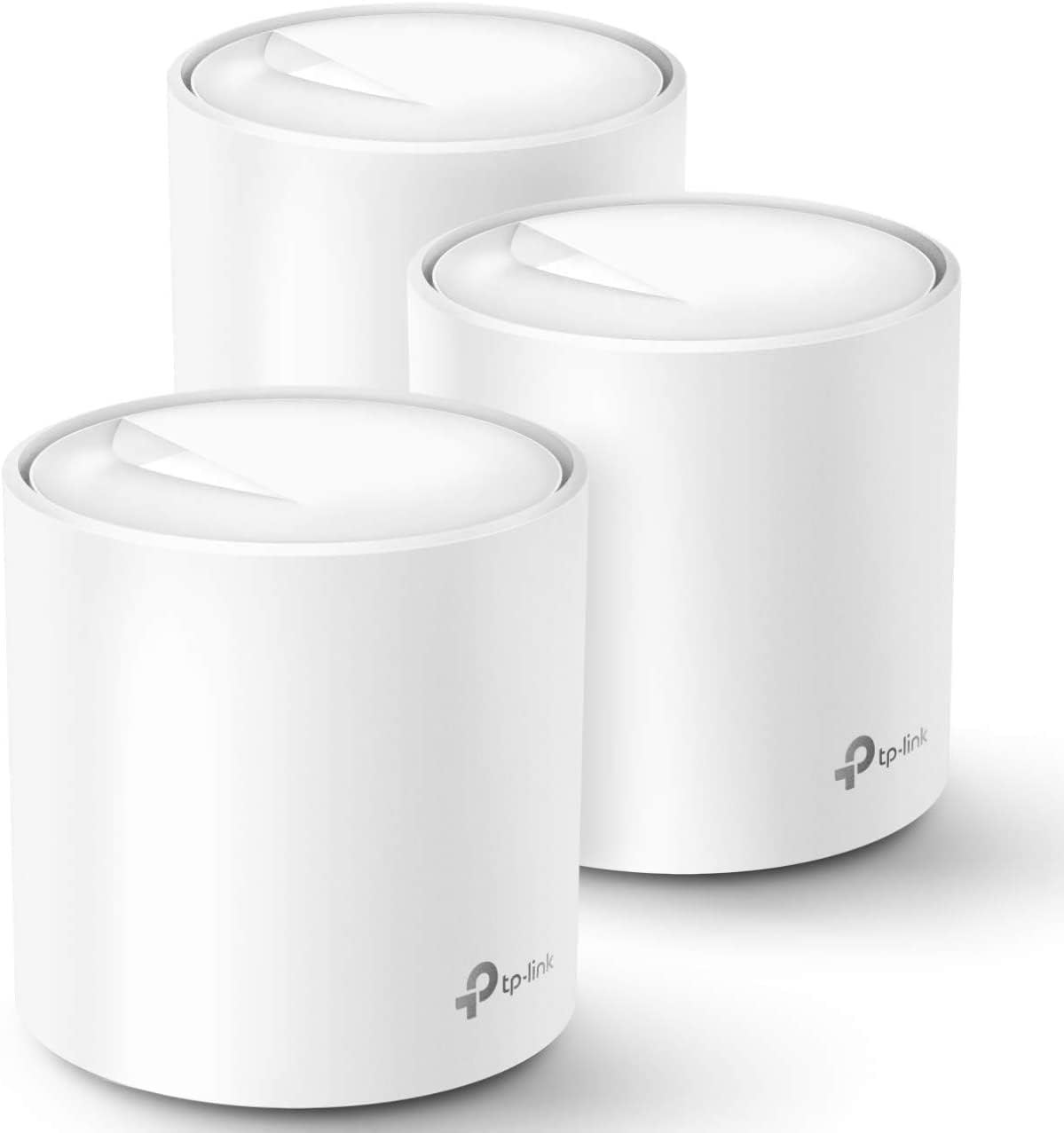
- Three identical units cover a quoted 5800 square feet, and any one of them can act as the router
- AX1800 Wi-Fi 6 with OFDMA and BSS colouring handles dense device loads better than Wi-Fi 5
- Tested for up to 150 simultaneous clients across phones, plugs, cameras and TVs
- Two gigabit Ethernet ports on every unit, six across the pack, with wired backhaul supported
- One SSID with automatic handoff, so devices switch nodes as you walk through the house
Cons
- Dual-band only, so wireless backhaul shares the same 5GHz band that clients use unless you run Ethernet
- Gigabit Ethernet ports cap any incoming connection faster than 1 Gbps
- A separate modem or ONT from the provider is still required, and HomeShield reserves advanced features for a subscription
Three identical units cover a quoted 5800 square feet, and because any of them can act as the router, the pack suits houses where the incoming line lands in an awkward corner. Wi-Fi 6 at AX1800 adds OFDMA and BSS colouring, which matter less for peak speed than for how the network behaves when thirty or forty things talk at once: phones, doorbells, plugs and TVs get served within the same airtime slot instead of queuing behind each other. TP-Link tests the system to 150 connected devices.
- Up to 5800 square feet with the three-unit pack
- AX1800 dual-band Wi-Fi 6 with beamforming
- Tested for up to 150 simultaneous client devices
Setup runs entirely in the Deco app on iOS 9.0 or Android 4.4 and later. You connect the first unit to the modem, then place the others around the house and let them join automatically. All three share one network name, and clients hand off to the nearest node as you move, so there is no manual switching between an upstairs and a downstairs SSID mid-call. Profiles group devices per family member with schedules and content filters, and Alexa voice commands can toggle the guest network on or off.
- One SSID across all three units with seamless handoff
- Per-person profiles carrying time limits and content filters
- Wired Ethernet backhaul supported for faster links between nodes
The system replaces a router and any extenders, but not the modem: cable, fibre and DSL customers keep the provider box and either bridge it or run the main unit behind it. TP-Link lists compatibility with AT&T, Verizon, Xfinity, Spectrum, Cox, CenturyLink, Frontier and RCN, covering most North American providers. Each unit carries two gigabit Ethernet ports, six across the pack, one of which the modem consumes on the primary node, leaving five for wired gear or backhaul runs between floors.
- Requires an existing modem or ONT from the provider
- Two gigabit Ethernet ports per unit, six across the pack
- HomeShield includes free basic scanning, with advanced tiers by subscription
Pros
- Dual-band Wi-Fi 7 supports multi-link operation (MLO) for more stable connections across bands
- Two auto-sensing 2.5GbE ports per unit support internet plans up to 2.5 Gbps
- 3-pack covers up to 6,000 sq ft and supports over 120 connected devices on one mesh network
- TrueMesh software with TrueRoam and TrueChannel automatically steers devices to the strongest available connection
- Backward compatible with earlier eero generations, useful for mixed-generation mesh expansions
Cons
- Advanced security, ad blocking, parental controls and VPN access all require a separate eero Plus subscription
- Wireless speeds top out at 1.8 Gbps, below the wired 2.5 Gbps port capability
- A Matter or Thread hub is not included, so devices needing those protocols require additional hardware
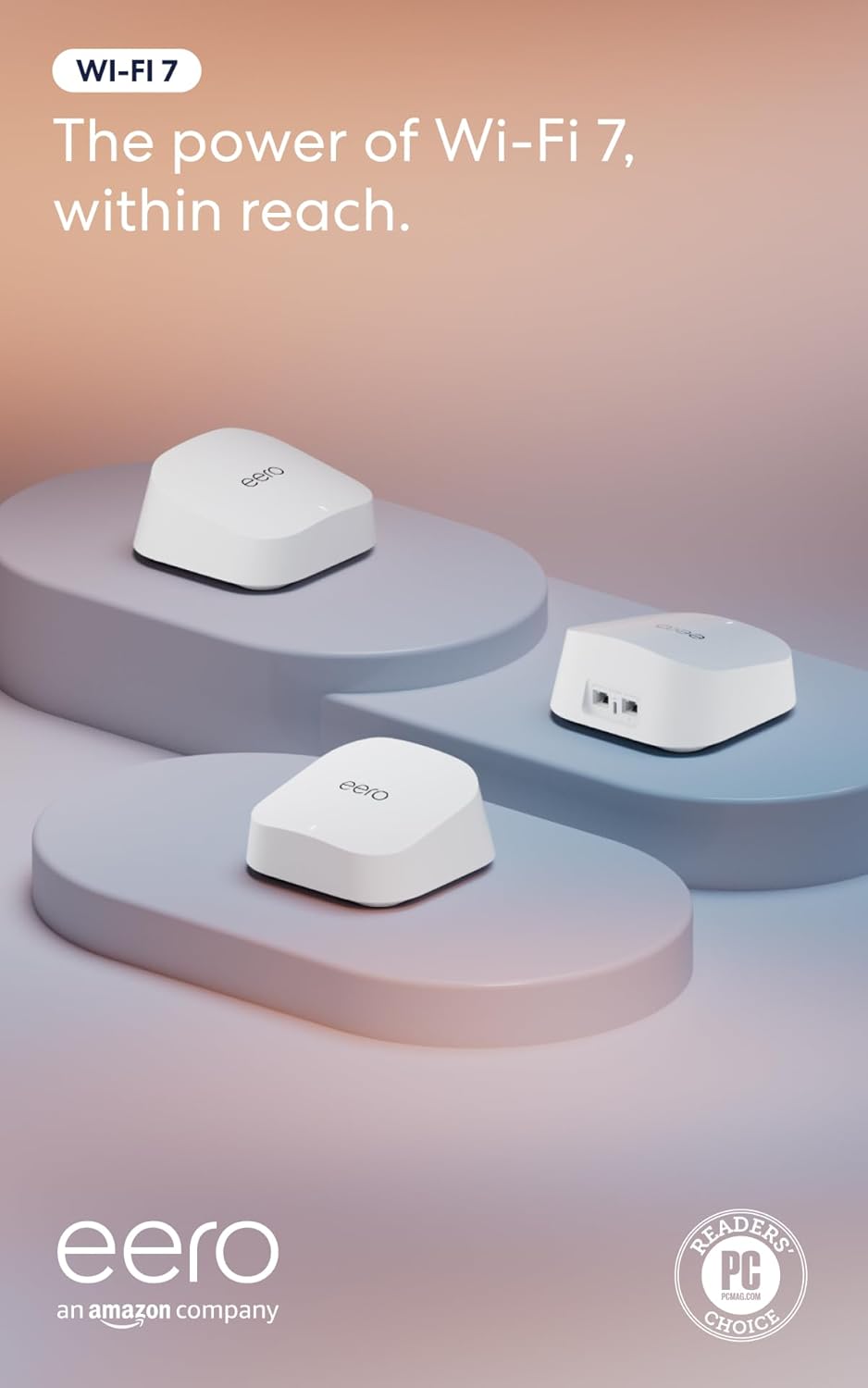
The 3-pack is built to blanket larger homes, combining Wi-Fi 7 wireless speeds with wired backhaul options on each unit.
- Coverage is rated up to 6,000 sq ft across the full 3-pack of units
- Each unit includes two auto-sensing 2.5GbE ports, supporting internet plans up to 2.5 Gbps
- Wireless speeds reach up to 1.8 Gbps, with multi-link operation (MLO) helping devices stay connected to the best available band
- The mesh network is rated to support more than 120 connected devices simultaneously across the 3-pack
That combination of wired port speed and mesh coverage targets larger households running many connected devices at once.
Setup runs through the eero app, which walks through placing and connecting each of the 3 units into a single mesh network.
- TrueMesh software, along with TrueRoam and TrueChannel features, automatically shifts devices between units and channels for the strongest signal
- The system is backward compatible with previous eero generations, allowing mixed hardware in an existing mesh setup
- eero Built-in support on select Amazon Echo devices lets certain Echo speakers double as mesh extenders
- Basic setup and network management do not require a subscription, though advanced monitoring options exist as an add-on
Because setup and roaming are automated, most households will not need to manually manage which unit a device connects to.
Core routing, coverage and mesh features work without any subscription, but an optional eero Plus plan unlocks a further layer of network tools.
- eero Plus adds Advanced Security, ad blocking, parental controls, Malwarebytes protection, 1Password and a VPN powered by Guardian
- The base hardware includes a 3-year warranty along with access to a dedicated support team for setup issues
- Households that only need basic Wi-Fi 7 coverage and mesh roaming can skip the subscription entirely
- Devices requiring Matter or Thread connectivity need a separate compatible hub, since one is not bundled with this router
Deciding whether to add eero Plus mostly comes down to whether the household wants the extra security and parental control layer beyond basic Wi-Fi coverage.

Pros
- Three units cover up to 6,500 square feet and support up to 150 simultaneously connected devices
- AX3000 splits as 2402 Mbps on 5 GHz with HE160 support plus 574 Mbps on 2.4 GHz
- Nine Gigabit Ethernet ports in total, three per unit, and any unit can serve as the main router
- Wired Ethernet backhaul is supported, which frees the 5 GHz band from carrying node-to-node traffic
- Backed by a 2-year warranty with 24/7 support, a year longer than most networking brands offer
Cons
- The WAN port is Gigabit, so a 2 Gbps or faster fibre plan cannot be used at its full speed
- Dual-band only, with no dedicated backhaul radio, so wireless backhaul shares 5 GHz with your devices
- Full HomeShield parental controls and security features move to a paid subscription after the free tier
The rated figure is 6,500 square feet from three units, which is a manufacturer's best case on an open floor plan. In a real house with brick walls and a chimney breast, plan on a unit per floor plus one for whichever corner currently drops out.
- Three units suits a typical three-storey house or a large single-level spread
- Up to 150 devices supported, which covers a household full of smart plugs, cameras and phones
- AI-driven mesh learns the environment and steers clients between units
- More units can be added later, and all Deco models work together on one network
Placement beats specification here. Each node needs a solid link back to the next, so putting the second unit halfway to the dead zone rather than inside it is what actually fixes coverage.
Setup runs entirely through the Deco app, with visual guidance at each step. The realistic time from box to working network is fifteen to twenty minutes for the whole three-unit set.
- Connect the first unit to your existing modem by Ethernet and power it on
- The app finds it over Bluetooth and walks through naming the network and setting a password
- Additional units are added one at a time and adopt the same network name automatically
- Existing router should be put into modem or bridge mode to avoid double NAT
- Remote management works from the app when you are away from home
If your ISP supplied a combined modem and router, leaving it in router mode creates a double NAT that breaks port forwarding and some games. Switching it to bridge mode is the step most worth doing properly.
This replaces the router but not the modem. Cable, fibre and DSL connections all need the ISP's modem or ONT in front of it, connected to one Ethernet port on the main unit.
- Best suited to broadband plans up to 1 Gbps, which the Gigabit WAN port matches exactly
- Plans above 1 Gbps will be capped, since there is no multi-gig port on this model
- Ethernet backhaul between units is supported wherever you have existing wall cabling
- Powerline or MoCA adapters can carry backhaul where running cable is impractical
- Each unit's spare Gigabit ports can serve a TV, console or desktop directly
The wired backhaul option is the single biggest performance upgrade available here, and it costs nothing if the cabling already exists.

Pros
- Covers up to 4,500 square feet using the 3-pack, suited to larger homes needing more than one access point
- Connects more than 75 devices simultaneously across the mesh network
- Supports internet plans up to a full Gigabit in speed
- 160MHz radio channel bandwidth on the 5GHz band adds headroom for multiple simultaneous video calls and streams
- TrueMesh technology routes traffic dynamically to reduce dead spots between the 3 units
Cons
- Advanced security and network management features require a separate ongoing subscription beyond the base hardware
- Built-in smart home hub functionality needs compatible smart home devices to be useful, and is not a substitute for a dedicated hub in every home
- A 3-pack covers more area than a small apartment needs, so smaller spaces may only require a single unit from a different eero package
This 3-pack of eero 6+ units is rated to cover up to 4,500 square feet and connect more than 75 devices at once, built on the WiFi 6 standard with 160MHz channel bandwidth for added throughput headroom. Internet plans up to a full Gigabit are supported.
- Coverage up to 4,500 sq. ft. with 3 units
- Connects 75+ devices simultaneously
- WiFi 6 with 160MHz channel bandwidth
- Supports internet plans up to 1 Gigabit
TrueMesh technology routes traffic across the 3 units dynamically, aiming to reduce dead spots and dropped connections as devices move between rooms covered by different units.
The eero app guides setup from placing the first unit through adding the remaining 2 units to the mesh, and the same app manages the network remotely once everything is connected.
- App-guided setup for all 3 units
- Remote network management through the eero app
- Automatic software updates for ongoing security
- Backward compatible with previous-generation eero devices
Because setup and management both run through the eero app rather than a separate web interface, most network changes, including adding devices or checking a family member's connection, happen from a phone.
The system works with any internet plan up to a Gigabit in speed and is backward compatible with earlier-generation eero hardware, so a household upgrading from an older eero setup can mix in these units.
- Compatible with internet plans up to 1 Gigabit
- Backward compatible with previous eero devices
- Built-in smart home hub for compatible connected devices
A built-in smart home hub inside each unit adds a connection point for compatible smart home devices, though households with an existing dedicated smart home hub may not need this extra function.

Pros
- Two nodes are specified for up to 5,500 sq ft, which typically means one per floor in a two-storey home
- One 2.5 Gbps WAN/LAN port per unit, so multi-gig plans up to 2.5 Gbps are not capped at the router
- Tri-band totals 5,400 Mbps: 2402 Mbps on 6 GHz, 2402 Mbps on 5 GHz and 574 Mbps on 2.4 GHz
- The 6 GHz band runs as a dedicated backhaul by default, keeping node traffic off client airtime
- Two Gigabit LAN ports per unit for wired consoles, a NAS or a TV
Cons
- No modem inside, so a cable modem or ONT from the provider is still required
- Configuration runs through the phone app, as there is no full desktop web console
- Only Wi-Fi 6E clients can use the 6 GHz band, so older phones and laptops stay on 5 GHz
Two units are quoted for up to 5,500 sq ft and around 200 connected devices. Treat those as ceilings measured in open space, not through three brick walls.
- 6 GHz: 2402 Mbps on 160 MHz channels
- 5 GHz: 2402 Mbps on 160 MHz channels
- 2.4 GHz: 574 Mbps for range and smart-home gear
By default the 6 GHz band is reserved for backhaul between nodes, which is the single biggest reason a tri-band mesh outruns a dual-band one: client traffic no longer shares airtime with node-to-node hops. If you would rather hand 6 GHz to your laptop and phone, the app lets you flip it into a normal client band, though backhaul then falls back to 5 GHz.
Setup runs from the phone app rather than a browser.
- Plug the first unit into the modem or ONT using the 2.5 Gbps port
- Create or sign into a TP-Link ID, then let the app find the node over Bluetooth
- Pick a network name and passphrase, and choose the connection type your provider uses
- Power the second unit within range and let it join automatically
- Move the second node to its permanent spot and check the signal indicator
Remote management works from outside the house through the same app, so a family member can be talked through a reboot without you being there. Firmware arrives the same way, and TP-Link is a signatory of the CISA Secure-by-Design pledge, which sets expectations for how those updates are handled.
The system works with any provider that hands off Ethernet, which covers cable, fibre and DSL setups once the provider box is in bridge mode.
- The 2.5 Gbps WAN handles plans faster than gigabit, and anything at or under 1 Gbps also works
- Two Gigabit LAN ports per node for wired backhaul or wired clients
- Wired backhaul over Ethernet is supported and is the most stable option where cabling exists
- Runs alongside existing smart-home devices on the 2.4 GHz band
One thing to plan for: if your provider supplies a combined modem and router, you either bridge it or accept a double-NAT layer that complicates console gaming and port forwarding. Wi-Fi 6E phones, recent laptops and current handhelds are the devices that will actually see the 6 GHz band.

Pros
- WIFI AT THE SPEED OF LIFE - eero Pro 7 brings next-generation speed
- - eero Pro 7 helps eliminate dead spots, so you stay connected
- PRO-LEVEL SPEED - Support for internet plans up to 5 Gbps with two
- HYPER- - Three eero Pro 7s support 600+ devices and 6,000 sq. ft.
Cons
- Requires proper surface alignment during initial installation
- Periodic visual inspection recommended to ensure component tightness
Integrating thoughtful design principles, the eero quality feature eero Pro 7 tri-band mesh Wi-Fi 7 router - enhances daily routines within product areas. Technical integration focuses on functional efficiency, incorporating WIFI AT THE SPEED OF LIFE - eero Pro 7 brings next-generation speed and reliability to home and business networks with high bandwidth needs.. Its balanced engineering incorporates - eero Pro 7 helps eliminate dead spots, so you stay connected across different floors and rooms throughout your home and small or medium-sized business. to streamline day-to-day interactions. Quality craftsmanship supports long term satisfaction for residential and professional settings.
Evaluating build quality and structural execution reveals strong manufacturing standards across components. The physical build incorporates PRO-LEVEL SPEED - Support for internet plans up to 5 Gbps with two auto-sensing 5 GbE ports and wireless speeds up to 3.9 Gbps handle your network’s most demanding wifi needs., providing essential protection against surface wear. High tolerance assembly prevents unexpected mechanical looseness during daily operation. Quality craftsmanship supports long term satisfaction for residential and professional settings. User centered design choices streamline routine interactions and enhance practical convenience. Robust physical construction provides verified peace of mind during heavy daily usage.
Long-term operational satisfaction is supported by adhering to standard installation and cleaning practices. Thanks to HYPER- - Three eero Pro 7s support 600+ devices and 6,000 sq. ft. of coverage, so there’s no shortage of Wi-Fi 7 performance for your work and life., spatial alignment and initial setup progress smoothly for homeowners. Simple preventative care maintains mechanical responsiveness and aesthetic value over extended use. Quality craftsmanship supports long term satisfaction for residential and professional settings. User centered design choices streamline routine interactions and enhance practical convenience. Robust physical construction provides verified peace of mind during heavy daily usage.
What Is a Mesh WiFi System and How Does It Work?
A mesh network replaces the traditional single-router setup with a group of coordinated units, sometimes called nodes or points. One node connects directly to your modem and acts as the main router, while the others are placed throughout your home to extend coverage. Unlike old-school range extenders that create a separate, weaker network, mesh nodes share a single network name and password. Your devices automatically connect to whichever node has the strongest signal.
The result is smooth roaming. You can start a video call in the kitchen, walk upstairs to your office, and stay connected the entire time without dropped connections or manually switching networks. Systems like the TP-Link Deco M5 and the Amazon eero 6 are designed around this idea of one unified, self-healing network that reroutes traffic if a node has trouble.
Mesh vs. Traditional Routers and Extenders
A powerful single router can serve a small apartment well, but walls, floors, and distance quickly degrade its signal in larger homes. Extenders can help, yet they often cut bandwidth in half and force you to juggle multiple network names. Mesh systems solve both problems at once. They give you consistent speeds in far corners and a single network to manage, which is why they have largely replaced the old router-plus-extender approach for whole-home coverage.
Key Factors to Consider Before You Buy
Choosing among the best mesh network systems comes down to a handful of practical questions about your home and how you use the internet. Getting these right matters more than chasing the highest number on a spec sheet.
Home Size and Coverage Area
Coverage is usually the first thing to check. Manufacturers list a maximum square footage, and matching that to your home is essential. A compact system such as Google WiFi is rated for roughly 1,500 square feet per unit, making it a good fit for smaller spaces or as a starting point you can expand later. Larger three-packs like the TP-Link Deco X20 and the TP-Link Deco X55 are built to cover 5,800 to 6,500 square feet, which suits most multi-story houses.
Keep in mind that published coverage figures assume relatively open layouts. Thick walls, brick, concrete, and multiple floors reduce real-world range, so if your home has challenging construction, err on the side of more nodes rather than fewer.
Internet Speed and WiFi Standards
Your mesh system should keep pace with the internet plan you pay for. If your provider delivers 300 to 500 Mbps, an efficient system like the eero 6 handles that comfortably. For gigabit and multi-gigabit plans, you will want newer standards. WiFi 6 systems such as the Deco X20 and Deco X55 offer better speed and capacity for busy households, while WiFi 6E adds a clean 6 GHz band, as seen in the TP-Link Deco XE75 Pro.
The latest WiFi 7 systems, including the Amazon eero 7 and the flagship eero Pro 7, are built for the fastest plans on the market, supporting anywhere from 2.5 Gbps up to 5 Gbps. If you are wiring a brand-new home network you plan to keep for years, investing in a future-ready standard can save you an upgrade down the road.
Number of Connected Devices
The average home now runs far more connected devices than most people realize. Between phones, tablets, laptops, streaming sticks, doorbells, thermostats, and voice assistants, the count adds up fast. If your network feels sluggish when everyone is home, device capacity is likely the bottleneck. The Deco M5 is rated to handle 100 or more devices, and the eero 6+ is designed to connect 75 or more, giving smart homes plenty of headroom.
Wired Backhaul and Ethernet Ports
Backhaul is how mesh nodes communicate with each other. Wireless backhaul is convenient, but wired backhaul, where nodes connect over Ethernet cable, delivers the most stable and fastest performance. If your home has Ethernet in the walls, systems that support wired backhaul like the Deco X20 and Deco X55 can take full advantage of it. Also count the Ethernet ports on each unit if you plan to hardwire a desktop, game console, or NAS. Gigabit ports, and increasingly 2.5G ports on higher-end models, matter for wired devices.
Understanding WiFi Bands: Dual-Band vs. Tri-Band
Mesh systems come in dual-band and tri-band configurations, and the difference affects performance in busy homes. Dual-band systems use the 2.4 GHz and 5 GHz bands, which is plenty for most households. The affordable TP-Link Deco S4 and the eero 6 are dual-band options that balance cost and capability well.
Tri-band systems add a third band, giving the network more lanes to route traffic. This helps when many devices are active at once or when a band is dedicated to backhaul, keeping your devices from competing with node-to-node communication. The Deco XE75 Pro and the eero Pro 7 are tri-band systems aimed at demanding, device-heavy environments. If you have a large home packed with gadgets, tri-band is worth the premium.
Features That Improve Daily Use
Beyond raw performance, several features shape how pleasant a mesh system is to live with day to day.
Easy Setup and App Control
Modern mesh systems are refreshingly simple to install. A companion smartphone app walks you through placement, connects each node, and gets you online in minutes. The eero and Deco apps both make it easy to run speed tests, pause the internet for a device, and see what is connected. Voice control is common too; the Deco S4 and many eero models work with Alexa for hands-free management.
Security and Parental Controls
Because a mesh system is the gateway for your entire home, built-in security matters. Many systems include automatic firmware updates and network protection. The Deco M5, for example, includes antivirus features, while eero systems offer optional subscription plans that layer on advanced security and content filtering. Parental controls let you set schedules, block content, and manage screen time by profile, which is a big help for families.
Smart Home Readiness
Some systems double as smart home hubs. Certain eero models include built-in support for smart home protocols, letting them connect and coordinate compatible devices without a separate hub. If you are building out a smart home, this can simplify your setup and reduce the number of gadgets plugged into your network.
Matching a System to Your Budget
Mesh systems span a wide price range, and the good news is that solid whole-home coverage no longer requires a large outlay. Budget-friendly picks like Google WiFi and the Deco S4 deliver reliable coverage for smaller homes and everyday browsing, streaming, and video calls without breaking the bank.
In the mid-range, systems such as the Deco X20, Deco X55, and eero 6+ bring WiFi 6, near gigabit speeds, and broad coverage at a reasonable cost. These hit the sweet spot for most families with a mix of devices and gigabit internet.
At the premium end, WiFi 7 systems like the eero 7 and eero Pro 7 target power users with multi-gigabit plans, large homes, and a desire to future-proof. They cost more, but they deliver the headroom to handle the fastest connections and the heaviest device loads for years to come.
How to Set Up Your Mesh System for Best Results
Even the best hardware benefits from smart placement. Position your main node near your modem and, ideally, in a central part of your home rather than tucked in a corner. Place additional nodes roughly halfway between the main unit and the dead zones you want to fix, keeping them off the floor and away from large metal objects, microwaves, and thick masonry.
Use the companion app to check signal strength between nodes; most apps flag when a node is placed too far away. If you have Ethernet wiring, connect your nodes with cable for wired backhaul and you will see noticeably more consistent speeds. Finally, enable automatic updates so your system stays secure and gains new features over time.
Frequently Asked Questions
How many mesh nodes do I need?
It depends on your square footage and layout. A two-pack often covers a mid-size home, while three-packs like the Deco X55 or eero 6 handle larger, multi-story houses. When in doubt, start with a system that matches your home size and add nodes later if any dead zones remain.
Can I mix a mesh system with my existing router?
Most mesh systems are designed to replace your router entirely for the best experience. You can often run them in bridge mode behind an existing router or gateway, but you get the cleanest performance and full feature set by letting the mesh system handle routing itself.
Is WiFi 6 or WiFi 7 worth it?
If you have gigabit or faster internet and many devices, WiFi 6 offers a meaningful upgrade in speed and capacity. WiFi 7 systems like the eero 7 make sense for multi-gigabit plans and long-term future-proofing. For modest plans and smaller homes, a reliable dual-band system is still plenty.
Final Thoughts
The right mesh network transforms a frustrating, patchy connection into fast, reliable WiFi in every room. To choose well, start with your home size and internet speed, then factor in how many devices you connect and whether you want wired backhaul or the latest WiFi standards. Budget-friendly options such as Google WiFi and the Deco S4 cover the essentials, mid-range picks like the Deco X55 balance speed and value, and premium eero Pro 7 hardware pushes performance to the edge. Match the system to your needs and you will enjoy seamless coverage that keeps every device connected, wherever you happen to be in your home.