 Ryan Delgado
 If your workday means eight straight hours of video calls, multi-hour livestreams, or a camera that never gets powered down, you need more than a bargain-bin webcam. The best webcams for heavy duty use are built to run for hours without overheating, keep video crisp under office lighting, and survive being clipped, unclipped, and repositioned daily. Below are the 10 models we recommend for people who put their camera through real daily wear, from budget 1080p workhorses to 4K units with AI tracking. Our quick pick and full comparison are below.
Quick answer: If you need heavy duty reliability in 2026, the best webcams for heavy duty use is the Logitech C920x HD Pro — our #1 rated choice for all-day dependability. See the full ranked comparison, alternatives, and buying advice below.

Pros
- Records and streams 1080p at 30 fps through a five-element glass lens
- Automatic light correction lifts detail in a room lit only by a monitor
- Two microphones sit either side of the lens for stereo capture on calls
- Body is 1.7 x 3.7 x 2.7 inches with a clip that folds down to a tripod thread
- Ships with a 3-month XSplit VCam licence for background blur without a green screen
Cons
- No physical privacy shutter, so a lens cover has to be sourced separately
- Capped at 30 fps, so 60 fps 1080p streaming is off the table
- The bundled background-removal licence lasts 3 months, after which that job falls to the conferencing app
Capture tops out at 1080p at 30 fps through a five-element glass lens with autofocus. Glass rather than plastic optics is the main reason the image holds detail towards the edges of frame instead of smearing.
- Automatic light correction lifts exposure in a room lit only by the monitor
- Autofocus locks on quickly when you hold an object or document up to camera
- Stereo audio comes from two microphones placed either side of the lens
The 30 fps ceiling is the limitation to know about. For meetings, lectures and talking-head recording it is entirely sufficient, but for gameplay overlays or anything with fast motion a 60 fps camera will look smoother. Exposure can be locked manually in the settings software if the automatic correction hunts under fluorescent light.
The clip folds around a laptop lid, a slim monitor bezel or a thicker desktop panel, and the underside carries a standard tripod thread for a desk arm or light stand. The body is 1.7 x 3.7 x 2.7 inches, small enough not to block the top of a display.
- Plugs in over USB and is recognised as a standard camera with no driver installation
- Optional desktop software exposes manual focus, exposure and field-of-view settings
- A 3-month XSplit VCam licence handles background blur and replacement without a green screen
There is no privacy shutter on the body, so anyone who wants the lens physically covered between calls will need a stick-on slider. The fixed cable also sets how far the camera can sit from the machine.
Because it presents as a standard USB camera, it works across conferencing apps with no per-app setup: Teams, Meet and Zoom all list it as a source, and it is compatible with Windows 11 and macOS. Console support extends to Nintendo Switch 2 GameChat mode.
- Home workers on daily video calls who want a step up from a laptop lens
- Course creators and streamers recording at 1080p and 30 fps
- Shared meeting rooms, where the tripod thread allows a fixed mount on a stand
It is less suited to anyone chasing 4K framing crops or 60 fps motion, and to setups where the camera must sit far from the computer, since the attached cable sets the maximum distance without a powered USB extension.

Pros
- 1/1.3-inch sensor is larger than the 1/2-inch sensor on the standard Link 2, improving low-light detail
- Dual mic system with beamforming directional pickup isolates voice from background noise in busy rooms
- AI tracking physically pans and tilts the camera to keep a moving subject centered in frame
- 83.9 degree field of view captures a wide desk or small-group setup without a second camera
- USB-C connection works across Windows, macOS, and Chrome OS/Linux systems with major video platforms
Cons
- Not compatible with ARM-based Windows systems or Windows Hello Face Recognition
- Advanced features like Whiteboard Mode and Stream Deck integration depend on the companion software suite
- Physical pan/tilt tracking adds moving parts compared to a fixed-lens webcam, which can introduce more points of wear over time
A 1/1.3 in sensor captures 4K video with notably better low-light performance than the smaller 1/2 in sensor used in Insta360's standard Link 2, and a software-driven bokeh effect adds DSLR-style background blur without a physical wide-aperture lens. AI Tracking physically pans and tilts the camera housing to follow a presenter around a room, rather than digitally cropping a fixed wide shot.
- 1/1.3 in sensor with 4K video, up to 4K@30fps / 1080p@60fps
- 83.9 degree field of view
- Physical pan/tilt AI tracking with adjustable tracking control
Additional modes like DeskView, which angles down to show a desk surface, and Whiteboard Mode, which corrects glare and angle on a wall-mounted board, extend the camera beyond standard face-forward framing.
A redesigned dual-microphone system combines omnidirectional and beamforming directional pickup, aiming the directional mic specifically at isolating a speaker's voice from background chatter or room noise. AI noise-canceling processing runs on top of that hardware pickup to further reduce hum, fan noise, or ambient sound bleeding into a call.
- Dual mics: omnidirectional plus beamforming directional pickup
- AI noise-canceling processing built into the audio pipeline
- Directional pickup specifically tuned for voice isolation in busy rooms
WaveLink Pro support extends the audio system further, letting the camera integrate with a broader streaming or conferencing audio setup rather than functioning as a standalone mic.
The webcam connects over USB-C and works with Windows, macOS, and (with limitations) Chrome OS and Linux, and it's built to integrate directly with Zoom, Microsoft Teams, Twitch, and other major streaming or conferencing platforms without extra drivers for basic use. Elgato Stream Deck integration adds one-touch mode switching and preset triggers for creators managing multiple camera setups.
- USB-C connection; compatible with Windows, macOS, Chrome OS, Linux
- Native integration with Zoom, Microsoft Teams, and Twitch
- Elgato Stream Deck support for scene and mode switching
It is explicitly not compatible with ARM-based Windows systems or Windows Hello Face Recognition, a limitation worth checking against before pairing it with a Windows-on-ARM laptop.

Pros
- 1/2-inch sensor with HDR captures 4K video even under mixed indoor lighting
- Phase Detection Auto Focus locks onto the subject in under a second instead of hunting
- Motorized pan-and-tilt gimbal physically follows movement around the room, not just a digital crop
- Dedicated DeskView and Whiteboard modes remove the need for a second camera during presentations
Cons
- Natural bokeh effect requires the separate Link Controller accessory to trigger it from the desktop
- Motorized tracking needs a clear line of sight, so a monitor arm or cluttered desk can block its range
- Full gesture and app control requires pairing a smartphone or the desktop client first, limiting out-of-box use
The 1/2-inch sensor is larger than the sensors found in most webcams in this size class, and paired with HDR it holds detail in both bright windows and dim rooms instead of blowing out highlights.
- Autofocus: Phase Detection Auto Focus locks onto a subject quickly rather than visibly hunting back and forth.
- Depth effect: a natural bokeh mode blurs the background for a DSLR-like look, triggered from the Link Controller.
- Audio: AI noise-canceling filters out background sound such as fans or keyboard clatter during calls.
Together these specs are aimed at streamers and hybrid workers who need broadcast-style clarity without carrying a full mirrorless camera and capture card setup.
Instead of digitally cropping into a static frame, the camera's motorized gimbal physically pans and tilts to keep a moving subject centered, which preserves resolution instead of zooming into a smaller crop.
- Tracking: AI Tracking follows a person as they move around the room, useful for presentations or workouts on camera.
- Gesture control: simple hand gestures start or stop tracking, zoom in or out, and switch into Whiteboard Mode without touching a keyboard.
- Remote control: a smartphone app offers manual pan, tilt, and zoom control when gestures are not practical.
Line of sight matters here: since tracking is mechanical rather than purely digital, objects or furniture blocking the camera's pivot range will interrupt the follow behavior.
The Link 2 connects over USB and is built to work directly with common video call and streaming platforms, including Zoom, Teams, and Twitch, without a proprietary capture step in between.
- Software: a free desktop app unlocks deeper settings, custom framing, and firmware updates beyond the plug-and-play defaults.
- Modes: DeskView switches the angle downward to show a desk surface, while Whiteboard Mode corrects glare and perspective on a physical whiteboard.
- Privacy: a physical Privacy Mode blocks the lens when the camera is not in active use.
Because the more advanced framing and tracking features live in the desktop software or smartphone app, getting full functionality means installing at least one of the two companion tools first.

Pros
- 1080p sensor with HD autofocus and automatic light correction for backlit desks
- 78 degree diagonal field of view frames one person plus room to hold up a document
- Two omnidirectional mics capture speech from roughly one metre away
- Attachable privacy screen flips over the lens so the state is obvious at a glance
- Quarter-inch thread under the clip lets it sit on a tripod instead of a monitor bezel
Cons
- Field of view is fixed at 78 degrees with no pan, tilt or zoom in the camera itself
- The mics stay switched off until enabled in the Logi Tune desktop app
- No infrared sensor, so Windows Hello face sign-in is not supported
Video is 1080p with HD autofocus and automatic light correction, which lifts a face out of shadow when a window sits behind the desk.
- 78 degree diagonal field of view, fixed, framing one person with enough room to hold up a sample or a document
- Autofocus holds sharpness as you lean in and back rather than hunting mid-sentence
- Two omnidirectional mics capture speech from roughly one metre, once enabled in the Logi Tune desktop app
The narrow-ish angle is deliberate for one-to-one calls, since wider lenses pull in the whole room and shrink the speaker. If two people need to share the frame, or a whiteboard behind you has to stay readable, this is the wrong angle and a wider conference camera suits better. The body measures 2.8 x 3.7 x 1.7 inches.
An adjustable clip grips a laptop lid or a monitor bezel and folds flat against the base, while a quarter-inch thread underneath fits any photo tripod or desk arm.
- Clip tension holds on thin laptop lids as well as thicker all-in-one panels
- The tripod thread suits overhead or side-angle shots for showing objects on the desk
- An attachable privacy screen flips down over the lens, so a glance confirms the camera is blind
Setup is USB plug and play on Windows, macOS, Chrome OS and Linux, with no driver install for basic use. Logi Tune adds field of view, focus and image controls, and Logitech Sync handles fleet updates when a whole team runs the same model. The shutter is a separate clip-on part, so it can go missing if the camera moves between desks.
The camera is certified for Zoom and works with Microsoft Teams, Google Meet, Cisco Webex and the other main platforms, which matters in workplaces where IT will only sign off on tested hardware.
- TAA compliant, a requirement for many United States public sector purchases
- Logitech Sync device management lets an admin check firmware and usage across a fleet remotely
- A standard UVC device, so it also appears in OBS, Streamlabs and browser-based calls
For a single home user most of this is invisible. For anyone fitting out a floor of hot desks, the certification list and the fleet management support are the whole reason this model exists alongside the consumer version. Mounting hardware, optics and the 1080p output are shared with that consumer line.

Pros
- SUPPORT WORK FROM ANYWHERE WITH SYNC Whether employees are in the
- Ultra 4K HD resolution 4 times the resolution of a typical HD webcam
- look your best and enjoy professional video experience wherever you are
- Noise-canceling technology Dual omni-directional mics suppress
- 3 field of view presets Choose 90 , 78 or 65 dFOV via Logi Tune to
Cons
- Requires verifying desktop clearance for 1"D x 1"W x 4"H dimensions
- Requires routine care to keep exterior housing dust-free
- Initial setup requires checking operating instructions carefully
The Logitech 4k Webcam Compact Unit High Performance Model offers reliable functional utility tailored for modern home and workplace environments. Designed to enhance daily productivity, this unit integrates SUPPORT WORK FROM ANYWHERE WITH SYNC Whether employees are in the alongside Ultra 4K HD resolution 4 times the resolution of a typical HD webcam. Users will find the intuitive design straightforward to operate across various room configurations and daily routines. The versatile construction adapts easily to personal workspaces, providing consistent practical value and streamlined usability. Physical dimensions measuring 1"D x 1"W x 4"H allow for straightforward spatial planning prior to final placement.
Built using resilient structural components, this unit features a sturdy outer housing engineered to resist operational wear. Precision manufacturing ensures that all joints and surface connections remain firmly aligned during regular daily activity. look your best and enjoy professional video experience wherever you are reinforces overall physical stability over extended service periods. Structural integrity remains firm throughout regular usage, giving owners peace of mind. Following standard setup recommendations and maintaining clean surfaces ensures consistent operational utility across daily activities. This functional equipment provides steady performance and practical convenience when properly integrated into your workspace.
Initial setup requires placing the unit on a flat, stable surface with adequate clearance around all sides for proper operation. Ensure all power or connection cables are routed neatly without sharp bends to prevent wire strain. Regular care involves wiping exterior housing surfaces with a soft cloth to remove dust buildup. Inspecting mechanical connections periodically preserves operational efficiency and maintains cosmetic appearance over time. Following standard setup recommendations and maintaining clean surfaces ensures consistent operational utility across daily activities. This functional equipment provides steady performance and practical convenience when properly integrated into your workspace.
Pros
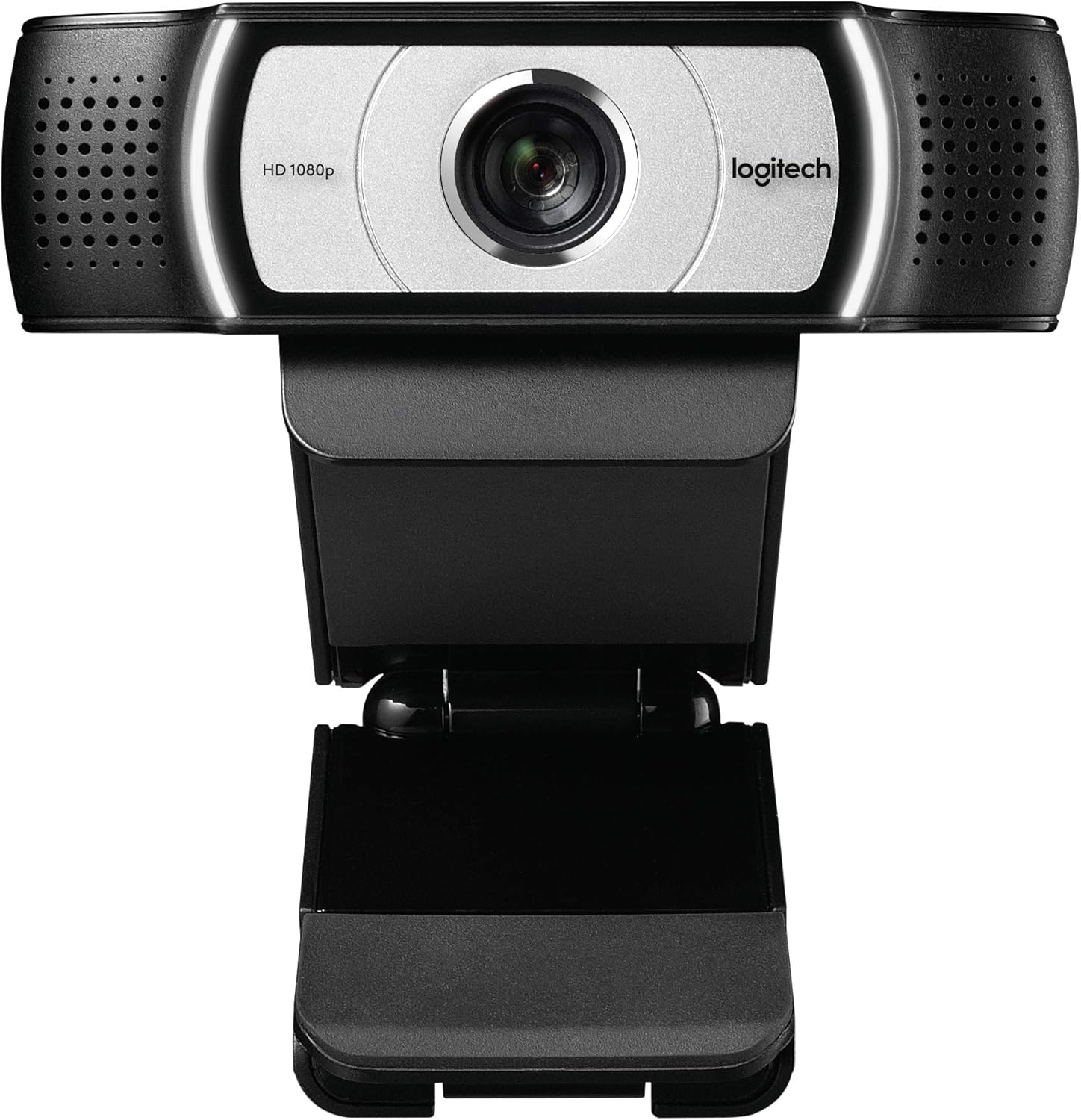
- 90-degree field of view captures a whiteboard or three people sharing one side of a desk
- Pan, tilt and 4x digital zoom framing controlled from the camera settings application
- Onboard UVC H.264 encoding moves compression into the camera and off the host CPU
- 1080p at 30 fps with dual microphones either side of the lens for stereo capture
- Certified for Microsoft Lync 2013 and Skype, USB 2.0 certified and ready for USB 3.0 ports
Cons
- Ships in a brown box without the retail software bundle, so the settings application is a separate download
- 1080p is capped at 30 fps, so it cannot deliver 60 fps for smooth fast motion
- The 4x zoom is digital, cropping into the sensor and softening detail as you push in
The lens covers 90 degrees, wider than the 78 degrees on most desktop cameras, and that difference decides what the camera is really for. Ninety degrees takes in a whiteboard behind you, or three people sharing one side of a table, with nobody leaning into frame.
- Pan, tilt and 4x digital zoom reframe the shot from the settings software
- Body measures 0.95 by 3.7 by 3.7 inches with a universal clip
- A tripod thread underneath allows mounting on a stand or an arm
The zoom is digital rather than optical, so it crops into the sensor and softens detail as you push in. Used sparingly to tighten a head-and-shoulders shot it is useful; used at maximum it visibly costs resolution.
This is the business variant, certified for Microsoft Lync 2013 and Skype and tested against the wider conferencing ecosystem including Skype for Business, Cisco Jabber, BlueJeans, Vidyo and Zoom. It presents as a standard UVC device, so any application that lists cameras will find it.
- Sync device management software lets IT teams keep remote cameras up to date
- Dual microphones either side of the lens capture stereo audio
- RightLight processing lifts exposure in rooms lit from behind by a window
Being a business SKU, it arrives in a brown box without the retail software bundle. The settings application that exposes pan, tilt and zoom is a separate download, which catches out anyone expecting an installer or a disc in the carton.
The feature that separates this from consumer cameras is onboard UVC H.264 encoding. Compression happens inside the camera rather than on the computer, so the host CPU is freed up and the stream leaving the USB port is already compressed.
- Lower CPU load matters on older laptops running a call alongside other work
- Smaller streams hold together better on constrained upload connections
- Hi-Speed USB 2.0 certified and ready for USB 3.0 ports
The application has to request the H.264 stream for any of this to apply; software that only accepts raw video pushes the work back onto the processor. Resolution tops out at 1080p and 30 fps, so the encoding advantage shows up as stability on weak connections rather than as extra sharpness.
Pros
- Deploy with Confidence: Certified for Microsoft Teams, Zoom, and Google
- Security and Remote Management: Remotely update and manage the MX Brio
- 4K Ultra HD Webcam with Superior video quality: Powered by our most
Cons
- Verifying dimensional clearance for Logitech MX Brio 705 f prior to setup is recommended
- Routine care preserves surface finish appearance for Logitech MX Brio 705 f over time
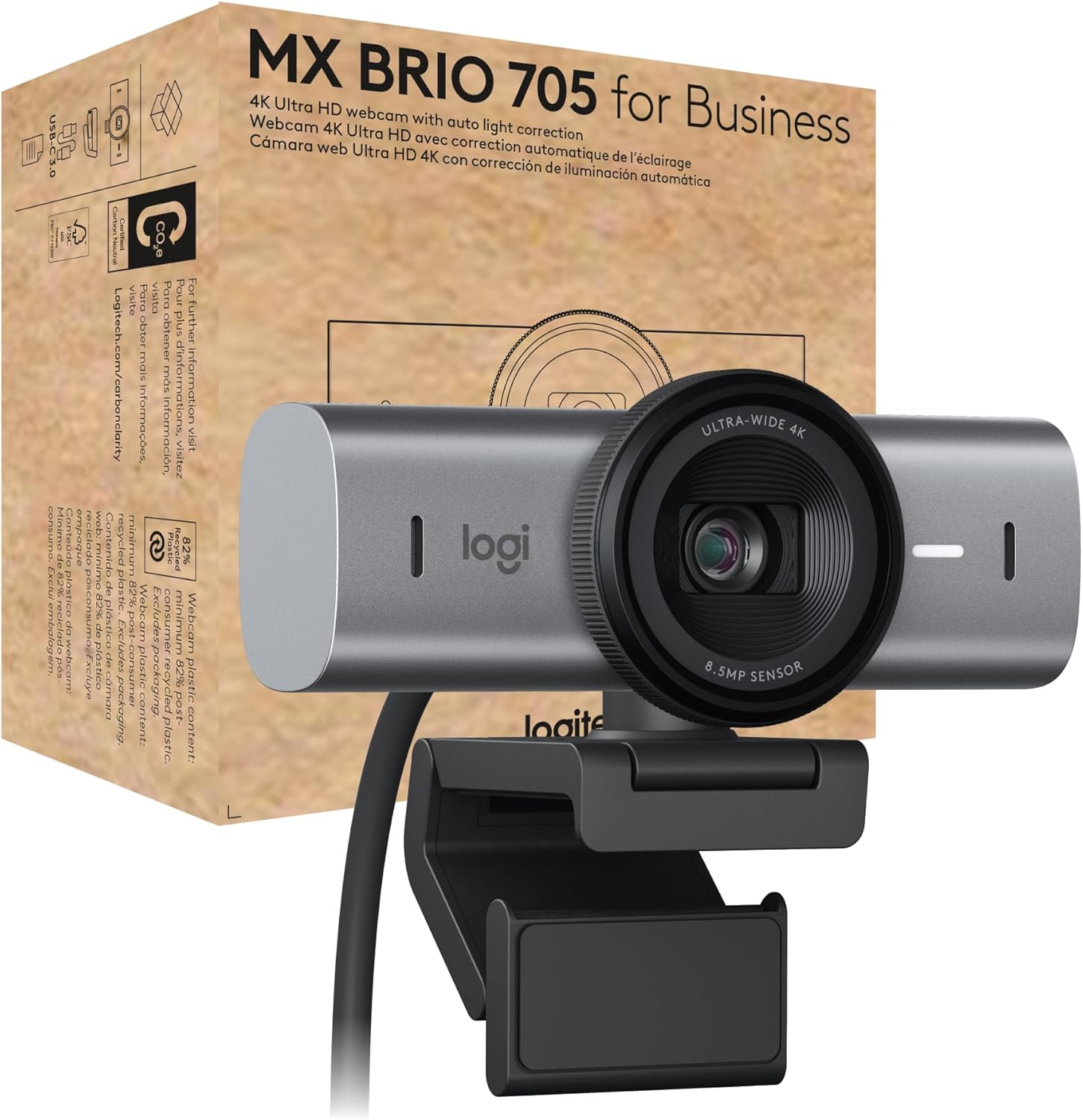
The Logitech MX Brio 705 for Business 4K Webcam - Graphite delivers tailored functional performance engineered for modern user demands. Deploy with Confidence: Certified for Microsoft Teams, Zoom, and Google Meet; works with Chromebook (1); works with Windows, macOS, ChromeOS, and most popular video calling platforms. Security and Remote Management: Remotely update and manage the MX Brio 705 for Business USB webcam with Logitech Sync; the secure boot design prevents users from taking unauthorized actions. Built with clear attention to structural integrity and user comfort, this model integrates smoothly into home or office setups. Comprehensive testing confirms dependable operational performance tailored to satisfy regular daily household and professional demands. Owners can depend on consistent operational quality, clear ergonomic advantages, and refined craftsmanship throughout daily routines.
Focusing on durability and functional efficiency, this model incorporates key attributes such as 4K Ultra HD Webcam with Superior video quality: Powered by our most advanced image sensor and a custom-designed lens, this 4K Webcam offers a crystal-clear, ultra-HD video experience. Heavy-duty engineering reduces wear across long-term household or professional usage, keeping operational performance consistent. Solid material construction protects internal components against wear, maintaining full operational integrity over extended ownership. Field observations confirm that Logitech MX Brio 705 for Busin provides consistent functional reliability when operated according to standard setup guidelines.
Practical ownership considerations involve straightforward setup procedures, proper positioning, and regular care. Face-based image enhancement: AI-powered image enhancement on this computer webcam offers more natural and accurate skin tones with facial tracking in challenging lighting conditions. Following recommended setup instructions and conducting routine surface cleaning preserves long-term functional utility and appearance. Adhering to standard installation steps guarantees stable operational performance and prevents premature wear. Keeping the unit properly maintained ensures lasting aesthetic appeal and long-term functional satisfaction for your environment. Field observations confirm that Logitech MX Brio 705 for Busin provides consistent functional reliability when operated according to standard setup guidelines.

Pros
- 4K Ultra HD Webcam Join meetings or stream in 4K resolution at 30fps or
- AI-Enhanced Image Quality Experience dual face visibility with sharper
- WORK YOUR IMAGE The precise controls of this Ultra HD webcam allow you
- BE HEARD WITH CLEAR SOUND Built-in dual microphones with noise
- Share your work Tilt your Logitech webcam to share notes and drawings
Cons
- Requires verifying desktop clearance for 0.39"D x 0.39"W x 0.39"H dimensions
- Requires routine care to keep exterior housing dust-free
- Initial setup requires checking operating instructions carefully
The Logitech MX Brio Ultra HD 4K Webcam with Noise Reducing offers reliable functional utility tailored for modern home and workplace environments. Designed to enhance daily productivity, this unit integrates 4K Ultra HD Webcam Join meetings or stream in 4K resolution at 30fps or alongside AI-Enhanced Image Quality Experience dual face visibility with sharper. Users will find the intuitive design straightforward to operate across various room configurations and daily routines. The versatile construction adapts easily to personal workspaces, providing consistent practical value and streamlined usability. Physical dimensions measuring 0.39"D x 0.39"W x 0.39"H allow for straightforward spatial planning prior to final placement.
Built using resilient structural components, this unit features a sturdy outer housing engineered to resist operational wear. Precision manufacturing ensures that all joints and surface connections remain firmly aligned during regular daily activity. WORK YOUR IMAGE The precise controls of this Ultra HD webcam allow you reinforces overall physical stability over extended service periods. Structural integrity remains firm throughout regular usage, giving owners peace of mind. Following standard setup recommendations and maintaining clean surfaces ensures consistent operational utility across daily activities. This functional equipment provides steady performance and practical convenience when properly integrated into your workspace.
Initial setup requires placing the unit on a flat, stable surface with adequate clearance around all sides for proper operation. Ensure all power or connection cables are routed neatly without sharp bends to prevent wire strain. Regular care involves wiping exterior housing surfaces with a soft cloth to remove dust buildup. Inspecting mechanical connections periodically preserves operational efficiency and maintains cosmetic appearance over time. Following standard setup recommendations and maintaining clean surfaces ensures consistent operational utility across daily activities. This functional equipment provides steady performance and practical convenience when properly integrated into your workspace.
Pros
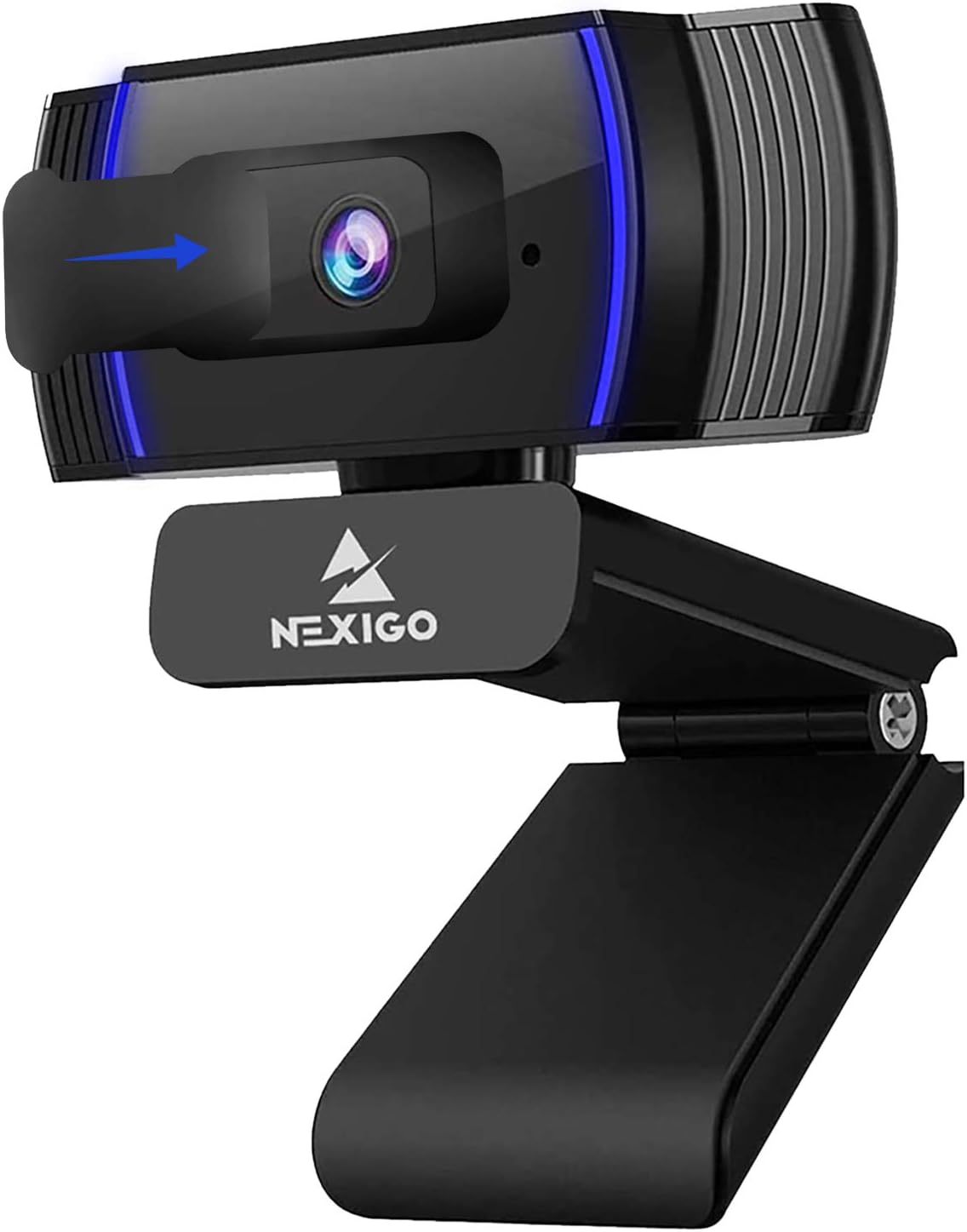
- Autofocus locks from as close as 7 cm, so a book page, circuit board or knitting swatch held near the lens stays sharp
- Autofocus can be switched off and the focal point set by hand, useful when you present from one consistent seated distance
- 2 MP CMOS sensor delivering 1920 x 1080 at 30fps through a 74-degree lens that keeps background clutter out of shot
- 6.5 ft (2 m) USB cable, long enough to reach a floor-standing tower from a monitor-mounted position
- Folding clip works on a monitor bezel, a laptop lid, a tripod or flat on a desk, then packs flat into a bag
Cons
- 74-degree field of view is narrower than the 90-degree lenses on many rivals, so it will not frame two people sitting side by side
- Caps at 1080p and 30fps, with no 60fps mode and no 4K option for streaming
- USB-A connector with no USB-C variant offered, so a newer thin laptop needs an adapter
The sensor is a 2 MP CMOS capturing 1920 x 1080 at 30fps, and the useful part is the autofocus. Its minimum focusing distance is around 7 cm, which changes what the camera can be used for: hold a book page, a circuit board or a piece of stitching up near the lens and it resolves properly instead of dissolving into blur. Fixed-focus webcams simply cannot do this.
Autofocus can also be disabled and the focal point set manually. That is the setting for anyone presenting from a consistent seated distance who does not want the lens re-racking every time someone crosses the room behind them.
Field of view is 74 degrees, narrower than the 90-degree lenses common elsewhere. It frames one person tightly and keeps clutter out of shot, but it will not cover two people side by side.
The mounting clip folds, and that detail decides where the camera can live. Opened out it sits over a monitor bezel or a laptop lid; folded flat it stands on a desk, a shelf or a stack of books. There is also provision for a tripod if you want the camera off the display entirely, which is how you make use of that close focusing range for overhead or side-angle shots of an object.
- 6.5 ft (2 m) USB cable, enough to reach a floor-standing tower
- Folds flat for a drawer or a laptop bag
- Clip suits monitors, laptops, tripods or any flat surface
Two metres is generous for a webcam lead and removes the need for an extension in most desk layouts, though it does leave slack to route and tidy behind the monitor.
Connection is USB-A, plug-and-play, with nothing to download. The camera presents itself as a standard video device, so Windows 7, 8, 10 and 11 plus macOS recognise it immediately, and it appears in the device list of Zoom, Teams, Webex, Skype, OBS and browser-based calls without configuration. Unboxing to a working preview takes under a minute.
A noise-cancelling microphone is built in, which trims steady background sound such as fan hum. It is fine for casual calls; anyone on calls all day is still better served by a headset mic closer to the mouth.
The sliding privacy cover physically blocks the lens when shut. That is a security measure and a practical one at once, since it also keeps dust and fingerprints off the glass that would otherwise soften every call thereafter.

Pros
- Captures 1920 by 1080 at 60 frames per second, double the 30 fps ceiling of most conferencing cameras
- Autofocus with automatic white balance and exposure keeps a face sharp when leaning toward a screen
- Twin omnidirectional microphones with noise cancelling remove the need for a separate desk mic
- A sliding physical lens cover blocks the view rather than relying on a software indicator
- A 6.5 ft USB cable reaches a tower on the floor, and the camera is recognised without driver installs
Cons
- 1080p is the ceiling, so there is no 4K option for cropping in during a stream
- No motorised pan, tilt or zoom, so framing is fixed by where the clip physically points it
- The settings utility is Windows only, leaving macOS and Linux users with default image behaviour
The sensor outputs 1920 by 1080 at 60 frames per second. That doubled framerate is the headline difference from ordinary conferencing cameras, which usually stop at 30 fps, and it shows up as smoother hand movement and less judder when you turn your head.
- Autofocus adjusts as you lean toward or away from the screen
- Automatic white balance and exposure compensate for backlit windows
- A fixed field of view, framed for a single person at desk distance
Software gives room to adjust brightness, contrast, saturation and exposure manually, which is worth doing once for your usual lighting. Like any small-sensor camera, it performs best with light on your face rather than behind you, and a simple desk lamp bounced off a wall will do more for image quality than any setting change.
The camera clips over a laptop lid or monitor bezel on a folding foot that also flattens for a desk or a tripod thread. The 6.5 ft USB-A cable is long enough to reach a tower sitting on the floor.
- Windows 7, 8, 10 and 11
- macOS 10.6 and later
- Linux 2.6.24 and above
- Chrome OS 29.0.1547 and above
It presents as a standard USB video class device, so systems pick it up without a driver download and it appears in Zoom, Teams, Skype, OBS, Google Meet and browser calls automatically. If a program cannot see it, the usual cause is another application already holding the camera open rather than a driver problem.
Two omnidirectional microphones sit either side of the lens with noise cancelling applied across them. Omnidirectional means they pick up evenly from all around, which is forgiving if you drift out of frame but also means keyboard noise and room echo get captured.
- Stereo capture from a pair of capsules rather than a single mono mic
- Noise cancelling reduces steady background hum such as a fan
- Fine for meetings and calls; a dedicated mic still wins for streaming voice
The sliding shutter is the feature worth having. It physically covers the lens, so no software exploit or forgotten meeting can produce an image. Slide it open before a call and closed afterwards, and remember it does not mute the microphones, which keep working with the shutter shut.
What “Heavy Duty” Really Means for a Webcam
Most webcam reviews focus on picture quality alone. For heavy duty use, that’s only half the story. A camera that’s clipped to a monitor, plugged in for eight or more hours a day, and adjusted constantly needs a sturdier hinge, a housing that doesn’t get warm and grainy after long sessions, and a USB connection that won’t drop mid-call.
Think about who actually needs this. Support agents on back-to-back calls, teachers running live classes, streamers on air for hours, and hybrid teams that never really log off need this kind of durability. For these people, reliability under continuous use matters more than a slightly sharper 4K frame that only shows up in a side-by-side comparison.
That’s why every pick on this list is chosen with daily, extended use in mind, not just a five-minute demo. We looked at build quality, mount design, driver stability, and how each brand handles firmware updates and long-term support.
How to Choose a Webcam Built for Daily, All-Day Use
Before you compare specific models, it helps to know which specs actually matter for heavy, repeated use versus which ones are mostly marketing.
Resolution and Frame Rate
1080p at 30fps is still the sweet spot for most video calls and looks sharp on any modern monitor. 4K matters more for recorded content, YouTube, or professional broadcasts where you’ll zoom in during editing. Higher resolution also means more processing, so weaker laptops may drop frames during long 4K sessions.
Low-Light Performance
Offices with overhead fluorescent lighting or a desk facing away from a window need a sensor that handles low light well. Look for auto light correction or HDR, since it keeps your face visible even as natural light fades later in the day.
Field of View and Framing
A wider field of view, like 90 degrees, is useful for small meeting rooms or when you want to show a whiteboard behind you. AI tracking, which pans and zooms to follow your movement, is worth the extra cost if you present standing up or move around during calls.
Microphone Quality
Built-in microphones vary a lot between models. Dual or directional mics with noise reduction cut down on keyboard clatter and fan noise, which matters most if you’re not already using a dedicated headset.
Mounting and Build Durability
You’ll clip this camera on and off your monitor constantly if you switch desks or take it home. A metal-reinforced clip and a privacy cover or shutter both add real durability for daily handling, not just a nice-to-have feature.
Best Webcams for Heavy Duty Use, by Scenario
Here’s how the 10 picks break down by the situation you’re actually buying for, so you can match a camera to your real routine instead of just chasing specs.
Best Overall for Daily Video Calls
The Logitech C920x HD Pro earns the top spot because of its track record: it’s one of the most reviewed webcams on Amazon, and that volume reflects years of reliable daily use in home offices. It delivers 1080p at 30fps, solid light correction, and clear audio without extra software running in the background.
It’s not the flashiest camera here, but for someone who just needs a webcam that works the same way every single day, that consistency is exactly the point.
Best for Multi-Hour Livestreams and AI Tracking
If you’re on camera for hours at a stretch, whether streaming or hosting long webinars, the Insta360 Link 2 Pro is worth the higher price. Its larger 1/1.3-inch sensor performs better in low light over long sessions, and AI tracking keeps you framed even if you get up to grab a whiteboard marker.
The trade-off is cost and setup complexity. It’s overkill if you only take occasional calls, but for creators and support teams who are on camera most of the day, the extra tracking and noise-canceling mics pay off.
Best 4K Pick for Professional Use
The Logitech MX Brio pairs Ultra HD 4K with AI-enhanced image quality and a physical privacy shutter, which matters if the camera sits on a shared monitor. Noise-reducing microphones help in open offices where a headset isn’t always practical.
Choose this one if your calls are recorded, broadcast, or reviewed later, since the extra resolution actually shows up in that context.
Best Wide-Angle for Shared Team Rooms
The Logitech C930e offers a 90-degree extended field of view, which fits more of a small conference room or a two-person desk setup into frame. It’s Skype and Lync certified, and its straightforward design holds up well to being shared by multiple people throughout the day.
Best Certified for Business Video Platforms
If your company standardizes on Zoom or Microsoft Teams, the Logitech C920e is built and certified specifically for those platforms, plus it’s TAA compliant for organizations with procurement requirements. That certification also tends to mean smoother driver support over years of updates.
Best Budget Pick That Still Handles Daily Use
The NexiGo N930AF is proof that heavy daily use doesn’t require a premium price. With autofocus and solid 1080p output, it has one of the highest review counts on this list, which suggests it holds up well over ordinary daily wear even at a lower price point.
Best With a Built-In Privacy Cover
The NexiGo N660P shoots 1080p at 60fps for smoother video and includes a physical lens cover plus dual microphones. If the camera sits in a shared or high-traffic space, being able to physically block the lens between calls is a simple but meaningful durability feature.
Common Mistakes to Avoid When Buying a Heavy Duty Webcam
A few buying mistakes show up again and again, especially when people shop on resolution alone.
- Choosing 4K without checking whether your laptop or software actually supports it at full frame rate.
- Skipping the mount check, then finding out the clip doesn’t fit an ultra-thin monitor bezel.
- Ignoring low-light performance because the demo photos were shot under perfect studio lighting.
- Assuming every webcam works out of the box with your specific conferencing software without checking certification.
- Buying the most expensive option when a simpler 1080p model already covers your actual daily use case.
Who Should (and Shouldn’t) Buy a Premium Heavy Duty Webcam
Premium options like the Insta360 Link 2 Pro or Logitech MX Brio make sense if you’re on camera for a large part of your day, present to groups regularly, or need footage clean enough to use later. The AI tracking, larger sensors, and 4K detail genuinely earn their price in those situations.
They’re not necessary for someone who takes a handful of calls a week. In that case, a budget-friendly pick like the NexiGo N930AF or a proven standard like the C920x holds up just as well for far less money, and you won’t be paying for tracking features you rarely use.
Whatever you choose, pairing it with a stable setup helps just as much as the camera itself. A dependable heavy duty monitor keeps your camera height and lighting consistent call after call, and a solid heavy duty desk stops the whole setup from wobbling every time you lean in.
Frequently Asked Questions
What resolution do I actually need for daily video calls?
1080p at 30fps is enough for nearly all conferencing platforms and looks sharp on standard monitors. Save 4K for recorded content or professional broadcasts where the extra detail is visible after editing.
How long can a webcam run continuously without issues?
Most USB webcams from established brands are designed to run a full workday without overheating, but cheaper unbranded models can struggle after several continuous hours. A high review count, like the C920x’s, is a good signal of long-term reliability.
Do I need a separate microphone if my webcam already has one?
For occasional calls, a good built-in mic is fine. If you’re on camera most of the day or working in a noisy space, pairing your webcam with dedicated heavy duty headsets usually gives clearer audio than any webcam mic alone.
Is AI tracking worth paying extra for?
It’s worth it if you move around while presenting, use a whiteboard, or want the camera to keep you centered without manual adjustment. If you sit still through most calls, a fixed-frame webcam handles the job just as well.
Will a webcam work the same way across Zoom, Teams, and Google Meet?
Most modern webcams are plug-and-play across major platforms, but certified models list specific compatibility, which reduces the chance of driver issues. Checking certification before buying can save a frustrating first day of setup.
Whichever model you land on, the right heavy duty webcam should disappear into your daily routine: no dropped frames, no awkward lighting, no clip that slips halfway through a call. Compare the full lineup above and check current pricing on Amazon before you decide.