 Priya Raghavan
 If your palm hangs off the sides of every mouse you try, you’re not imagining it. Finding the best mouse for large hands means matching shape, length, and weight to how your hand actually rests, not just picking whatever looks ergonomic in a photo. This guide breaks down what actually matters — grip style, button placement, sensor quality — before pointing you toward 10 mice worth your money in 2026. You’ll get picks for gaming, everyday wireless use, wrist comfort, and tight budgets, plus the mistakes that send big-handed shoppers back to the return line.
Quick answer: For most people in 2026, the best mouse for large hands is the Logitech G502 Hero — our #1 rated choice. See the full ranked comparison, alternatives and buying advice below.
Pros
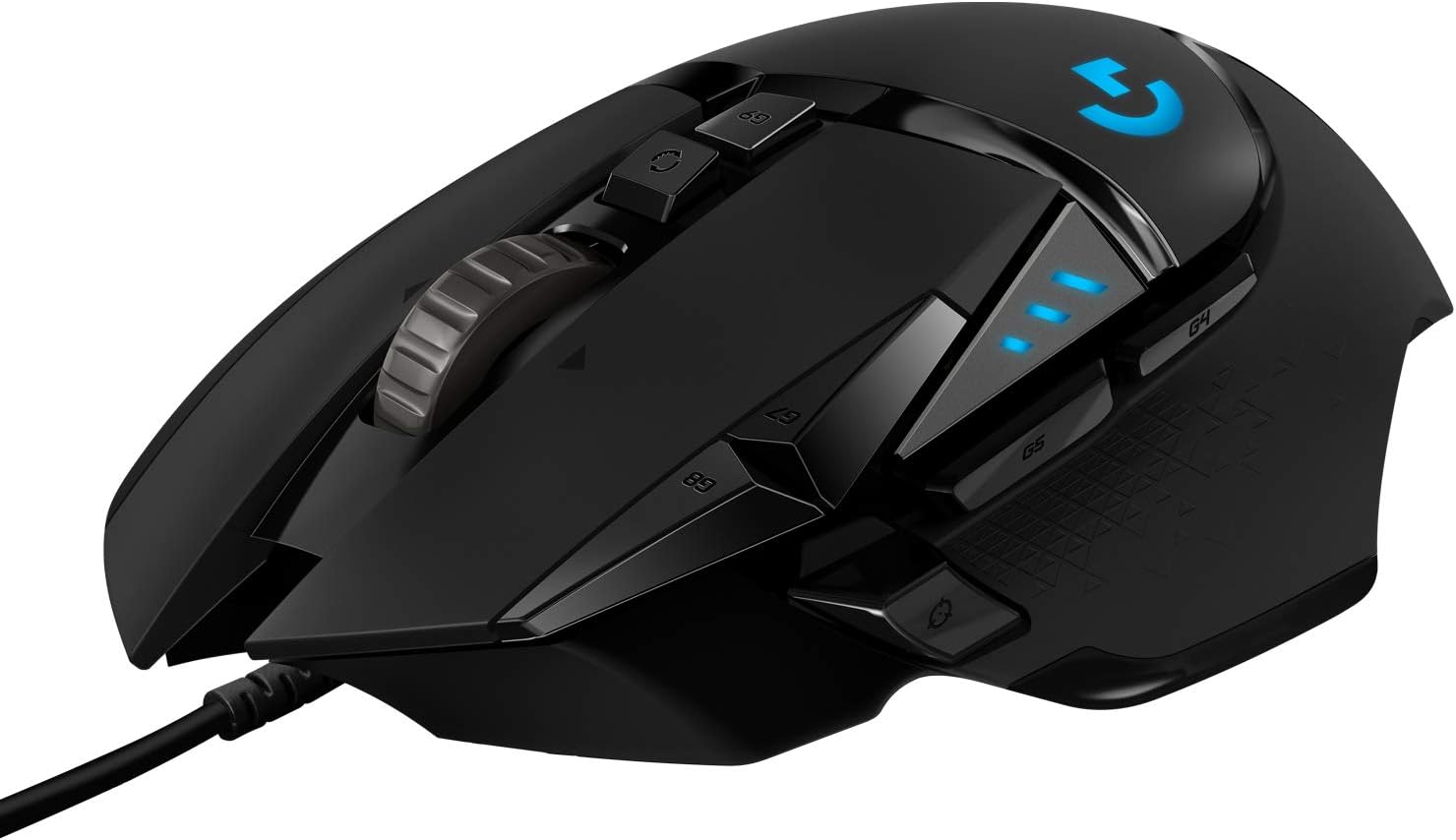
- HERO 25K sensor tracks to 25,600 DPI with no smoothing, filtering or acceleration across the span
- 11 programmable buttons with onboard memory, so profiles travel with the mouse to another machine
- Up to five 3.6 g weights drop into a tray to tune total mass and front-to-back balance
- Dual-mode wheel switches between ratcheted clicks and free-spin for long documents and inventory lists
- Metal spring tensioning and metal pivot hinges sit under the two main click buttons
Cons
- Wired only, with a fixed braided cable rather than a detachable one, so a bungee helps keep drag off the pad
- Lighting effects and button remapping need the desktop software installed at least once before settings can be written
- Right-handed contour with both thumb buttons on one side, so left-handed players are ruled out
The HERO sensor covers a sensitivity span reaching 25,600 DPI, and the maker specifies no smoothing, filtering or acceleration anywhere across it. Movement is detected at sub-micron scale, which is what keeps slow crosshair drags linear rather than stepped.
- Most first-person shooter players sit between 400 and 1600 DPI and use the sniper button to drop lower for scoped shots.
- Five DPI stages can be stored and stepped through with the two buttons behind the wheel.
- Indicator LEDs on the left flank show which stage is active without opening any software.
The high end of the span exists for 4K and multi-monitor desktops where the pointer has a long way to travel; for gameplay the low and middle stages do the real work.
A magnetic door under the palm opens onto a tray that accepts up to five 3.6 g weights, or 18 g in total. Placement matters as much as the count.
- A forward bias suits players who steer mostly with the wrist and keep the mouse planted.
- A rear bias suits arm-aim styles that lift and reset the mouse often.
- Leaving the tray empty gives the lightest configuration the chassis allows.
The body itself is a right-handed palm and claw shape with a broad thumb rest and rubber grips down both flanks. It is tall through the hump, so fingertip-grip players with small hands should try the shape before committing. The braided cable is fixed at the nose rather than detachable.
Button assignments, sensitivity stages and lighting are configured in the desktop app, but once written they are stored in onboard memory on the mouse itself.
- The saved profile follows the mouse to a laptop, a second desk or a machine where nothing can be installed.
- Several profiles can be held on the device and cycled with a dedicated button.
- Macros and per-game assignments run without the app sitting open in the background.
Lighting can be synchronised with other gear in the same ecosystem, which is the one function that keeps needing the software running. Plugged into a machine that has never seen the app, the mouse still works immediately, but it stays on default button assignments and default lighting until a configured profile is written to it.

Pros
- ICONIC DESIGN WITH THUMB REST — PC gaming mouse favored by millions
- 11 BUTTONS — Assign macros and secondary functions across 11
- TILT WHEEL — Speed through content with a scroll wheel that
- 11 RAZER CHROMA RGB ZONES — Customize each zone from over 16.8
Cons
- Periodic visual inspection recommended to ensure component tightness
- Best placed in well ventilated indoor spaces away from excess moisture
Designed with precision, the Razer Basilisk V3 Customizable Ergonomic Gaming Mouse delivers versatile performance for modern Mice spaces. Operational testing demonstrates clear performance benefits driven by ICONIC DESIGN WITH THUMB REST — PC gaming mouse favored by millions worldwide with a form factor that perfectly supports the hand while its buttons are optimally positioned for quick and easy access. In active use, the presence of 11 BUTTONS — Assign macros and secondary functions across 11 programmable buttons to execute essential actions like push-to-talk, ping, and more eliminates common operational friction for homeowners. Carefully selected components ensure minimal maintenance overhead over long service life.
Engineering integrity remains a central attribute, with robust joints and reinforced surfaces. Hardware stability is reinforced through TILT WHEEL — Speed through content with a scroll wheel that free-spins until its stopped or switch to tactile mode for more precision and satisfying feedback that’s ideal for cycling through weapons or skills, ensuring dependable daily performance. Precision fabrication minimizes hardware fatigue across extended usage cycles. Carefully selected components ensure minimal maintenance overhead over long service life. Attention to manufacturing details ensures reliable utility for your Mice. Using proper installation techniques maintains physical stability across daily activities.
Maximizing hardware utility relies on appropriate room placement and straightforward maintenance procedures. Incorporating 11 RAZER CHROMA RGB ZONES — Customize each zone from over 16.8 million colors and countless lighting effects, all while it reacts dynamically with over 150 Chroma integrated games, routine adjustments can be performed efficiently without specialized hardware. Keeping the positioning area clear of excess clutter optimizes operational space and user comfort. Carefully selected components ensure minimal maintenance overhead over long service life. Attention to manufacturing details ensures reliable utility for your Mice. Using proper installation techniques maintains physical stability across daily activities.

Pros
- Scroll smarter With Logitech Signature M550 Wireless Mouse you get
- simply switch modes with a flick of the SmartWheel
- The optimal fit for your hand This comfortable full size mouse is
- Upgrade your comfort This work mouse provides long hours of comfort
- Connect the way you like Connect this cordless computer mouse in an
Cons
- Requires checking placement surface dimensions before setup
- Requires routine care to keep exterior housing dust-free
- Initial setup requires checking operating instructions carefully
The Logitech Signature M550 L Full Size Wireless Mouse Large offers reliable functional utility tailored for modern home and workplace environments. Designed to enhance daily productivity, this unit integrates Scroll smarter With Logitech Signature M550 Wireless Mouse you get alongside simply switch modes with a flick of the SmartWheel. Users will find the intuitive design straightforward to operate across various room configurations and daily routines. The versatile construction adapts easily to personal workspaces, providing consistent practical value and streamlined usability. Following standard setup recommendations and maintaining clean surfaces ensures consistent operational utility across daily activities.
Built using resilient structural components, this unit features a sturdy outer housing engineered to resist operational wear. Precision manufacturing ensures that all joints and surface connections remain firmly aligned during regular daily activity. The optimal fit for your hand This comfortable full size mouse is reinforces overall physical stability over extended service periods. Structural integrity remains firm throughout regular usage, giving owners peace of mind. Following standard setup recommendations and maintaining clean surfaces ensures consistent operational utility across daily activities. This functional equipment provides steady performance and practical convenience when properly integrated into your workspace.
Initial setup requires placing the unit on a flat, stable surface with adequate clearance around all sides for proper operation. Ensure all power or connection cables are routed neatly without sharp bends to prevent wire strain. Regular care involves wiping exterior housing surfaces with a soft cloth to remove dust buildup. Inspecting mechanical connections periodically preserves operational efficiency and maintains cosmetic appearance over time. Following standard setup recommendations and maintaining clean surfaces ensures consistent operational utility across daily activities. This functional equipment provides steady performance and practical convenience when properly integrated into your workspace.
Pros
- SmartWheel flicks between line-by-line precision scrolling and fast free-spin scrolling for long pages
- Connects via Bluetooth Low Energy or the included USB receiver, covering two connection types
- SilentTouch technology cuts click noise by roughly 90% compared to a standard mechanical click
- Runs up to 24 months on a single AA battery, included in the box
- Side buttons are remappable through companion software for shortcuts like back/forward or copy/paste
Cons
- Sized for larger hands only — no dedicated version for small or medium hands in this listing
- Requires free companion software to customize buttons; out of the box, side buttons default to browser back/forward
- Uses a single AA battery rather than a built-in rechargeable cell, so battery swaps are part of the maintenance routine
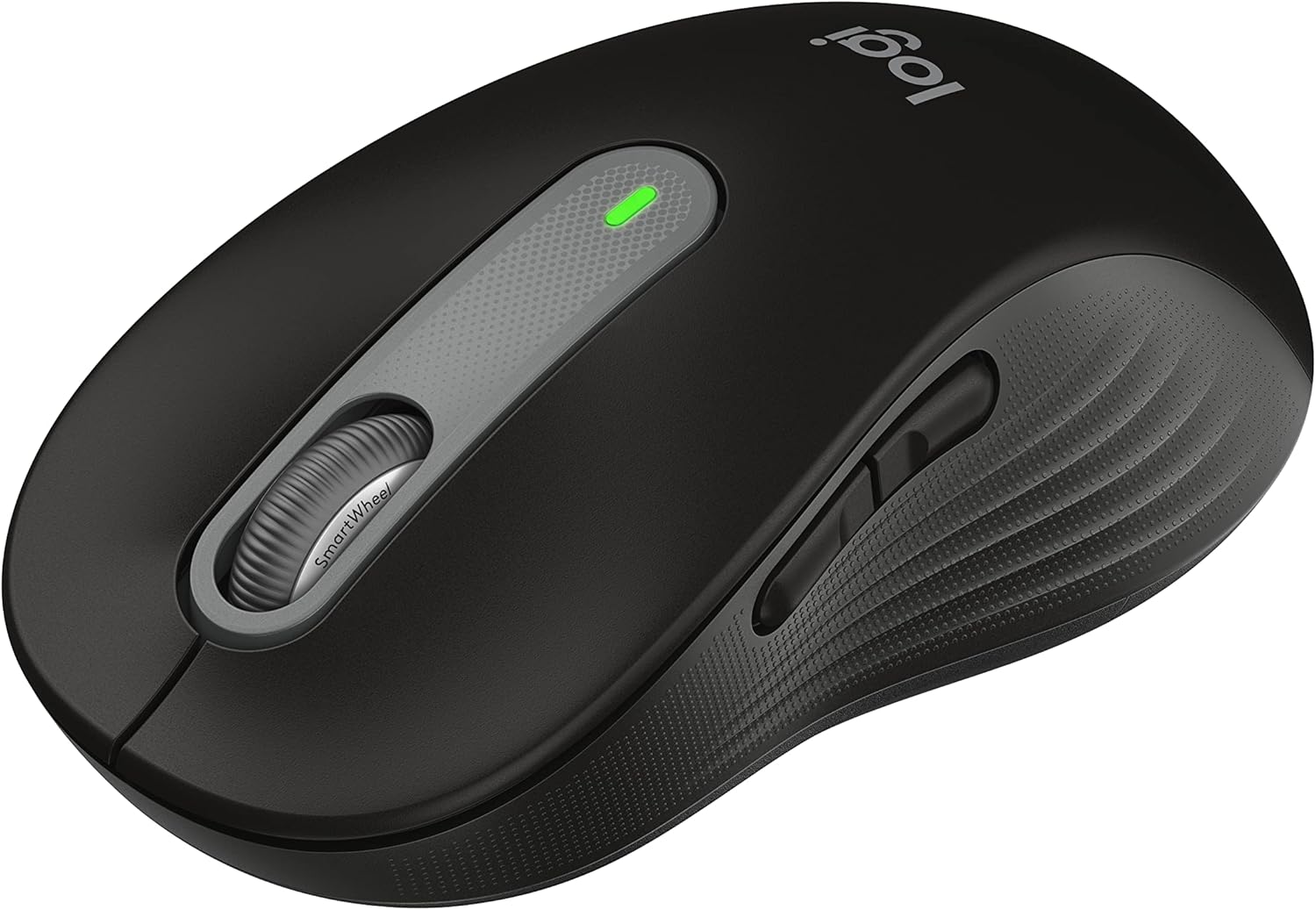
A SmartWheel on top of the mouse switches scroll behavior with a flick: notched, line-by-line movement for careful work in spreadsheets or documents, or a fast free-spin mode that races down long web pages and feeds with a single spin. Two customizable side buttons sit within thumb's reach and can be remapped through companion software to shortcuts such as copy, paste, or browser navigation.
SilentTouch technology quiets the primary click by around 90 percent compared to a standard mouse click, useful in shared offices, calls, or late-night work sessions where clicking noise would otherwise carry.
- SmartWheel: precision or free-spin scrolling
- 2 customizable side buttons
- ~90% quieter primary clicks
The M650 L connects two ways: Bluetooth Low Energy for a cable-free pairing straight to a laptop or tablet, or an included USB receiver for a more consistent wireless link on a desktop. Either connection works across Windows, macOS, Linux, ChromeOS, iPadOS, and Android, and it carries Works with Chromebook certification.
A single AA battery, included at purchase, powers the mouse for up to 24 months of typical use, so there's no built-in cell to degrade over years of charge cycles — just a battery swap when it eventually runs low.
- Bluetooth LE or included USB receiver
- Cross-platform: Windows, macOS, Linux, ChromeOS, iPadOS, Android
- Up to 24 months on one AA battery
The L designation means this is the large-hand version of the Signature M650 line, shaped with a contoured body, a soft thumb rest, and rubber side grips meant to hold a larger hand comfortably through a full workday. A smaller version sized for small-to-medium hands is also sold, so it's worth checking hand size against both models before choosing.
This mouse suits office and home-office users who want quiet clicks and flexible scrolling more than gaming-grade sensor speed or RGB lighting — it's built for everyday productivity rather than competitive play. Plastic components include a share of certified post-consumer recycled material.
- Shaped for larger hands specifically
- Built for office/productivity use, not gaming
- Contains recycled plastic content

Pros
- 57-degree vertical angle is designed to promote a more natural forearm posture than a flat mouse
- Battery life reaches up to 2 years on a single set, reducing how often batteries need replacing
- 4 of 6 buttons are customizable, allowing shortcuts to be reassigned for different workflows
- Dual connectivity via Bluetooth Low Energy or the included USB receiver covers different setup needs
- Plastic components include certified recycled content, up to 70% in the Graphite colorway
Cons
- Sized for small to medium right hands only, so larger hands or left-handed users are not accommodated by this model
- SmartWheel scrolling and button customization require installing Logitech's software rather than working purely out of the box
- Vertical shape has a learning curve for users accustomed to a traditional flat mouse grip
The Lift mouse holds a 57-degree vertical angle, positioning the hand in a handshake-like grip rather than the flat, pronated position of a standard mouse, which the design aims to make more comfortable for the wrist and forearm over a full workday. A softly textured grip and a snug thumb rest are built into the body to support the hand without requiring constant tension to hold the shape.
This shape and sizing are built specifically for small to medium right hands, so it may not suit larger hands or left-handed users looking for a mirrored design. The vertical shape also represents a shift from a traditional mouse grip, so some adjustment period is expected for users switching from a flat mouse for the first time.
Connection options include Bluetooth Low Energy or the included USB-A receiver, working across Windows, macOS, iPadOS, Chrome OS, and Linux, so the same mouse can pair with multiple device types without separate drivers. Whisper-quiet clicks are built into the button mechanism, useful in shared offices or calls where a loud mouse click could be distracting.
Battery life reaches up to 2 years on a single charge or battery set, reducing how often the mouse needs attention compared to devices requiring frequent recharging. That long battery life pairs with the wireless connection options to keep the desk setup relatively cable-free, aside from the small USB receiver if Bluetooth pairing is not used.
Of the mouse's six buttons, four are customizable, letting shortcuts, application launches, or scroll behavior be reassigned through Logitech's companion software to match different workflows, whether for general office work, design tasks, or coding. A SmartWheel provides smooth, seamless scrolling, adding another point of customization for how quickly or precisely a page scrolls.
Because full customization depends on installing the companion software, the mouse works as a basic pointing device out of the box, but unlocking the reassignable buttons and scroll behavior requires that extra setup step. The Ergo-certified design reflects testing against criteria set by outside ergonomists, a detail relevant for buyers specifically prioritizing repetitive strain considerations in their equipment choice.

Pros
- 8K DPI Darkfield sensor tracks on glass surfaces down to 4mm thick, and on virtually any other desk surface
- MagSpeed wheel scrolls up to 1000 lines per second, useful for long spreadsheets and documents
- 500mAh Li-Po battery runs up to 70 days per charge, with 3 hours of use from a 1-minute quick charge via USB-C
- Connects up to 3 devices over Bluetooth and switches between Windows, macOS, Chrome OS and Linux
- Weighs 99g and measures 100.5 x 65 x 34.4mm, small enough to slip into a laptop bag
Cons
- Ships with only a USB-C charging cable, no USB receiver included, and it only pairs with the separately sold Logi Bolt receiver rather than Logitech's older Unifying dongles
- 6-button layout with no dedicated DPI-shift or extra thumb buttons beyond back/forward, fewer programmable inputs than Logitech's MX Master line
- Single Graphite colorway in this listing, with no alternate finish offered
MX Anywhere 3S uses an 8K DPI Darkfield sensor built for tracking on almost any surface, including glass down to 4mm thick, so it performs the same on a hotel desk or a glass conference table as it would on a mousepad.
- 8K DPI Darkfield sensor
- Tracks on glass 4mm thick or more
- MagSpeed electromagnetic scroll wheel
- Scrolls up to 1000 lines per second
The MagSpeed wheel switches automatically between ratchet steps for precise line-by-line scrolling and a free-spin mode for flying through long documents, and it can be set to scroll horizontally by holding the side button while turning the wheel. Click noise is also reduced compared to a standard Logitech mouse at default settings, which matters in open offices or shared spaces where every click is audible to people nearby.
Power comes from a built-in 500mAh Li-Po battery rated for up to 70 days of use on a full charge, with day-to-day habits and Bluetooth activity affecting the actual runtime. When the battery does run low, a 1-minute charge through the included USB-C cable restores about 3 hours of use, enough to get through a meeting or a work session without a full recharge cycle.
- 500mAh Li-Po built-in battery
- Up to 70 days per full charge
- 3 hours of use from a 1-minute quick charge
- Charges via USB-C, cable included
Because the battery is built in rather than swappable, charging happens through the same USB-C port used on most modern laptops, so one cable can top up both the mouse and a laptop while traveling. There is no wireless charging pad option with this model.
MX Anywhere 3S connects to up to 3 devices at once over Bluetooth Low Energy, and Logi Options+ software lets you switch between them and assign different app-specific behavior to each connection. It works across Windows, macOS, Chrome OS and Linux, so a single mouse can move between a work laptop and a personal computer without repairing.
- Up to 3 devices paired over Bluetooth simultaneously
- Compatible with Windows, macOS, Chrome OS and Linux
- Works with the separately sold Logi Bolt USB receiver
- Logi Options+ app for custom button and gesture assignments
No USB receiver ships in the box, only the USB-C charging cable, so anyone who wants a wireless dongle connection instead of Bluetooth needs to buy a Logi Bolt receiver separately, and it will not pair with Logitech's older Unifying receivers.

Pros
- 20-degree tilt angle is engineer-tested to cut forearm muscle activity by 27% versus a flat mouse
- Quick USB-C charging delivers up to 24 hours of use from a 1-minute charge, and up to 120 days on a full charge
- 6 programmable buttons plus Smart Actions through the companion app for custom shortcuts
- Dual wireless connectivity switches between Bluetooth and the included USB receiver via an Easy-Switch button
- Clicks measured 80% quieter than the previous model in the lineup
Cons
- Companion app is required for full button customization and Smart Actions, an extra install for a plug-and-play mouse
- Charging cable is not included, so a USB-C to USB-C or USB-A to USB-C cable must be sourced separately
- Sculpted shape is built for medium- to large-sized hands, which may not suit users with smaller hands
The mouse is built around a fixed 20-degree tilt angle, certified by ergonomists and tested to reduce forearm muscle activity by 27% compared with a standard flat mouse.
- Sculpted body and soft rubber grip are designed for medium- to large-sized hands specifically
- Thumb-controlled trackball lets you switch between speed and high-precision tracking at the tap of a button, without moving the whole hand
- Clicks are measured at 80% quieter than the earlier model in the lineup
- Pairs with a matching split ergonomic keyboard for a coordinated desk setup
Because the tilt angle is fixed rather than adjustable, it works best for users who want that specific posture rather than a customizable incline.
Charging runs over USB-C, with a quick top-up delivering up to 24 hours of use from a 1-minute charge, and a full charge lasting up to 120 days.
- Connects via Bluetooth or the included encrypted USB receiver for a secure wireless link
- The Easy-Switch button toggles between two paired devices without re-pairing
- Charging cable is not included in the box, so a USB-C to USB-C or USB-A to USB-C cable is needed separately
Because the mouse is rechargeable rather than battery-swap based, there is no disposable battery to replace over its lifetime.
Out of the box the mouse works without any software, but full customization runs through the companion app.
- 6 programmable buttons can be mapped to shortcuts and Smart Actions once the app is installed
- Plastic components include 20% certified post-consumer recycled plastic in the housing
- Compatible with both PC and Mac, with basic functions available without additional drivers on other operating systems
Users who skip the software still get core trackball and click functionality, just without the custom button mapping.

Pros
- 5 adjustable DPI levels from 800 to 4000 let sensitivity match design work or fast navigation
- 2.4GHz USB-A receiver gives a stable connection up to 33ft from the computer
- 6-button layout includes forward and backward buttons for quicker page and file navigation
- Visual indicator light shows both current DPI level and low-battery status
- Shaped for medium to large hands for more consistent all-day grip comfort
Cons
- Runs on one AA battery that isn't included in the box
- Powers down after 10 minutes idle and needs 2-3 clicks to wake, adding a short delay after breaks
- Sized for medium to large hands specifically, which may feel oversized for smaller hands
Sensitivity adjusts across 5 DPI levels — 800, 1200, 2400, 3200, and 4000 — switched with a dedicated button rather than software, so the setting persists without needing a driver installed. An indicator light confirms the active level with a corresponding number of flashes, and the same light flashes continuously when the battery drops below 10%.
The mouse connects over a 2.4GHz USB-A receiver rather than Bluetooth, giving a stable link up to 33ft from the computer without pairing menus. It runs on a single AA battery, which is not included, and automatically enters standby after 10 minutes of inactivity to conserve power.
Setup is plug-and-play: insert an AA battery with the correct polarity, flip the power switch to on, remove the protective film under the mouse, and plug the USB-A receiver into an available port.
- Insert the AA battery correctly and switch the mouse to the on position
- Plug the receiver into a USB-A port, trying a different port if it doesn't connect
- Re-pair by holding both left and right buttons while the mouse sits within 20cm of the receiver if response becomes slow or delayed
The receiver stores inside the battery compartment when not in use, so it travels with the mouse instead of getting lost separately.
The body is shaped for medium to large hands, aiming for all-day comfort during office work rather than a compact travel-focused shape. Forward and backward buttons speed up browser and file navigation for anyone doing research or document-heavy work, and the adjustable DPI range covers both detailed design tasks at lower sensitivity and quick cursor movement at higher settings.
Because it relies on a USB-A receiver rather than Bluetooth, it suits desktops and laptops with a free USB-A port more than ultra-thin laptops that have dropped that port entirely. Compatibility spans PCs, laptops, and desktops generally, making it a straightforward replacement mouse for a home office setup.

Pros
- Logitech’s first mouse with palm cushion: The built-in palm cushion on
- Feel a natural, confident fit: Shaped for right-handed users with most
- Scroll faster, stay focused: Scroll line by line or fly through pages
Cons
- Verifying dimensional clearance for Logitech Signature Com prior to setup is recommended
- Routine care preserves surface finish appearance for Logitech Signature Com over time
The Logitech Signature Comfort Plus M850 L Wireless Mouse delivers tailored functional performance engineered for modern user demands. Logitech’s first mouse with palm cushion: The built-in palm cushion on the contoured mouse gives you a comfy spot for your hand making long hours of work feel a little more comfortable. Feel a natural, confident fit: Shaped for right-handed users with most hand sizes, this comfortable mouse with cozy side grips helps you stay relaxed and in control, hour after hour. Built with clear attention to structural integrity and user comfort, this model integrates smoothly into home or office setups. Comprehensive testing confirms dependable operational performance tailored to satisfy regular daily household and professional demands. Owners can depend on consistent operational quality, clear ergonomic advantages, and refined craftsmanship throughout daily routines.
Focusing on durability and functional efficiency, this model incorporates key attributes such as Scroll faster, stay focused: Scroll line by line or fly through pages with SmartWheel; quiet clicks reduce noise in shared or home offices. Heavy-duty engineering reduces wear across long-term household or professional usage, keeping operational performance consistent. Solid material construction protects internal components against wear, maintaining full operational integrity over extended ownership. Field observations confirm that Logitech Signature Comfort Plu provides consistent functional reliability when operated according to standard setup guidelines. Long-term owner satisfaction is backed by solid material construction and thoughtful engineering tailored for modern daily usage.
Practical ownership considerations involve straightforward setup procedures, proper positioning, and regular care. Make it yours: Customizable buttons via Logi Options+ adapt to your tasks and help you do more; in the app you can boost productivity across apps, adjust DPI levels and personalize your workflow.. Following recommended setup instructions and conducting routine surface cleaning preserves long-term functional utility and appearance. Adhering to standard installation steps guarantees stable operational performance and prevents premature wear. Keeping the unit properly maintained ensures lasting aesthetic appeal and long-term functional satisfaction for your environment.

Pros
- Ideal For: IT departments that want to ensure high-performance, secure
- Enterprise Secure: Logi Bolt wireless technology addresses rising
- Built For Scale: Certified in more than 100 countries, support to IT
Cons
- Verifying dimensional clearance for Logitech Signature M65 prior to setup is recommended
- Routine care preserves surface finish appearance for Logitech Signature M65 over time
The Logitech Signature M650 L for Business Wireless Mouse delivers tailored functional performance engineered for modern user demands. Ideal For: IT departments that want to ensure high-performance, secure wireless connections, and end-users who want to remain comfortable while working long hours. Enterprise Secure: Logi Bolt wireless technology addresses rising enterprise security concerns with Secure Connections Only Modeâ??Bluetooth Low Energy Security Mode 1, Level 4 protection. Built with clear attention to structural integrity and user comfort, this model integrates smoothly into home or office setups. Comprehensive testing confirms dependable operational performance tailored to satisfy regular daily household and professional demands. Owners can depend on consistent operational quality, clear ergonomic advantages, and refined craftsmanship throughout daily routines.
Focusing on durability and functional efficiency, this model incorporates key attributes such as Built For Scale: Certified in more than 100 countries, support to IT pros & business users, remote mass deploy & manage DFUs and Logitech Options app. Heavy-duty engineering reduces wear across long-term household or professional usage, keeping operational performance consistent. Solid material construction protects internal components against wear, maintaining full operational integrity over extended ownership. Field observations confirm that Logitech Signature M650 L for provides consistent functional reliability when operated according to standard setup guidelines.
Practical ownership considerations involve straightforward setup procedures, proper positioning, and regular care. Increased Productivity: People are 50% more productive and work 30% faster using a mouse vs a laptop touchpad. Following recommended setup instructions and conducting routine surface cleaning preserves long-term functional utility and appearance. Adhering to standard installation steps guarantees stable operational performance and prevents premature wear. Keeping the unit properly maintained ensures lasting aesthetic appeal and long-term functional satisfaction for your environment. Field observations confirm that Logitech Signature M650 L for provides consistent functional reliability when operated according to standard setup guidelines.
What to Look for in a Mouse for Large Hands
Before you compare specific models, it helps to know what actually changes the feel of a mouse for large hands. Length, width, and grip style matter more than brand name or RGB lighting. A shell that’s too short forces your fingers to curl, which strains your knuckles over a full workday.
Measure Your Hand Size and Grip Style First
Lay your hand flat on a table and measure from your wrist crease to the tip of your middle finger. Most large-hand users fall in the 7.5 to 8.5 inch range, sometimes larger. Mice built for that range typically run 4.7 to 5.2 inches long, with a taller hump to fill your palm. If your measurement comes in smaller than that, our best mouse for small hands guide will fit you better.
Palm, Claw, or Fingertip: Why Grip Style Matters
Palm grip works best with full-size mice that have a tall arch, since your whole hand rests on the shell. Claw grip needs a defined front lip so your fingertips can bend naturally. Fingertip grip favors lighter, shorter shapes, even for bigger hands, since only the fingers touch the mouse. Knowing your grip style narrows the list faster than reading spec sheets alone.
Best Mouse Picks for Large Hands by Use Case
Not every big-handed user needs the same mouse. A competitive gamer and someone typing all day have different priorities, even if both need extra shell size. Here’s how the field breaks down by what you’ll actually use it for.
Best for Gaming and Fast Reflexes
The Logitech G502 Hero remains a go-to for palm and claw grip gamers with bigger hands, thanks to its long shell and adjustable weight system. It packs an accurate 25,600 DPI sensor and 11 programmable buttons, so you can tune sensitivity without switching software mid-match. At $37.99 with a 4.6 rating across more than 58,000 reviews, it has earned its reputation.
If you want an ambidextrous shape with more RGB zones, the Razer Basilisk V3 is worth comparing. Its tilt scroll wheel and 26K DPI optical sensor suit fast-paced shooters just as well, and the wider body gives large palms more surface to rest on. Browse more options in our best mouse for gaming roundup if reaction speed is your priority.
Best Wireless Pick for Everyday Use
For office work or a clutter-free desk, the Logitech Signature M650 L is built specifically in a large size, so you’re not stretching a standard mouse to fit. It runs on Bluetooth or a USB receiver, and the quiet clicks are a relief in shared offices. Reviewers consistently praise how natural it feels for bigger hands, and with over 14,000 ratings at 4.5 stars, it’s one of the safer wireless bets on this list. For more cord-free options, check our best wireless mouse guide.
Best for Wrist and Joint Comfort
If typing or clicking leaves your wrist sore by mid-afternoon, look at vertical and trackball designs instead of a flat mouse. The Logitech Lift Vertical tilts your hand into a natural handshake position, cutting the forearm rotation that causes strain. It’s compact, but the vertical angle gives large hands more room than the footprint suggests.
For a different approach, the Logitech MX Ergo S trackball keeps your whole hand still while your thumb does the work. Big hands tend to appreciate the wide palm rest, and the adjustable hinge lets you set whichever angle hurts your wrist the least.
Most Affordable Option for Large Hands
You don’t need to spend big to get a comfortable fit. The Acer Wireless Mouse is marketed for medium to large hands and costs a fraction of the premium picks above. It won’t match the sensor precision of the gaming options, but for basic browsing and office tasks, it’s a solid budget-friendly choice.
Features That Actually Matter Once Your Hand Fills the Mouse
Once you’ve narrowed candidates by size, a handful of details decide whether daily use feels good or gets annoying fast.
Weight and Balance
Heavier mice feel more planted for palm grip but can tire your wrist during long gaming sessions. Look for models with adjustable weights, like the G502 Hero, if you’re not sure which feels better for you. If weight bothers you more than size, our best lightweight mouse picks are worth a look too.
Button Placement and Count
Extra thumb buttons only help if your fingers can actually reach them without shifting your grip. Large hands generally have more reach, but test button spacing before assuming more buttons means more comfort.
Battery Life and Connection Type
Wireless mice built for large hands, such as the M650 L or Lift Vertical, often list battery life in months rather than hours. If you game competitively, a wired connection or a low-latency wireless receiver avoids input lag entirely.
Sensor Accuracy
DPI numbers above 16,000 sound impressive, but most people never go past 3,000 in daily use. What matters more is tracking consistency on your specific desk surface or mouse pad.
Software and Customization
Most large ergonomic mice ship with companion software for remapping buttons and saving DPI profiles. Logitech’s Options+ and Razer’s Synapse both let you build per-app profiles, so your buttons do different things in a spreadsheet than in a shooter. If you switch between tasks often, check whether the mouse supports on-board memory, so your settings travel with the mouse itself instead of staying tied to one computer.
Buying Mistakes to Avoid When You Have Large Hands
Even careful shoppers make the same few errors when sizing up a new mouse.
- Judging size from photos alone instead of checking the listed dimensions in inches.
- Assuming “ergonomic” always means larger — some ergonomic shapes are actually compact.
- Ignoring grip style and buying based on brand loyalty instead of fit.
- Skipping the return window, since fit is hard to judge without trying it first.
- Overpaying for extreme DPI or RGB features that don’t affect comfort at all.
Cross-check the specific measurements in the product listing against your own hand length before you check the current price on Amazon. It takes two minutes and can save you a return shipment later.
Who a Large Mouse Really Helps — and Who Should Skip It
Not every buyer with big hands needs a bigger mouse. If you travel constantly, a full-size shell adds real bulk to a laptop bag, and a compact travel mouse might serve you better despite the less natural grip. Frequent flyers often trade a little comfort for portability, and that’s a reasonable call.
Good Fit: Desk-Bound Work and Long Sessions
If you sit at one desk for most of the day, whether gaming, designing, or handling spreadsheets, a properly sized mouse pays off fast. Your hand stays relaxed instead of gripping a shell that’s too small, which matters over an eight-hour shift. Anyone recovering from wrist strain benefits the most, since a cramped grip is often what caused the soreness in the first place.
Poor Fit: Frequent Travelers and Minimalist Setups
If your mouse lives in a backpack more than on a desk, prioritize a compact, lightweight shape over raw size. A large ergonomic mouse can still work on the road, but you’ll notice the extra volume every time you pack up. In that case, a mid-size travel-friendly model is usually the smarter trade-off, even if it isn’t a perfect match for your hand size.
Frequently Asked Questions About Mice for Large Hands
What size mouse is best for large hands?
Most large hands fit best with mice between 4.7 and 5.2 inches long, with a taller arched shell. Anything shorter usually leaves your fingertips hanging off the front edge.
Is a bigger mouse always better for big hands?
Not necessarily. Grip style matters as much as size — a claw-grip user with large hands may still prefer a shorter shell with a defined front lip.
Should I choose a vertical mouse if I have large hands and wrist pain?
Vertical mice like the Lift Vertical can reduce forearm strain, and their wide palm rest usually suits bigger hands well. Try one if standard mice leave your wrist sore by the afternoon.
Do wireless mice work as well as wired ones for gaming with large hands?
Modern wireless gaming mice with low-latency receivers perform close to wired models. Unless you compete at a high level, shell size and shape matter more than connection type.
How many buttons do I actually need on a large mouse?
Most users only use two to four extra buttons regularly. Focus on whether your fingers can comfortably reach them rather than the total button count.
Comfort is personal, so treat these picks as a shortlist rather than a single right answer. Measure your hand, decide on a grip style, then compare specs and availability for the models that match. The right mouse for large hands is the one that disappears in your hand after the first week, not the one with the flashiest spec sheet.