 Priya Raghavan
 Long stretches at the keyboard writing shaders, debugging physics code, or fine-tuning a level in Unity or Unreal put more strain on your hand than most players ever notice, so finding the best mouse for game development means balancing comfort, precision, and enough programmable buttons to keep your workflow fast. This guide breaks down what actually matters for developers – sensor accuracy, click feel, weight, and connection type – then ranks 10 mice worth considering in 2026. You’ll also find quick picks for specific situations, from tight budgets to multi-monitor debugging rigs, so you can match a mouse to how you actually work.
Quick answer: For most developers in 2026, the best mouse for game development is the Logitech G502 Hero – our #1 rated choice thanks to its dependable wired connection, eleven programmable buttons, and a track record backed by tens of thousands of reviews. See the full ranked comparison, alternatives, and buying advice below.

Pros
- Weighs just 54g, lighter than most wireless gaming mice with a similar sensor class
- 35K DPI optical sensor with 1-DPI step adjustments for precise sensitivity tuning
- 8000 Hz polling rate delivers a wireless response Razer positions as indistinguishable from a wired connection
- Gen-3 optical switches rated for a 90 million click lifecycle with 0.2ms actuation
- Battery lasts up to 95 hours, reducing how often it needs a recharge during extended use
Cons
- 8000 Hz polling requires the included HyperPolling dongle positioned within about 30cm of the mouse, unlike simpler wireless mice
- 8 programmable controls is fewer than mice built for MMO or heavy macro use
- No wired charging cable is mentioned as included for continuous play while charging
The Viper V3 Pro pairs a 35K DPI optical sensor with Gen-3 optical switches and an 8000 Hz wireless polling rate, all in a 54g shell.
- Weight: 54 grams
- Sensor: Focus Pro 35K DPI optical, with 1-DPI step adjustment
- Switches: Gen-3 optical, rated for 90 million clicks, 0.2ms actuation
- Polling rate: up to 8000 Hz wirelessly
- Programmable controls: 8
The optical switch design eliminates the debounce delay found in mechanical switches, which combined with the 8000 Hz polling rate is aimed at reducing input lag to a level Razer positions as matching a wired connection.
The Viper V3 Pro is built for both PC and Mac, connecting through Razer's HyperSpeed wireless dongle rather than a standard Bluetooth pairing.
- Compatible with PC and Mac
- Connects via the included HyperSpeed Wireless dongle
- 8000 Hz HyperPolling requires the dongle positioned within roughly 30cm of the mouse for full performance
- Windows setting adjustment recommended: disable "Enhance pointer precision" for best tracking accuracy
Because the 8000 Hz polling rate depends on dongle placement, positioning it away from interference sources like Wi-Fi routers or USB 3.0 devices matters more with this mouse than with a standard 1000 Hz wireless mouse, where dongle placement is far less sensitive to nearby electronics.
Battery life reaches up to 95 hours, giving a wide runtime buffer for extended competitive sessions or tournament schedules.
- Battery life: up to 95 hours
- 54g weight aimed at fast, low-effort flick movements
- 8 programmable controls for remapping in supported software
- Gen-3 optical switches extend mechanical lifespan versus standard mechanical switches
For anyone comparing against wired esports mice, the main trade-off is control count: 8 programmable buttons covers standard FPS and esports use but falls short of mice built with a dozen or more buttons for MMO or heavy macro-driven games, where a different mouse in the lineup would be the better upgrade path.

Pros
- 61g total weight keeps the mouse light for fast wrist and arm movements during extended sessions
- HERO 2 sensor tracks up to 44,000 DPI and 888 IPS, covering high-sensitivity and high-speed swipes alike
- 60-90 hours of battery life on LIGHTSPEED wireless reduces how often the mouse needs charging
- 8kHz polling rate over wireless matches wired-tier responsiveness without a cable
- 10-level actuation points and 5-level rapid trigger reset let each main click be tuned per game
Cons
- Advanced actuation and haptic customization require the separate Logitech G HUB software to configure
- 8kHz polling performance is tested specifically on the G640 mousepad, so results may vary with other surfaces
- POWERPLAY 2 wireless charging is sold separately, so continuous charge-free play needs an additional purchase
The HERO 2 sensor tracks up to 44,000 DPI, 888 IPS, and 88 g of acceleration, aimed at competitive accuracy across a range of sensitivities.
- Haptic Inductive Trigger System (HITS) replaces traditional microswitches with inductive sensing
- 10-level actuation points and 5-level rapid trigger reset allow per-key click tuning
- Click latency is reduced by up to 30ms compared with standard microswitches
Because actuation points and rapid trigger settings are adjustable in fine increments, the mouse can be tuned differently for different games rather than using one fixed click response for everything.
LIGHTSPEED wireless delivers 60-90 hours of battery life per charge, with 8kHz polling for low-latency wireless tracking that avoids the lag associated with older wireless mice.
- USB-C cable included for charging or wired play while charging
- POWERPLAY 2 compatibility allows charge-free wireless play, though the pad is sold separately
- 8kHz polling was tested on the G640 mousepad, so real-world performance can vary by surface
For players who want to avoid charging altogether, pairing the mouse with a POWERPLAY 2 pad keeps it topped up during play, though that adds to the total equipment cost beyond the mouse itself.
At 61g, the mouse uses a 0.7mm thin-wall case to cut weight while extra-large UHMWPE feet keep glide smooth across mousepads.
- Compatible with both PC and Mac
- Advanced features such as actuation tuning and haptic intensity require Logitech G HUB software
- USB-A to USB-C cable is included for charging and wired connection
Because the deeper customization options live inside G HUB rather than on the mouse itself, getting the most out of the adjustable click haptics and rapid trigger settings means installing the software rather than relying on out-of-box defaults.
Pros
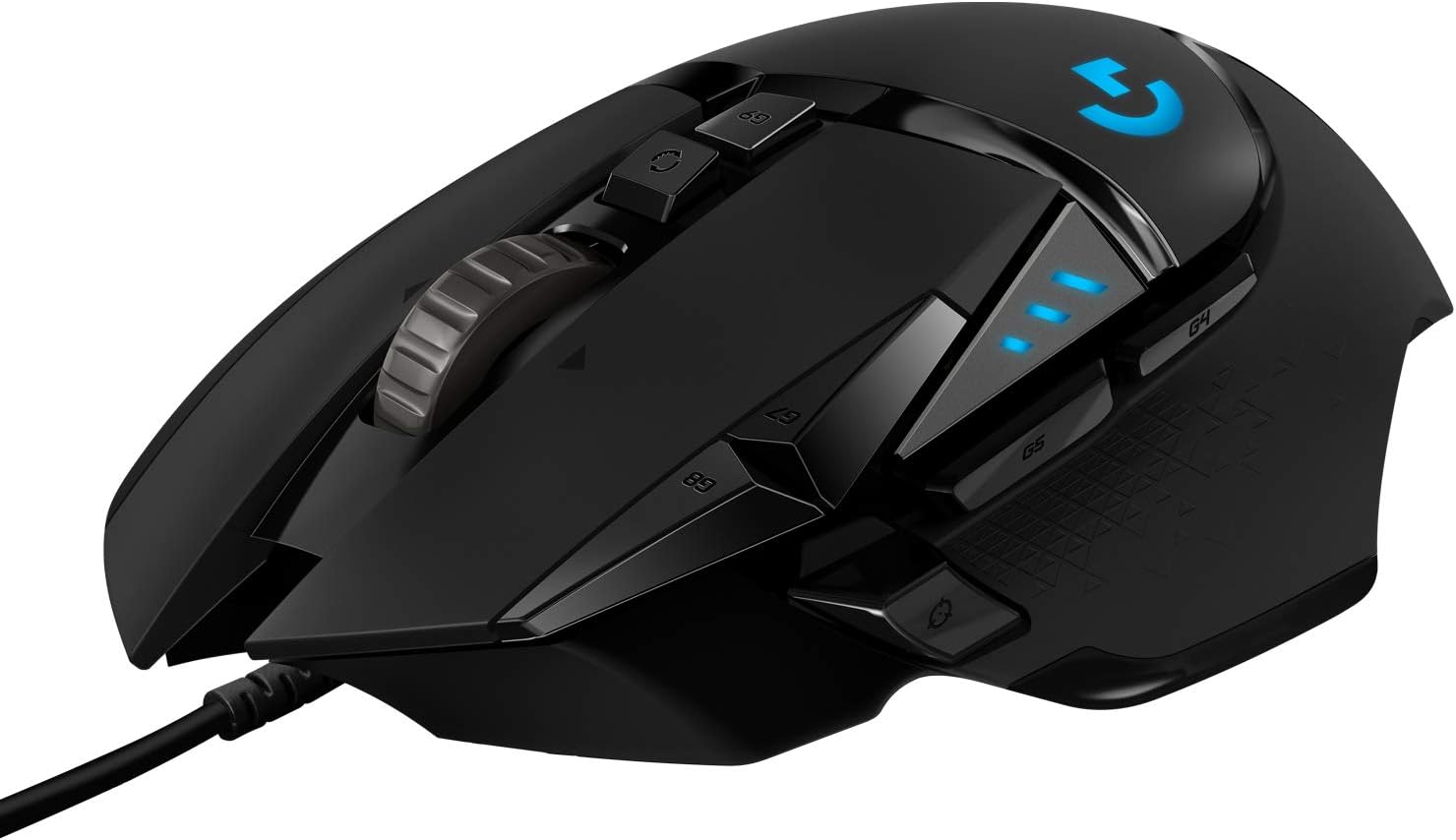
- HERO 25K sensor tracks to 25,600 DPI with no smoothing, filtering or acceleration across the span
- 11 programmable buttons with onboard memory, so profiles travel with the mouse to another machine
- Up to five 3.6 g weights drop into a tray to tune total mass and front-to-back balance
- Dual-mode wheel switches between ratcheted clicks and free-spin for long documents and inventory lists
- Metal spring tensioning and metal pivot hinges sit under the two main click buttons
Cons
- Wired only, with a fixed braided cable rather than a detachable one, so a bungee helps keep drag off the pad
- Lighting effects and button remapping need the desktop software installed at least once before settings can be written
- Right-handed contour with both thumb buttons on one side, so left-handed players are ruled out
The HERO sensor covers a sensitivity span reaching 25,600 DPI, and the maker specifies no smoothing, filtering or acceleration anywhere across it. Movement is detected at sub-micron scale, which is what keeps slow crosshair drags linear rather than stepped.
- Most first-person shooter players sit between 400 and 1600 DPI and use the sniper button to drop lower for scoped shots.
- Five DPI stages can be stored and stepped through with the two buttons behind the wheel.
- Indicator LEDs on the left flank show which stage is active without opening any software.
The high end of the span exists for 4K and multi-monitor desktops where the pointer has a long way to travel; for gameplay the low and middle stages do the real work.
A magnetic door under the palm opens onto a tray that accepts up to five 3.6 g weights, or 18 g in total. Placement matters as much as the count.
- A forward bias suits players who steer mostly with the wrist and keep the mouse planted.
- A rear bias suits arm-aim styles that lift and reset the mouse often.
- Leaving the tray empty gives the lightest configuration the chassis allows.
The body itself is a right-handed palm and claw shape with a broad thumb rest and rubber grips down both flanks. It is tall through the hump, so fingertip-grip players with small hands should try the shape before committing. The braided cable is fixed at the nose rather than detachable.
Button assignments, sensitivity stages and lighting are configured in the desktop app, but once written they are stored in onboard memory on the mouse itself.
- The saved profile follows the mouse to a laptop, a second desk or a machine where nothing can be installed.
- Several profiles can be held on the device and cycled with a dedicated button.
- Macros and per-game assignments run without the app sitting open in the background.
Lighting can be synchronised with other gear in the same ecosystem, which is the one function that keeps needing the software running. Plugged into a machine that has never seen the app, the mouse still works immediately, but it stays on default button assignments and default lighting until a configured profile is written to it.

Pros
- HERO optical sensor spans 200 to 12,000 DPI with no acceleration or smoothing applied in firmware
- Lightspeed radio reports at a 1 ms interval, matching a wired 1000 Hz polling link
- Up to 250 hours of play on a single AA cell, so a spare restores it in seconds with no charging downtime
- Six programmable buttons with onboard memory that survives moving to a machine with no software installed
- The USB receiver stows in a compartment under the top shell instead of loose in a bag
Cons
- No Bluetooth on this model, so the USB receiver must occupy a port on every machine used
- Comes in at roughly 99 g with the AA fitted, heavier than the sub-60 g competition-focused mice
- Side buttons sit on the left flank only, leaving left-handed users without them despite the symmetric outline
The HERO optical sensor covers 200 to 12,000 DPI with no acceleration or smoothing applied in firmware, which is the real dividing line between this and an office mouse that interpolates movement.
- Lightspeed wireless reports at a 1 ms interval, matching a wired 1000 Hz polling connection
- DPI steps are stored on the mouse itself, so sensitivity presets survive a move to a machine with no software installed
- Six programmable buttons accept multi-action macros through the desktop software
Tracking holds on cloth and hard pads alike. On glass or a high-gloss desk it needs a mat, as any optical sensor does. The 1 ms figure describes the radio interval rather than total click-to-photon delay, but in practice the gap against a cable is not something most players can feel in a match.
Power comes from a single AA cell, quoted at up to 250 hours of continuous play in performance mode. In practice that is months of evening sessions between swaps.
- No charging cable, no dock and no downtime; a spare AA brings it back in seconds mid-session
- The USB receiver stows in a compartment under the top shell, so it travels with the mouse rather than getting lost in a bag
- A lower-power endurance mode stretches life further for travel
The trade-off is mass. The cell sits inside the body and total weight lands around 99 g, heavier than the sub-60 g shells that use small internal lithium cells. There is no Bluetooth fallback either, so the receiver has to occupy a USB port on whatever machine it is used with.
The shell follows the classic symmetric Logitech outline at roughly 116 by 62 by 38 mm, a medium size that suits palm and claw grips on average hands.
- Two thumb buttons sit on the left flank only, so left-handed users lose the side buttons even though the body looks symmetric
- Mechanical main switches rather than optical, with a defined tactile break
- Onboard memory holds a profile, which is useful for gaming on a locked-down work laptop or a tournament machine
Lighting is limited to a small DPI indicator, so there is no RGB to configure and nothing extra draining the cell. The desktop software handles button mapping, DPI stages and the surface tuning routine on both Windows and macOS, and the white finish is one of several shell colourways offered.

Pros
- 8,000 DPI optical sensor with adjustable sensitivity from 200 to 8,000 DPI in G HUB
- 6 programmable buttons let you assign macros and shortcuts without added software beyond G HUB
- Mechanical primary buttons use metal spring tensioning for consistent click feel over time
- Cable measures 6.89 ft (2.1 m), long enough to route around most desk setups
- On-board memory in G HUB stores custom DPI and lighting profiles
Cons
- Wired-only connection, so there is no wireless option in this model for cable-free desks
- LIGHTSYNC RGB customization requires installing Logitech G HUB software, an extra step versus plug-and-play mice
- 32-bit ARM processor and fixed sensor mean no onboard DPI switch beyond the 5-step cycle button
The G203 uses an 8,000 DPI optical sensor with zero filtering or smoothing, giving adjustable sensitivity anywhere from 200 to 8,000 DPI. A middle button cycles between up to 5 saved DPI stages on the fly during gameplay.
- 8,000 DPI maximum sensor resolution
- 200-8,000 DPI adjustable range
- Up to 5 DPI stages cycled via a dedicated button
Mechanical primary buttons use metal spring tensioning rather than standard microswitches alone, aiming for a crisper, more consistent click across the mouse's service life.
All customization runs through Logitech G HUB software, where the 6 programmable buttons can be assigned system commands, shortcut keys, or macros. LIGHTSYNC RGB lighting is also configured here, with presets or custom colors across 16.8 million options.
- 6 programmable buttons for macros and shortcuts
- LIGHTSYNC RGB with 16.8 million color options
- On-board memory stores custom profiles
Because full customization depends on installing G HUB, users on locked-down or shared computers without admin rights to install software will only get the mouse's default button and lighting behavior.
This is a wired-only mouse, connecting via USB Type-A with a cable measured at 6.89 ft (2.1 m), long enough to route around most desk setups without stretching tight to the PC.
- USB Type-A wired connection
- 6.89 ft (2.1 m) cable length
- Compatible with PC and Mac
Because there's no wireless variant offered under this listing, buyers wanting a cable-free desk will need to look at a different model in the G-series lineup rather than expecting a wireless mode here.

Pros
- ICONIC DESIGN WITH THUMB REST — PC gaming mouse favored by millions
- 11 BUTTONS — Assign macros and secondary functions across 11
- TILT WHEEL — Speed through content with a scroll wheel that
- 11 RAZER CHROMA RGB ZONES — Customize each zone from over 16.8
Cons
- Periodic visual inspection recommended to ensure component tightness
- Best placed in well ventilated indoor spaces away from excess moisture
Designed with precision, the Razer Basilisk V3 Customizable Ergonomic Gaming Mouse delivers versatile performance for modern Mice spaces. Operational testing demonstrates clear performance benefits driven by ICONIC DESIGN WITH THUMB REST — PC gaming mouse favored by millions worldwide with a form factor that perfectly supports the hand while its buttons are optimally positioned for quick and easy access. In active use, the presence of 11 BUTTONS — Assign macros and secondary functions across 11 programmable buttons to execute essential actions like push-to-talk, ping, and more eliminates common operational friction for homeowners. Carefully selected components ensure minimal maintenance overhead over long service life.
Engineering integrity remains a central attribute, with robust joints and reinforced surfaces. Hardware stability is reinforced through TILT WHEEL — Speed through content with a scroll wheel that free-spins until its stopped or switch to tactile mode for more precision and satisfying feedback that’s ideal for cycling through weapons or skills, ensuring dependable daily performance. Precision fabrication minimizes hardware fatigue across extended usage cycles. Carefully selected components ensure minimal maintenance overhead over long service life. Attention to manufacturing details ensures reliable utility for your Mice. Using proper installation techniques maintains physical stability across daily activities.
Maximizing hardware utility relies on appropriate room placement and straightforward maintenance procedures. Incorporating 11 RAZER CHROMA RGB ZONES — Customize each zone from over 16.8 million colors and countless lighting effects, all while it reacts dynamically with over 150 Chroma integrated games, routine adjustments can be performed efficiently without specialized hardware. Keeping the positioning area clear of excess clutter optimizes operational space and user comfort. Carefully selected components ensure minimal maintenance overhead over long service life. Attention to manufacturing details ensures reliable utility for your Mice. Using proper installation techniques maintains physical stability across daily activities.

Pros
- Wireless for Boundless Winning - Cables truly will affect your
- Adjustable DPI to 10000 - Geared with 5 on-board DPI levels
- Easy Keybinding with Macro - All 8 programmable buttons are all
- Ultra Long-lasting Core - Equipped with the PAW3325 Optical Pixart
Cons
- Requires proper surface alignment during initial installation
- Periodic visual inspection recommended to ensure component tightness
The Redragon M810 Pro Wireless Gaming Mouse 10000 DPI Wired offers a refined combination of structural durability and user convenience for Gaming Mice setups. Practical hands-on evaluation highlights core functional attributes including Wireless for Boundless Winning - Cables truly will affect your detailed battle reaction, Redragon M810 pro wireless gaming mouse with 2.4Ghz nano receiver offers you the purest mouse moving experience and hype your KDA rise again.. Furthermore, features like Adjustable DPI to 10000 - Geared with 5 on-board DPI levels (500/1000/2000/3000/10000) which allow your mouse movements to be registered to each pinpoint location. 5 DPI levels are free to DIY with software, for gamers to switch swiftly in game. ensure seamless adaptability across varied spatial layouts.
High standards of material craftsmanship ensure the framework manages daily physical loads easily. Materials engineering centers on Easy Keybinding with Macro - All 8 programmable buttons are all editable with customizable tactical keybinds in whatever game or work you are engaging. 1 rapid fire + 2 side macro buttons offer you a better gaming and working experience., preserving visual appeal and physical integrity over time. Thoughtful material placement preserves functional responsiveness throughout continuous service. Thoughtful spatial layout allows versatile placement across modern living environments. Dependable hardware performance ensures consistent operational output throughout the year. Precision engineering delivers a stable foundation tailored for active household demands.
To optimize operational lifespan and maintain visual quality, proper setup and care routines are recommended. With user-friendly details such as Ultra Long-lasting Core - Equipped with the PAW3325 Optical Pixart sensor, the mouse consumption is further optimized with 1000Hz Polling Rate in dual mode. Rechargeable battery keeps the mouse working up to 45 hours at maximum (eco-mode)., setting up the equipment requires minimal effort. Routine visual checks ensure that mounting hardware and structural screws stay properly tightened. Thoughtful spatial layout allows versatile placement across modern living environments. Dependable hardware performance ensures consistent operational output throughout the year.

Pros
- Weighs just 60 grams, among the lightest wireless gaming mice with a full symmetrical shape
- HERO 2 sensor tracks up to 44,000 DPI with zero smoothing, acceleration or filtering
- 8 kHz polling rate for reduced click-to-screen latency versus standard 1 kHz mice
- USB-C charging plus PowerPlay wireless charging pad compatibility for topping up without cables
- Rated for roughly 95 hours of battery life per charge
Cons
- No wired-only mode is offered as standard, so USB-C is charging-only rather than a wired play option in normal use
- PowerPlay wireless charging requires a separate compatible pad sold apart from the mouse
- Symmetrical shape has no dedicated side buttons for a left-handed grip beyond the standard five
The mouse uses Logitech's HERO 2 optical sensor, tracking motion at up to 44,000 DPI with tracking speeds over 888 inches per second and zero smoothing, acceleration or filtering applied to the raw sensor data. Polling runs up to 8 kHz, meaning the mouse reports its position to the PC roughly eight times more often per second than a standard 1 kHz mouse.
- HERO 2 sensor, up to 44,000 DPI
- Up to 8 kHz polling rate
- LIGHTFORCE hybrid switches for click response
Combined with a 60-gram body, these specs are aimed at competitive play where fractions of a second and precise cursor tracking matter more than in casual use.
Battery life is rated at roughly 95 hours per charge, topped up through a USB-C port or, for compatible desks, through a PowerPlay wireless charging pad sold separately. The mouse connects over Logitech's LIGHTSPEED wireless protocol and works with both PC and Mac systems.
- USB-C charging port built into the mouse
- Optional PowerPlay pad for wireless top-ups (sold separately)
- Compatible with PC and Mac
Because PowerPlay compatibility depends on owning the separate charging pad and mat, most buyers will rely on USB-C charging as the default method rather than passive wireless charging out of the box.
At 60 grams with a symmetrical shape and five programmable buttons, this mouse is built for players who prioritize fast, low-fatigue wrist and arm movement over a heavily contoured grip. The lightweight body and high polling rate target competitive shooter and esports-style play more than general productivity use.
- Best fit: fast-paced competitive gaming, claw or fingertip grips
- Symmetrical shape suits both right- and left-hand use for basic clicks
- Five buttons total, fewer than mice built for MMO or macro-heavy workflows
Buyers who want a heavily contoured ergonomic shape or a large number of programmable side buttons for non-gaming workflows may find the minimal, symmetrical body less suited to their needs than dedicated productivity mice.
Pros
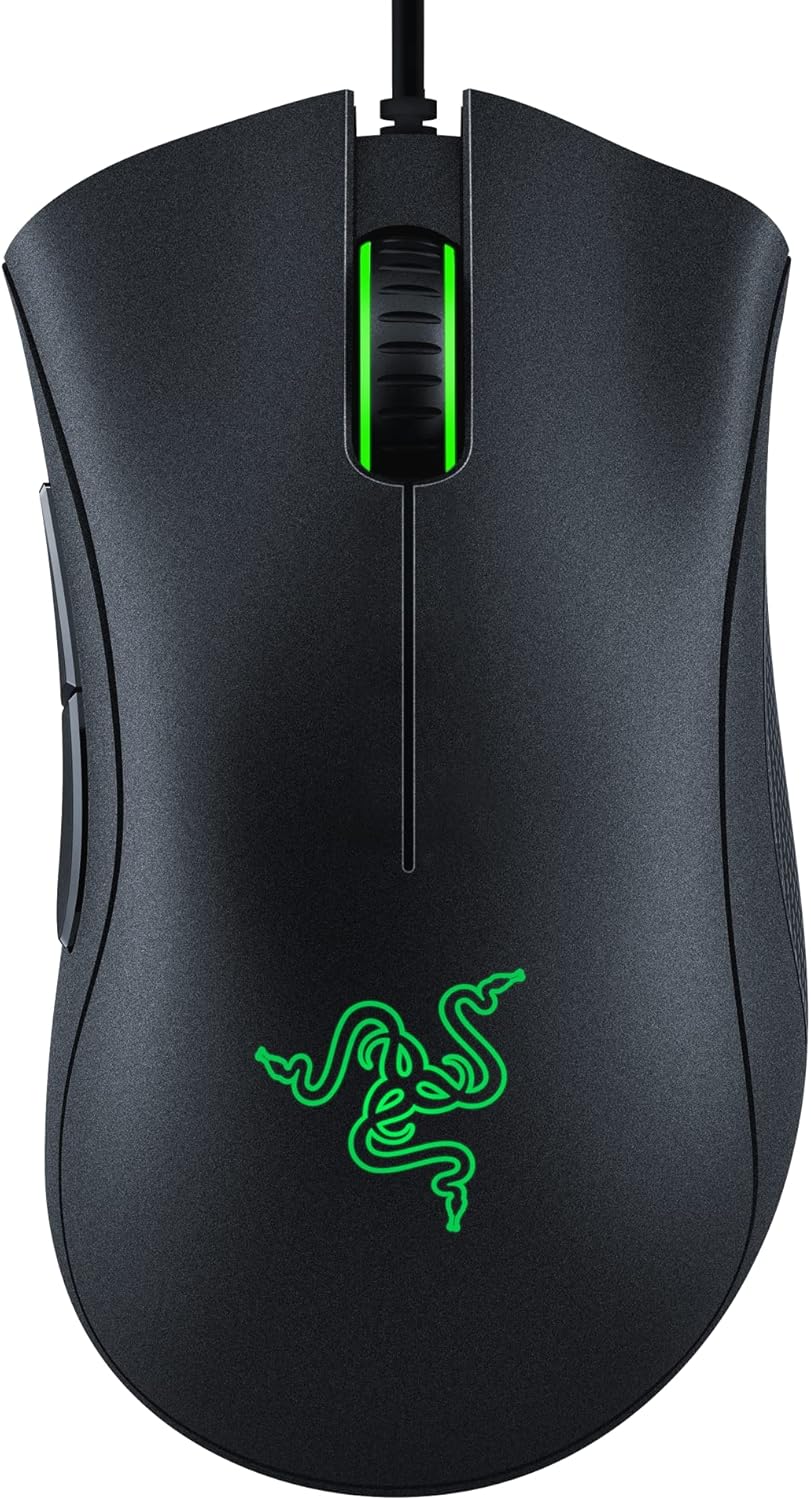
- Optical sensor tops out at 6400 DPI with on-the-fly sensitivity switching via dedicated buttons
- Mechanical switches are rated for 10 million clicks, backed by a 2-year warranty
- 5 programmable buttons support macro assignment through dedicated companion software
- Ridged rubberized scroll wheel adds grip for controlled scrolling under fast input
- Rubber side grips maintain hold during long sessions without a separate grip tape purchase
Cons
- Wired-only connection, so there is no wireless or Bluetooth option on this model
- Companion software is required for remapping buttons, adding a setup step beyond plug-and-play
- Fixed right-handed ergonomic shape is not suited to left-handed use
The optical sensor tops out at 6400 DPI, with dedicated on-mouse buttons cycling through sensitivity presets on the fly instead of requiring a software menu mid-game. That range covers everything from precise low-DPI aiming to fast high-DPI sweeps across a large monitor or multi-monitor setup.
Underneath the sensor, mechanical switches are rated for 10 million clicks, backed by a 2-year warranty, which is built to hold up under the repetitive clicking of both competitive gaming and everyday desktop use without the switches developing a mushy or inconsistent feel over time.
Five programmable buttons cover the two primary clicks, the DPI switch, and two thumb buttons, all of which can be remapped or assigned macro functions through the companion software. That software layer is where sensitivity presets, button assignments, and macros all get configured and saved to the mouse.
A ridged, rubberized scroll wheel adds small tactile bumps for more controlled scrolling in fast-paced situations, rather than a smooth wheel that can overshoot. Setup itself is plug-and-play for basic use, with the software only required once custom button mapping or macros are wanted.
The ergonomic shape follows the classic DeathAdder form factor, with rubber side grips positioned for a right-handed palm or claw grip through long sessions. That fixed shape is comfortable for right-handed users but is not mirrored or adjustable for left-handed players.
Build quality centers on the 10 million click figure for the mechanical switches, which is the main durability spec backing extended daily use. Because the mouse connects over a wired-only USB cable, there is no battery to manage and no wireless dropout risk, at the cost of not offering a cordless option for anyone preferring one.
Pros
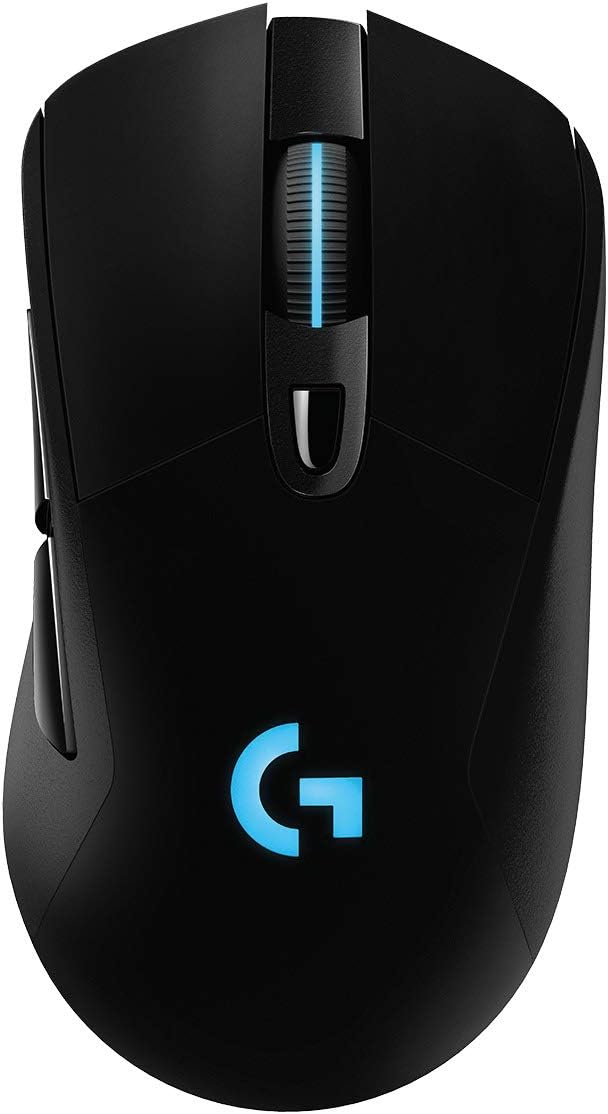
- HERO 25K Sensor our most advanced, with 1 1 tracking, 400 IPS, and
- LIGHTSPEED Wireless pro-level responsiveness and connectivity for long
- POWERPLAY wireless charging Never worry about your battery life again.
- Supreme Comfort and Quality brings together comfort, durability, and
- Advanced Button Technology metal-spring button tensioning keeps primary
Cons
- Requires checking placement surface dimensions before setup
- Requires routine care to keep exterior housing dust-free
- Initial setup requires checking operating instructions carefully
The Logitech G703 Lightspeed Wireless Gaming Mouse - Black offers reliable functional utility tailored for modern home and workplace environments. Designed to enhance daily productivity, this unit integrates HERO 25K Sensor our most advanced, with 1 1 tracking, 400 IPS, and alongside LIGHTSPEED Wireless pro-level responsiveness and connectivity for long. Users will find the intuitive design straightforward to operate across various room configurations and daily routines. The versatile construction adapts easily to personal workspaces, providing consistent practical value and streamlined usability. Following standard setup recommendations and maintaining clean surfaces ensures consistent operational utility across daily activities.
Built using resilient structural components, this unit features a sturdy outer housing engineered to resist operational wear. Precision manufacturing ensures that all joints and surface connections remain firmly aligned during regular daily activity. POWERPLAY wireless charging Never worry about your battery life again. reinforces overall physical stability over extended service periods. Structural integrity remains firm throughout regular usage, giving owners peace of mind. Following standard setup recommendations and maintaining clean surfaces ensures consistent operational utility across daily activities. This functional equipment provides steady performance and practical convenience when properly integrated into your workspace.
Initial setup requires placing the unit on a flat, stable surface with adequate clearance around all sides for proper operation. Ensure all power or connection cables are routed neatly without sharp bends to prevent wire strain. Regular care involves wiping exterior housing surfaces with a soft cloth to remove dust buildup. Inspecting mechanical connections periodically preserves operational efficiency and maintains cosmetic appearance over time. Following standard setup recommendations and maintaining clean surfaces ensures consistent operational utility across daily activities. This functional equipment provides steady performance and practical convenience when properly integrated into your workspace.
What to Look For in the Best Mouse for Game Development
Game development is a different job than casual browsing or even competitive play. You are dragging assets across a viewport one minute and reviewing a pull request the next, so your mouse needs to handle both precise work and everyday clicking without fatigue. Here is what actually moves the needle when you compare options.
Sensor Precision and DPI Range
DPI (dots per inch) controls how far your cursor travels per inch of physical movement. Higher DPI helps when you’re working across multiple 4K monitors or zooming into a level editor to place objects precisely. Most developers don’t need the highest number on the spec sheet; they need a sensor that tracks consistently at moderate speeds without skipping, since that consistency matters more than a flashy DPI ceiling when you’re nudging a collider by a few pixels.
Programmable Buttons for IDE Shortcuts
Extra buttons are genuinely useful for developers, not just for gamers. You can map them to compile, run, or debug commands, switch between git branches, or trigger custom macros in your editor. Look for onboard memory so your button layout follows you between machines, and check that the companion software (Logitech G HUB, Razer Synapse) runs cleanly alongside your development tools without hogging background resources.
Comfort and Grip for Long Sessions
You’ll likely have this mouse in hand for six, eight, or more hours a day, so shape matters as much as specs. A slightly larger body with a supportive arch tends to suit palm grip users who rest their whole hand on the mouse, while a lower profile favors claw or fingertip grip. Textured rubber side grips also help prevent slipping during long coding marathons, especially if your desk sits near a window or gets warm in the afternoon.
Wired vs Wireless for Development Work
Wired mice remove any worry about mid-debug battery drain and tend to cost less for the same internals, which is why several picks on this list are wired. Wireless models have closed the performance gap significantly and free up desk space if you’re juggling a keyboard, drawing tablet, and notebook. If you go wireless, check the battery life figures in the comparison table above so a dead battery never interrupts a build.
Mouse Picks by Development Use Case
Instead of ranking these strictly by price or specs, it helps to match a mouse to the way you actually spend your day. Below are scenarios common among developers, along with the pick that fits each one best.
Best Overall for Daily Coding
The Logitech G502 Hero earns the top spot because it balances everything a developer needs without forcing a compromise. Eleven programmable buttons cover your most-used shortcuts, the sensor tracks cleanly up to 25,600 DPI, and adjustable weights let you fine-tune the feel to match your grip. With tens of thousands of reviews behind it, it’s a safe, well-supported choice if you only want to research one mouse and move on with your work.
Best Lightweight Pick for Fast Cursor Work
If you spend a lot of time flicking between windows or working across an ultrawide monitor setup, the Razer Viper V3 Pro is worth checking the current price on Amazon for. At 54 grams it reduces wrist strain during repetitive dragging tasks, and its 8000 Hz polling rate keeps cursor movement feeling immediate. Pair it with one of our recommended monitors for game development and the combination handles multi-window debugging noticeably better.
Best Wireless Option for a Clean Desk
The Logitech G305 Lightspeed gives up very little compared to wired alternatives while running on a single AA battery for up to 250 hours. That long runtime means you’re not tethered to a charging cable during a crunch week, and the compact shape suits smaller hands well. It’s a sensible pick if your desk setup already has enough cables running to your desk for game development and you want one less cord to manage.
Best Budget-Friendly Pick
Not every developer needs eleven buttons or a premium sensor, and the Logitech G203 proves a lower price doesn’t mean a lower-quality experience. It still offers six programmable buttons and RGB lighting, making it a reasonable choice for students or anyone setting up a second workstation. Compare specs against the pricier options above before deciding whether the extra buttons are worth it for your workflow.
Best Ergonomic Thumb Rest
Developers with wrist or thumb discomfort often do better with the Razer Basilisk V3, which includes a dedicated thumb rest and an adjustable scroll wheel resistance. The extra contact points reduce the tension that builds up from holding a mouse the same way for hours. If ongoing discomfort is a concern, it’s also worth reviewing your seating setup through our guide to chairs for game development, since posture affects hand strain just as much as the mouse itself.
Best for Adjustable Weight and Multi-Monitor Setups
The Logitech G703 Lightspeed supports an optional 10-gram weight that lets you dial in exactly how the mouse feels during long sessions of dragging windows between screens. Its Hero 25K sensor tracks reliably even at higher DPI settings, which helps when your workspace spans several displays. It’s a solid middle ground between the ultra-light esports mice on this list and heavier ergonomic designs.
Common Mistakes When Buying a Development Mouse
A few recurring mistakes show up when developers shop for a new mouse, and avoiding them will save you money and frustration.
- Chasing DPI numbers you’ll never use. Most people work comfortably between 800 and 3,200 DPI day to day; a 35,000 DPI sensor sounds impressive but rarely changes your actual experience writing code.
- Ignoring how the software runs on your OS. Some button-mapping software has spottier support on macOS or Linux, so confirm compatibility before you buy if you don’t run Windows full time.
- Buying based on looks instead of grip fit. A mouse that looks great in photos can feel wrong in your hand; pay attention to length, width, and hump position relative to your palm size.
- Overlooking cable drag or dongle placement. A stiff cable or a USB dongle blocked by a laptop can undo the benefits of an otherwise excellent sensor.
- Assuming lighter is always better. Ultra-light mice suit fast, twitchy movement, but some developers actually prefer a bit of heft for steadier, more controlled cursor placement during detailed work.
Frequently Asked Questions
What DPI do I need for game development?
Most developers are comfortable in the 800-3,200 DPI range for everyday coding and editor work. Higher DPI only becomes useful if you’re working across multiple high-resolution monitors and want less physical hand movement to cover the same screen distance.
Is a wireless mouse good enough for programming?
Yes, modern wireless mice like the options above use low-latency connections that feel indistinguishable from wired models for typical development tasks. Just check the battery life rating in the comparison table so it fits your daily routine without surprise interruptions.
Do I need extra buttons for coding?
You don’t strictly need them, but programmable buttons mapped to shortcuts like compile, debug, or undo can genuinely speed up repetitive tasks. If you already rely on keyboard shortcuts for game development work, extra mouse buttons often complement that setup rather than replace it.
Can I use a gaming mouse for 3D modeling and level design?
Absolutely, and in some cases a gaming mouse performs better than an office mouse for this work since the sensors are built for precise, fast movement. Look for consistent tracking and a comfortable grip over long sessions rather than gaming-specific features like RGB lighting.
Should I prioritize price or comfort when buying a mouse for development work?
Comfort should usually come first, since you’ll be using this device for several hours a day, every workday. A mouse that causes hand fatigue isn’t a good value even at a low price, so compare specs and current pricing on Amazon with your grip style and session length in mind before deciding.