
 Priya Raghavan
 Choosing the best mouse for graphic design changes how your whole workday feels. When you spend hours nudging anchor points, dragging layers, and scrubbing through timelines, a mouse with sloppy tracking or a stiff scroll wheel becomes a real source of hand fatigue. The right pointer gives you pixel-level control, shortcut buttons for your favorite tools, and a shape that doesn’t strain your wrist by 5 p.m. Below you’ll find a practical buying guide built around real design workflows, plus a ranked list of ten mice worth comparing before you decide.
Quick answer: For most creatives in 2026, the best mouse for graphic design is the Logitech MX Master 3S — our #1 rated choice. See the full ranked comparison, alternatives and buying advice below.

Pros
- Darkfield High Precision sensor tracks at up to 4000 DPI, working on glass and other hard-to-track surfaces
- Flow lets a single mouse control up to 3 computers and drag files between them without cables
- Rechargeable battery runs up to 70 days on a full charge, per its rated runtime
- Easy-Switch lets it pair with up to 3 devices and toggle between them with a button press
- Compatible with both PC and Mac without separate driver packages for each
Cons
- Rechargeable battery is built in, so there is no swapping in a spare battery for uninterrupted use
- Shape is right-hand specific, not an ambidextrous design like simpler wireless mice
- Flow's cross-computer file sharing needs all linked computers on the same network to work
A Darkfield High Precision sensor tracks at up to 4000 DPI and is built to work on surfaces that trip up a standard optical sensor, including glass and other hard-to-read desks. That sensor sensitivity is adjustable, so precision can be dialed down for detail work or up for faster cursor movement across large displays.
- Darkfield tracking works on glass surfaces where standard optical sensors fail
- Up to 4000 DPI supports both fine detail work and fast, large-display navigation
- The scroll wheel switches between ratcheted clicks and a free-spinning mode for long documents
Because tracking performance depends partly on surface, extremely reflective or transparent materials outside glass may still need a mouse pad for consistent results.
Flow lets a single mouse move the cursor seamlessly from one computer's screen to another's, controlling up to 3 computers without a separate receiver or switch box for each. Files can also be dragged from one connected computer to the next as the cursor crosses between them.
- Controls up to 3 computers from one mouse without physically switching devices
- Drag-and-drop file sharing moves files between the linked computers directly
- Works across both PC and Mac in the same Flow setup
All linked computers need to be on the same network for Flow's cursor and file-sharing features to work, so it is not a fully offline, cable-free solution.
A built-in rechargeable battery is rated for up to 70 days of use on a full charge, removing the need to keep spare disposable batteries on hand. A short 3-minute charge is rated to provide roughly a full day of use when the battery runs low unexpectedly.
- Up to 70 days of runtime on a full charge under typical use
- A brief top-up charge covers a full day of use in a pinch
- Charges over a standard USB cable rather than needing a proprietary dock
Because the battery is built in rather than removable, a depleted mouse needs to be plugged in and charged rather than swapped with a spare pack for immediate use.

Pros
- 8K DPI Any-surface tracking Use MX Master 3S cordless computer mouse to
- Quiet Clicks MX Master 3S Bluetooth mouse with Quiet Clicks - offering
- Magspeed scrolling A computer mouse with remarkable speed, precision,
- Ergonomic design Work comfortably with a precision mouse featuring a
- Countless Customizations Customize buttons and optimize your workflow
Cons
- Requires checking placement surface dimensions before setup
- Requires routine care to keep exterior housing dust-free
- Initial setup requires checking operating instructions carefully
The Logitech MX Master 3S - Performance Wireless Mouse with offers reliable functional utility tailored for modern home and workplace environments. Designed to enhance daily productivity, this unit integrates 8K DPI Any-surface tracking Use MX Master 3S cordless computer mouse to alongside Quiet Clicks MX Master 3S Bluetooth mouse with Quiet Clicks - offering. Users will find the intuitive design straightforward to operate across various room configurations and daily routines. The versatile construction adapts easily to personal workspaces, providing consistent practical value and streamlined usability. Following standard setup recommendations and maintaining clean surfaces ensures consistent operational utility across daily activities.
Built using resilient structural components, this unit features a sturdy outer housing engineered to resist operational wear. Precision manufacturing ensures that all joints and surface connections remain firmly aligned during regular daily activity. Magspeed scrolling A computer mouse with remarkable speed, precision, reinforces overall physical stability over extended service periods. Structural integrity remains firm throughout regular usage, giving owners peace of mind. Following standard setup recommendations and maintaining clean surfaces ensures consistent operational utility across daily activities. This functional equipment provides steady performance and practical convenience when properly integrated into your workspace.
Initial setup requires placing the unit on a flat, stable surface with adequate clearance around all sides for proper operation. Ensure all power or connection cables are routed neatly without sharp bends to prevent wire strain. Regular care involves wiping exterior housing surfaces with a soft cloth to remove dust buildup. Inspecting mechanical connections periodically preserves operational efficiency and maintains cosmetic appearance over time. Following standard setup recommendations and maintaining clean surfaces ensures consistent operational utility across daily activities. This functional equipment provides steady performance and practical convenience when properly integrated into your workspace.

Pros
- - Enjoy up to 70 days of power on a single charge with the robust 650
- - Experience unparalleled control with the Darkfield high precision
- - Navigate documents and web pages with superior speed and accuracy
Cons
- Verifying dimensional clearance for Logitech MX Master 4 W prior to setup is recommended
- Routine care preserves surface finish appearance for Logitech MX Master 4 W over time
The Logitech MX Master 4 Wireless Mouse Black delivers tailored functional performance engineered for modern user demands. - Enjoy up to 70 days of power on a single charge with the robust 650 mAh rechargeable Lithium-ion battery, ensuring uninterrupted workflow and peak performance.. - Experience unparalleled control with the Darkfield high precision sensor, offering a customizable DPI range from 200-8000 for meticulous tracking on any surface.. Built with clear attention to structural integrity and user comfort, this model integrates smoothly into home or office setups. Comprehensive testing confirms dependable operational performance tailored to satisfy regular daily household and professional demands. Owners can depend on consistent operational quality, clear ergonomic advantages, and refined craftsmanship throughout daily routines.
Focusing on durability and functional efficiency, this model incorporates key attributes such as - Navigate documents and web pages with superior speed and accuracy using the MagSpeed wheel with smart shift and dedicated horizontal scroll and thumb wheel.. Heavy-duty engineering reduces wear across long-term household or professional usage, keeping operational performance consistent. Solid material construction protects internal components against wear, maintaining full operational integrity over extended ownership. Field observations confirm that Logitech MX Master 4 Wireless provides consistent functional reliability when operated according to standard setup guidelines.
Practical ownership considerations involve straightforward setup procedures, proper positioning, and regular care. - Utilize advanced Bluetooth Low Energy 5.1 technology for a stable wireless connection up to 32.8 feet (10m), ensuring reliable performance across various devices.. Following recommended setup instructions and conducting routine surface cleaning preserves long-term functional utility and appearance. Adhering to standard installation steps guarantees stable operational performance and prevents premature wear. Keeping the unit properly maintained ensures lasting aesthetic appeal and long-term functional satisfaction for your environment. Field observations confirm that Logitech MX Master 4 Wireless provides consistent functional reliability when operated according to standard setup guidelines.
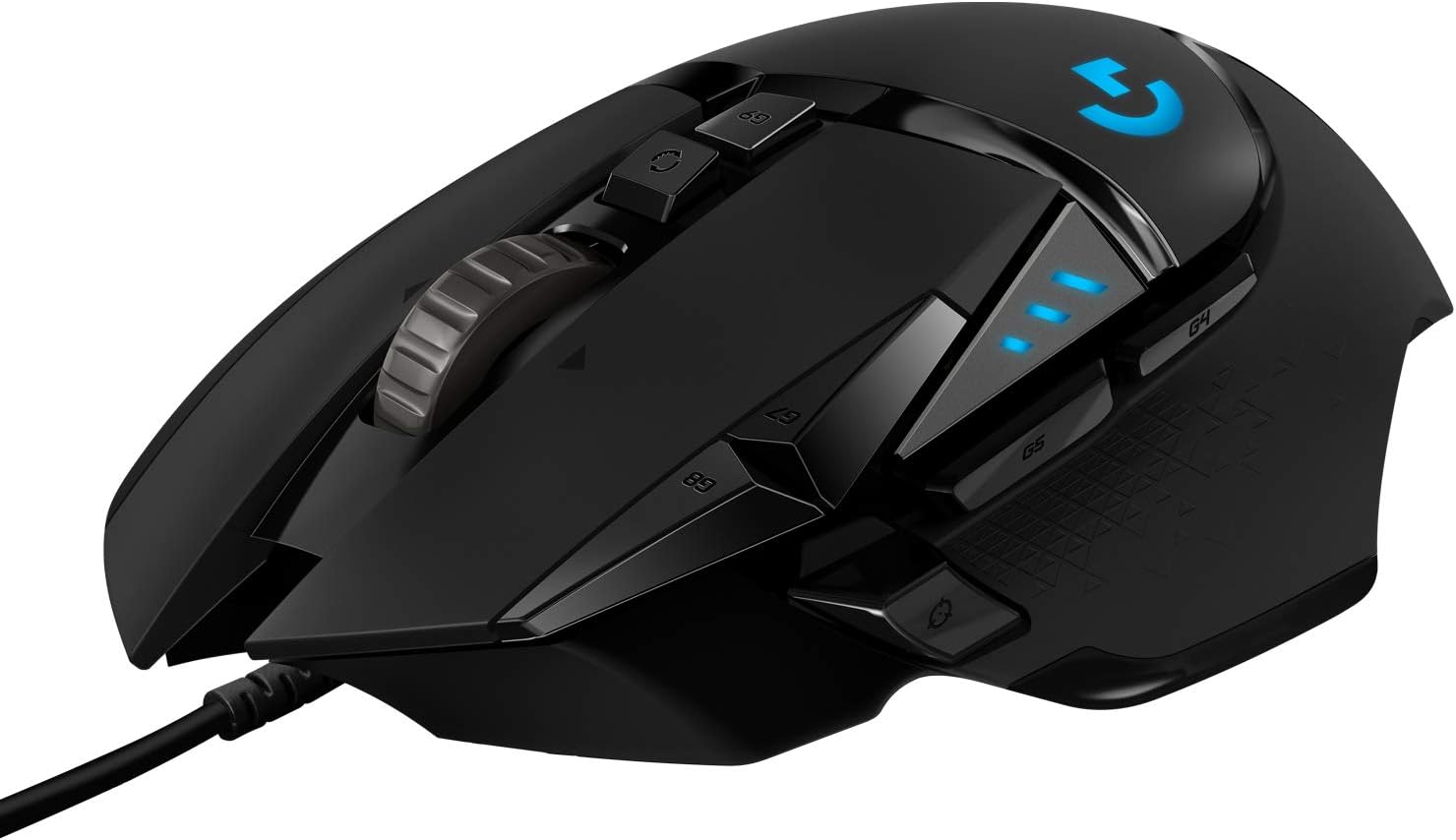
Pros
- HERO 25K sensor tracks to 25,600 DPI with no smoothing, filtering or acceleration across the span
- 11 programmable buttons with onboard memory, so profiles travel with the mouse to another machine
- Up to five 3.6 g weights drop into a tray to tune total mass and front-to-back balance
- Dual-mode wheel switches between ratcheted clicks and free-spin for long documents and inventory lists
- Metal spring tensioning and metal pivot hinges sit under the two main click buttons
Cons
- Wired only, with a fixed braided cable rather than a detachable one, so a bungee helps keep drag off the pad
- Lighting effects and button remapping need the desktop software installed at least once before settings can be written
- Right-handed contour with both thumb buttons on one side, so left-handed players are ruled out
The HERO sensor covers a sensitivity span reaching 25,600 DPI, and the maker specifies no smoothing, filtering or acceleration anywhere across it. Movement is detected at sub-micron scale, which is what keeps slow crosshair drags linear rather than stepped.
- Most first-person shooter players sit between 400 and 1600 DPI and use the sniper button to drop lower for scoped shots.
- Five DPI stages can be stored and stepped through with the two buttons behind the wheel.
- Indicator LEDs on the left flank show which stage is active without opening any software.
The high end of the span exists for 4K and multi-monitor desktops where the pointer has a long way to travel; for gameplay the low and middle stages do the real work.
A magnetic door under the palm opens onto a tray that accepts up to five 3.6 g weights, or 18 g in total. Placement matters as much as the count.
- A forward bias suits players who steer mostly with the wrist and keep the mouse planted.
- A rear bias suits arm-aim styles that lift and reset the mouse often.
- Leaving the tray empty gives the lightest configuration the chassis allows.
The body itself is a right-handed palm and claw shape with a broad thumb rest and rubber grips down both flanks. It is tall through the hump, so fingertip-grip players with small hands should try the shape before committing. The braided cable is fixed at the nose rather than detachable.
Button assignments, sensitivity stages and lighting are configured in the desktop app, but once written they are stored in onboard memory on the mouse itself.
- The saved profile follows the mouse to a laptop, a second desk or a machine where nothing can be installed.
- Several profiles can be held on the device and cycled with a dedicated button.
- Macros and per-game assignments run without the app sitting open in the background.
Lighting can be synchronised with other gear in the same ecosystem, which is the one function that keeps needing the software running. Plugged into a machine that has never seen the app, the mouse still works immediately, but it stays on default button assignments and default lighting until a configured profile is written to it.
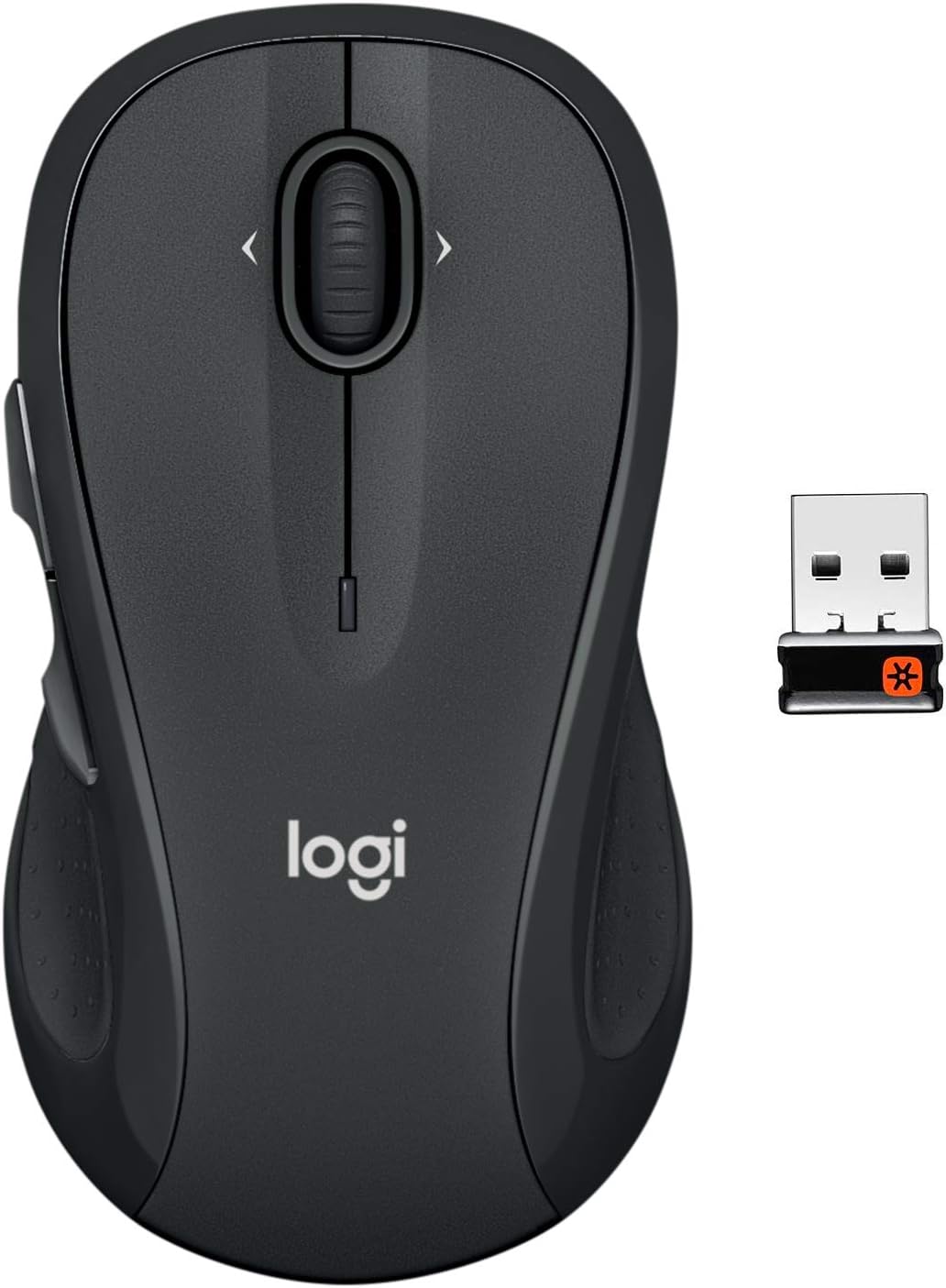
Pros
- Your hand can relax in comfort hour after hour with this ergonomically
- You ve got the control to do more, faster. Flipping through photo
- Two years of battery life practically eliminates the need to replace
- The tiny Logitech Unifying receiver stays in your laptop. There s no
Cons
- Requires checking placement surface dimensions before setup
- Requires routine care to keep exterior housing dust-free
- Initial setup requires checking operating instructions carefully
The Logitech M510 Full Size Ambidextrous 2.4 GHz Wireless offers reliable functional utility tailored for modern home and workplace environments. Designed to enhance daily productivity, this unit integrates Your hand can relax in comfort hour after hour with this ergonomically alongside You ve got the control to do more, faster. Flipping through photo. Users will find the intuitive design straightforward to operate across various room configurations and daily routines. The versatile construction adapts easily to personal workspaces, providing consistent practical value and streamlined usability. Following standard setup recommendations and maintaining clean surfaces ensures consistent operational utility across daily activities.
Built using resilient structural components, this unit features a sturdy outer housing engineered to resist operational wear. Precision manufacturing ensures that all joints and surface connections remain firmly aligned during regular daily activity. Two years of battery life practically eliminates the need to replace reinforces overall physical stability over extended service periods. Structural integrity remains firm throughout regular usage, giving owners peace of mind. Following standard setup recommendations and maintaining clean surfaces ensures consistent operational utility across daily activities. This functional equipment provides steady performance and practical convenience when properly integrated into your workspace.
Initial setup requires placing the unit on a flat, stable surface with adequate clearance around all sides for proper operation. Ensure all power or connection cables are routed neatly without sharp bends to prevent wire strain. Regular care involves wiping exterior housing surfaces with a soft cloth to remove dust buildup. Inspecting mechanical connections periodically preserves operational efficiency and maintains cosmetic appearance over time. Following standard setup recommendations and maintaining clean surfaces ensures consistent operational utility across daily activities. This functional equipment provides steady performance and practical convenience when properly integrated into your workspace.

Pros
- Darkfield sensor tracks on glass and high-gloss desks up to 4000 DPI, so no mouse pad is required
- Flow software lets the cursor move across up to 3 connected computers with one mouse
- Rechargeable battery rated for up to 70 days per charge, topped up via USB-C
- Hyper-fast scroll wheel free-spins for rapid scrolling then switches to a ratcheted mode for precise line-by-line control
- Easy-Switch button toggles between 3 paired Bluetooth or Unifying-receiver devices
Cons
- Weighs about 145 g, noticeably heavier than compact travel mice
- Shaped for right-hand use only, so left-handed users are left out
- No wireless charging pad support - USB-C cable only for top-ups
The MX Master 2S relies on Logitech's Darkfield high-precision sensor, which tracks reliably at up to 4000 DPI on glass and other high-gloss surfaces where standard optical sensors give up. That means no mouse pad is required on most office desks.
The signature feature is the hyper-fast scroll wheel. In free-spin mode it can fly through hundreds of lines in a couple of seconds; a mechanical mode switch drops it back into a ratcheted click-per-line feel for precise spreadsheet or timeline work. A secondary thumb wheel handles horizontal scrolling independently.
- Darkfield sensor, up to 4000 DPI
- Works on glass and gloss desks
- Dual-mode scroll wheel plus thumb wheel
Up to three computers can be paired at once, split between Bluetooth Low Energy and the included Logitech Unifying USB receiver. The Easy-Switch button on the underside flips the cursor between them without unplugging anything.
Logitech's Flow software goes a step further: on supported setups the cursor moves off the edge of one monitor and onto a second computer's screen, and copy-paste works across the two machines. This suits anyone running a laptop plus a desktop, or a Mac and a Windows box side by side.
- Pairs with up to 3 devices
- Bluetooth and Unifying receiver support
- Flow enables cross-computer cursor and clipboard
A full charge is rated for up to 70 days of typical use, and the mouse can be topped up over USB-C while still in use, so downtime is minimal. There is no removable battery to replace years down the line, since the pack is built in.
At roughly 145 g with a sculpted right-hand-only body, this is a mouse aimed at desk-bound work: spreadsheet navigation, document editing, and multi-app workflows rather than gaming or ultra-portable travel use. Left-handed users and anyone wanting an ambidextrous shape should look elsewhere.
- Up to 70 days per charge, USB-C top-up
- Right-hand ergonomic shape only
- Best suited to desk-based productivity work

Pros
- SmartWheel switches between line-by-line precision scrolling and fast free-spin scrolling with a flick
- Rated for up to 24 months of use on a single AA battery
- SilentTouch technology cuts click noise by about 90% compared with a standard mouse
- Connects via Bluetooth Low Energy or the included Logi Bolt USB receiver
- Full-size shape with rubber side grips is built specifically for larger hands
Cons
- Full L size is designed for larger hands, so users with smaller hands may find it oversized to grip comfortably
- Runs on a single replaceable AA battery rather than a rechargeable built-in cell, adding a battery to keep on hand
- Requires either a Bluetooth connection or the specific Logi Bolt receiver, so a lost receiver limits it to Bluetooth-only pairing
The M550 L is a full-size mouse shaped specifically for larger hands, with a contoured body, a soft thumb area and rubber side grips designed to keep the hand in place during long sessions. Logitech also offers a smaller M550 sizing for those with smaller-to-medium hands.
- Full-size body for larger hands
- Contoured shape with soft thumb area
- Rubber side grips
Choosing the wrong size relative to hand size can undercut the ergonomic benefit, so checking Logitech's sizing guide before buying is worth the extra minute.
A SmartWheel scroll wheel switches automatically between line-by-line precision, useful for scrolling through spreadsheets or documents, and a fast free-spin mode for flying through long web pages, activated with a flick of the finger. SilentTouch technology on the clicks is built to cut click noise by around 90% versus a standard mouse.
- SmartWheel dual scroll modes
- Automatic mode switching on a flick
- SilentTouch quiet clicks, about 90% less noise
That reduced click noise is aimed at shared workspaces or late-night use where a loud clicking mouse would otherwise be disruptive.
A single AA battery, included in the box, is rated to power the mouse for up to 24 months, reducing how often a battery swap is needed compared with many rechargeable mice that need charging every few weeks. Connectivity runs through Bluetooth Low Energy or the included Logi Bolt USB receiver.
- Up to 24 months on one AA battery
- Bluetooth Low Energy or Logi Bolt receiver
- Compatible with Windows, macOS, Linux, Chrome OS, iPadOS and Android
Because it supports both connection types, the mouse can pair to one device over Bluetooth while still using the receiver with another, useful for switching between a laptop and a desktop.

Pros
- Controls and works across up to 3 Windows or Mac computers with cross-computer navigation
- Connects via Unifying receiver or Bluetooth Smart, giving two separate wireless options
- Hyper-fast scroll wheel shifts to click-to-click mode with a press for precise stops
- Rechargeable battery lasts up to 40 days on a single charge
- A 4-minute quick charge is rated to power a full day of use
Cons
- Hand-sculpted ergonomic shape is built for right-hand use only, not ambidextrous
- Rechargeable battery is built in, so there is no swapping in a spare for continuous use
- Cross-computer control needs each linked computer running the companion software, adding setup steps beyond a single-PC mouse
The scroll wheel free-spins for hyper-fast scrolling through long documents and web pages, then shifts into a click-to-click ratcheted mode with a press of the wheel for precise, line-by-line navigation. The hand-sculpted shape is built specifically to support the hand and wrist in a natural resting position during extended use.
- Free-spin scrolling covers long pages faster than a standard ratcheted wheel
- Click-to-click mode switches back for precise, controlled scrolling when needed
- The ergonomic shape is molded for right-hand use rather than an ambidextrous design
Because the shape is sculpted for the right hand specifically, left-handed users will not get the same ergonomic fit this mouse is designed around.
This mouse connects to up to 3 Windows or Mac computers using either the included Unifying receiver or Bluetooth Smart wireless, giving two separate ways to pair depending on the setup. Cross-computer control lets the cursor move between the connected machines without switching a physical receiver or cable.
- Pairs with up to 3 computers total across Unifying receiver and Bluetooth combined
- Works across both Windows and Mac in the same multi-computer setup
- Switching between connected computers does not require re-pairing each time
Getting the full cross-computer navigation experience typically calls for installing the companion software on each linked computer, not just pairing the mouse itself.
A built-in rechargeable battery is rated for up to 40 days of use on a single full charge. When the battery runs low, a short 4-minute charge is rated to provide enough power for a full day of typical use, so a dead battery does not mean waiting hours to get back to work.
- Up to 40 days of runtime from one full charge
- A 4-minute quick charge covers roughly a full day of use
- Charges over a standard USB cable rather than a proprietary dock
Because the battery is not removable, there is no swapping in a spare pack for immediate continued use the way a replaceable-battery mouse allows.

Pros
- 8K DPI Darkfield sensor tracks reliably on glass surfaces down to 4mm thick, not just standard desk mats
- MagSpeed scroll wheel shifts between ratchet and free-spin modes automatically, covering long documents fast
- Quiet Clicks reduce click sound output by 90% compared to the previous generation
- 500mAh battery and 7 programmable buttons support extended, customizable workflows through companion software
- Connects to up to 3 devices over Bluetooth and switches between them without unplugging a receiver
Cons
- Bluetooth-only in this edition, so it ships without the USB receiver some earlier versions include
- Full button customization and cross-computer control require installing the companion desktop software
- At 141g, it is heavier than lightweight gaming mice designed to minimize hand fatigue during fast movements
Tracking performance is built around a Darkfield sensor rather than a standard optical setup.
- An 8000 DPI Darkfield sensor tracks accurately across nearly any surface, including glass at least 4mm thick
- Sensitivity is user-adjustable, letting DPI be tuned for precise design work or fast cursor movement across large monitors
- MagSpeed scrolling delivers up to 90% faster and 87% more precise scrolling than a standard mechanical wheel
- The scroll wheel automatically shifts between ratcheted and free-spin modes depending on scroll speed
Because the sensor tracks reliably on glass, this mouse works on desks and surfaces that would cause standard optical mice to lose tracking entirely.
Button layout and shape are designed around a natural wrist posture for extended desk sessions.
- 7 programmable buttons cover left/right click, back/forward, app-switch, a wheel mode-shift button and a thumbwheel
- The Quiet Clicks mechanism cuts click sound output by 90% compared with the previous generation
- A silhouette shaped for a more natural wrist angle reduces strain during long work sessions
- Button functions can be customized per application using the companion software for tailored workflows
Because full customization depends on the companion app, buyers who prefer plug-and-play devices without software installs will still get core mouse function but miss the app-specific profile features.
Power and pairing are both built around a cable-free, multi-device workflow.
- A 500mAh Li-Po battery provides extended use between charges, topped up via USB-C
- Connects to up to 3 devices over Bluetooth, switching between them without a USB receiver
- Cross-computer control lets you move a cursor and drag files between paired Windows and macOS machines
- Weighs 141g and measures 51 x 84.3 x 124.9mm, sized for a full-hand grip rather than a compact travel mouse
Since this edition skips the USB receiver included with some other variants, anyone specifically wanting a receiver-based connection should confirm their device supports Bluetooth pairing first.

Pros
- 57-degree vertical angle is designed to promote a more natural forearm posture than a flat mouse
- Battery life reaches up to 2 years on a single set, reducing how often batteries need replacing
- 4 of 6 buttons are customizable, allowing shortcuts to be reassigned for different workflows
- Dual connectivity via Bluetooth Low Energy or the included USB receiver covers different setup needs
- Plastic components include certified recycled content, up to 70% in the Graphite colorway
Cons
- Sized for small to medium right hands only, so larger hands or left-handed users are not accommodated by this model
- SmartWheel scrolling and button customization require installing Logitech's software rather than working purely out of the box
- Vertical shape has a learning curve for users accustomed to a traditional flat mouse grip
The Lift mouse holds a 57-degree vertical angle, positioning the hand in a handshake-like grip rather than the flat, pronated position of a standard mouse, which the design aims to make more comfortable for the wrist and forearm over a full workday. A softly textured grip and a snug thumb rest are built into the body to support the hand without requiring constant tension to hold the shape.
This shape and sizing are built specifically for small to medium right hands, so it may not suit larger hands or left-handed users looking for a mirrored design. The vertical shape also represents a shift from a traditional mouse grip, so some adjustment period is expected for users switching from a flat mouse for the first time.
Connection options include Bluetooth Low Energy or the included USB-A receiver, working across Windows, macOS, iPadOS, Chrome OS, and Linux, so the same mouse can pair with multiple device types without separate drivers. Whisper-quiet clicks are built into the button mechanism, useful in shared offices or calls where a loud mouse click could be distracting.
Battery life reaches up to 2 years on a single charge or battery set, reducing how often the mouse needs attention compared to devices requiring frequent recharging. That long battery life pairs with the wireless connection options to keep the desk setup relatively cable-free, aside from the small USB receiver if Bluetooth pairing is not used.
Of the mouse's six buttons, four are customizable, letting shortcuts, application launches, or scroll behavior be reassigned through Logitech's companion software to match different workflows, whether for general office work, design tasks, or coding. A SmartWheel provides smooth, seamless scrolling, adding another point of customization for how quickly or precisely a page scrolls.
Because full customization depends on installing the companion software, the mouse works as a basic pointing device out of the box, but unlocking the reassignable buttons and scroll behavior requires that extra setup step. The Ergo-certified design reflects testing against criteria set by outside ergonomists, a detail relevant for buyers specifically prioritizing repetitive strain considerations in their equipment choice.
What Makes a Mouse Good for Graphic Design Work?
Not every “productivity mouse” holds up once you start working in Photoshop, Illustrator, or Figma for hours at a stretch. A few traits matter far more here than they do for everyday browsing.
- Tracking precision: a high-quality optical sensor keeps small cursor movements accurate, so cropping and path edits stay clean instead of jumpy.
- Scroll wheel behavior: a free-spinning or switchable wheel lets you fly through long timelines and layer panels without endless clicking.
- Programmable buttons: extra buttons mapped to undo, zoom, or brush size save hundreds of trips back to the keyboard each day.
- Ergonomic shape: a contoured body reduces the wrist strain that builds up during marathon editing sessions.
- Connectivity: Bluetooth or a wireless receiver lets you switch between a desktop and a laptop without swapping cables mid-project.
Keep these five criteria in mind as you compare options, because they matter more than raw DPI numbers or flashy RGB lighting.
Top Picks for Every Type of Designer
Every designer’s setup looks a little different, so instead of ranking these ten mice as one-size-fits-all, here’s how they match specific working styles.
Best Overall Precision: Logitech MX Master 3S
The Logitech MX Master 3S earns the top spot because it balances precision, comfort, and software depth better than almost anything else in this list. Its 8K DPI sensor tracks smoothly even on glass desks, and the quiet clicks make it easy to work near a shared space. At $79.98 with a 4.7-star average, it’s a dependable choice for retouching, illustration, and layout work alike.
Best for Multi-Monitor Design Setups: Logitech MX Master 4
If your workflow spans two or three displays, the newer Logitech MX Master 4 is worth checking out. It carries the same ergonomic shell as the 3S with refined haptic feedback on the main button, which helps confirm clicks during precise selection work. Pairing it with one of the best monitors for graphic design makes cursor handoff between screens noticeably smoother.
Best Wired Option for Raw Speed: Logitech G502 Hero
Designers who also render video or dabble in 3D sometimes prefer a wired connection for zero input lag. The Logitech G502 Hero was built for gaming, but its adjustable weights and 25,600 DPI sensor translate well to detail-heavy design tasks. With over 58,000 reviews at a 4.6-star average, it’s one of the most tested mice on this entire list.
Best Budget Pick for Students and Freelancers
Not every project justifies a premium mouse, and that’s fine. The Logitech M510 costs under $30 yet still offers tilt-to-scroll and a two-year battery life, making it a sensible starting point while you’re building a client base or finishing coursework.
Best for Large Hands and All-Day Comfort: Logitech Signature M550 L
If your hand cramps up in smaller mice after a couple of hours, size matters more than specs. The Logitech Signature M550 L has a larger shell designed for bigger palms, along with silent clicks that help during long client calls. Pairing it with one of the best chairs for graphic design goes a long way toward preventing the aches that come from full days at a desk.
Best Ergonomic Vertical Mouse for Wrist Pain: Logitech Lift Vertical
If you’ve ever felt a dull ache along your forearm after a long editing session, a vertical mouse is worth trying. The Logitech Lift Vertical tilts your hand into a natural handshake position, which takes pressure off the wrist during repetitive clicking and dragging. It won’t suit everyone’s muscle memory right away, but many designers with early carpal tunnel symptoms find the adjustment period worth it.
Key Features to Compare Before You Buy
Once you’ve narrowed things down by use case, a few technical details separate a good match from a great one.
Sensor Type and DPI Range
Higher DPI isn’t automatically better for design work. What matters more is consistency at the DPI you actually use, usually somewhere between 800 and 1600 for detailed cursor control. A stable sensor beats a flashy spec sheet every time.
Scroll Wheel Type
A ratcheted wheel gives you tactile clicks for scrolling through layers one at a time, while a free-spin wheel is faster for long documents or timelines. Some models, like the MX Master line, let you switch between both with a flick.
Software and Button Mapping
Logi Options+ and similar software let you assign app-specific shortcuts, so a side button can mean “undo” in one program and “toggle layers panel” in another. This is where a lot of the daily time savings actually come from.
Battery Life and Charging
Rechargeable models typically last weeks between charges, while others run for a year or more on standard batteries. If you hate interruptions mid-project, look for quick-charge support that adds hours of use from a few minutes plugged in.
Common Mistakes to Avoid When Buying a Design Mouse
A few buying missteps show up again and again among designers upgrading their setup.
- Choosing a gaming mouse for the RGB, not the software: flashy lighting doesn’t help your workflow if the companion app can’t do per-application button mapping.
- Ignoring hand size: a mouse that feels fine in a five-minute store test can feel cramped after three hours of real work.
- Overlooking multi-device switching: if you review files on a laptop and edit on a desktop, a mouse that pairs with only one device at a time will slow you down.
- Skipping ergonomics until pain shows up: wrist discomfort is far easier to prevent with a shaped mouse than to fix after months of strain.
- Forgetting the rest of the desk setup: a great mouse paired with a cramped desk or the wrong keyboard for graphic design still leaves you fighting your workspace.
How to Match a Mouse to Your Design Software
Photoshop and Illustrator reward precision and app-specific shortcuts, so a mouse with several programmable buttons pays off quickly. Figma and other browser-based tools lean more on smooth scrolling and pinch-zoom gestures, which favor a mouse with a responsive free-spin wheel. If you also edit video or work in After Effects, a wired connection can shave off the tiny bit of latency that matters when scrubbing frame by frame. Matching the mouse to your primary tool, rather than picking the most expensive option, tends to produce the best day-to-day experience.
Matching Grip Style to Your Hand Shape
Most people naturally fall into one of three grip styles, and knowing yours makes shopping much easier. A palm grip rests your whole hand on the shell, which favors a taller mouse like the M550 L or the MX Master line. A claw grip arches your fingers and only lightly touches the palm rest, which works well with mid-size shapes like the MX Master 3S. A fingertip grip keeps your palm off the mouse entirely and relies on quick, light movements, which suits smaller, lighter bodies better than a large ergonomic shell.
If you’re not sure which grip you use, watch your hand the next time you’re deep in a project rather than consciously posing it. Comfort during real work tells you far more than five minutes of testing in a store aisle. Designers who switch between a desktop mouse and a laptop trackpad often find their grip shifts slightly depending on the device, so it’s worth testing a shortlisted mouse for at least a full workday before committing.
Setting Up Your Mouse for Faster Design Work
Once you’ve picked a mouse, a few minutes of setup pays off for months. Start by lowering the default DPI if your cursor feels twitchy during path edits, then raise it slightly only if panning across a large canvas feels slow. Next, map at least one side button to undo, since that single change saves more clicks than almost any other customization. Finally, save separate button profiles for your main design app and your browser, so the same physical button can mean different things depending on where you’re working. Pairing a well-configured mouse with a comfortable desk for graphic design and enough surface area to move freely rounds out a setup that supports long, focused sessions instead of fighting you through them.
Frequently Asked Questions
Is a wireless or wired mouse better for graphic design?
Wireless mice are fine for most design work and remove cable clutter from a busy desk. Wired mice edge ahead only when you need the absolute lowest input lag, such as frame-accurate video editing.
Do I need a high-DPI mouse for graphic design?
Not necessarily. Consistent tracking at a moderate DPI, typically 800 to 1600, matters more than a huge maximum DPI number that you’ll rarely use in practice.
Is a vertical mouse worth it for designers?
If you already notice wrist or forearm discomfort after long sessions, a vertical mouse can genuinely help by keeping your hand in a more natural position. It takes some adjustment, so give it at least a week before deciding.
Can a gaming mouse work well for design tasks?
Yes, especially models with strong sensors and companion software. Just confirm the software supports per-application button profiles, since that’s what actually speeds up design work.
How much should I spend on a mouse for graphic design?
Many designers get excellent results in the $30 to $80 range. Spending more only makes sense if you specifically need features like haptic scrolling, multi-device Bluetooth switching, or a larger ergonomic shell.
The best mouse for graphic design is ultimately the one that disappears into your workflow instead of fighting it. Start with how you actually work — single monitor or multiple, desktop software or browser-based tools, average hand size or larger — and let that guide you toward one of the ten options above rather than chasing the highest spec sheet.


