 Hannah Lindqvist
 Shopping for your first router can feel overwhelming when every box promises faster speeds and stronger signals than the last one. If you just want reliable Wi-Fi without digging through spec sheets or configuring anything by hand, you’re in the right place. This guide breaks down the best router for beginners into 10 practical picks, based on real-world setup difficulty, coverage, and value — not marketing buzzwords. You’ll also learn which specs actually matter, which mistakes trip up first-time buyers, and how to get your new router running in minutes. Let’s find the right fit for your home.
Quick answer: For most people in 2026, the best router for beginners is the TP-Link Deco M5 — our #1 rated choice. See the full ranked comparison, alternatives and buying advice below.

Pros
- One unit is quoted at up to 2,000 sq ft of coverage, enough for most two-bedroom flats on a single node
- AC1300 dual-band splits 400 Mbps on 2.4 GHz and 867 Mbps on 5 GHz across simultaneous clients
- Extra nodes join under the same network name and password, so devices roam room to room without reconnecting
- The bundled security suite adds antivirus, per-profile parental controls and QoS from the app rather than a browser page
- Multi-voltage 100-240V input means it travels abroad with only a plug adapter
Cons
- Wi-Fi 5 class hardware, so Wi-Fi 6 clients gain no OFDMA or 1024-QAM benefit
- Supplied as a single unit, so true mesh coverage means adding further nodes later
- No dedicated backhaul radio, so satellite nodes share the 5 GHz band with clients and lose throughput on distant hops
A single node is quoted at up to 2,000 sq ft, a figure measured in open space. In a real home with brick walls, foil-backed insulation or a concrete stair core, plan on considerably less from one unit.
- Combined speed is 1300 Mbps - 400 Mbps on 2.4 GHz plus 867 Mbps on 5 GHz - which comfortably carries 4K streams and video calls on a typical broadband line.
- Beamforming steers signal toward active devices instead of broadcasting evenly in all directions.
- A quad-core processor keeps routing overheads low when twenty or thirty devices are connected.
Where one node is not enough, adding a second creates a mesh hop. Because there is no separate backhaul radio, that hop shares the 5 GHz band with your devices, so place nodes within clear reach of each other rather than at maximum distance.
Setup runs entirely through the phone app on Android or iOS rather than a browser page, and the guided flow takes a few minutes.
- Plug the unit in, open the app, and follow the prompts to name the network and set a password.
- Everything afterwards - guest network, parental controls, QoS priorities and firmware updates - is managed from the same app, including from outside the house.
- Alexa integration lets you pause the internet or set a device time limit by voice, with the Alexa hardware sold separately.
Two points matter before you start: the app requires an account, and remote management runs through the vendor cloud. Anyone who prefers a purely local web interface with no account attached will find this arrangement restrictive compared with a traditional router.
This is a router, not a modem. It plugs into whatever brings the internet into the building.
- Cable and fibre homes connect it to the existing modem or ONT with an Ethernet lead.
- DSL homes keep the existing modem and place this behind it, ideally with the old unit switched to bridge mode so only one device hands out addresses.
- IPv4 and IPv6 are both supported, which matters on carriers that have moved to IPv6-only or dual-stack delivery.
If your provider supplied a combined modem-router box, run it in bridge or modem-only mode. Leaving both devices routing creates a double-NAT setup that breaks port forwarding, some games consoles and remote access tools. The multi-voltage 100-240V supply also means the hardware itself is not locked to one region.

Pros
- Covers up to 1,500 sq ft from a single unit, roughly a 22 ft radius in open floor plans
- Supports internet plans up to 900 Mbps, which matches most gigabit-tier home connections
- Wi-Fi 6 radio handles 75 or more connected devices at once, useful once smart bulbs and sensors multiply
- Built-in Zigbee hub links compatible bulbs, plugs and locks without a separate bridge box
- Cross-compatible with the wider hardware family, so extra nodes can join the same network later
Cons
- Coverage from one unit stops at about 1,500 sq ft, so a two-storey or long narrow home will need extra nodes
- Just two auto-sensing Ethernet ports, and one is taken by the modem uplink, leaving a single wired client before you need a switch
- Advanced security filtering, ad blocking and parental controls require a separate eero Plus subscription
One unit is stated at 1,500 sq ft, described as roughly a 22 ft radius. That figure assumes an open layout; plasterboard is forgiving, but brick internal walls, foil-backed insulation and cast iron radiators all cut it back sharply.
- Supports plans up to 900 Mbps, so it will not bottleneck a typical gigabit line.
- Wi-Fi 6 allows 75+ simultaneous devices, which matters more than headline speed in a house full of sensors.
- TrueMesh routing steers traffic between nodes to reduce drop-offs during 4K streaming or video calls.
For a flat or a compact single floor, one unit is genuinely enough. For anything approaching 2,500 sq ft or split across floors, plan on a second or third node from the start rather than hoping a single unit stretches.
Setup runs entirely from the phone app rather than a browser configuration page, which suits most households and frustrates anyone who wants deep manual control.
- Connect the unit to your modem with the supplied Ethernet cable and power it on.
- Create an account, scan or enter the code on the base, and let the app detect the unit.
- Name the network and set a passphrase; both bands share one SSID by design.
- Firmware updates arrive automatically in the background afterwards.
Support is available seven days a week in the US by phone or email. The single-SSID approach is worth knowing about in advance, because some smart home gadgets that only join 2.4 GHz networks can need a guest network or a temporary workaround during their own pairing step.
This is a router, not a modem, so it sits behind whatever equipment your provider supplies. How that goes depends on the hardware you already have.
- Separate modem: plug straight in and you are done.
- ISP gateway combining modem and router: put the gateway into bridge or modem-only mode, otherwise you run two routers in series and get double NAT, which breaks port forwarding and some game consoles.
- Fibre ONT: connect the unit to the ONT Ethernet port directly.
Remember there are only two Ethernet ports on the unit, one of which becomes the WAN uplink. A desktop, a games console and a printer that all want wired connections will need a small unmanaged switch hanging off the remaining port.

Pros
- 867 Mbps on the 5 GHz band plus 300 Mbps on 2.4 GHz, enough headroom to hold a 4K stream and a video call at once
- Four Gigabit LAN ports and a Gigabit WAN port, so a console, desktop and NAS can drop off the airwaves entirely
- WPA3 security support, a protocol many older 802.11ac units never received in firmware
- Four external antennas with beamforming that aim signal at active clients instead of radiating evenly in every direction
- Access Point mode turns it into a wireless arm of an existing gateway, avoiding a double NAT setup
Cons
- 802.11ac generation only, so Wi-Fi 6 and Wi-Fi 6E clients gain nothing over older speeds
- No USB port, so attached storage or a shared printer needs separate hardware
- Requires a separate modem for most home internet services, and none is supplied in the box
The AC1200 label splits into 300 Mbps on 2.4 GHz and 867 Mbps on 5 GHz, so no single device ever sees 1200 Mbps at once. In daily use the 5 GHz band carries 4K video and game traffic while 2.4 GHz handles smart plugs, printers and anything sitting far from the unit behind masonry.
- Four fixed external antennas with beamforming steer signal toward active clients rather than spraying it evenly
- MU-MIMO on the 5 GHz band serves several compatible clients in parallel instead of one after another
- A two-bedroom apartment or a compact two-storey house sits within comfortable reach; long single-level layouts do better with a OneMesh extender added
Wired traffic is the quiet strength here. Four Gigabit LAN ports let heavy devices bypass Wi-Fi completely and leave the airtime free for phones and tablets.
Setup runs through the free Tether app on Android or iOS, or through a browser if you prefer a desktop. The order is short: run the supplied Ethernet cable from your modem into the WAN port, power the unit, then follow the prompts to name the network and set a password.
- WPA3 sits in the wireless security menu, a step above the WPA2-only firmware found on many older dual-band units
- Access Point mode converts it into a wireless extension of an existing gateway, which sidesteps double NAT headaches with port forwarding
- Guest network, parental controls and firmware updates all live in the same app rather than a separate web console
Allow around ten minutes start to finish. The antennas are fixed rather than detachable, so there is no assembly beyond angling them upright.
This is a router on its own, not a modem-router combination. It expects an existing cable, DSL or fibre modem to feed the WAN port, which is how most home services are wired. Providers such as Xfinity, Spectrum, Cox, Verizon, CenturyLink and Frontier all work, because the unit simply accepts an Ethernet handoff from their equipment.
- If your provider supplies a gateway that already routes traffic, either bridge that gateway or run this unit in Access Point mode
- Fibre customers keep the existing ONT in place and connect it to the WAN port
- With no USB port on board, network storage and printer sharing need a separate device on the LAN
Adding a OneMesh-compatible extender later keeps one network name across the whole house, instead of forcing phones to hop manually onto a second SSID.

Pros
- Up to 1200 Mbps on 5 GHz plus 574 Mbps on 2.4 GHz for 1.8 Gbps of combined bandwidth
- Four high-gain external antennas with beamforming to focus signal toward distant devices
- OFDMA scheduling keeps dozens of smart-home devices from congesting the available airtime
- Joins an EasyMesh network, so a compatible extender shares one network name across a house
- Built-in OpenVPN and PPTP server plus a 2-year warranty on the hardware
Cons
- Dual-band only - there is no 6 GHz radio, so Wi-Fi 6E and 7 clients gain nothing extra
- WAN and LAN ports top out at gigabit, which bottlenecks any internet plan faster than 1 Gbps
- A separate modem is still required for most internet services, since none is built in
Bandwidth splits into up to 1200 Mbps on 5 GHz and up to 574 Mbps on 2.4 GHz, which is where the AX1800 label comes from. Those are link speeds shared across connected devices, not a guaranteed per-device figure.
- 5 GHz carries the fast traffic - 4K streaming, gaming, large downloads - over shorter distances.
- 2.4 GHz travels further through walls and is where most smart plugs, cameras and sensors live.
- Four high-gain antennas plus beamforming aim signal at devices rather than radiating evenly.
OFDMA lets the router talk to several devices within the same transmission slot, which is the practical Wi-Fi 6 gain in a busy household: fewer stalls when a dozen devices all want airtime at once.
Initial setup runs through a phone app that walks through connection type, network name and password, so no browser configuration page is needed to get online.
- Parental controls allow per-profile time limits and content filtering.
- Guest networks can be raised on both bands to keep visitors off the main network.
- Quality-of-service settings prioritise a chosen device, useful when one machine handles video calls.
The router can also act as an OpenVPN or PPTP server, letting a laptop away from home reach the home network. It joins an EasyMesh setup with compatible units, so coverage can be extended later without replacing it. Note that the more advanced security and parental control features move to a paid tier once the included trial ends.
Wiring is conventional: a gigabit WAN port for the modem and four gigabit LAN ports for wired devices such as a desktop, console, NAS or television.
- Every port is gigabit, so a plan above 1 Gbps cannot be delivered in full through this router.
- Plans up to about 940 Mbps are matched comfortably.
- A modem or ONT from the internet service is still needed - this is a router, not a combined unit.
It works with the major cable, fibre and DSL services in the same way any standalone router does, since the connection type is set in software during setup. If the existing service supplies a combined modem-router, that unit usually has to be switched to bridge mode before this one takes over routing.

Pros
- Four Gigabit LAN ports plus a Gigabit WAN, so a console, TV and desktop can all run wired at once
- 1201 Mbps on the 5 GHz 802.11ax band with OFDMA and MU-MIMO for crowded device counts
- Dual-core 900 MHz processor keeps routing steady when a dozen devices stream simultaneously
- Four external high-gain antennas with beamforming, pivoting for a shelf or wall position
- OneMesh support lets a compatible extender join as one roaming network name rather than a second SSID
Cons
- The 2.4 GHz band runs 802.11n at 300 Mbps rather than 802.11ax, so Wi-Fi 6 gains apply on 5 GHz only
- No USB port, which rules out shared network storage or a connected printer
- No modem inside, so most ISP connections still need the provider box in front of it
Combined figures are 1201 Mbps on 5 GHz using 802.11ax plus 300 Mbps on 2.4 GHz using 802.11n, an AX1500 class device. Four external high-gain antennas with beamforming steer signal toward connected clients rather than radiating evenly in all directions.
- OFDMA lets several devices share one transmission slot, where Wi-Fi 6 helps most in a busy house
- MU-MIMO serves multiple clients at once instead of taking turns
- 1024-QAM raises the data carried per symbol for newer clients
- Dual-core 900 MHz processor keeps routing steady with many sessions open
- OneMesh support extends coverage under a single network name
Read those numbers as ceilings under ideal conditions. A phone two internal walls away will see a fraction of them, which is normal at this class and why spending ten minutes on antenna aiming pays off.
Setup runs through the Tether app or a browser page and takes a few minutes end to end.
- Connect the ISP modem to the Gigabit WAN port
- Join the default network printed on the label, then follow the wizard to set a name and passphrase
- Plug wired devices into any of the four Gigabit LAN ports
- Position it high, central and clear of metal, with the four antennas at a mix of vertical and 45 degrees
Parental controls, guest networks and Alexa voice commands are configured in the same app afterwards. Firmware updates are prompted rather than silent, so check for one shortly after setup. Placement changes results more than any setting here, since a router in a cupboard or behind a TV loses more signal than any feature can recover.
This is a router, not a modem. On most connections the provider box stays in place and this plugs into it.
- Works with Verizon, Xfinity, Spectrum, Cox, CenturyLink, Frontier, RCN and other major providers
- A separate modem is required for cable, DSL and fibre services that do not hand off Ethernet directly
- Backward compatible with 802.11a, b, g, n and ac clients, so older laptops and smart plugs still join
- WAN throughput tops out at 1 Gbps, matching the port speed
There is no USB socket, so network storage and printer sharing are off the table. Wi-Fi 6 gains apply on the 5 GHz band alone, since the 2.4 GHz radio runs 802.11n. Older smart home devices that insist on 2.4 GHz will connect happily but see no benefit from the newer standard.

Pros
- Total bandwidth of 6.5 Gbps across 2.4GHz and 5GHz bands with 6 spatial streams
- Two 2.5 Gbps ports (WAN/LAN and LAN) plus three 1 Gbps LAN ports
- Rated coverage up to 2,400 sq ft and 90 simultaneously connected devices
- USB 3.0 port for network-attached storage or printer sharing
- WPA3 encryption plus a separate managed network for IoT devices
Cons
- Dual-band design only, with no dedicated 6GHz band despite the Wi-Fi 7 label
- Full 5764 Mbps and 6.5 Gbps figures are only reached with Wi-Fi 7 client devices; older phones and laptops connect at lower legacy speeds
- Deeper security scanning and remote management run through the cloud-connected Tether app rather than working fully offline
This dual-band Wi-Fi 7 router combines a 5764 Mbps 5GHz band with a 688 Mbps 2.4GHz band for 6.5 Gbps of combined bandwidth across 6 spatial streams.
- Rated coverage of up to 2,400 sq ft with 6 external antennas and beamforming
- Supports up to 90 simultaneously connected devices
- Multi-Link Operation combines both bands for lower latency on supported clients
Because this is a dual-band design rather than tri-band, there is no dedicated 6GHz lane; devices without Wi-Fi 7 support fall back to standard 5GHz or 2.4GHz speeds rather than the peak combined figure. For a typical single-floor or small two-floor home, the antenna layout and beamforming keep signal consistent across rooms, though a very large multi-floor house may still benefit from a mesh add-on at the edges of the stated coverage area.
Setup runs through the Tether app, which walks through connecting the WAN port to a modem and configuring the wireless network name and password in a few steps.
- 1x 2.5 Gbps WAN/LAN port, 1x 2.5 Gbps LAN port, and 3x 1 Gbps LAN ports
- 1x USB 3.0 port for a shared drive or printer
- Powered by an included 12V 2.5A adapter
The unit measures 10.6 x 6 x 1.9 inches and stands vertically, so placement needs a bit of clearance around the antennas rather than lying flat under other equipment. Guest networks, port forwarding, and a separate IoT network are all configurable from the same app, and firmware updates are pushed automatically once cloud services are enabled during setup.
The 2.5 Gbps WAN port supports multi-gig internet plans when paired with a compatible modem, while standard gigabit or slower ISP connections still work through the same port without any adapter needed.
- Supports IPv4 and IPv6, PPPoE, and dynamic or static IP connection types common across ISPs
- WPA3 encryption plus a separate network for IoT devices through HomeShield
- Compatible with Alexa and Google Assistant for voice-based network commands
Because the 2.5 Gbps WAN port only reaches its full speed with a matching multi-gig plan, anyone on a standard gigabit or lower connection will see their own connection's ceiling rather than the port's ceiling. HomeShield's deeper security scanning and parental controls are managed through the cloud-connected Tether app rather than a fully local dashboard.
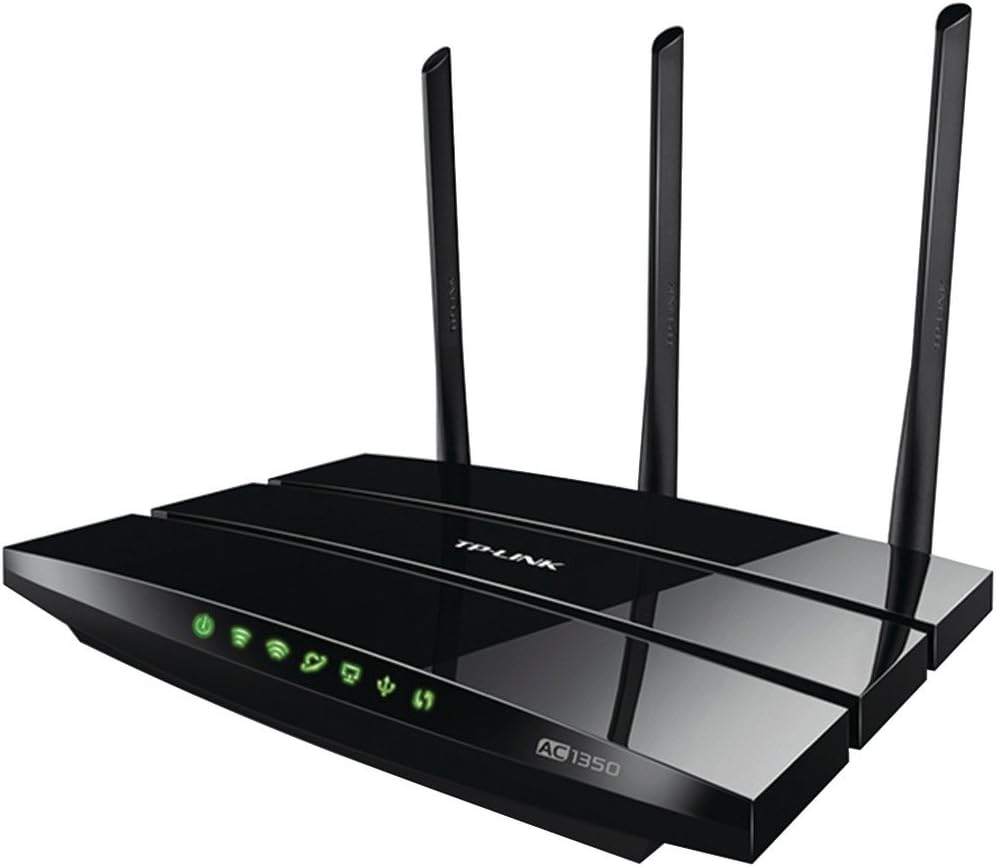
Pros
- Gigabit Speeds Dual-band 2.4 GHz 450 Mbps and 5 GHz 867 Mbps WiFi
- Full Gigabit Ports 1 Gigabit WAN port, 4 x Gigabit LAN Ports
- Vast Wi-Fi Coverage Three external omni-directional antennas create
- MU-MIMO MU-MIMO technology serves multiple devices at once, reducing
- Guest WiFi Keeps your main network secure by creating a separate
Cons
- Requires checking placement surface dimensions before setup
- Requires routine care to keep exterior housing dust-free
- Initial setup requires checking operating instructions carefully
The TP-Link AC1350 Gigabit WiFi Router - Dual Band MU-MIMO offers reliable functional utility tailored for modern home and workplace environments. Designed to enhance daily productivity, this unit integrates Gigabit Speeds Dual-band 2.4 GHz 450 Mbps and 5 GHz 867 Mbps WiFi alongside Full Gigabit Ports 1 Gigabit WAN port, 4 x Gigabit LAN Ports. Users will find the intuitive design straightforward to operate across various room configurations and daily routines. The versatile construction adapts easily to personal workspaces, providing consistent practical value and streamlined usability. Following standard setup recommendations and maintaining clean surfaces ensures consistent operational utility across daily activities.
Built using resilient structural components, this unit features a sturdy outer housing engineered to resist operational wear. Precision manufacturing ensures that all joints and surface connections remain firmly aligned during regular daily activity. Vast Wi-Fi Coverage Three external omni-directional antennas create reinforces overall physical stability over extended service periods. Structural integrity remains firm throughout regular usage, giving owners peace of mind. Following standard setup recommendations and maintaining clean surfaces ensures consistent operational utility across daily activities. This functional equipment provides steady performance and practical convenience when properly integrated into your workspace.
Initial setup requires placing the unit on a flat, stable surface with adequate clearance around all sides for proper operation. Ensure all power or connection cables are routed neatly without sharp bends to prevent wire strain. Regular care involves wiping exterior housing surfaces with a soft cloth to remove dust buildup. Inspecting mechanical connections periodically preserves operational efficiency and maintains cosmetic appearance over time. Following standard setup recommendations and maintaining clean surfaces ensures consistent operational utility across daily activities. This functional equipment provides steady performance and practical convenience when properly integrated into your workspace.

Pros
- Maximum Range 1500 Sq Ft
- Recommended for up to 25 devices Reliably stream videos, play games,
- Wired Ethernet ports Plug in computers, game consoles, streaming
- Loaded with advanced technology Designed with a 1GHz dual core
- USB connections Share a storage drive or printer with any connected
Cons
- Requires checking placement surface dimensions before setup
- Requires routine care to keep exterior housing dust-free
- Initial setup requires checking operating instructions carefully
The NETGEAR Nighthawk Smart Wi-Fi Router R6700 - AC1750 offers reliable functional utility tailored for modern home and workplace environments. Designed to enhance daily productivity, this unit integrates Maximum Range 1500 Sq Ft alongside Recommended for up to 25 devices Reliably stream videos, play games,. Users will find the intuitive design straightforward to operate across various room configurations and daily routines. The versatile construction adapts easily to personal workspaces, providing consistent practical value and streamlined usability. Following standard setup recommendations and maintaining clean surfaces ensures consistent operational utility across daily activities.
Built using resilient structural components, this unit features a sturdy outer housing engineered to resist operational wear. Precision manufacturing ensures that all joints and surface connections remain firmly aligned during regular daily activity. Wired Ethernet ports Plug in computers, game consoles, streaming reinforces overall physical stability over extended service periods. Structural integrity remains firm throughout regular usage, giving owners peace of mind. Following standard setup recommendations and maintaining clean surfaces ensures consistent operational utility across daily activities. This functional equipment provides steady performance and practical convenience when properly integrated into your workspace.
Initial setup requires placing the unit on a flat, stable surface with adequate clearance around all sides for proper operation. Ensure all power or connection cables are routed neatly without sharp bends to prevent wire strain. Regular care involves wiping exterior housing surfaces with a soft cloth to remove dust buildup. Inspecting mechanical connections periodically preserves operational efficiency and maintains cosmetic appearance over time. Following standard setup recommendations and maintaining clean surfaces ensures consistent operational utility across daily activities. This functional equipment provides steady performance and practical convenience when properly integrated into your workspace.

Pros
- Dual-band throughput quoted at 867 Mbps on 5 GHz and 300 Mbps on 2.4 GHz
- Four fixed external antennas with beamforming, covering roughly 1,000 sq ft
- WPA3 encryption alongside guest networking and keyword-based parental controls in the companion app
- EasyMesh support lets it pair with any EasyMesh router or extender to form one roaming network
- Router, access point and range extender modes, plus IPv6 and IPTV handling through IGMP and tagged VLANs
Cons
- The WAN and LAN ports are 10/100 Mbps, so wired devices cannot exceed about 100 Mbps whatever your line delivers
- Wi-Fi 5 hardware with no Wi-Fi 6 support and no 6 GHz band
- No USB port, so network storage and printer sharing are off the table, and a separate modem is still required
This is a dual-band AC1200 router: up to 867 Mbps on 5 GHz and 300 Mbps on 2.4 GHz, quoted as 1,200 Mbps combined because the two bands are simply added together.
- Four fixed external antennas with beamforming aim signal at connected devices rather than radiating evenly in all directions
- Coverage is quoted at around 1,000 sq ft, which suits an apartment or a compact single-floor home
- MU-MIMO with two spatial streams lets it serve several devices at once instead of in turn
- 5 GHz handles streaming and gaming, while 2.4 GHz reaches further through walls for doorbells and sensors
For a larger home or thick internal walls, pair it with an EasyMesh extender to form one roaming network rather than a second, separate network name.
Setup runs through the maker's mobile app on Android or iOS, or through a browser page if you prefer a keyboard.
- Connect the WAN port to your existing modem, power up, and follow the prompts
- Set the wireless names and passwords, then let the app check for a firmware update - keeping firmware current is the main ongoing security task
- Guest Wi-Fi is a single toggle and keeps visitors off the main network
- Parental controls block sites by keyword and limit access times per device
- Access Point mode turns it into a wireless bridge behind an existing router, while range extender mode rebroadcasts a network you already have
The unit accepts 100-240 V input, so it travels internationally with nothing more than a plug adapter.
This is a router, not a modem. Cable, DSL and fibre lines each need their own modem or ONT in front of it, which most providers supply as part of the service.
- It speaks standard DHCP, PPPoE and static IP connection types, covering the major providers
- IPv6 is supported, which several providers now hand out by default
- IPTV set-top boxes are handled through IGMP Proxy and Snooping, bridge mode and tagged VLANs where the provider requires them
- WPA3 is available for devices that support it, with WPA2 fallback for older equipment
The limitation to plan around is the wired side: every Ethernet port is 10/100 Mbps. If your line delivers more than roughly 100 Mbps, wired devices will never see it.

Pros
- AX1800 WiFi 6 delivers combined speeds up to 1.8 Gbps across the 2.4 GHz and 5 GHz bands
- Covers up to 1,500 sq ft in open layouts, suited to small and medium homes
- Handles up to 20 connected devices at once without a mesh add-on
- Four Gigabit Ethernet LAN ports support wired connections for consoles or desktops
- Backward compatible with WiFi 6 and earlier client devices
Cons
- Router only - no built-in modem, so it needs a separate modem or ISP gateway
- No coax input, and cannot be paired with a second router to extend range
- Limited to United States use, and larger or multi-story homes may outgrow its 1,500 sq ft coverage
This WiFi 6 AX1800 router combines 2.4GHz and 5GHz bands for speeds up to 1.8 Gbps, and it is rated to cover up to 1,500 sq ft in open layouts. It supports up to 20 connected devices at once, aimed at small to medium homes running streaming, gaming and video calls together.
- AX1800 combined speed up to 1.8 Gbps
- Coverage up to 1,500 sq ft in open layouts
- Supports up to 20 connected devices
Real-world throughput depends on the connected devices and the internet plan behind it, and walls, floors and interference will reduce the effective range below the rated maximum.
Setup runs through the free NETGEAR Nighthawk app on iOS or Android, or through any web browser on a computer, with guided steps that do not require the app to keep operating afterward. Four Gigabit Ethernet LAN ports are available for wired devices like desktops or consoles.
- Guided setup via Nighthawk app or browser
- App not required for day-to-day operation
- 4 Gigabit Ethernet LAN ports for wired connections
The modem needs to already have an active internet connection before setup begins, since this router does not include a modem of its own - it simply connects to whatever gateway is already online.
The router works with cable, fiber, DSL and satellite ISPs when connected to an existing modem or gateway over Ethernet. It has no coax input, so it cannot connect directly to a cable line the way a modem-router combo would.
- Works with cable, fiber, DSL and satellite service
- No built-in modem or coax input
- Cannot be paired with a second router to extend range
It is built for use in the United States only, and it cannot form a mesh with a second unit - anyone needing whole-home coverage beyond 1,500 sq ft would need a mesh system instead.
What to Look for in the Best Router for Beginners
Not every router is built with new users in mind. Some demand manual firmware updates, static IP settings, or a web interface that looks like it hasn’t been redesigned in a decade. The best router for beginners does the opposite — it sets up through a phone app, updates itself, and explains settings in plain language instead of networking jargon.
Before you compare prices, it helps to understand the handful of specs that actually affect your day-to-day experience. Here’s what matters most.
Wi-Fi Standard: Do You Need Wi-Fi 6 or Wi-Fi 7?
Wi-Fi 6 routers, like the TP-Link Archer AX21 or Archer AX10, handle several devices at once without slowing down — useful once you add phones, laptops, smart speakers, and a streaming stick to the same network. Wi-Fi 7 models such as the TP-Link BE6500 push higher speeds and lower latency, but you’ll only notice the difference once your other devices support the newer standard too. For a first router, Wi-Fi 6 is the sweet spot between performance and price.
Coverage and Home Size
Check the manufacturer’s square-footage rating, then stay a little skeptical of it. Those numbers usually assume an open floor plan with no walls, so a router rated for 1,500 sq. ft. might struggle in a home with several closed rooms. If your space spans more than one floor or has thick interior walls, a mesh system will almost always outperform a single router at the same price point.
Mesh Systems vs. Single-Unit Routers
A mesh system, like the TP-Link Deco M5 or Amazon eero 6, spreads Wi-Fi across two or more small units instead of one box. You walk through your home once with an app, and it handles the handoff between units automatically. A single-unit router is simpler to unbox and often costs less, but you’re relying on one point of coverage. If you’ve ever dealt with a dead zone in a bedroom or garage, mesh is worth the extra step.
Parental Controls and Built-In Security
Look for routers with app-based parental controls and automatic security updates, since these features protect your network without asking you to learn anything technical. Brands like TP-Link (HomeCare/HomeShield) and NETGEAR (Armor) bundle this directly into their apps, so you can pause devices or block sites in a couple of taps.
Top Router Picks for Every Beginner Setup
Instead of ranking every option the same way, it’s more useful to match a router to your actual situation. Here’s how the picks in this roundup break down by need.
Best Overall for a Simple, Hands-Off Setup
The TP-Link Deco M5 ($59.99, 4.6 stars from 3,422 reviews) is our top pick because the setup app walks you through everything in a few taps, and the mesh design covers up to 2,000 sq. ft. without extra configuration. It’s a strong fit if you want to plug it in once and stop thinking about your network.
Best for Large or Multi-Story Homes
The Amazon eero 6 ($89.99, 4.5 stars from over 29,000 reviews) connects 75+ devices and is designed to expand easily, so you can add more units later if one room still feels weak. It’s a smart choice if you’re already inside the Amazon ecosystem, since it pairs directly with Alexa.
Best Budget-Friendly Pick
The NETGEAR Nighthawk R6700 ($39.99, 4.3 stars from nearly 46,000 reviews) proves you don’t need to spend a lot to get dependable coverage in an apartment or small house. It includes NETGEAR’s Armor security features and covers up to 1,500 sq. ft., which is plenty for most first apartments.
Best for Streaming and Light Gaming
The TP-Link Archer AX10 ($49.96, 4.4 stars from 9,696 reviews) supports Wi-Fi 6 with four gigabit LAN ports, so you can wire a game console or streaming box directly for a steadier connection. Beamforming helps keep the signal aimed at the devices you’re actually using, which matters more once you add a beginner-friendly gaming TV to the mix.
Best for Future-Proofing Your Network
The TP-Link BE6500 ($114.99, 4.4 stars from 1,280 reviews) costs more upfront, but its Wi-Fi 7 support and dual 2.5Gbps ports mean it won’t feel outdated as soon as you upgrade your other devices. If you plan to keep this router for several years, the extra investment can make sense.
Common Mistakes First-Time Router Buyers Make
A few habits trip up almost every beginner shopping for their first router. Knowing them ahead of time can save you a return trip to the store.
- Buying based on top speed alone, without checking how many devices or how much square footage the router actually supports.
- Skipping the app setup and trying to configure everything through a browser, which is slower and more confusing than it needs to be.
- Placing the router in a closet or behind a TV, which blocks the signal before it even leaves the room.
- Ignoring firmware updates, leaving known security gaps open for months after purchase.
- Assuming a bigger box always means better coverage, when placement and wall material affect signal more than size.
None of these mistakes are hard to avoid once you know what to watch for, and every router in this guide is designed to make the setup process harder to get wrong in the first place.
Setting Up Your New Router in Under 15 Minutes
Most beginner-friendly routers follow the same basic setup flow, whether you choose a mesh system or a single unit. Here’s the general process you can expect.
- Download the manufacturer’s app (Deco, eero, or Tether for TP-Link and NETGEAR devices) before you unbox anything.
- Plug the router into your modem, wait for the lights to stabilize, then open the app to start pairing.
- Follow the prompts to name your network and set a password — skip the default name, since it can reveal the router brand to nearby devices.
- Run the built-in speed test inside the app to confirm you’re getting close to what your internet plan promises.
- Turn on automatic firmware updates so security patches install without you having to remember.
If you’re setting up a full workspace at the same time, it’s worth sorting out your network first — everything else, from a beginner-friendly monitor to a starter headset for calls, depends on a stable connection to actually work well.
Router Placement Tips That Actually Improve Signal
Even the best router for beginners underperforms if it’s tucked into the wrong spot. Placement is one of the few things you control for free, and it makes a bigger difference than most people expect.
Keep It Central and Off the Floor
Put the router near the center of your home rather than in a corner office or basement, and raise it up on a shelf instead of leaving it on the ground. Wi-Fi signals spread outward and downward from the antenna, so height and central placement both help the signal reach more rooms evenly.
Avoid Common Signal Blockers
Metal cabinets, mirrors, fish tanks, and thick brick or concrete walls all weaken a wireless signal noticeably. Microwaves and older cordless phones can also cause interference if the router sits nearby. Moving your router just a few feet away from these obstacles often clears up a weak connection without buying any new hardware.
Use the App’s Signal Map If Available
Many of the mesh systems in this guide, including the Deco M5 and eero 6, include a signal strength map inside their app. Walk around your home with your phone open to that screen, and you’ll quickly spot which rooms need a second unit versus which ones are already well covered.
Frequently Asked Questions
Do I need a mesh router for a small apartment?
Not usually. A single-unit router, like the NETGEAR Nighthawk R6700 or TP-Link Archer A6, covers most one- or two-bedroom apartments on its own. Mesh systems earn their keep in larger or multi-story homes.
Is Wi-Fi 6 worth paying extra for as a beginner?
Yes, in most cases. Wi-Fi 6 handles multiple connected devices more smoothly and is becoming standard on new phones and laptops, so it keeps your router relevant for longer without a major price jump.
How far apart should mesh units be placed?
A good starting point is one unit per floor, or roughly every 800–1,000 sq. ft., with each unit within sight of open doorways rather than tucked behind furniture.
Can I use my own router instead of renting one from my internet provider?
In almost every case, yes. Buying your own router usually pays for itself within a year by eliminating the monthly rental fee your provider charges.
What’s the easiest router brand for a first-time buyer?
TP-Link and eero both design their apps around beginners, with guided setup, clear device lists, and one-tap parental controls, which is why several models from both brands appear in this guide.
Picking your first router doesn’t need to involve comparing chipsets or reading forum threads at midnight. Match the coverage and features above to your actual home, check the current price on Amazon for the model that fits, and you’ll have a stable connection running well before dinner.