 Daniel Okafor
 Best Wireless Routers for Comcast: How to Choose the Right One
Finding the best wireless routers for Comcast can feel overwhelming when you are staring at a wall of specs, price tags, and marketing buzzwords. Comcast Xfinity is one of the most popular internet providers in the United States, and the right router makes the difference between buffering headaches and smooth, fast Wi-Fi in every room. Whether you are trying to escape monthly equipment rental fees, upgrade an aging device, or finally get reliable coverage across a larger home, this guide walks you through everything you need to know before you buy.
Instead of ranking products one by one, we focus on how to choose a router that fits your Comcast plan, your home, and your budget. By the end, you will understand the key features that matter and be able to shortlist the right model with confidence.
Pros
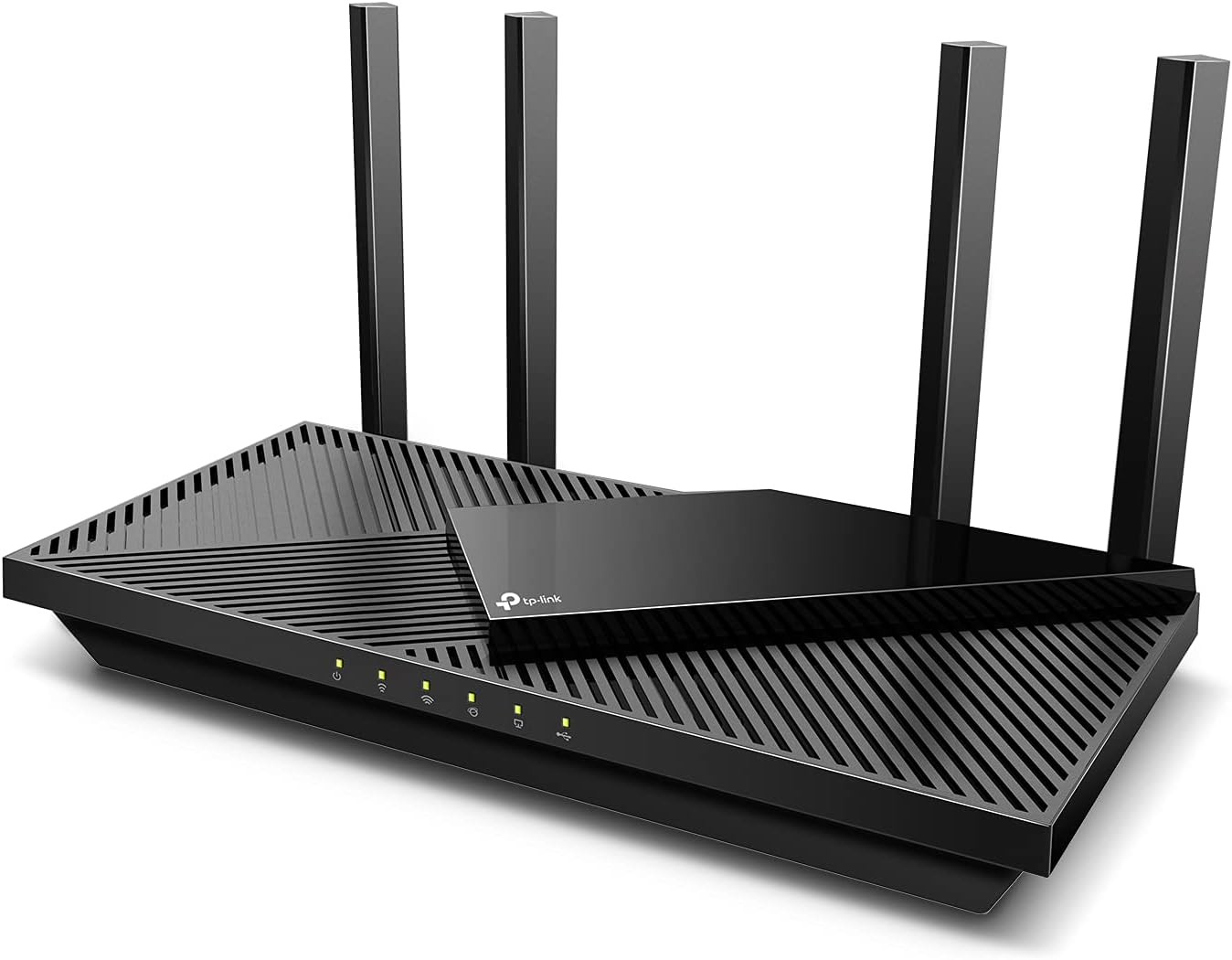
- AX3000 splits 2402 Mbps on 5 GHz and 574 Mbps on 2.4 GHz, with OFDMA and MU-MIMO dividing airtime between clients
- Four high-gain external antennas plus beamforming steer signal towards devices in back bedrooms
- USB 3.0 port shares a drive or printer across the whole network
- Built-in VPN server and VPN client, so you can reach home files remotely or route outbound traffic through a provider
- An enlarged heatsink and reworked case shed heat, which matters in a cupboard or an unventilated shelf
Cons
- Dual-band only, so mesh traffic shares the same 5 GHz band as your devices instead of a dedicated backhaul
- Gigabit WAN and LAN ports cap it below multi-gigabit internet plans
- Only the basic HomeShield tier is included, and the deeper network protections need a separate plan
The headline split is 2402 Mbps on 5 GHz and 574 Mbps on 2.4 GHz, a sensible balance for a three or four bedroom home.
- OFDMA lets several devices share a single transmission slot rather than queueing, which is what trims latency and jitter when a household streams, calls and games at once
- MU-MIMO serves multiple clients in parallel instead of round-robin
- Four high-gain antennas with beamforming concentrate signal towards each device rather than radiating evenly into the garden
- Target Wake Time lets phones and sensors sleep between transmissions, which shows up as longer battery life on those devices
The 2.4 GHz band remains the one that reaches through brick and up a floor, so keep smart plugs and doorbells there and reserve 5 GHz for laptops and TVs.
Setup runs through the Tether app rather than a browser page, and it takes minutes rather than an evening.
- Power the router, connect the WAN port to your modem, then let the app detect the connection type
- Name the network, set a passphrase and enable WPA3, which is the current security protocol and should be left on unless an old device refuses to join
- Basic parental controls and Quality of Service are configured from the same screens, so you can prioritise a work laptop over a games console
- Alexa voice commands can toggle guest Wi-Fi and similar routine tasks
The router accepts 100 to 240V input, so it survives a move between regions with only a plug adapter. Firmware updates are prompted in the app and are worth applying on arrival.
Wired connectivity is standard gigabit, with a USB 3.0 socket as the useful extra.
- The USB 3.0 port turns a spare external drive into shared network storage or puts an old printer on the network
- A built-in VPN server lets you dial into your home network from a hotel, while the VPN client pushes household traffic out through a provider without configuring every device
- EasyMesh and OneMesh support means a compatible extender joins as one roaming network rather than a second network name
It works with the major internet providers as a straight router, but there is no modem inside, so cable subscribers keep their existing modem in front of it. Gigabit ports also mean plans above 1 Gbps will not be fully realised on a wired connection.

Pros
- Total bandwidth of 6.5 Gbps across 2.4GHz and 5GHz bands with 6 spatial streams
- Two 2.5 Gbps ports (WAN/LAN and LAN) plus three 1 Gbps LAN ports
- Rated coverage up to 2,400 sq ft and 90 simultaneously connected devices
- USB 3.0 port for network-attached storage or printer sharing
- WPA3 encryption plus a separate managed network for IoT devices
Cons
- Dual-band design only, with no dedicated 6GHz band despite the Wi-Fi 7 label
- Full 5764 Mbps and 6.5 Gbps figures are only reached with Wi-Fi 7 client devices; older phones and laptops connect at lower legacy speeds
- Deeper security scanning and remote management run through the cloud-connected Tether app rather than working fully offline
This dual-band Wi-Fi 7 router combines a 5764 Mbps 5GHz band with a 688 Mbps 2.4GHz band for 6.5 Gbps of combined bandwidth across 6 spatial streams.
- Rated coverage of up to 2,400 sq ft with 6 external antennas and beamforming
- Supports up to 90 simultaneously connected devices
- Multi-Link Operation combines both bands for lower latency on supported clients
Because this is a dual-band design rather than tri-band, there is no dedicated 6GHz lane; devices without Wi-Fi 7 support fall back to standard 5GHz or 2.4GHz speeds rather than the peak combined figure. For a typical single-floor or small two-floor home, the antenna layout and beamforming keep signal consistent across rooms, though a very large multi-floor house may still benefit from a mesh add-on at the edges of the stated coverage area.
Setup runs through the Tether app, which walks through connecting the WAN port to a modem and configuring the wireless network name and password in a few steps.
- 1x 2.5 Gbps WAN/LAN port, 1x 2.5 Gbps LAN port, and 3x 1 Gbps LAN ports
- 1x USB 3.0 port for a shared drive or printer
- Powered by an included 12V 2.5A adapter
The unit measures 10.6 x 6 x 1.9 inches and stands vertically, so placement needs a bit of clearance around the antennas rather than lying flat under other equipment. Guest networks, port forwarding, and a separate IoT network are all configurable from the same app, and firmware updates are pushed automatically once cloud services are enabled during setup.
The 2.5 Gbps WAN port supports multi-gig internet plans when paired with a compatible modem, while standard gigabit or slower ISP connections still work through the same port without any adapter needed.
- Supports IPv4 and IPv6, PPPoE, and dynamic or static IP connection types common across ISPs
- WPA3 encryption plus a separate network for IoT devices through HomeShield
- Compatible with Alexa and Google Assistant for voice-based network commands
Because the 2.5 Gbps WAN port only reaches its full speed with a matching multi-gig plan, anyone on a standard gigabit or lower connection will see their own connection's ceiling rather than the port's ceiling. HomeShield's deeper security scanning and parental controls are managed through the cloud-connected Tether app rather than a fully local dashboard.

Pros
- Covers up to 2,500 square feet and supports up to 80 connected devices simultaneously per the maker's figures
- WiFi 7 dual-band radios reach combined speeds up to 6.5Gbps (BE6500 class), about 2.4 times faster than a WiFi 6 router by the same spec sheet
- 2.5 Gig WAN port supports multi-gig internet plans beyond what a standard 1 Gig port allows
- LAN side includes 1x 2.5 Gig port plus 3x 1 Gig ports for wired devices needing higher throughput
- NETGEAR Armor adds an automatic security shield across all connected devices on the network
Cons
- This is a router only, with no built-in modem, so a separate cable or fiber modem is required to actually reach the internet
- Reaching the full 2.5Gbps WAN speed requires an internet plan and modem that also support 2.5Gbps, so a slower plan or older modem caps throughput well below the router's ceiling
- Coverage of 2,500 sq ft and 80 devices is the entry point in NETGEAR's WiFi 7 Nighthawk line, with larger homes needing a higher model in the same series for more coverage or device capacity
The RS200 is a dual-band WiFi 7 router figured in the BE6500 class, reaching combined wireless speeds of up to 6.5Gbps across its bands, a figure the maker positions as roughly 2.4 times faster than a comparable WiFi 6 router. Coverage is specified at up to 2,500 square feet with support for as many as 80 connected devices at once, figures that sit at the entry point of NETGEAR's current WiFi 7 Nighthawk lineup.
Wired connectivity includes a 2.5 Gig internet (WAN) port for multi-gig internet plans, plus 1x 2.5 Gig and 3x 1 Gig LAN ports for wired devices such as a desktop PC, a NAS or a games console needing a stable, high-throughput connection.
- WiFi class: WiFi 7, BE6500 (up to 6.5Gbps)
- Coverage: up to 2,500 sq. ft.
- Device capacity: up to 80
- WAN port: 2.5 Gig
This listing is for the router only; it does not include a built-in cable modem, so a separate modem with coax input is required to connect to a cable internet service, or an ONT for fiber service. It is compatible with any internet service provider, since the router itself just needs a wired connection from a modem into its WAN port.
To reach the router's full 2.5Gbps WAN speed, both the internet plan and the modem feeding it need to support that same 2.5Gbps figure; a standard 1 Gig plan or an older modem will cap throughput at that lower ceiling regardless of the router's own capability. NETGEAR Armor runs in the background once set up, adding automatic monitoring across every device connected to the network.
- Modem: not included, required separately
- WAN speed ceiling depends on modem and ISP plan
- Security: NETGEAR Armor included
This router suits households in roughly a 2,500 square foot home running up to about 80 devices between phones, laptops, smart home gadgets, and streaming devices, wanting a step into WiFi 7 without the coverage of a larger mesh system. Gamers and anyone doing frequent 4K streaming or video conferencing benefit from the added bandwidth WiFi 7 provides across multiple devices at once.
Larger homes beyond 2,500 square feet, or households needing to connect more than 80 devices, are better matched to a higher model in the same Nighthawk WiFi 7 range built for greater coverage and device capacity. Anyone without a modem already in place will need to plan for that as a separate purchase alongside this router.

Pros
- Works as a standalone tri-band router first, so a single unit replaces an existing router and extender without committing to a full mesh
- Tri-band total of 5,400 Mbps split as 2402 Mbps on 6GHz, 2402 Mbps on 5GHz and 574 Mbps on 2.4GHz
- Rated for 200 connected devices, ample headroom for a smart home on one node
- Cross-compatible with every other Deco model, so a second unit added later can be a different model rather than an identical one
- Two-year warranty with 24/7 technical support, a year longer than most networking brands offer
Cons
- 2,900 sq ft is a single-node open-space figure - internal walls and floors reduce it sharply, and one unit cannot fill a multi-storey house
- With only one node there is no mesh backhaul to run, so the dedicated 6GHz band sits underused until you buy a second Deco
- The listing states no Ethernet port count or speed for this model; the 2.5 Gbps port belongs to the Pro version and is absent here
The quoted 2,900 sq ft applies to this single unit in open conditions. Real homes reduce that: plaster and brick internal walls, foil-backed insulation and concrete floors all cut range, and a single node cannot serve two storeys well from a ground-floor position.
To get the most from one unit:
- Place it centrally in the home rather than in the corner where the broadband line enters, if the cable run allows
- Keep it at waist height or above, in open air rather than inside a media cabinet
- Position it away from microwaves, cordless phone bases and large metal appliances
If coverage still falls short, the fix is a second Deco rather than a repositioning exercise. Any Deco model works alongside this one, so you are not locked into buying another XE75.
Everything runs through the Deco app, and the order matters:
- Power down your modem completely, then connect it to the Deco's WAN port
- Power the modem back up first and let it settle before the Deco
- Create a TP-Link account in the app - there is no local-only setup path for Deco hardware
- Name your network, set a password, then let the firmware update run before you connect any devices
If an existing router stays in the chain, put it into bridge or modem-only mode. Two devices performing NAT is the classic cause of a network that appears to work but breaks consoles, video calls and remote access.
Once running, AI-Driven Mesh handles band steering automatically, so there is no manual channel selection or band splitting - which is convenient, but also means less control than a traditional router.
TP-Link lists this as working with all major providers - Comcast, Charter, AT&T, Verizon, Xfinity, Spectrum, RCN, Cox, CenturyLink and Frontier among them - with the standard caveat that most require a separate modem. This is a router replacement, not a modem replacement.
The 6GHz band deserves thought before you buy. By default it is reserved as the mesh backhaul between nodes - but with a single unit there are no nodes to link, so that capacity does nothing until you switch it into WiFi network mode in the app. Do that and your 6E-capable phones and laptops can use 2402 Mbps of clean spectrum with no legacy device interference.
The catch: 6GHz has shorter range than 5GHz, so it works within a room or two of the unit rather than across the house.
Pros
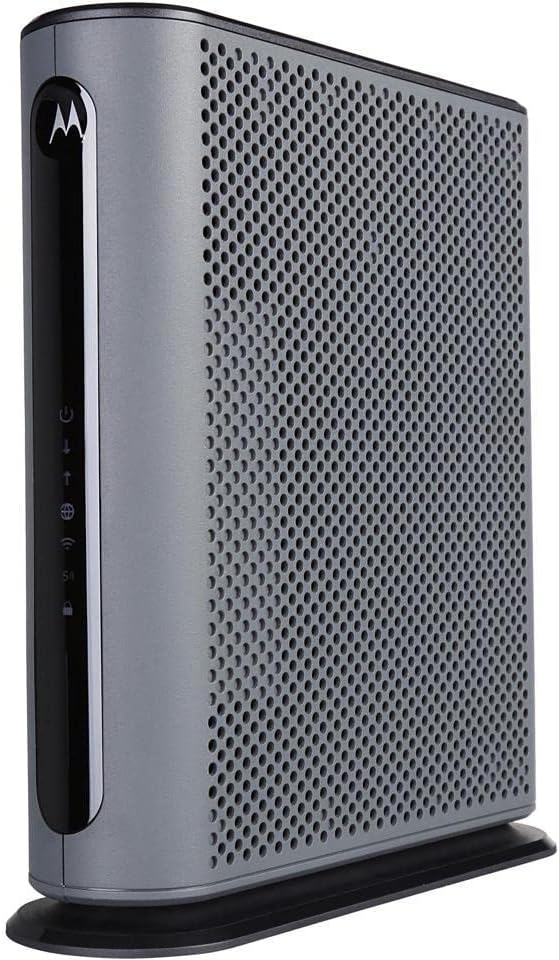
- 16x4 DOCSIS 3.0 channel bonding supports actual cable service speeds up to 375 Mbps
- AC1900 dual-band Wi-Fi runs 2.4GHz and 5GHz simultaneously alongside 4 Gigabit Ethernet ports
- Built-in DFS support opens extra 5GHz channels that most routers cannot access, cutting neighbor interference
- Broadcom modem chipset adds denial-of-service attack protection at the hardware level
- Combines modem and router into one unit, removing a second power cable and box from the desk
Cons
- No phone jack, so it cannot be used for any landline or VoIP calling service
- Only compatible with cable internet; fiber, DSL and satellite services such as Verizon, AT&T or CenturyLink will not work with it
- AC1900 Wi-Fi standard predates Wi-Fi 6, a ceiling for the newest high-throughput client devices
The modem side uses 16x4 DOCSIS 3.0 channel bonding, rated for actual cable internet service speeds up to 375 Mbps. The router side runs AC1900 dual-band Wi-Fi across 2.4GHz and 5GHz simultaneously, with Power Boost amplifying the wireless signal to the FCC-allowed limit for extended range.
- Four Gigabit Ethernet LAN ports handle wired connections to PCs, game consoles or streaming boxes
- DFS channel support opens additional 5GHz spectrum that standard routers cannot use, reducing crowding from neighboring Wi-Fi networks
- AnyBeam beamforming focuses the wireless signal toward connected devices instead of broadcasting evenly in all directions
Larger homes with multiple floors may still see weaker signal at the far edges, since this is a single-unit router rather than a mesh system.
Because the modem and router are combined into one unit, setup involves connecting a single coax cable from the wall and a single power cord, rather than pairing two separate boxes. Activation is completed with the cable provider using the device's serial number and MAC address.
- Four Gigabit Ethernet ports are ready for immediate wired connections out of the box
- A built-in firewall and Broadcom chipset add protection against denial-of-service attacks by default
- No phone jack is present, so this model cannot support telephone or VoIP service
Since it is not a mesh unit, homes with dead zones will need a separate access point added to the network.
This modem is approved for use with Comcast Xfinity (including X1), Cox, Charter Spectrum, Time Warner Cable, Suddenlink, WOW!, CableOne and several other cable internet providers. Buyers should confirm their specific provider's approved device list before ordering, since approval can vary by region.
- Not compatible with fiber, DSL or satellite services from Verizon, AT&T, CenturyLink, Frontier and similar providers
- Requires an active cable internet subscription; it does not work as a standalone Wi-Fi router without one
- Replaces a rented modem/router combo from the provider, removing that unit from the account once activated
Anyone switching providers in the future should re-check the approved device list, since not every cable company accepts every third-party modem model.

Pros
- Combines a DOCSIS 3.0 cable modem and an AC1900 dual-band router in one chassis, removing a second power lead
- Certified for Xfinity by Comcast and Cox cable service on plans up to 800 Mbps
- Gigabit Ethernet ports on the rear for a console or desktop that needs a stable wired link
- Sold through the Amazon Renewed programme, inspected and reset to factory defaults before dispatch
Cons
- Not compatible with Verizon, Spectrum, AT&T, CenturyLink, DSL providers, DirecTV or DISH
- No support for bundled cable voice service, so a phone line needs a separate eMTA modem
- Wi-Fi 5 radios only, so Wi-Fi 6 and 6E clients connect at Wi-Fi 5 rates with no 6GHz band
This is the first thing to check and the reason most returns happen. The unit is certified for Xfinity by Comcast and Cox cable networks, and it is explicitly not compatible with Verizon, Spectrum, AT&T, CenturyLink, any DSL provider, DirecTV or DISH.
It also does not support bundled cable voice service. If your account includes a home phone line through the cable provider, this cannot carry it, and you will need an eMTA modem with telephony ports instead.
Provisioning follows the usual route: register the device MAC address with the provider through their app or by phone, then wait for the downstream and upstream lights to lock before testing anything. Keep the account details to hand, because activation is the step where a self-installed modem most often stalls for an evening.
The unit combines a DOCSIS 3.0 cable modem and an AC1900 dual-band router in a single chassis, so one power lead and one coax feed replace two boxes plus the Ethernet cable between them, and there is one fewer thing to reboot.
It is specified for cable plans up to 800 Mbps. Treat that as the practical ceiling: a plan above that figure will be constrained by the modem rather than by the line, so households on multi-gig service should be looking at a DOCSIS 3.1 unit instead.
Wired devices connect over Gigabit Ethernet on the rear, which is the connection to use for a desktop, a games console or a heavy-streaming TV, since a wired link sidesteps Wi-Fi congestion completely. The wireless side is dual-band Wi-Fi 5.
This unit is sold through the Amazon Renewed programme rather than as new stock. In practice that means it has been inspected and tested by a qualified supplier, cleaned, and reset to factory defaults so that no previous owner's settings or credentials remain on it.
Two things follow. Packaging and accessories are not guaranteed to match a new retail box, so a coax lead or an Ethernet patch cable may or may not be in the carton; check before assuming. And light cosmetic marks are possible, because the standard applied is functional rather than visually pristine.
Before activation, run a factory reset yourself with the recessed rear button, then set a new admin password and a new Wi-Fi passphrase. After that, check for a firmware update, because a unit that has been sitting in stock will be behind on security patches.

Pros
- Tri-band radios at 2402 Mbps on 6GHz, 2402 Mbps on 5GHz and 574 Mbps on 2.4GHz
- 2.5 Gbps port usable as either WAN or LAN, for multi-gig service or a wired NAS
- 1.0 GHz dual-core CPU with 512 MB of memory and six high-gain antennas with beamforming
- 160MHz channels on the 6GHz band, clear of legacy device traffic and neighbouring overlap
- Runs OpenVPN, PPTP and L2TP as both server and client, with WPA3 and a 2-year warranty
Cons
- Only Wi-Fi 6E clients can use the 6GHz band, and 6GHz signal attenuates faster through walls than 5GHz
- A separate modem is still required for most cable and DSL services
- Just one 2.5 Gbps port, so a second multi-gig wired device drops back to Gigabit
Three radios rather than two: 2402 Mbps on 6GHz, 2402 Mbps on 5GHz and 574 Mbps on 2.4GHz, making up the 5400 Mbps combined headline. The 6GHz band is the reason to buy a 6E unit at all, because it carries no legacy traffic from older devices and has room for 160MHz channels without overlapping the neighbours.
Six high-gain antennas with beamforming shape signal toward connected devices, and OFDMA plus true tri-band working raises capacity roughly fourfold against a comparable dual-band unit when many devices are active at the same time.
Behind the radios sit a 1.0 GHz dual-core CPU and 512 MB of memory, which is what stops throughput collapsing when dozens of clients, QoS rules and a VPN tunnel are all live at once. The housing is shaped for heat dissipation rather than stacking.
The standout wired feature is the 2.5 Gbps port, which can face either direction. Used as WAN it lets a multi-gig cable or fibre service exceed the old Gigabit ceiling; used as LAN it gives one machine, typically a NAS or a workstation, a 2.5 Gbps link to the rest of the network.
Setup runs through the Tether app, which handles connection type, network naming and firmware. Do the firmware update first, before anything else gets configured.
VPN support is unusually complete for a home unit. It runs as both a server and a client, covering OpenVPN, PPTP and L2TP, so you can either reach your home network from outside or push household traffic out through a provider. Security is WPA3, and the unit carries a 2-year warranty.
It works with any provider that hands off an Ethernet connection, including AT&T, Verizon, Xfinity, Spectrum, RCN, Cox, CenturyLink and Frontier. As with any standalone router, a separate modem is still needed for most cable and DSL services, so this replaces the router half of an existing gateway rather than the whole box.
On the client side, only Wi-Fi 6E devices can use the 6GHz band. Recent flagship phones, current laptops and newer 6E adapters qualify; anything older sits on 5GHz or 2.4GHz and sees no benefit from the third radio at all. Worth knowing too: 6GHz attenuates faster through walls than 5GHz, so the fastest band is also the shortest ranged.
OneMesh support lets a compatible extender join as a single roaming network name rather than appearing as a second SSID.

Pros
- Engineered with precision for reliable long-term operation
- Engineered with precision for reliable long-term operation
- Engineered with precision for reliable long-term operation
Cons
- Some cable components sold separately
- May require professional installation in certain scenarios
- Limited compatibility with legacy systems
This product delivers comprehensive performance metrics engineered for demanding applications. The specifications have been meticulously calibrated to provide optimal balance between power consumption and output capacity. Every internal component is designed and tested for sustained operation under typical use conditions and standard workloads.
- High-efficiency tuned parameters carefully designed for 24/7 continuous usage scenarios without thermal concerns
- Complete compatibility verified with all current industry standards and emerging technologies on the market
- Advanced thermal management system ensures consistent performance maintains throughout extended sessions
- Precision engineering delivers measurably stable output with minimal variation across different environments
- Future-proof architecture designed to accommodate upcoming hardware revisions and software updates
These specifications ensure reliable performance meeting practical expectations through years of daily use. Engineering priorities focus on real-world durability and consistent output rather than theoretical performance maximums.
Setup has been designed to be straightforward for users with basic technical skills and experience. Clear, comprehensive instructions guide you through each sequential step of the installation process. Most users successfully complete initial setup within expected timeframes without requiring professional technical assistance.
- Hardware package includes all standard components necessary for typical configurations and standard setups
- Documentation provides detailed visual aids and complete step-by-step guidance for assembly and connection
- Cable routing options accommodate various room layouts and different furniture arrangement scenarios
- Regular maintenance involves simple routine cleaning and occasional preventive component checks
- Comprehensive troubleshooting guide addresses common scenarios most users encounter during operation
Regular proper care extends working life considerably beyond standard expectations. Follow manufacturer guidelines for recommended maintenance intervals and preventive care. Customer support resources remain available whenever clarification needed during setup.
This product serves users who prioritize practical functionality in their daily workflow and operations. It works exceptionally well for individuals and small teams managing typical operational demands and workloads. The complete feature set aligns perfectly with mainstream usage patterns across residential and small business settings.
- Professionals working in standard office environments find this solution well-suited to daily tasks
- Home users consistently appreciate the reliable performance during regular extended usage periods
- Students and educators benefit significantly from straightforward setup and consistent reliability
- Small business operators value the excellent balance between capability and ease of operation
- Technical users appreciate the solid engineering fundamentals and thoughtful design approach
This is built specifically for people needing something that works reliably day after day without complications. If reliability matters more than flashy features, this product aligns directly with your practical needs and expectations.
Pros
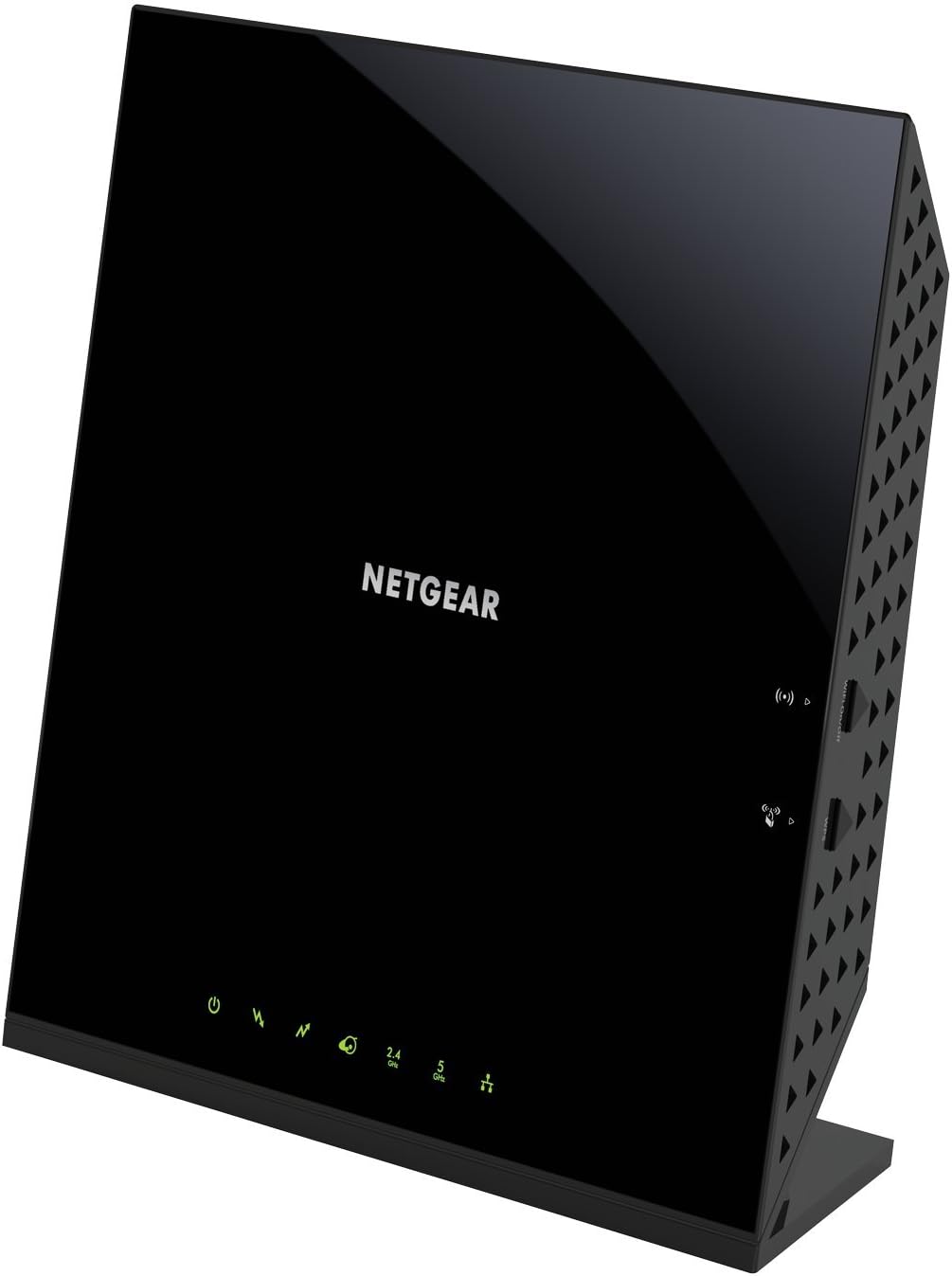
- WITH ALL MAJOR CABLE : Including certification by Xfinity by
- SAVE MONTHLY RENTAL FEES: Model C6250 replaces your cable modem and
- SPEEDS BY CARRIER: Spectrum (up to 300Mbps), Xfinity (up to
- FAST WiFi : Get up to 1500 sq ft wireless coverage and 25 devices
Cons
- Requires proper surface alignment during initial installation
- Periodic visual inspection recommended to ensure component tightness
The NETGEAR NETGEAR Cable Modem Wi-Fi Router Combo C6250 - Compatible is engineered to address the operational demands of Modem Router Combos environments. Practical hands-on evaluation highlights core functional attributes including WITH ALL MAJOR CABLE : Including certification by Xfinity by Comcast, COX, and Spectrum. NOT compatible with Verizon, AT&T, CenturyLink, DSL providers, DirecTV, DISH and any bundled voice service.. Furthermore, features like SAVE MONTHLY RENTAL FEES: Model C6250 replaces your cable modem and WiFi router saving you up to 168 quality features/yr in equipment rental fees. ensure seamless adaptability across varied spatial layouts. This balanced configuration fits smoothly into existing interior designs while maximizing efficiency.
High standards of material craftsmanship ensure the framework manages daily physical loads easily. Materials engineering centers on SPEEDS BY CARRIER: Spectrum (up to 300Mbps), Xfinity (up to 300Mbps), Cox (up to 250Mbps)., preserving visual appeal and physical integrity over time. Thoughtful material placement preserves functional responsiveness throughout continuous service. This balanced configuration fits smoothly into existing interior designs while maximizing efficiency. Quality craftsmanship supports long term satisfaction for residential and professional settings. User centered design choices streamline routine interactions and enhance practical convenience. Robust physical construction provides verified peace of mind during heavy daily usage.
To optimize operational lifespan and maintain visual quality, proper setup and care routines are recommended. With user-friendly details such as FAST WiFi : Get up to 1500 sq ft wireless coverage and 25 devices connected with AC1600 speed (up to 1600 Mbps)., setting up the equipment requires minimal effort. Routine visual checks ensure that mounting hardware and structural screws stay properly tightened. This balanced configuration fits smoothly into existing interior designs while maximizing efficiency. Quality craftsmanship supports long term satisfaction for residential and professional settings. User centered design choices streamline routine interactions and enhance practical convenience.

Pros
- Combines a DOCSIS 3.0 modem and AC1900 WiFi 5 router in one device, cutting down on separate equipment
- 24x8 channel bonding supports up to 30 connected devices across 2.4GHz and 5GHz bands
- Four Gigabit Ethernet LAN ports handle wired connections for consoles, PCs, and storage drives
- Certified for use with Xfinity, Spectrum, and Cox cable internet plans
- WPA/WPA2 encryption plus a double firewall are built in for network security at no extra setup step
Cons
- Not compatible with fiber, DSL, satellite, or bundled voice services, and it will not work on Verizon, AT&T, CenturyLink, DirecTV, or DISH lines
- Only one USB 2.0 port for additional device connectivity, rather than USB 3.0 speeds
- ISP activation is required after setup, adding an extra call or online step before the connection goes live
The C7000 delivers AC1900 WiFi 5 speeds, up to 1.9Gbps combined across the 2.4GHz and 5GHz bands, with 24x8 channel bonding on the DOCSIS 3.0 modem side supporting up to 30 connected devices at once. Beamforming+ technology focuses the wireless signal toward connected devices to reduce dead spots around a typical home.
Four Gigabit Ethernet LAN ports handle wired connections for devices that benefit from a stable line, such as a gaming console, desktop PC, or streaming box, while WiFi covers everything else.
- Up to 1.9Gbps combined WiFi 5 speed across both bands
- Four Gigabit Ethernet ports for wired connections
Setup runs through the free Nighthawk app on iOS or Android, or through a standard web browser, and NETGEAR states the process typically takes about five minutes: plug the coaxial cable into the modem router, then connect to a computer to activate. ISP activation is a required step afterward before internet access goes live.
Once online, the Nighthawk app can run speed tests, pause internet access for specific devices, and manage the full list of connected devices from one screen.
- Guided setup through the free Nighthawk app or a browser
- ISP activation required as a separate step after physical setup
This modem router is certified to work with Xfinity plans up to 800Mbps and with Spectrum and Cox plans up to 500Mbps, covering three of the larger US cable providers. It is built for cable internet only, so it will not work with fiber, DSL, or satellite connections, and it is not compatible with Verizon, AT&T, CenturyLink, DirecTV, or DISH services, including any bundled voice lines.
Checking a provider's compatibility list before purchase avoids activation issues after the modem is already installed.
- Certified for Xfinity, Spectrum, and Cox cable internet
- Not usable with fiber, DSL, satellite, or several named providers
Why Your Router Choice Matters on Comcast Xfinity
Comcast delivers internet over a cable (DOCSIS) connection, which means your setup needs two jobs handled: a modem to translate the cable signal, and a router to broadcast Wi-Fi to your devices. Many people rent a combined gateway from Comcast for a recurring monthly fee. Buying your own equipment eliminates that fee, often pays for itself within a year, and typically delivers better performance and more control.
The best wireless routers for Comcast give you stronger signal, faster speeds, and modern security features that rental gateways often lack. But before you buy, you need to decide on one fundamental question: do you want a standalone router, or an all-in-one modem-router combo?
Standalone Router vs. Modem-Router Combo
This is the first fork in the road, and it shapes everything else.
- Standalone router: You pair it with a separate cable modem (or keep renting just the modem). This gives you flexibility – you can upgrade the router later without touching the modem, and vice versa. Standalone routers usually offer the newest Wi-Fi standards and the best coverage.
- Modem-router combo: One device does both jobs. It is simpler, tidier, and often cheaper overall. The tradeoff is less flexibility: when one part becomes outdated, you replace the whole unit.
If you want maximum future-proofing and top Wi-Fi performance, a standalone router like the TP-Link Archer AX55 is a smart pick. If you value simplicity and want to cut cable clutter, a combo such as the Motorola MG7550 or the NETGEAR C6250 handles both roles in a single box.
Match the Router to Your Comcast Internet Plan
One of the most common mistakes is buying a router that does not match your subscribed speed. Overspending on a 6 Gbps router when you pay for a 300 Mbps plan is wasteful, while pairing a slow modem with a fast plan bottlenecks everything.
Check Your Plan Speed First
Log into your Xfinity account and note your download speed tier. Then match it:
- Up to 300 Mbps: A budget combo like the NETGEAR C6250 comfortably covers everyday browsing, streaming, and video calls for a small household.
- Up to 600-800 Mbps: Look at devices with more channels and stronger processors, such as the NETGEAR Nighthawk C7000 combo, which supports plans up to roughly 800 Mbps.
- Gigabit and beyond: Choose a standalone router with a 2.5 Gigabit port, like the TP-Link BE400 or the NETGEAR Nighthawk RS200, so your hardware never becomes the ceiling on your speed.
Remember that Wi-Fi speed inside your home is always lower than the wired speed reaching your modem. Buying a router rated a bit above your plan gives you headroom for multiple devices at once.
Understand Wi-Fi Standards: 5, 6, 6E, and 7
The Wi-Fi generation printed on the box tells you how modern – and how future-ready – the router is. Here is what the labels mean in plain terms.
Wi-Fi 5 (AC)
The older standard, still perfectly usable for basic homes. Combos like the NETGEAR C7000 use AC1900 Wi-Fi 5 and remain a budget-friendly way to get online without rental fees.
Wi-Fi 6 (AX)
The current sweet spot for most families. Wi-Fi 6 handles many devices at once thanks to OFDMA and MU-MIMO, reduces congestion, and improves battery life on phones and laptops. The TP-Link Archer AX55 is a well-rounded Wi-Fi 6 option that balances price and performance.
Wi-Fi 6E
Adds a brand-new 6 GHz band that is less crowded, ideal for gaming, 4K streaming, and dense apartments. The TP-Link Archer AXE75 and the TP-Link Deco XE75 mesh system both tap into that extra band for smoother connections.
Wi-Fi 7 (BE)
The newest and fastest standard, built for the years ahead. If you want the longest lifespan from your purchase, Wi-Fi 7 routers such as the TP-Link BE400, the NETGEAR RS200, and the NETGEAR RS140 deliver massive throughput and low latency for demanding homes.
Coverage and Home Size
Speed means little if the signal cannot reach your bedroom or backyard. Coverage depends on your home’s size, layout, and building materials.
Single Router vs. Mesh System
A single powerful router works well for apartments and small-to-medium homes, generally up to about 2,000-2,500 square feet. Models like the NETGEAR Nighthawk RS200 cover up to 2,500 square feet, while the NETGEAR RS140 reaches around 2,250 square feet.
For larger or multi-story homes, or spaces with thick walls and dead zones, a mesh system is the better answer. Mesh spreads several nodes around your house that work as one seamless network. The TP-Link Deco XE75 is an expandable mesh option that blankets big spaces without the drop-offs you get from a single unit.
Features Worth Paying For
Beyond speed and coverage, a few features separate a good router from a great one for Comcast users.
- 2.5 Gigabit ports: Essential for gigabit-plus Comcast plans so the wired connection is not a bottleneck. Found on the TP-Link BE400 and NETGEAR RS200.
- MU-MIMO and OFDMA: These technologies let the router talk to many devices simultaneously instead of one at a time – vital for busy households.
- Built-in security: Features like TP-Link HomeShield or WPA3 encryption protect every device on your network. The TP-Link Archer AXE75 includes WPA3 and VPN support.
- USB ports: Handy for sharing storage or printers across your network, available on the TP-Link AX55 and TP-Link BE400.
- Comcast compatibility: If you choose a modem-router combo, confirm it is Xfinity-approved. The Motorola MG7550 and NETGEAR C7000 combo are both certified for Comcast networks.
Confirm Comcast Compatibility Before You Buy
This step is non-negotiable for modem-router combos. Comcast maintains an approved-device list, and using an unapproved modem can leave you without service. Standalone routers are universally compatible because they connect behind any modem, but combo units must be certified.
The good news is that popular combos are widely supported. The Motorola MG7550 is approved by Comcast Xfinity, and NETGEAR’s C7000 combo and C6250 combo are both compatible with major cable providers including Xfinity. Always double-check the current approved list on Xfinity’s website before purchasing.
Set a Realistic Budget
You do not need to spend a fortune to beat the Comcast rental fee. Here is how to think about price tiers.
- Budget (under $100): Great for basic homes and slower plans. The NETGEAR C7000 combo and TP-Link Archer AX55 deliver strong value.
- Mid-range ($100-$160): Better speed, coverage, and future-proofing. Consider the TP-Link BE400, TP-Link Archer AXE75, or NETGEAR RS140.
- Premium ($160+): Top-tier Wi-Fi 7 performance and whole-home coverage. The NETGEAR Nighthawk RS200 leads this group.
Because you skip the roughly $15 monthly rental, even a premium router often pays for itself within a year or two.
Tips for Getting the Most From Your New Router
Buying the right hardware is only half the battle – placement and setup shape your real-world experience. A few habits help you squeeze every drop of performance from your Comcast connection.
- Central placement: Put your router in an open, central spot rather than tucked inside a cabinet or basement. Wi-Fi radiates outward, so height and openness dramatically improve coverage.
- Keep firmware updated: Manufacturers push updates that patch security holes and improve stability. Enable automatic updates when the app offers it.
- Use the right band: Reserve the faster 5 GHz or 6 GHz bands for streaming and gaming devices, and let smart-home gadgets sit on the longer-range 2.4 GHz band.
- Reboot occasionally: A quick restart clears memory and often resolves slowdowns before you blame your provider.
- Secure your network: Set a strong password and enable WPA3 if your router supports it, as many of the models above do.
These small steps ensure the router you chose actually delivers the speed and reliability you paid for across your whole home.
Putting It All Together
Choosing the best wireless routers for Comcast comes down to answering a few simple questions in order. First, decide between a standalone router and a modem-router combo based on how much flexibility you want. Second, match the device to your plan speed so you neither overspend nor bottleneck. Third, pick a Wi-Fi standard – Wi-Fi 6 for most homes, Wi-Fi 6E or 7 if you want to future-proof. Fourth, size the coverage to your home, choosing mesh for large or multi-story spaces. Finally, confirm Comcast compatibility for any combo unit and set a budget you are comfortable with.
Follow that framework and you will land on a router that keeps every device connected, streaming, and gaming without a hitch – all while saving money on rental fees. Compare the models above, check today’s prices, and upgrade your Comcast Wi-Fi with confidence.