Owen Bradley
 A connection can show a healthy download speed and still feel broken. Voices break into robotic fragments on calls, game characters teleport, and video streams freeze for a half second every couple of minutes. Raw bandwidth is not the problem in those situations. The culprit is almost always packet loss, jitter, or both, and neither one shows up on a standard speed test. Learning to diagnose packet loss and jitter yourself turns a vague complaint into a specific, fixable fault, whether that fault is a damaged cable in your own hallway or a congested router several hops away inside your provider’s network. This walkthrough shows you how to measure both problems properly, narrow the fault down layer by layer, and gather the evidence support technicians actually respond to.
What Packet Loss and Jitter Actually Are
Your connection does not send a continuous stream. It sends small chunks called packets, each one numbered so the receiving end can reassemble them in order. Packet loss means some of those chunks never arrive. For file downloads that is invisible because the missing pieces are simply requested again. For live traffic like voice, video calls, and online games there is no time to ask twice, so the missing audio or movement is gone for good. That is why 2 percent loss ruins a call while barely denting a download.
Jitter is the variation in arrival time between packets. If packets leave the far end evenly spaced and arrive unevenly spaced, the receiving device has to buffer them and guess. Low jitter, under about 5 ms, is imperceptible. Above 30 ms, audio starts warbling and video conferencing software begins dropping resolution to compensate. Latency, jitter, and loss are three separate measurements, and treating them as one lump called “slow internet” is what sends most people down the wrong troubleshooting path.
Targets Worth Aiming For
Use these as pass or fail thresholds while you test. Packet loss should be 0 percent to your own router and under 0.5 percent to a distant server. Jitter should sit under 10 ms for comfortable calls and under 5 ms for competitive gaming. Latency to a nearby server should typically land between 5 ms and 40 ms on fibre or cable, and between 25 ms and 70 ms on DSL or fixed wireless. Anything wildly outside those ranges is a real fault, not a bad day.
Tools You Need Before You Start
- A computer with a wired Ethernet port, or a USB Ethernet adapter if your laptop lacks one.
- One known-good Ethernet patch cable, ideally a fresh Cat 6 lead rather than the one already in place.
- The built-in ping command, available in Windows Command Prompt, macOS Terminal, and Linux.
- A browser-based jitter and loss test that runs for at least 20 seconds rather than 5.
- Your router’s admin page login, so you can read the WAN status and error counters.
- A notepad or spreadsheet to log timestamps, because intermittent faults are proven by patterns, not single readings.

Step by Step: Isolating Where the Loss Happens
- Reproduce the symptom and note the exact time. Before touching anything, write down what fails, in which app, and at what hour. Faults that appear every evening at 8 pm point to congestion. Faults tied to one room point to Wi-Fi. Faults that follow a specific device point to that device.
- Ping your own router first. Run a continuous ping to your router’s local address, usually 192.168.1.1 or 192.168.0.1, for at least 200 packets. On Windows use ping -n 200 192.168.1.1; on macOS or Linux use ping -c 200 192.168.1.1. This leg never leaves your home. Any loss or jitter here is entirely your own equipment and must be fixed before you look further.
- Repeat the same test over Wi-Fi and over Ethernet. Run the router ping once wired and once wireless from the same spot. Clean wired results with messy wireless results prove the fault lives in the radio link, not the line. That single comparison saves hours of pointless modem rebooting.
- Ping your provider’s first hop. Run a traceroute to a public address such as 1.1.1.1, then take the IP address of hop 2 or hop 3, the first one outside your home. Ping that address for 200 packets. Loss appearing here but not at your router points to the line between your home and the exchange: coax, phone pair, or fibre terminal.
- Ping a distant, reliable target. Send 300 packets to a well-known public resolver and record the loss percentage, minimum, average, and maximum round-trip times. A large gap between minimum and maximum is jitter made visible. A 12 ms minimum with a 190 ms maximum means something is queuing your traffic badly.
- Run a dedicated jitter test in a browser. Choose a test that reports jitter and loss separately from throughput, and let it run its full duration while nothing else on the network is active. Note the number, then repeat it while someone streams video, and compare. A big difference means your problem is local congestion, which is a scheduling issue rather than a hardware fault.
- Read the router’s error counters. Log into the admin interface and find the WAN or status page. Cable connections expose correctable and uncorrectable codeword errors along with upstream and downstream power levels. DSL exposes CRC errors and signal-to-noise margin. Rising uncorrectable errors or a signal-to-noise margin under 6 dB is hard proof of a physical line fault.
- Swap the suspect parts one at a time. Change the patch cable, then the router port, then the device. Change one item per test and re-run the same 200-packet ping so results stay comparable. Changing three things at once tells you nothing about which one mattered.
- Test at a different hour before concluding. Repeat your best two tests late at night when the local segment is quiet. If loss disappears entirely at 2 am and returns at 8 pm, you have congestion, and congestion is your provider’s problem to solve, not yours.
Reading the Results Correctly
Two traps catch most people here. The first is misreading ICMP deprioritisation. Many core routers treat ping traffic as low priority and answer it late or not at all, which makes a middle hop in a traceroute look catastrophic while everything beyond it is perfectly healthy. Only loss that persists to the final destination counts. A red middle hop with a clean endpoint is noise.
The second trap is blaming the endpoint you tested. If pinging one server shows loss, test two more in different networks before deciding. Consistent loss across three unrelated destinations is a real fault; loss on only one is that destination’s issue.
Fixing the Causes You Control
Wireless jitter is the most common finding, and it is usually fixable without new hardware. Move the router away from metal, mirrors, aquariums, and other radios. Push demanding devices onto the 5 GHz band, keep the 2.4 GHz band for sensors and smart plugs, and pick a channel that your neighbours are not sitting on. If you have never measured your own throughput properly, running through how to test home Wi-Fi speed and interpret the results gives you a baseline to compare every later fix against.
Cabling faults come second. Kinked, crushed, or cheap unbranded patch leads produce intermittent CRC errors that look exactly like ISP trouble. Replace any cable that has been trodden on, pinched behind furniture, or bent tighter than a coin’s diameter. Check that connectors click firmly and that no copper is visible at the boot.
Congestion inside your own home is the third cause, and it is the one hardware genuinely solves. When a large upload saturates your link, everything else queues behind it and jitter climbs instantly. A router with modern queue management keeps interactive traffic moving. Models covered in our list of the best QoS routers handle that prioritisation automatically, and the best gaming routers add per-device rules for latency-sensitive traffic. For households where meetings matter more than frame rates, the best routers for video calls focus on keeping upstream bandwidth free for conferencing.
When Wired Beats Wireless Every Time
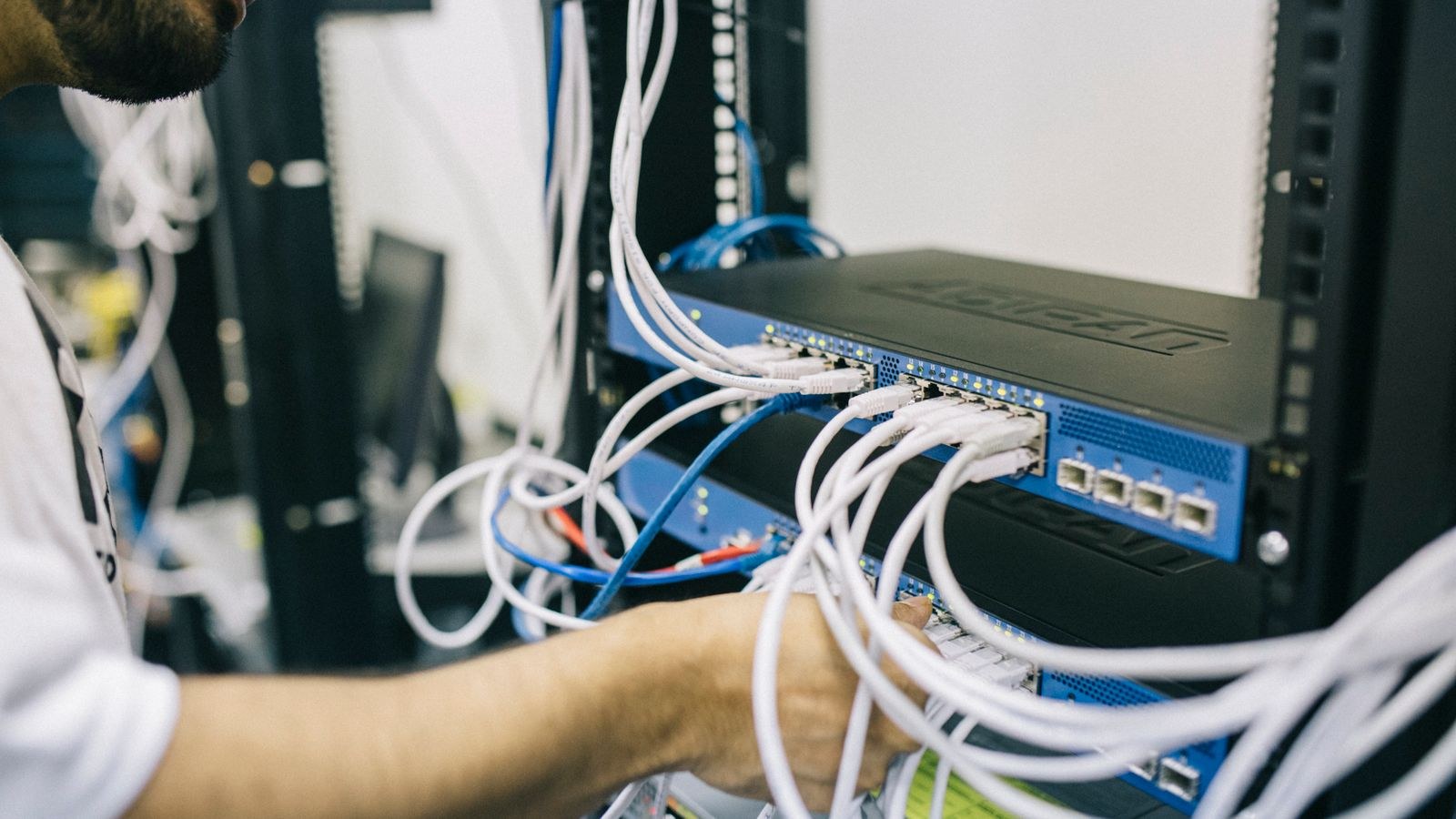
No amount of tuning makes a shared radio band behave like a dedicated copper pair. If a desk, console, or workstation sits within reach of a cable run, wire it. A single Ethernet drop removes that device from the airtime competition entirely and frees capacity for everything still on Wi-Fi. Routers with more and faster LAN ports, like those in our roundup of the best Ethernet routers, make that practical without adding a separate switch.
Safety and Sensible Limits
Keep your hands off anything the provider owns: sealed demarcation boxes, professionally fitted splitters, and exterior drop cables. Indoors, unplug equipment before reseating cables and never bundle Ethernet with mains wiring.
Common Mistakes That Waste Hours
- Testing over Wi-Fi only. Wireless adds its own loss and jitter, so every wireless-only result is inconclusive by design.
- Running four-packet pings. The default short ping is far too small a sample. Intermittent faults hide easily in four packets; use 200 or more.
- Rebooting everything before measuring. A reboot often masks the symptom for a few hours and destroys the evidence you needed.
- Believing a single speed test. Throughput tests report bandwidth, not stability, and a perfect score is entirely compatible with unusable calls.
- Changing several things at once. New cable, new channel, and new router in one sitting means you never learn what was actually broken.
- Ignoring the time of day. Evening-only faults are congestion, and no amount of home hardware shopping fixes an oversubscribed local segment.
Building a Case for Your Provider
Support scripts deflect vague complaints, so arrive with data. Bring dated ping logs showing loss percentage and jitter to at least two destinations, taken wired, with the packet count visible. Add the router’s error counters and, for cable connections, the upstream and downstream power figures. Ask explicitly for a line test. Requests framed that way get escalated far more often than “my internet is slow.”
Frequently Asked Questions
Is any packet loss acceptable?
Inside your own network, no. Loss between a device and its own router should be zero. Across the wider internet, occasional loss under 0.5 percent is normal and unnoticeable. Sustained loss above 1 percent will degrade voice and gaming.
Can a router cause jitter on its own?
Yes. An underpowered processor that stalls under load, out-of-date firmware, or aggressive but poorly implemented traffic inspection all add variable delay. Updating firmware and disabling unused security scanning features frequently drops jitter measurably.
Why does my ping look fine but calls still stutter?
Average latency hides jitter. Check the spread between minimum and maximum round-trip times rather than the average alone. A 20 ms average built from readings between 8 ms and 210 ms will sound terrible despite looking acceptable.
Final Thoughts
Packet loss and jitter reward methodical testing more than any other network problem. Start at your own router, compare wired against wireless, walk outward hop by hop, and log everything with a timestamp. That sequence tells you within an hour whether you are dealing with a tired patch cable, a crowded radio band, an overloaded router queue, or a genuine fault on your provider’s line. Fix the first three yourself, then present the evidence for the fourth. Either way you stop guessing, and the connection you already pay for starts behaving the way it should.